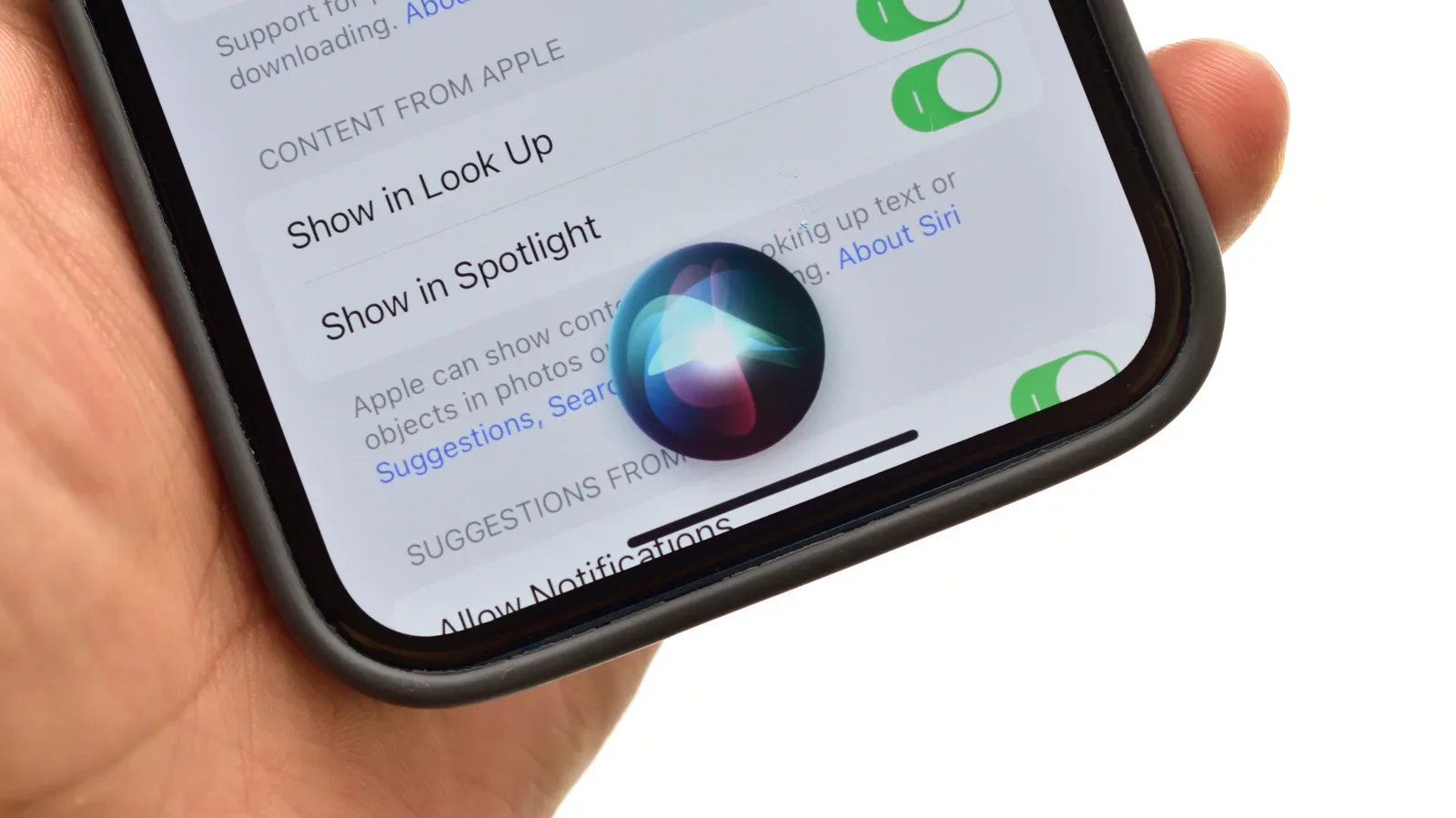
Siri is about to get a bigger personality upgrade with iOS 27, but you do not need to wait for the next major software release to make Apple’s assistant sound and behave less like a default setting. Current versions of iOS and iPadOS already include controls for choosing a Siri voice, changing how quickly it speaks, deciding whether it answers aloud, and making its requests easier to read on-screen.
That is useful whether Siri is helping with everyday messages, setting a timer during a long session, controlling music, or answering a hands-free question when your attention is elsewhere. The names and precise positions of a few settings can vary by operating-system version, so it is worth treating the paths below as a reliable starting point rather than a promise that every iPhone, iPad, and beta build will display identical labels.
Change Siri’s voice on current iOS and iPadOS
For the core voice selection, open Settings, then go to Apple Intelligence & Siri, followed by Voice. This is the menu for selecting from the Siri voice choices available on the device. Listen to the included preview before committing; a voice can sound quite different in a short sample than it does when reading a calendar reminder, navigating an app, or answering a more detailed question.
- Open Settings.
- Tap Apple Intelligence & Siri.
- Choose Voice.
- Select an available variety and voice option.
- Play the sample and pick the delivery you prefer.
Switching voices may trigger a small download. Keep the iPhone or iPad connected to Wi-Fi or its carrier connection until that process has finished. The change is not necessarily instant, but it ordinarily should not require a lengthy wait.
This basic voice picker is separate from deciding how Siri replies. A user may like one voice but still prefer text-only responses at home, spoken replies while cooking, or a more discreet setup in a classroom, office, or late-night shared space.
Choose whether Siri speaks, stays quiet, or uses text
Return to Settings > Apple Intelligence & Siri and look for either Talk & Type to Siri or Siri Responses. The wording depends on the software version. These options govern whether Siri answers verbally, responds more quietly, or puts the answer on the display without speaking it aloud.
There is no universally best response mode. Spoken answers can be convenient when a device is out of reach or when a player is concentrating on something else. On-screen answers offer more privacy and can be easier to scan when names, addresses, dates, or instructions are involved. Quiet responses sit between those approaches for people who want acknowledgment without turning every question into a room-wide announcement.
For a related connectivity housekeeping task, especially if voice downloads or other device updates are moving slowly around a busy home network, see this look at Wi-Fi 7 networking with PS5 Pro-ready considerations.
Use Accessibility settings to change Siri’s pace
Voice selection is only one part of making Siri work better for an individual. The more substantial behavior controls live under Settings > Accessibility > Siri. Most notably, this screen includes a Speaking Rate slider. Move it in the slower direction if Siri feels rushed or difficult to follow; move it faster if you understand it comfortably and want shorter pauses between an answer beginning and ending.
Accessibility settings can be practical quality-of-life tools, not merely emergency adjustments. A modestly slower speaking speed can help someone catch a dictated answer without repeatedly asking Siri to repeat it. A faster speed can make quick utility interactions feel less drawn out. Experiment in small increments, then use Siri in normal situations for a while before deciding whether another adjustment is needed.
Depending on the hardware and installed update, the Accessibility > Siri page may also include several of the following options:
- Speaking Rate: Changes the overall pace of Siri’s spoken delivery.
- Siri Pause Time: Sets the amount of time Siri waits before responding to a typed or spoken request.
- Spoken Responses: Controls whether answers are spoken, shown as text, or handled with a quieter response behavior.
- Listen for Atypical Speech: Broadens the speech patterns Siri attempts to recognize, which may help when pronunciation or speech delivery differs from the norm.
- Require “Siri” for interruptions: Lets the spoken name interrupt Siri while it is talking.
- Always Show Request: Displays a transcription of what the device heard from a spoken request.
The last option is especially useful when Siri seems to misunderstand a question. Seeing the recognized text can reveal whether the issue is background noise, a name Siri has rendered incorrectly, an unclear phrase, or an assistant limitation rather than anything wrong with the microphone.
What Siri Expressive Voice is expected to change in iOS 27
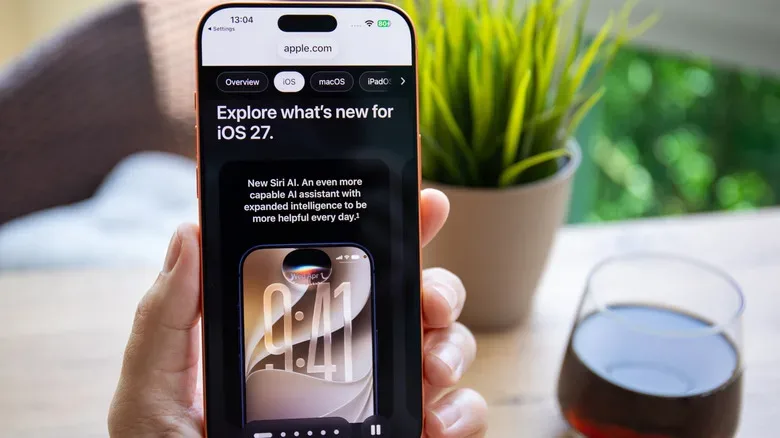
iOS 27 is expected to introduce Siri Expressive Voice, Apple’s name for a more natural and adaptable style of delivery. The feature is intended to give Siri a less flat presentation, with controls that affect the degree of expression and the pace of its speech. That distinction matters: the upgrade is about delivery control, not necessarily an expanded catalog of entirely different voices in the familiar voice-selection list.
Its most important caveat is hardware eligibility. Fully customizable Expressive Voice is expected to be limited to the iPhone 17 Pro, iPhone 17 Pro Max, iPhone Air, and iPads with an M4 chip or later plus 12GB of RAM. iOS 27 is expected to reach older phones as far back as the second-generation iPhone SE and the iPhone 11, but receiving the operating-system update does not mean receiving every Apple Intelligence or Siri capability within it.
That division is worth keeping in mind before assuming a missing slider is a bug. A device can be compatible with iOS 27 while lacking the resources required for its fullest AI-driven features. The expected rollout in mid-September should make those boundaries clearer on stable software, but the feature set will vary by model.
What the iOS 27 beta currently shows
People using the iOS 27 beta may see a different Siri voice interface by opening Settings > Siri > Voice. The screen is described as a dark panel with a radiating white orb in the center. Choosing a voice opens a drop-down selection, and supported choices can expose additional controls.
At present, American and British English voice options are the ones reported to reveal Pace and Expressivity sliders. Other English variants and other languages do not currently offer those adjustments. Beta software is inherently unfinished, so that regional and language coverage could change before the final release; it should not be read as a permanent support list.
The behavior of the controls is straightforward. Raising Expressivity increases the sense of emotion, emphasis, and vocal inflection in Siri’s delivery. Lowering it makes the assistant sound more neutral and robotic. Pace provides a separate way to alter the rhythm of responses, allowing a user to make Siri more energetic or more measured without changing the selected voice itself.
A sensible setup to try now
Start with the existing Voice menu and select the voice that is clearest and least tiring to hear. Then visit the response controls to decide when, if ever, Siri should speak aloud. Finally, use Accessibility > Siri to tune Speaking Rate and enable request transcription if voice recognition is inconsistent. Those changes are useful immediately and do not depend on an iPhone 17 Pro-class device or an M4-equipped iPad.
Once iOS 27 arrives, eligible hardware should add finer control through Expressive Voice. Until then, the current settings are enough to turn Siri from a one-size-fits-all voice into an assistant that better matches a user’s pace, privacy needs, and listening preferences.