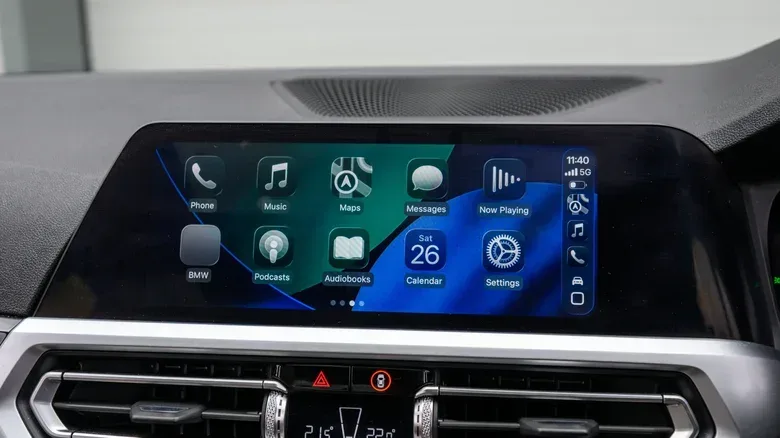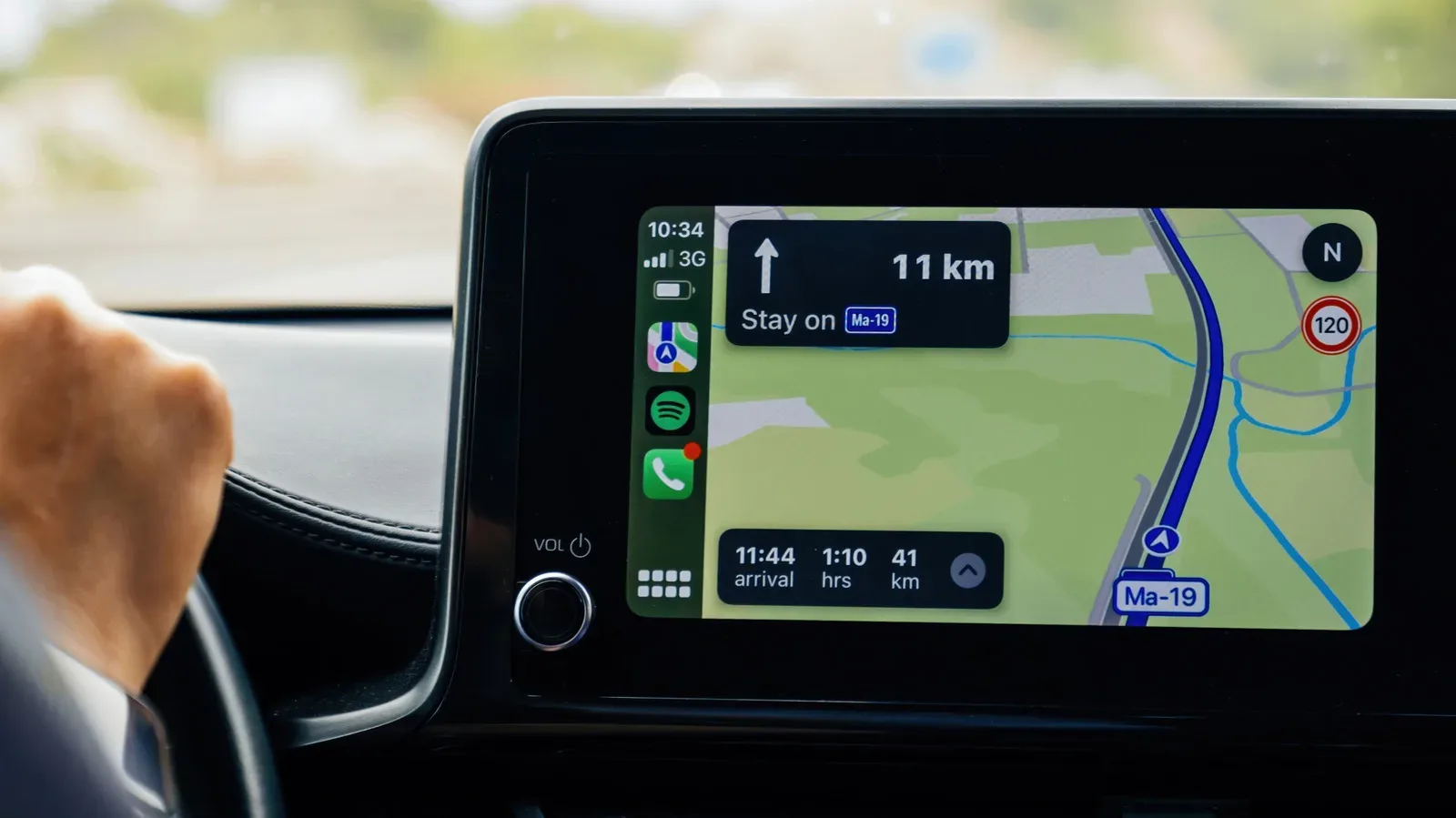
Apple CarPlay is usually treated as the dashboard’s polite middleman: a safer place for Maps, music and calls while the iPhone does the actual work. But its more interesting uses are the ones that remove little roadside chores before they become distractions. A passenger can take charge of the music queue. A compatible fuel app can handle payment at the pump. A pickup order or parking reservation can be arranged before the car reaches the destination.
There are limits behind nearly every one of those conveniences. CarPlay support does not guarantee that every installed iPhone app will appear on the car display, and availability varies by app, retailer, station, vehicle and region. Several features also require account setup and a saved payment method before a driver is on the road. That is less glamorous than a dashboard full of icons, but it is what makes these tools useful rather than a tiny touchscreen scavenger hunt.
Here are five CarPlay functions worth understanding, what they actually do, and the practical catches to check before relying on them.
1. Turn the group ride playlist into a shared queue with SharePlay
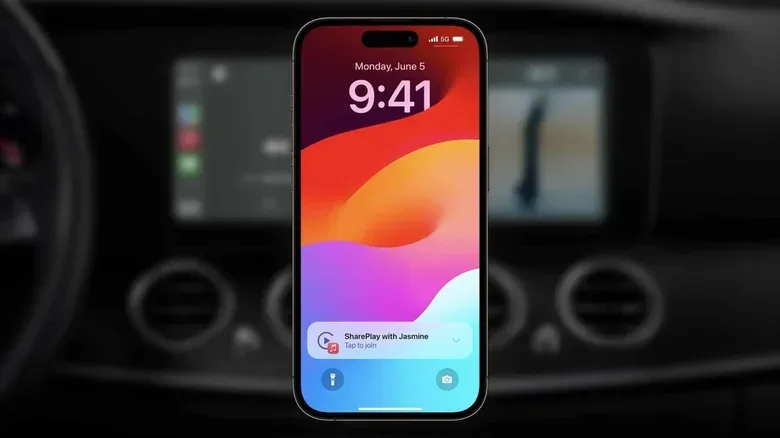
CarPlay’s SharePlay music feature, available since iOS 17, gives passengers a way to contribute songs without taking over the driver’s phone or asking for the next track every 90 seconds. When Apple Music is playing through CarPlay, people in the car can join the listening session with their own phones and add music to the queue.
The intended flow is straightforward. Nearby passengers may receive a prompt to join. If they do not, the driver can open the Now Playing screen in CarPlay, tap the SharePlay control and display a QR code for others to scan. Once connected, passengers can add selections for what plays next.
The useful distinction is between the playback host and the people joining the session. Only the driver needs an Apple Music subscription. Other participants need a phone with Bluetooth enabled and current software; Android users can join through a browser. If the driver does not subscribe but another person in the vehicle does, switching which phone is connected to CarPlay is an alternative.
SharePlay is not a universal “every streaming service gets a democratic queue” switch. It is tied to Apple Music. Still, in the right carpool, it shifts the social part of choosing music away from the person controlling the vehicle. That matters because it lets the driver keep attention on driving while passengers negotiate the crucial question of whether a song deserves another spin.
2. Use Siri AI—or launch another voice-only AI assistant
CarPlay now has a wider AI-assistant story than it once did. Siri AI is available in CarPlay on iPhones compatible with Apple Intelligence, and can be invoked by holding the Home button on the CarPlay display or, in supported vehicles, saying “Hey Siri.” Useful requests include finding an address sent by someone else or playing a recommended song.
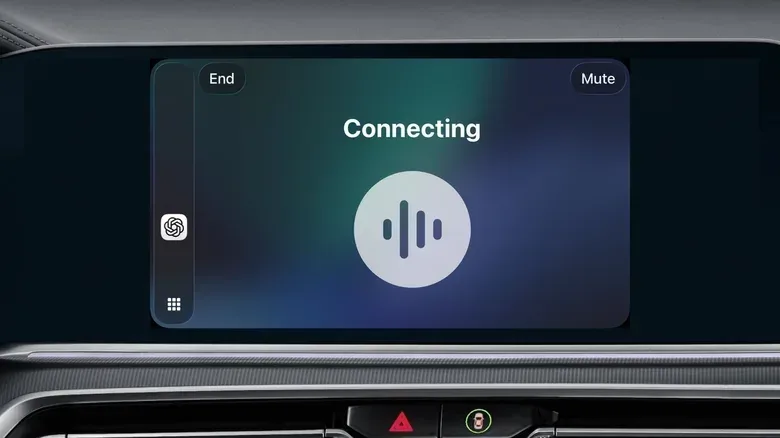
There is also a separate option for people who prefer another assistant. From iOS 26.4, with improvements in iOS 27, CarPlay can show installed third-party AI assistant apps, including ChatGPT and Gemini. These apps should appear on the CarPlay Home Screen automatically when they are installed on the connected iPhone.
The key technical constraint is that these are voice-only interfaces in CarPlay. A driver cannot type a prompt or otherwise use them as though the car display were a full iPhone screen. More importantly, those third-party assistants cannot control other CarPlay apps: they cannot play a requested song through a music app or place a call. They also cannot replace Siri as the default assistant activated by a steering-wheel voice button.
That makes them an additional route to spoken information, not a wholesale replacement for the car’s normal controls. It is a meaningful distinction for expectations and safety alike: an assistant that can answer a question is not necessarily an assistant that can complete every in-car task. Drivers encountering mapping trouble should also be aware of an iOS 27 issue that can obscure Google Maps and Waze directions on certain CarPlay screens.
3. Pay for fuel from the CarPlay screen at participating stations
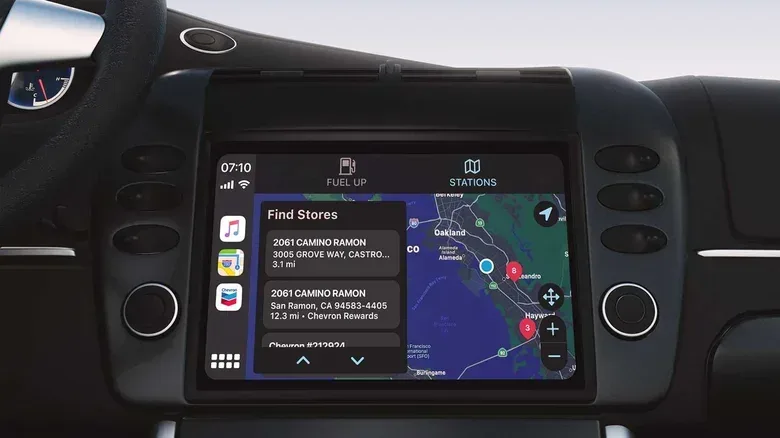
CarPlay can support paying for gas from the vehicle display, avoiding the usual sequence of digging out a wallet or tapping the phone at a reader. The capability has existed since iOS 16, but the word to underline is participating. It is supported by only some chains, with Chevron and Texaco named as US examples.
Preparation happens on the iPhone, not at the pump. Install the relevant station’s app, create an account and add a payment method first. At a compatible location, open the app through CarPlay, select the pump, then begin filling when the app directs you to do so. Billing uses the payment method already stored in that account.
This is a merchant-app payment flow rather than a general promise that any pump will take payment through CarPlay. The app, the chain and the particular station all need to cooperate. Treat it as a convenience to verify ahead of time on a familiar route, rather than a feature to discover with the fuel light on and a queue behind you.
EV drivers have a related option: CarPlay supports charging-station apps. Mobile payment support still needs checking at the chosen location, because it is not universal across charging stations. The broader lesson is simple: CarPlay can surface the service, but station compatibility determines whether the transaction can be completed from the car.
4. Put in a pickup order before the stop
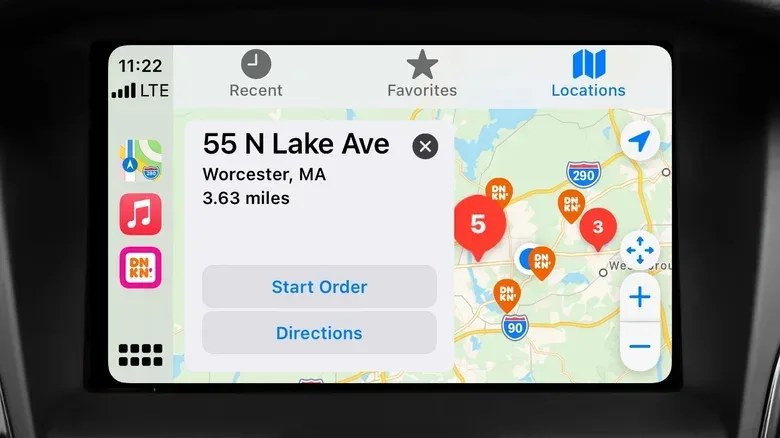
Food-ordering apps can turn a planned coffee or dinner stop into a short pickup rather than an order placed after arrival. Dunkin’, Panera and Domino’s are examples of chains offering CarPlay-compatible apps. As with fuel, the productive setup work should be done before the trip: install the app, sign in and save a payment method on the iPhone.
CarPlay’s simplified app design affects what this feature is best at. These apps are not built around lengthy, intricate custom orders. They are geared toward reordering favorites and choosing from prominent, quick options. That limitation is deliberate: the dashboard should not become a place to debate every possible modification while a vehicle is moving.
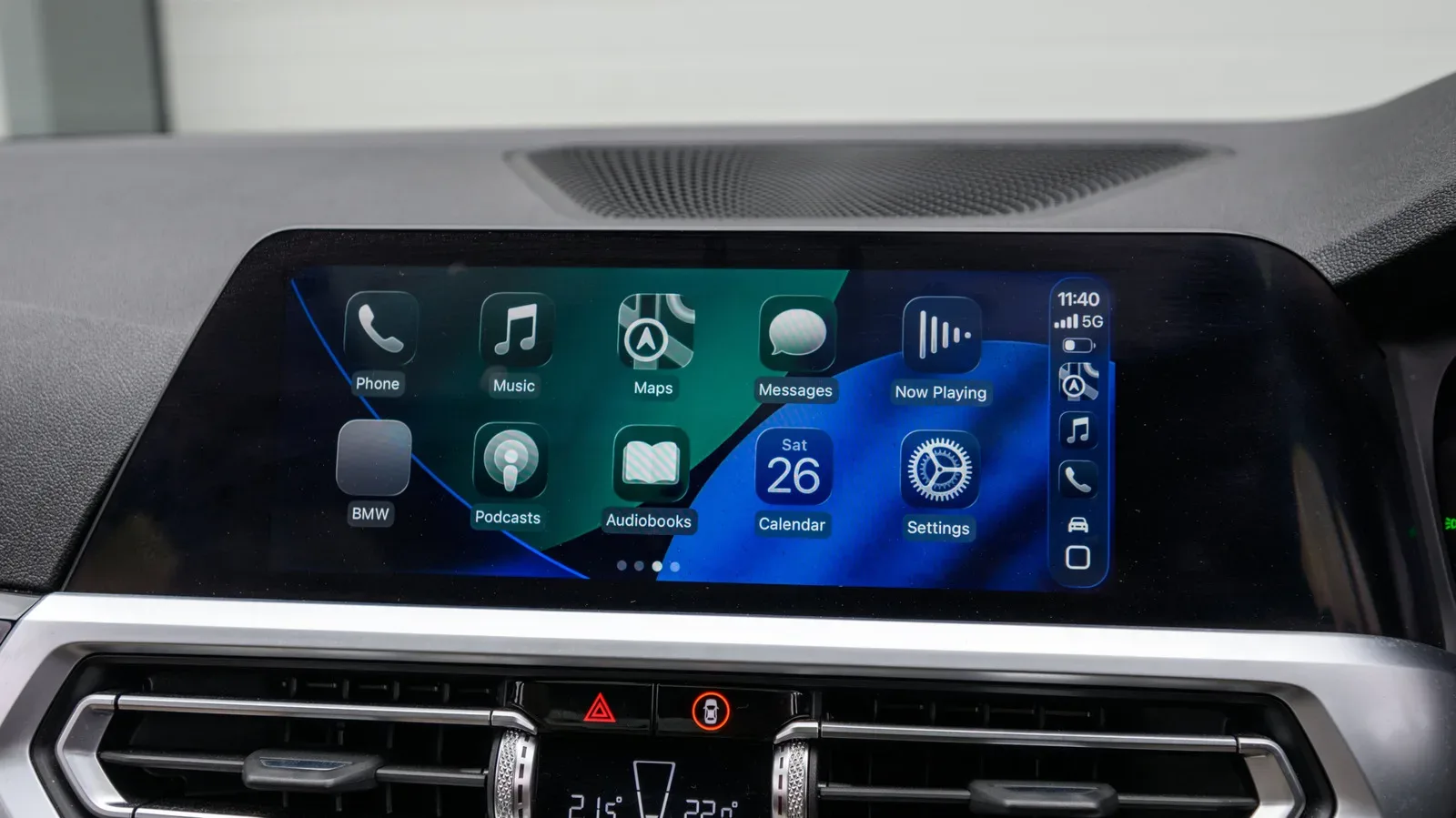
If an installed compatible app is missing from the CarPlay display, the place to check is Settings > General > CarPlay on the iPhone. Select the vehicle and ensure the app appears in the Include list. That is a useful troubleshooting step, though it cannot make an app compatible if it does not offer CarPlay support in the first place.
In practice, this is most valuable for repeat orders. A saved favorite reduces interactions to a few confirmations, which fits the interface’s purpose. It is less suited to the first visit to a restaurant or any order that needs a lot of reading and customization. The car may be ready for your usual coffee; it is not volunteering to become a mobile menu laboratory.
5. Search for and book parking before reaching the destination
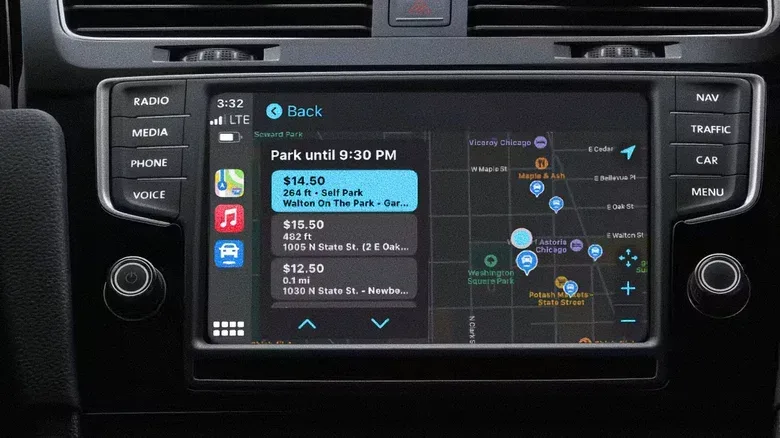
Parking can be the final boss of an urban drive, especially when the destination is known but the available spaces are not. CarPlay-compatible parking apps can move some of that uncertainty earlier in the trip. SpotHero, for example, displays available parking near a destination and allows a space to be booked in advance. Its service covers more than 400 cities in the United States and Canada.
Using it requires the familiar advance checklist: download the iPhone app, create an account and add a debit or credit card. In Europe, EasyPark offers a comparable CarPlay experience. The regional difference matters, so drivers should use the service available where they are actually parking rather than assuming an app works everywhere.
There is one payment limitation that may surprise regular iPhone users: Apple Pay is not supported inside these CarPlay parking apps. Payment details must therefore be managed through the iPhone account setup. That is another reason not to wait until the final block of the journey to install the app and build a profile.
The advantage is not merely avoiding a walk to a pay machine. Reserving parking before arrival can reduce the need to circle while searching for a space. It also fits CarPlay’s strongest pattern: use the dashboard to handle a brief, location-based task, while account creation, payment administration and other detailed decisions stay on the phone.
Make the dashboard do less, not more
The common thread in all five features is controlled simplification. CarPlay’s best use is not to recreate every iPhone capability on a larger screen. It is to surface a small number of actions that are relevant to a journey—queue a song, ask a spoken question, choose a pump, repeat an order or secure a space—and keep more involved account work off the dashboard.
Before the next trip, it is worth checking that the iPhone is updated, the needed apps are installed and included in CarPlay, and any account or payment setup is complete. Then check the availability caveats: SharePlay is for Apple Music, pump payments depend on participating chains, charging depends on station mobile-payment support, restaurant features depend on the chain’s app, and parking services depend on region and coverage.
That leaves a sensible hierarchy when driving: navigation and vehicle awareness first; quick, supported CarPlay actions second; detailed configuration later, while parked. It may not sound revolutionary, but it is exactly how the dashboard becomes a helpful co-pilot instead of another device demanding a turn at the controls.