Email is one of those tasks that appears tiny until it has quietly eaten an afternoon. There is the message that needs a quick acknowledgement, the long thread that needs context, the follow-up nobody wants to word incorrectly, and the inbox housekeeping that somehow becomes a full-time side quest. Claude’s Gmail connector is designed to put an AI assistant inside that workflow, letting it search messages, prepare responses, send or forward mail, and manage parts of inbox organization.
The important word is letting. Connecting an AI tool to an inbox is not simply a productivity switch; it is a decision about access, permissions and accountability. Claude’s connector includes granular controls intended to keep the user in charge. By default, actions that can alter an inbox or communicate with another person require approval, while read-only functions can be permitted without repeated prompts.
That makes the Gmail connector potentially useful for people who want help with email volume without immediately turning their correspondence into an unsupervised bot project. It is also a reminder that convenience tools work best when their boundaries are set before the queue of unread messages starts looking like a raid boss.
What Claude can do after Gmail is connected
Once a Gmail account is linked, Claude can work with messages through ordinary natural-language requests rather than a special command format. A user can ask it to locate a recent email from a particular contact, inspect the relevant conversation and compose a reply for that thread. The same connection supports finding individual messages and email threads, as well as working with labels.
Claude can also handle several actions beyond drafting. The available Gmail-related capabilities include:
- Searching for and reading emails.
- Retrieving email threads for context.
- Drafting replies.
- Sending replies or new messages when permission is granted.
- Forwarding messages.
- Listing, creating or deleting labels, depending on the permissions chosen.
- Organizing messages with labels and threads.
- Marking messages as spam where the relevant write/delete permission is enabled.
That range is why permission choices matter. Asking Claude to summarize a thread has a very different consequence from asking it to send a response in your name or move messages around. The connector separates those two broad classes of activity rather than treating every inbox task as equal.
For users who spend plenty of time coordinating game nights, marketplace purchases, collecting groups or work schedules, the useful part may not be total automation. It may be reducing the mechanical steps: locate the right conversation, pull together the context, propose a concise response, then wait for a human to make the call. The model can remove some menu-diving and tab-shuffling without becoming the person responsible for the final message.
How to connect Claude to Gmail
The setup takes place in Claude, either through the browser experience or the app. Gmail appears in the Connectors area, where users authorize the link through their Google account.
Related coverage includes How to Connect Claude to Gmail and Control Email Approvals.
- Open Claude in a web browser or launch the Claude app.
- Open Customize and select Connectors. Alternatively, use the plus sign inside a chat and choose Connectors.
- Select Browse connectors, then locate Gmail.
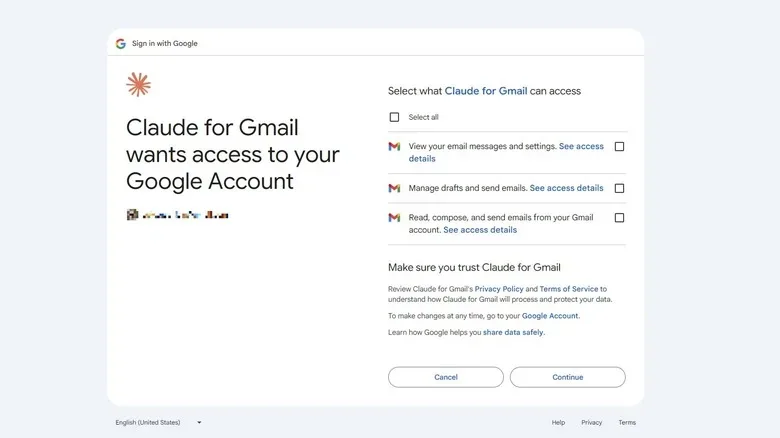
- Sign in to the Google account to be connected and grant the requested permissions.
After authorization, the regular chat box is the main control surface. There is no need to memorize a rigid syntax. A request such as “Find my latest email from Alex and draft a reply” gives Claude a goal, a person and an intended action. Claude can find the relevant email, use the thread as context and show the proposed text. The user can then take that text to Gmail personally or ask Claude to carry out the send action, subject to the active approval rules.
The connector is available across Claude plans, so a paid Claude subscription is not required just to use it. There is a separate organizational consideration for managed accounts, however. Someone using Claude through a Team or Enterprise plan needs the plan owner to enable the connector at the organization level before connecting a work account. That is a sensible gate: an employer or organization may have its own rules around data, communication and third-party access.
The three approval settings are the real control panel
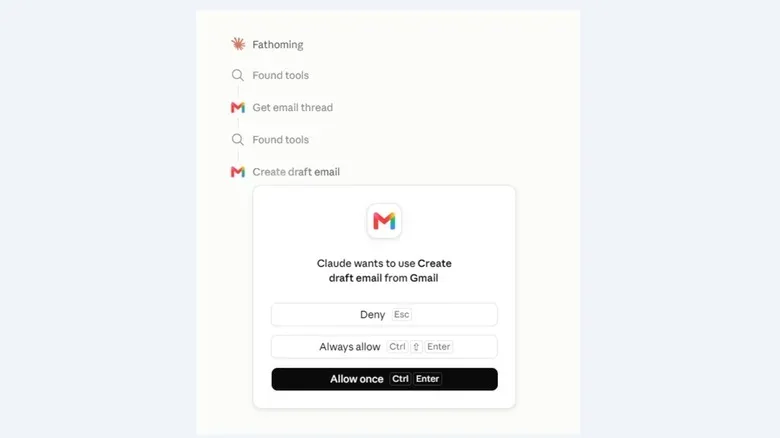
In the Gmail connector’s tool permissions, actions are separated into Read-only tools and Write/delete tools. Each tool can be assigned one of three states: Always allow, Needs approval, or Block.
Read-only tools are set to Always allow by default. This enables Claude to retrieve specific messages, inspect threads and list labels without interrupting every request with another confirmation window. Since these actions do not themselves edit Gmail or transmit an email, this default is aimed at making research and drafting feel less cumbersome.
Write/delete tools begin under Needs approval. That includes consequential activities such as replying, forwarding, creating or deleting a label, marking a message as spam, and other actions that change the inbox or affect an external recipient. Claude asks for a confirmation before performing those tasks.
Practical rule: Read access helps Claude understand the job. Write access lets it change something. Treat the second category with more caution.
To review or adjust these choices from a conversation, select the plus sign, enter Connectors, and choose Gmail. The permission list appears under the read-only and write/delete groupings. The settings can be changed later, so a cautious initial setup does not permanently lock someone into a slow workflow.
Always allow
Always allow is the hands-off option. When it is assigned to a tool, Claude can perform that specific task without requesting confirmation each time. This may make sense for read-only functions such as searching threads, particularly when a user often asks for summaries or wants help locating an old conversation.
Applying Always allow to actions that send, forward, delete or reorganize email is a much bigger step. It may suit a narrowly defined, repeatable workflow, but it also means the user has chosen not to inspect every individual action at the moment it happens. The setting should be reserved for cases where the consequences are fully understood and the instruction being given is highly specific.
Needs approval
Needs approval is the sensible starting point for most people, especially for outgoing communication. It gives Claude room to find information and produce a draft, but keeps a human confirmation between that draft and a sent email. It is also useful for organizational tasks that might be inconvenient to undo, such as deleting labels or moving messages into spam.
This setting helps with a basic AI reality: even a polished draft can have the wrong tone, omit a detail, misunderstand a relationship or interpret an ambiguous thread incorrectly. Approval provides a final chance to catch the kind of mistake that is harmless in a private note but awkward in a client, workplace, school or marketplace exchange.
Block
Block disables a selected capability. It is the appropriate choice for anyone who only wants Claude to analyze email but never modify the mailbox, or who is comfortable with drafting but does not want it to send or forward messages. Blocking a tool does not mean abandoning the connector entirely; it means defining a narrower role for it.
That flexibility matters. One person may want an inbox research assistant that can only search and summarize. Another may allow it to create labels but not delete them. A third may be happy to approve replies one by one. These are all valid setups, and none requires handing over every Gmail capability at once.
A cautious way to build a useful workflow
The best route is incremental. Start with Gmail’s read-only tools enabled and leave write/delete functions on Needs approval. Ask Claude to locate messages, summarize lengthy threads, extract open questions or create drafts. Review the results carefully, especially when messages are personal, sensitive or professionally significant.
When asking for a draft, give it constraints that a rushed human might otherwise forget: identify the recipient, name the topic, specify the tone, state the required outcome and flag any point that must not be promised. For example, a request can ask for a short, friendly reply that confirms receipt but does not commit to a delivery date. Clear boundaries are more useful than the vague instruction to “handle this.”
Only after that pattern feels dependable should users consider loosening a specific permission. Even then, it is wise to keep high-impact actions—especially sending, forwarding, deletion and spam marking—under approval unless there is a compelling reason not to. Automation is strongest when it removes repetitive labor while preserving judgment where it counts.
The broader tech conversation increasingly revolves around assistants that can take actions, not merely generate text. That same shift is visible in devices and services designed around assistance, accessibility and personal data; see our coverage of Apple’s Sonera acquisition and its possible accessibility implications. Gmail-connected AI is another version of that transition: the assistant becomes more capable when it can access real-world information, and the user needs clearer controls in return.
Claude’s Gmail connector offers those controls in a relatively direct form. Connect the account, decide what it may read, decide which changes need a confirmation, and revise the setup as habits develop. For anyone trying to reclaim time from an overgrown inbox, that is a more reassuring proposition than blindly putting email on autopilot.