AI assistants are increasingly built around a simple promise: tell them something once, and they should not make you repeat it forever. Claude’s memory feature is designed to do exactly that, retaining useful context from prior chats so its replies can be more tailored over time. Convenient? Absolutely. Slightly unsettling when the machine confidently recalls your preferences like an NPC who has read your entire quest log? Also absolutely.
Claude has supported memory since summer 2025. It is enabled by default for all users, including people on free accounts, and a newer update allows that remembered context to carry between regular chats and Claude Cowork sessions. More recently, the service has been adding finer-grained controls, allowing users to inspect and alter individual memory topics instead of treating the whole feature as an all-or-nothing switch.
That matters because an AI memory is not merely a transcript archive. It can shape how the assistant interprets future requests, what details it prioritizes and which assumptions it brings into a conversation. Anyone who uses chatbots for writing, research, planning, coding or hobby organization may want to make sure Claude’s long-term notes are useful, current and not accidentally built around an offhand remark from three months ago.
For readers thinking about AI’s place in game-adjacent work and office routines, the subject has already become part of the conversation in pieces such as this look at indie games tackling office AI. Memory controls are one of the less flashy but more consequential parts of that broader shift: they determine what an assistant carries with it after the novelty of one chat fades.
How Claude organizes memories
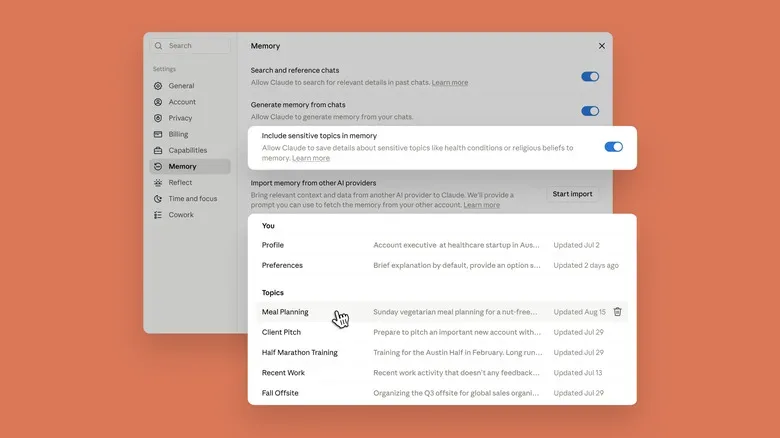
Claude sorts its retained information into topics. Rather than asking users to hunt through an enormous chronological scroll of every remembered detail, the interface presents these topic-based entries for review. A topic might cover a recurring project, a stated preference or another pattern the system has determined is useful context.
The practical benefit is straightforward: if a remembered item is incomplete, outdated or wrong, a user can address that particular item. There is no need to throw every saved preference into the void simply because one small piece needs fixing.
On the web, the route begins at Claude’s profile menu:
- Open Settings from the profile menu.
- Choose Memory.
- Find the Topics area farther down the page.
- Use the edit control beside a topic to revise it, or the delete control to remove it.
- When editing, describe the needed correction in the prompt field.
This is an important distinction: editing is done by telling Claude what should change, rather than manually manipulating every line of a memory entry. Clear instructions are likely to be more useful than vague ones. A request such as “Update this: I am no longer working on that project” gives the assistant a definite change to make. “That old thing is wrong” may leave considerably more room for interpretive chaos.
Memory editing on mobile
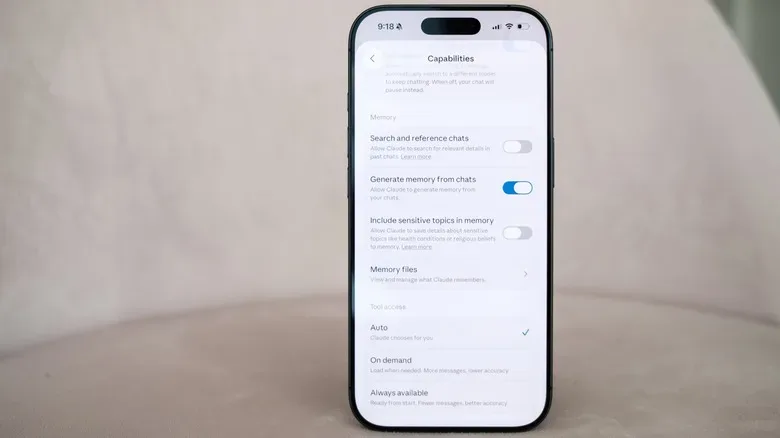
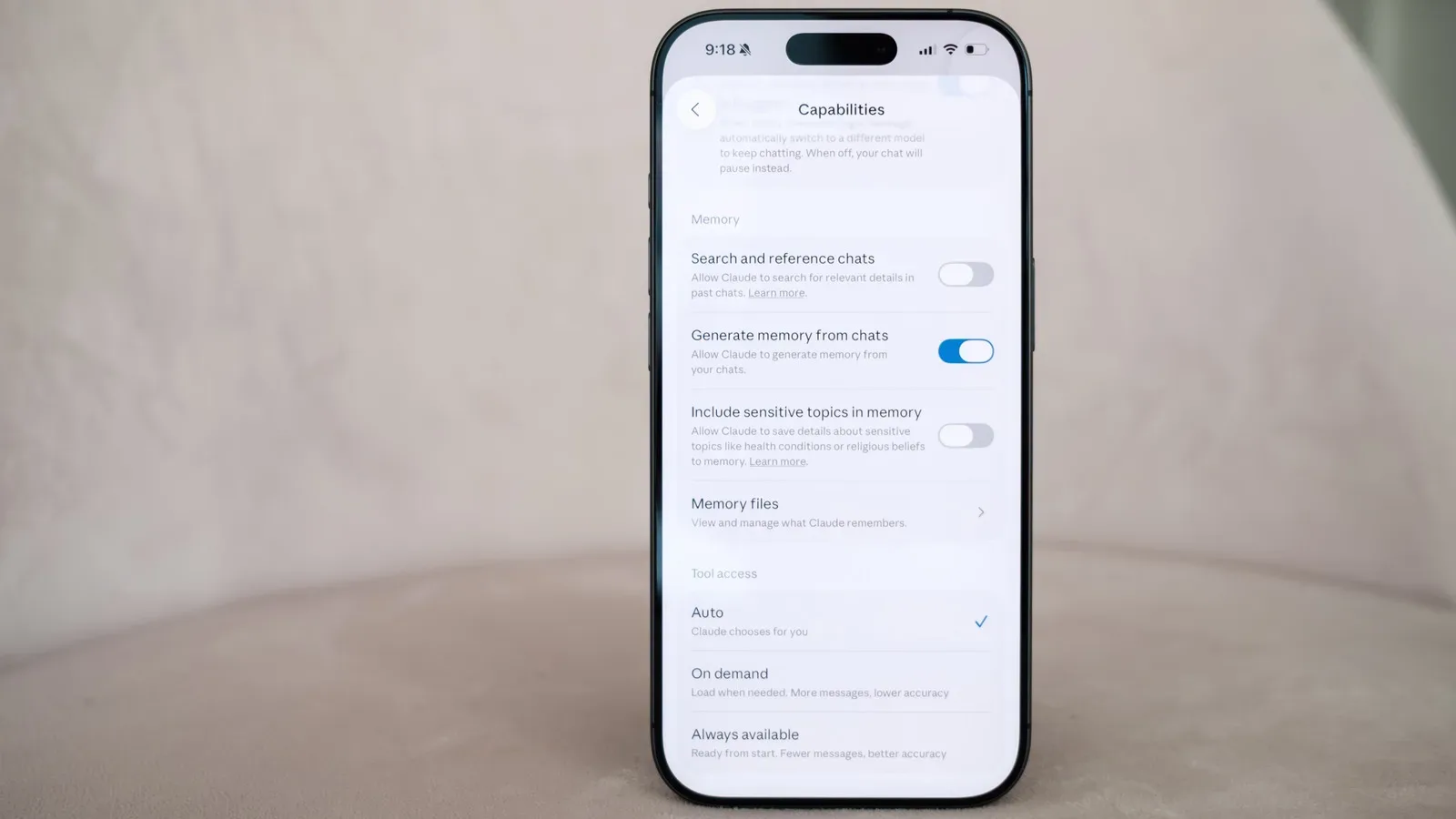
The mobile route uses different labels, so people switching between desktop and phone should not assume the same menu structure will appear. In the mobile app, users can get to stored topics through the settings area:
- Tap the profile icon to open Settings.
- Under the App section, select Capabilities.
- Scroll to Memory files.
- Open the topic to inspect it.
- Use the prompt field to request an edit, or use the trash icon to delete the topic.
The separate wording—Memory files on mobile versus the Topics section in the web settings—could make the controls feel less obvious than they are. But both paths serve the same basic purpose: see what Claude has retained in an organized form, then amend or remove it.
Sensitive topics require an explicit choice
Not every useful fact is equally comfortable to store. Claude’s latest memory changes include an option named Include sensitive topics in memory. It is off by default.
Without that option enabled, Claude is not intended to save memories involving areas such as health, race, ethnicity, religious beliefs, political views or gender identity. Enabling it permits the system to retain more information in those categories. When Claude creates a memory involving a sensitive topic, users should receive a notice.
There is a significant platform caveat. On an older version of the product or in the mobile app, that notice may not appear; in those situations, Claude does not save the sensitive topic to memory. Anyone who specifically wants sensitive details retained should therefore pay attention to which version and interface they are using, rather than presuming a single toggle behaves identically everywhere.
Even with sensitive-topic memory enabled, the feature does not go back and mine old chats for previously discussed personal details. It also has limits that cannot be overridden: government ID numbers are among the information Claude will not save. That boundary is worth noting because “memory enabled” does not mean “every fact is eligible for permanent recall.”
Pause, reset or stop generating memory from chats
Users who would rather Claude not form new memories automatically can turn off Generate memory from chats. This is the setting to check when the goal is prevention rather than cleanup.
From there, Claude presents two distinct choices:
- Pause memory, for stepping away from automatic memory generation without necessarily discarding what is already retained.
- Reset memory, for clearing previous memory and beginning again later with no prior retained context.
The reset choice is permanent. Once it is used, the previous memory cannot be restored; re-enabling the feature starts a fresh memory history. That makes reset appropriate for a genuine clean slate, not for a moment of panic after Claude remembers a favorite snack or an embarrassing abandoned side project.
A sensible routine is to use topic-level edits or deletions for specific errors, pause memory when you need a temporary break, and reserve reset for cases where the accumulated memory itself is no longer wanted. This approach avoids using a sledgehammer when the problem is one misplaced sticky note.
Projects have their own memory boundaries
Claude’s project tools introduce another layer. Project memory is siloed so that information from one effort does not unnecessarily crowd the context for another. In theory, that prevents a research workspace, a coding task and a personal planning thread from all arriving at the same conversational dinner table and trying to speak at once.
Within a project, users can build context through comments, documents and GitHub information from the interface’s right side. At the end of each day, Claude generates a summary of the work it has performed, and that daily summary can be edited from the same area. This gives users an ongoing opportunity to correct the project record before an inaccurate summary becomes the dominant version of events.
If a chat begins outside the intended project, it can be moved afterward. Open the three-dot menu on that conversation and choose Add to project. That is useful for sorting a stray conversation into the workspace where its context belongs.
There is also a difference between project-specific knowledge and information intended to apply everywhere. For details Claude should retain across its various tools, including projects, users can add them in the Profile portion of the Memory menu. The distinction is worth keeping clean: put task material in its relevant project, and reserve profile-level context for information that really is broadly applicable.
Incognito mode for chats that should not stick
Sometimes the right answer is not editing later, but avoiding memory creation in the first place. Claude’s Incognito mode is built for that situation. Select the ghost icon in the upper-right area of the interface to start an Incognito chat.
These chats are not saved, are not added to memory and are not used for model training. That makes the mode useful when someone wants to explore a temporary question without turning it into part of the assistant’s enduring picture of them. It can also help keep one-off research, experimental prompts or a delightfully questionable hypothetical from bleeding into ordinary personalized responses.
Incognito is not a substitute for understanding every privacy setting in an AI product, but it is a direct, session-level control for people who do not want that particular conversation retained.
Importing memories from other AI services
Claude also has an import tool intended for people moving over from other chatbots. The tool arrived in March and offers a starting point inside the memory settings: select Start import next to Import memory from other AI providers.
Importing can reduce the annoyance of re-establishing preferences and background from scratch, but it is also a moment to be selective. A new assistant does not need every old fragment of conversational baggage just because it is technically portable. Before importing, it is worth deciding which context remains helpful and which details belong in the digital attic.
Claude’s expanding controls do not remove the need for users to pay attention; they make that attention actionable. Review topics occasionally, correct mistaken assumptions, use project boundaries deliberately, and reach for Incognito when a chat should remain a one-session detour. The goal is not to make the assistant remember everything. It is to make sure it remembers the right things.