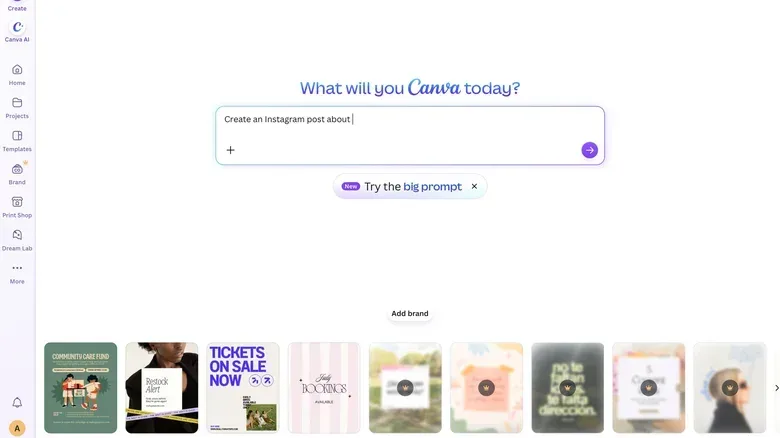
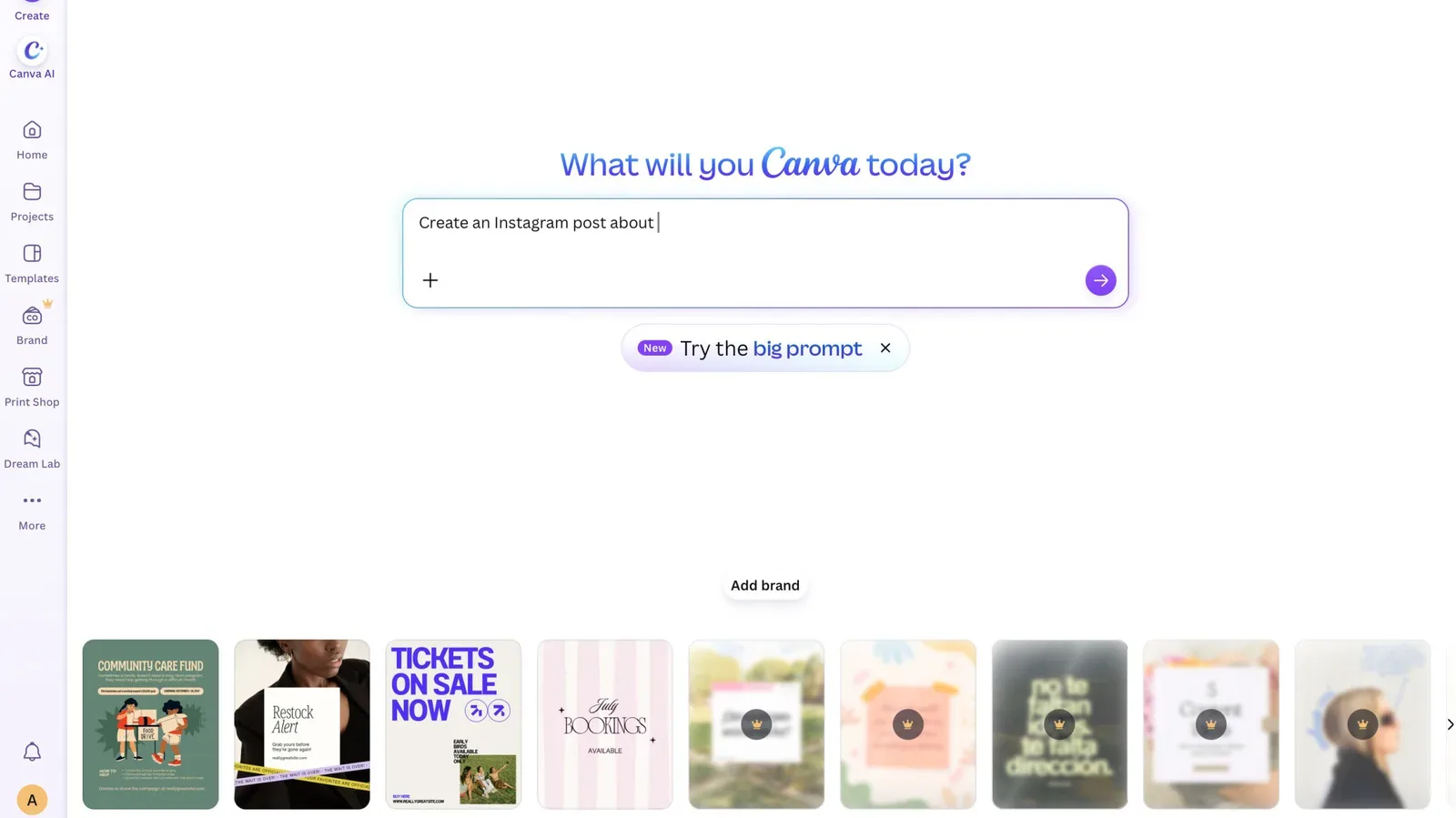
Canva is giving users a way to put much of its generative AI back in the box. The design platform is adding two account-level controls: one that switches its generative AI features on or off, and another intended to reduce how often AI-generated Canva images show up in the library.
The controls will be available to both Free and Pro users. That is the key practical detail: this is not framed as a paid-tier preference, and people using Canva for occasional graphics will have access to the same basic choice as subscribers.
It is not, however, a total AI evacuation button. Canva’s new settings distinguish between generative AI—tools that create new content—and certain AI-assisted image-editing functions that work with material already in an image. The result is a more precise option than a grand “no AI anywhere” promise, even if it leaves a few robotic coat hooks in the hallway.
What the two controls do
The first setting governs Canva’s generative AI features across the platform. Users can find it from the Profile tab, then under the Permissions portion of settings, where it is labeled “Enable generative AI features.”
Generative AI refers to systems that produce fresh material from a prompt or other input: for example, generating an image rather than editing pixels that already exist. Disabling the broader generative toolset should matter to people who would rather work through conventional templates, uploads, layouts, and manual edits without generative options being part of their normal creation flow.
The second setting concerns the Canva library rather than the editing tools themselves. It sits under Profile, then Your Account, in the AI personalization area. Its job is to reduce the likelihood that AI-generated images from Canva appear in library searches.
That wording matters. The setting is designed to reduce AI-generated results; it is not described as a filter that guarantees none will appear. A user looking for a completely AI-free search result set should therefore treat the control as a preference that changes the odds, not a certification mechanism.
The editing tools that stay available
Canva says some AI-powered editing features will continue to function even if the overall generative AI setting is turned off. Background Remover and Magic Grab are the named examples.
Related coverage includes Canva Adds Controls to Disable Most Generative AI Features.
The reason is technical, and it is an important distinction for anyone trying to understand the setting’s boundaries. These tools use the content of an existing image rather than generating a new image from scratch. Background Remover isolates a subject by removing surrounding visual material. Magic Grab similarly works from elements already present in an image. They may involve machine-learning-based detection or selection, but Canva does not classify them here as generative AI features.
In other words, “AI-powered” is not automatically the same thing as “generative.” The former is a broad description that can include software recognizing, selecting, masking, or manipulating parts of an existing file. The latter specifically concerns producing new content. Canva’s controls are built around that narrower category.
There is a metadata consequence, too. Using Background Remover or Magic Grab does not add the AI tag to the resulting image’s metadata. Metadata is information attached to a file that can describe aspects of its origin or handling. In this case, Canva’s distinction means an image altered through these non-generative tools will not receive the AI label merely because one of those functions was used.
Why the limits are the actual story
An off switch can sound wonderfully absolute until the fine print enters the room wearing sensible shoes. Canva’s approach is notable precisely because it outlines what remains: some image-editing assistance stays enabled, and the library preference does not claim to eliminate AI-made results entirely.
For users who mainly want fewer generative prompts and features cluttering their workspace, that may be enough. They can disable the platform-wide generative tools and make a separate preference choice for library discovery. The two settings address different parts of the Canva experience, so changing both is the clearest available route for someone looking to minimize interaction with generative material.
For users with a stricter requirement—such as avoiding generated library imagery altogether—the provided information leaves an unresolved limitation. Reduced visibility is not the same as exclusion. Likewise, retaining Background Remover and Magic Grab means the platform will still offer certain AI-based assistance after generative functions have been switched off.
That does not make the settings misleading; Canva explicitly separates the categories. But it does mean that users should set expectations based on the exact labels. The generative AI toggle controls generative features. The library setting reduces the presence of AI-generated Canva images in search. Neither is presented as a universal ban on every process that could reasonably be called AI-assisted.
A practical route through the settings
Users who want the strongest reduction available from these additions can review both locations in the Profile area:
- Open the Profile tab.
- Go to Permissions and change Enable generative AI features to turn the wider set of generative functions on or off.
- Return to Profile and open Your Account.
- Find the AI personalization section and adjust the library preference to reduce AI-generated Canva images in search results.
The split menus are worth noting. Someone who changes only the generative feature permission may still want to check the separate library option, while someone focused on library searches may not have changed the tool-level setting at all.
What this means for creators who want more control
Canva’s changes offer a relatively simple way to make the product feel less centered on generative creation without asking users to abandon its other design and image-editing functions. That will likely be most useful for people who already have their own artwork, photographs, logos, or established design materials and simply want an editor that does not keep steering the session toward generated output.
The distinction also helps clarify a point that can get lost in broad arguments about AI tools. A user may object to generated images entering search results while still finding value in removing a background from a photograph they own. Another may be comfortable with a generated asset but want transparency around whether an edit is treated as AI-generated in file metadata. Canva’s setup does not settle every possible preference, but it recognizes that these are separate questions.
That separation is particularly relevant in creative communities where “made without AI” can refer to different things: no generated assets, no generative editing, no machine-learning assistance at all, or simply no AI content presented as hand-drawn work. Those standards are not interchangeable. A recent example in games is a Game Boy demake project explicitly being built without AI, where the production method is part of the project’s appeal as well as the final image on screen.
Canva’s controls do not claim to adjudicate those creative standards. Instead, they give account holders a pair of practical levers: one for Canva’s generative features and one for the amount of generated material likely to surface in its library. The catch is that the levers have defined travel limits. Background Remover and Magic Grab remain available, and search results are only adjusted rather than comprehensively purged.
The clearest takeaway
For Free and Pro Canva users, the new options provide meaningful choice over how prominent generative AI is in everyday use. Turn off the generative feature setting to remove the broader toolset, then adjust AI personalization to make AI-generated library images less likely to appear.
Just do not mistake “less” for “none,” or “generative AI disabled” for “all AI-related image assistance disabled.” Canva has drawn a line between generating content and modifying existing content. Whether that line matches an individual creator’s definition is a personal workflow decision—but the platform is at least making that decision more visible than a hidden background layer.