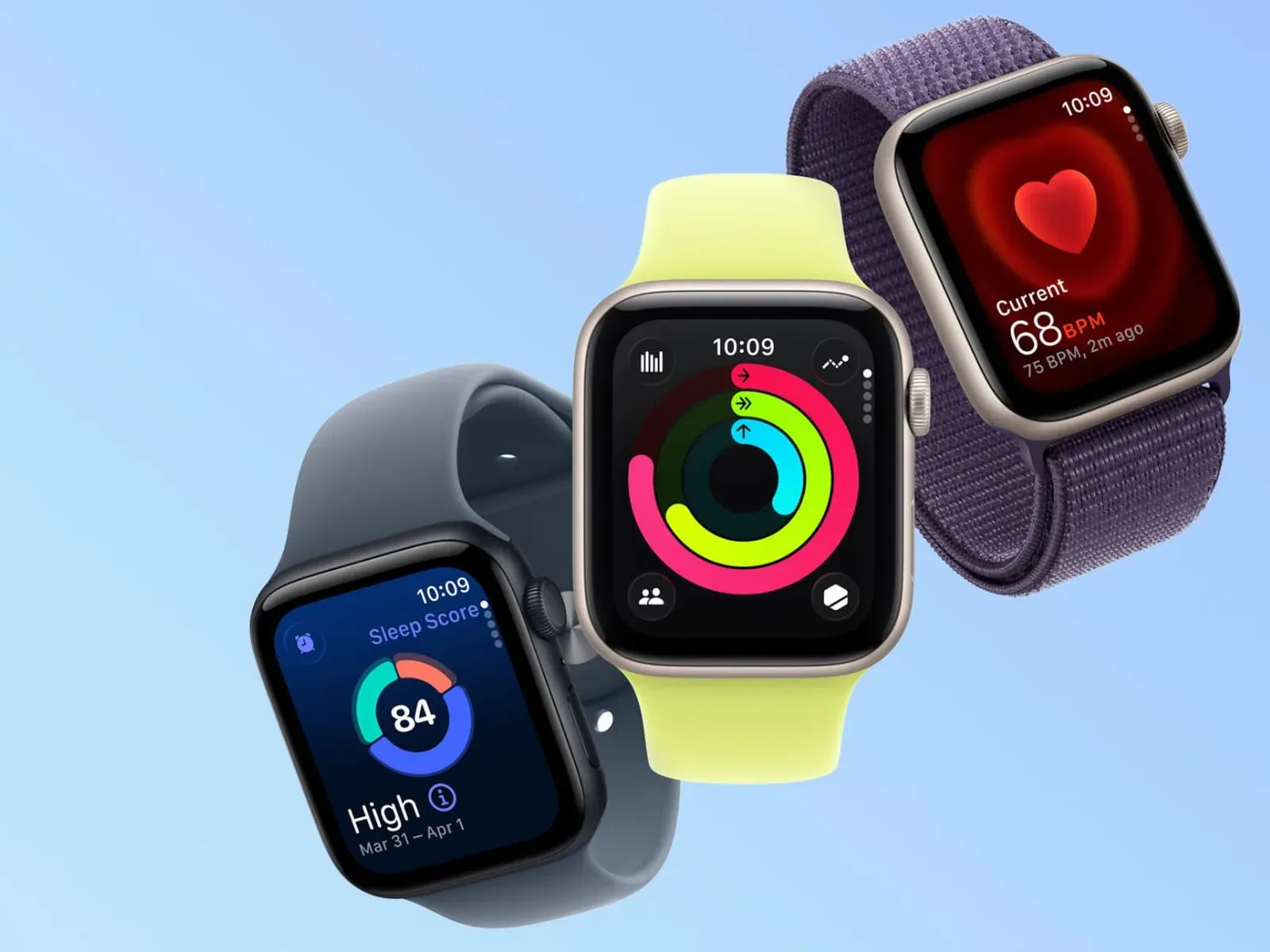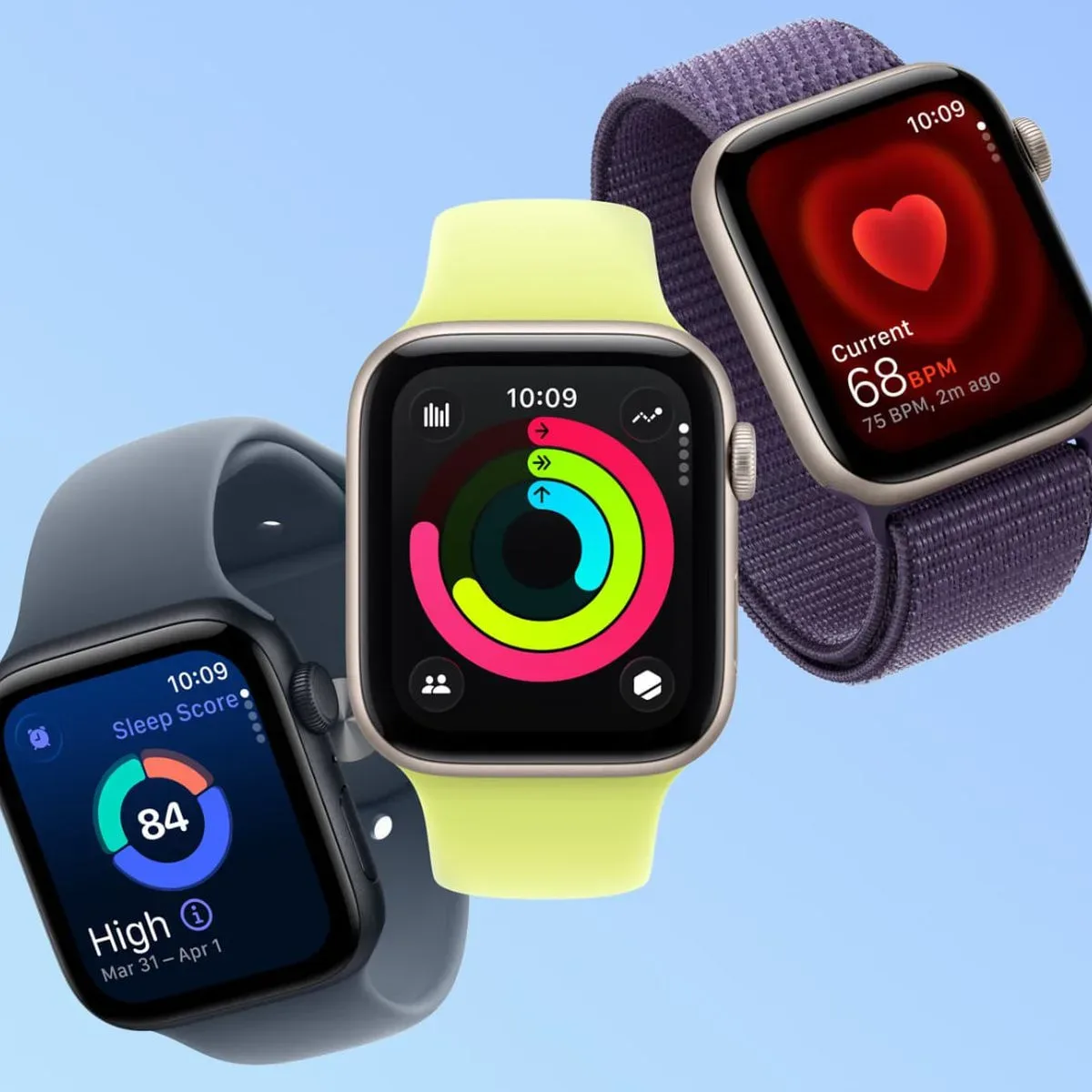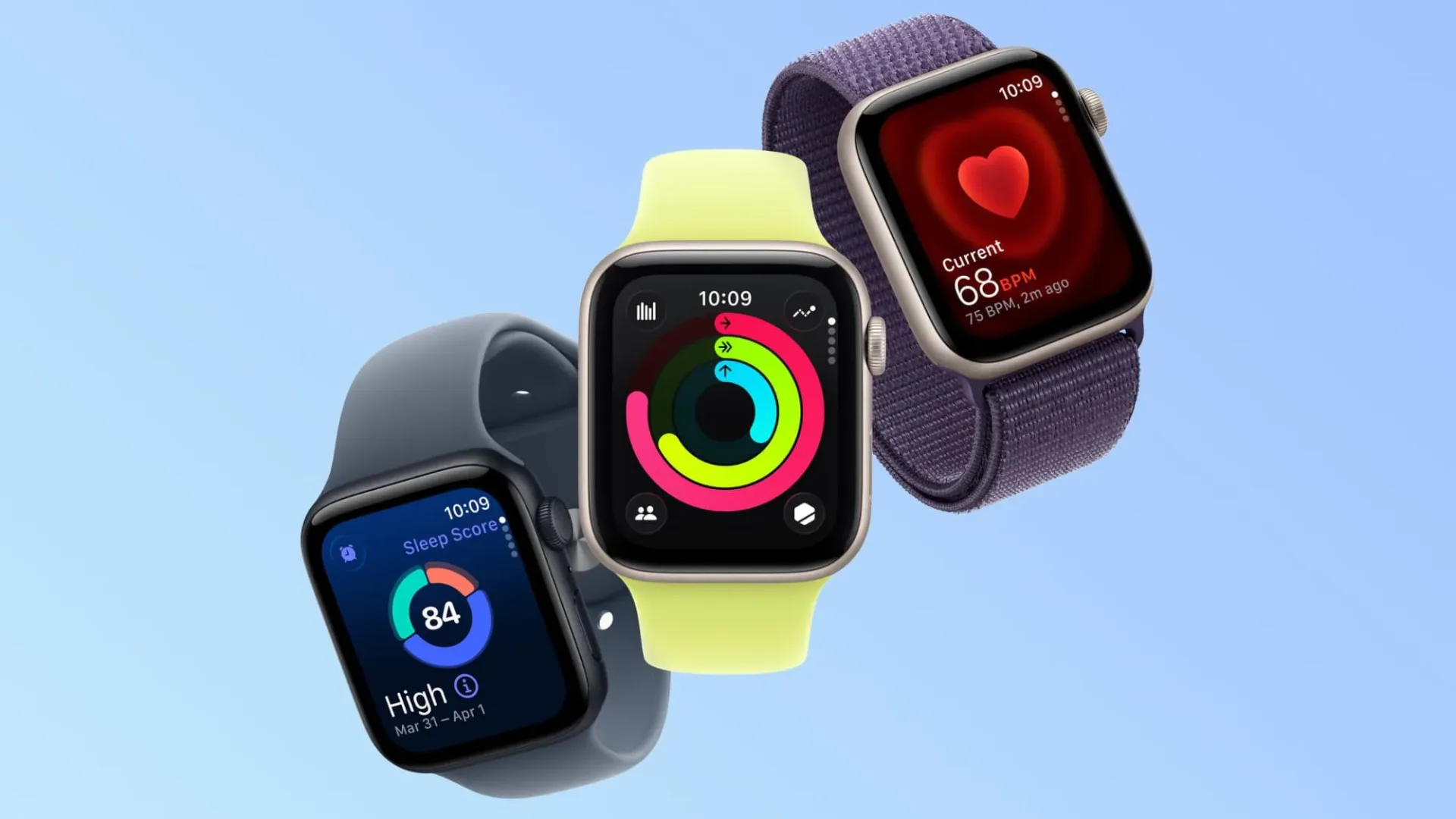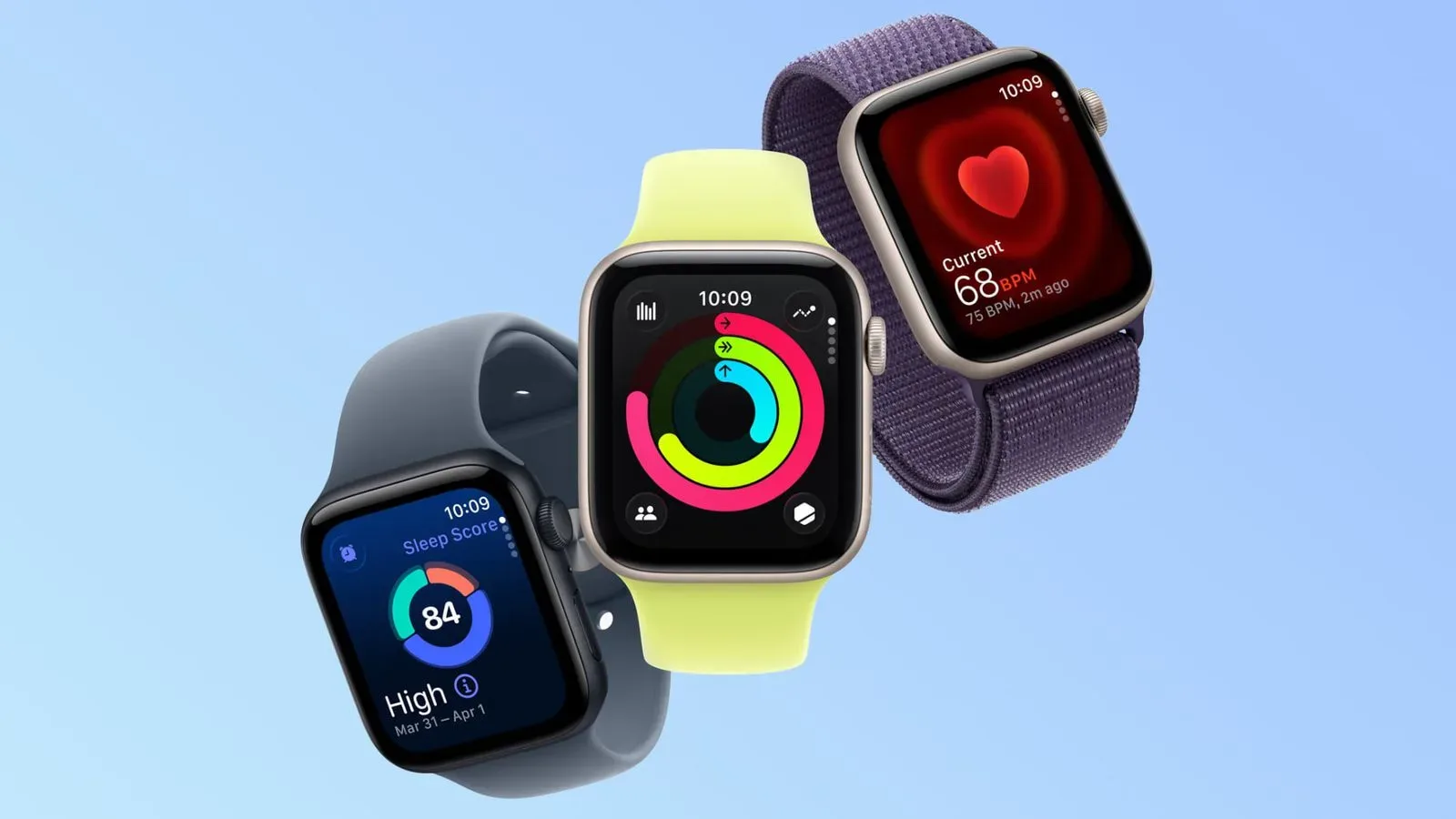
Apple Watch owners dealing with a particularly confusing daylight saving time problem have a short list of official fixes to try. The issue is not that the watch has lost the time altogether: the incorrect hour can appear only when the watch is in its dimmed, wrist-down Always On state. Tap the display or raise the wrist, and the watch can immediately show the correct hour.
That distinction matters. A watch that appears wrong at a glance but corrects itself when activated is a different problem from a device that is consistently set to the wrong time. In the reported behavior, the active display is correct; it is the low-power, always-visible view that can remain one hour behind or ahead after clocks change.
What Apple says to do
There are two suggested ways to clear the incorrect Always On time:
- Switch to a different watch face, then switch back to the face you were using.
- Restart the Apple Watch.
The first option is the fastest place to start because it directly refreshes the watch-face view where the problem is visible. If that does not resolve it, restarting the watch is the next step.
How to recognize this specific issue
Before changing settings or assuming an appointment is at risk, check the display in both states. With the wrist down, the Always On screen stays visible in a reduced state so the time and selected complications remain available without a full wake. When the wearer raises their wrist or taps the screen, the display activates.
This daylight saving time issue matches the following pattern:
- The wrist-down Always On display shows a time offset by one hour.
- Raising the wrist or tapping the watch changes the shown time to the correct hour.
- The behavior appears after the local daylight saving time change.
If the active display is also one hour wrong, that is not the precise behavior described here. The published remedies are targeted at a mismatch between the passive Always On view and the activated watch display, not a broad diagnosis for every timekeeping problem.
Why the visual mismatch is so easy to misread
Daylight saving time transitions are already built around an abrupt one-hour change. When an Apple Watch then presents two different readings depending on whether its display is asleep or awake, it can look as though the device is changing its mind. In this case, the more useful check is simple: activate the display before treating the first glance as the definitive time.
For people using an Apple Watch as a quiet desk, bedside, commute, or workout time check, the difference is more than cosmetic. The Always On screen is specifically intended to provide glanceable information. A one-hour error in that state undermines the purpose of that quick glance, even if tapping the screen reveals that the watch otherwise has the right local time.
It also helps explain why changing the face is a sensible first response. Watch faces are the layouts that determine how time and other at-a-glance information are presented. Moving away from the current face and returning gives that presentation layer an opportunity to reload, without implying that the user must permanently abandon a preferred face or rebuild its layout.
A practical, low-disruption order of operations
Owners who see the one-hour discrepancy can take the least disruptive route first:
- Wake the watch. Raise your wrist or tap the display and verify whether the active screen has the correct hour.
- Change faces temporarily. Select another watch face, then return to the original one.
- Check the passive view again. Let the watch return to its wrist-down Always On state and see whether the hour now matches the active display.
- Restart if needed. If the mismatch remains, restart the Apple Watch and check it once more afterward.
This sequence keeps the troubleshooting tied to the observed symptom. It avoids treating a display-state inconsistency as proof that every time-related setting is broken. It also means the user can confirm the result in the same condition that exposed the bug: the dimmed Always On display with the wrist down.
Context: the issue has appeared around clock changes
The behavior has been seen following daylight saving time changes in Europe, and clocks moved back across most of the United States on Sunday, November 1. That timing is important because it narrows the likely trigger: the problem is associated with the seasonal one-hour adjustment rather than an ordinary, persistent misconfiguration described by Apple.
Daylight saving time is the seasonal practice in which local clocks shift by an hour. “Clocks went back” refers to the autumn change in which the local hour repeats. The Apple Watch issue discussed here is likewise an hour-level mismatch—not a gradually drifting clock and not an indication that the active display necessarily has the wrong time.
What not to assume from the symptom
There is no reason in the published guidance to assume that the Apple Watch’s active time view is wrong when this particular symptom occurs. Apple explicitly describes a situation where activating the display produces the correct hour. That makes checking the watch while it is awake the essential first verification.
Likewise, the supplied steps do not call for a wholesale reset. The recommended actions are limited: refresh the watch face by switching away and back, or restart the watch. Users should not infer additional required measures from a problem that may clear with one of those two actions.
For broader Apple device setup and software context, see our coverage of Apple’s HomeView setup update process.
The useful takeaway for Apple Watch owners
If an Apple Watch seems to be an hour off immediately after daylight saving time changes, look at when the wrong time appears. If it is wrong only while the wrist is down and the Always On display is dimmed, but correct as soon as the display is activated, Apple’s recommended response is straightforward: switch to another face and back, or restart the watch.
Until the display state is refreshed, the active screen is the better time check for anyone who encounters this narrow bug. The distinction saves some unnecessary panic—and may prevent a sleepy, wrist-down glance from sending someone to a meeting an hour early.