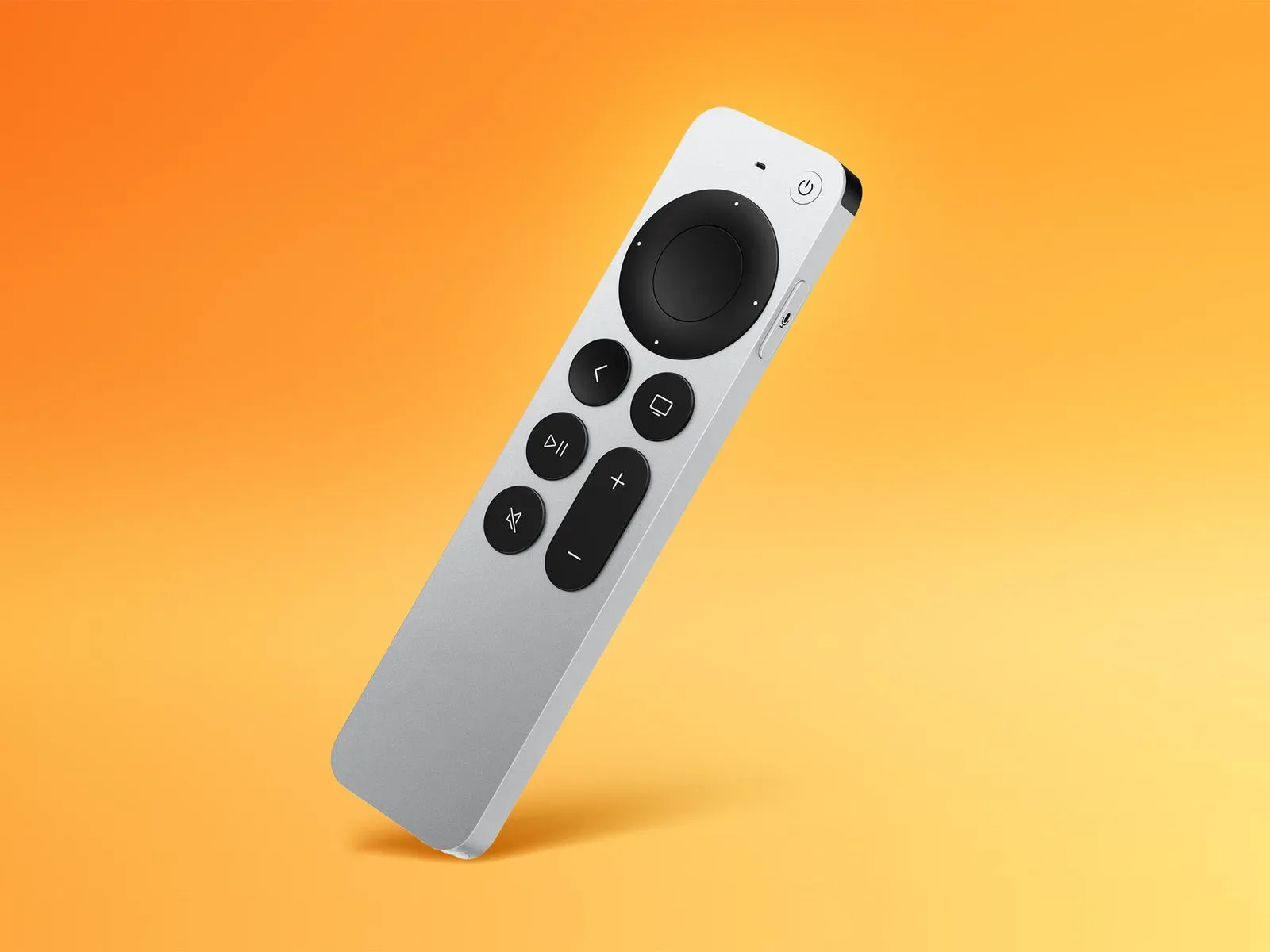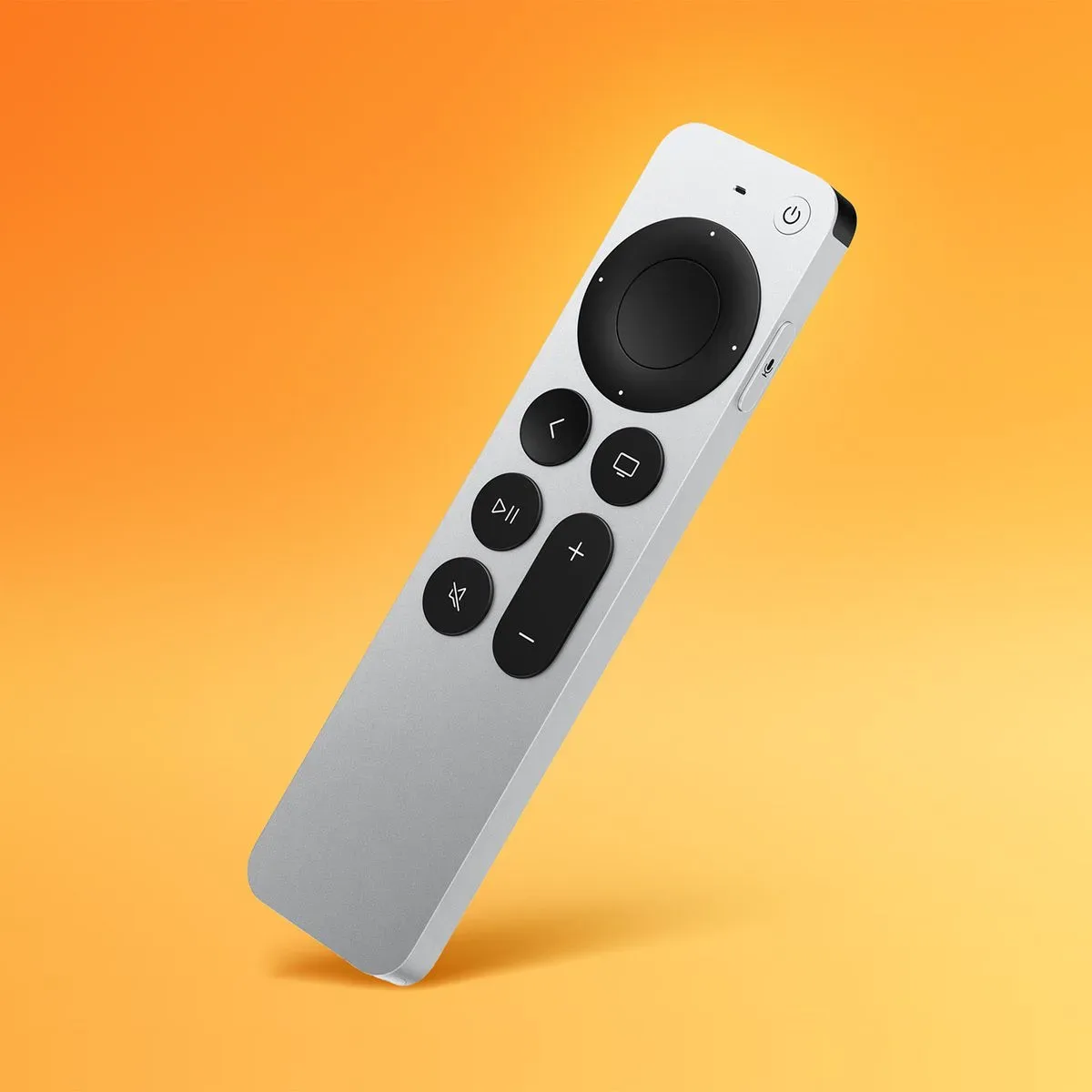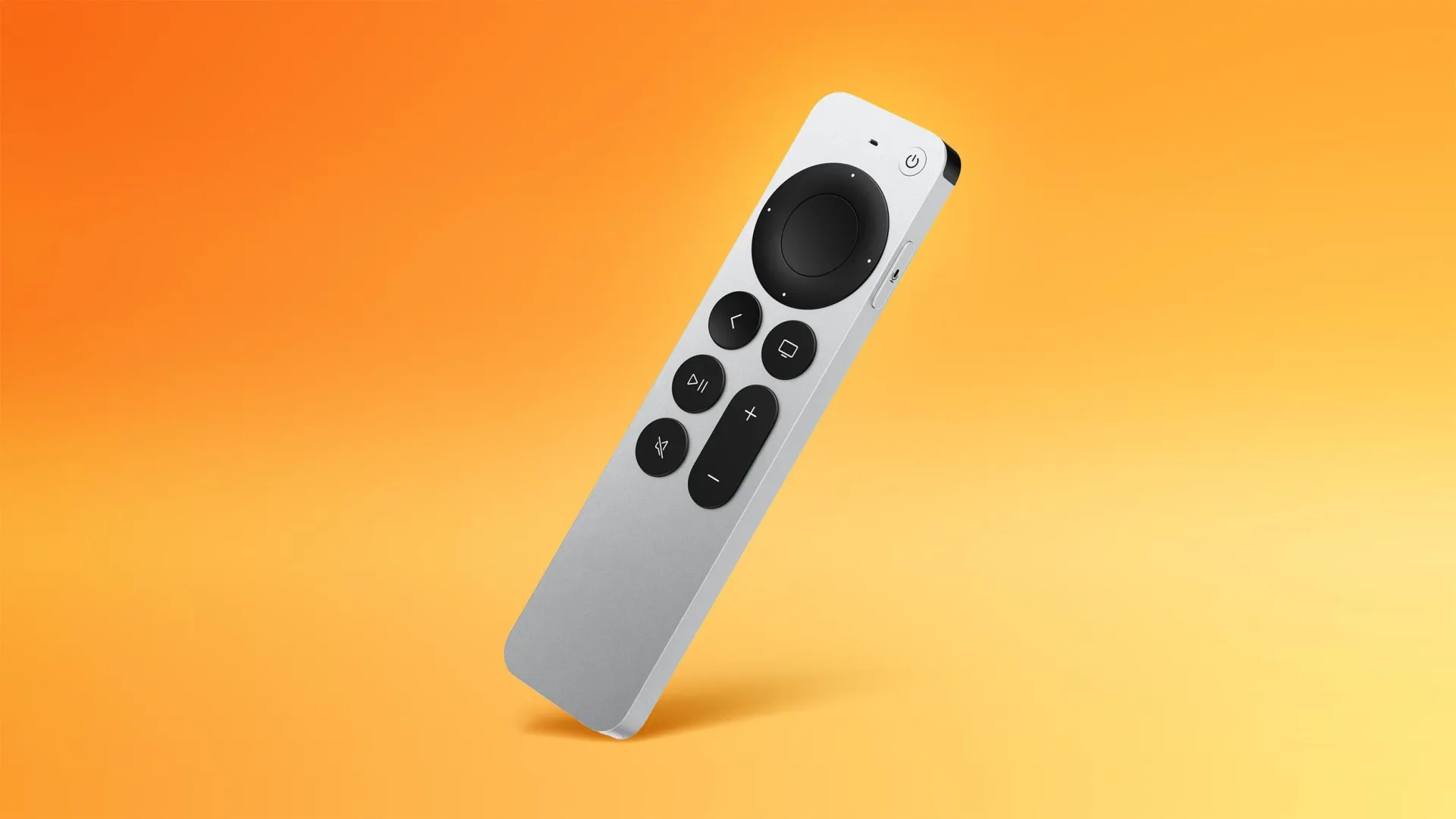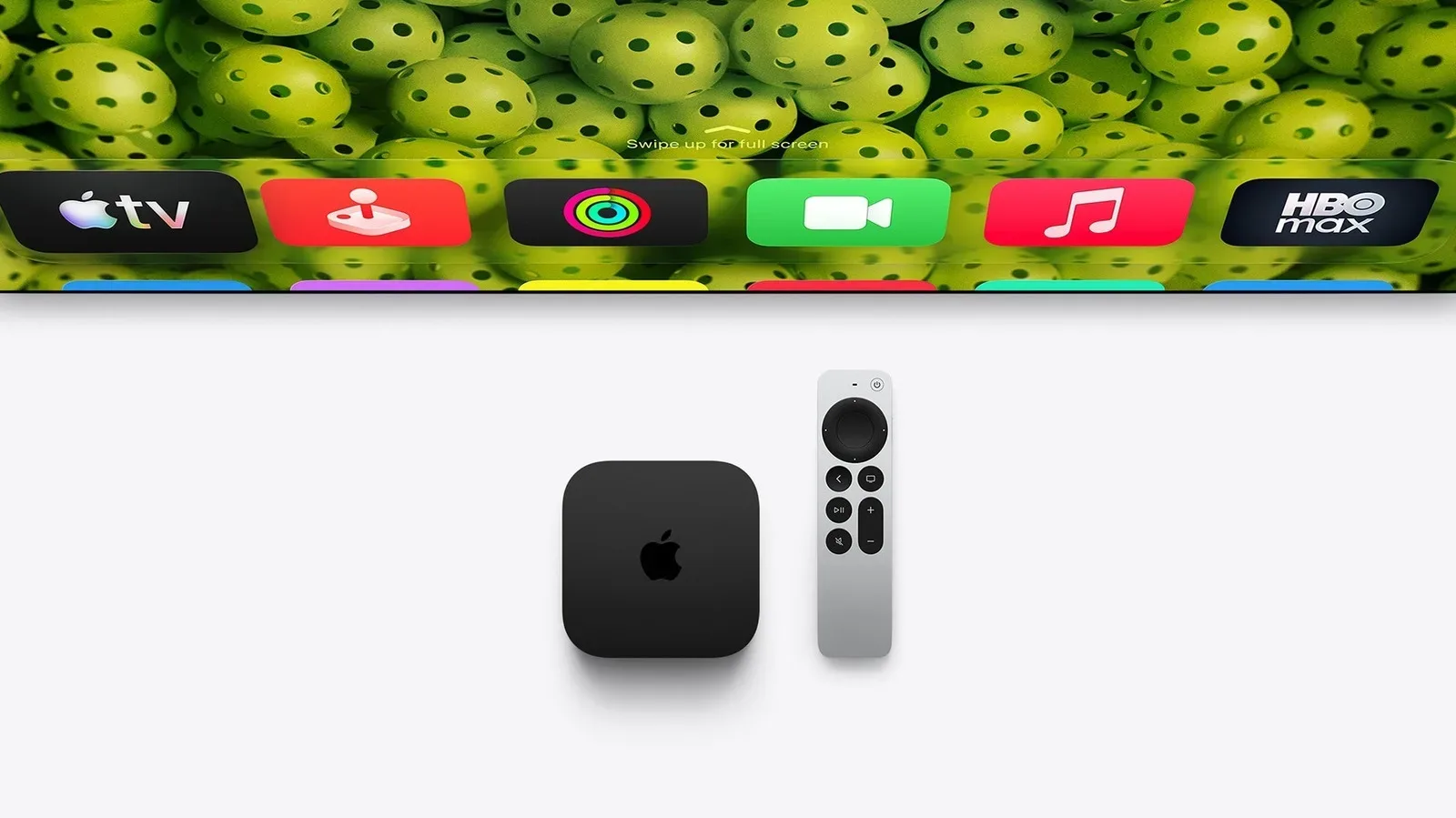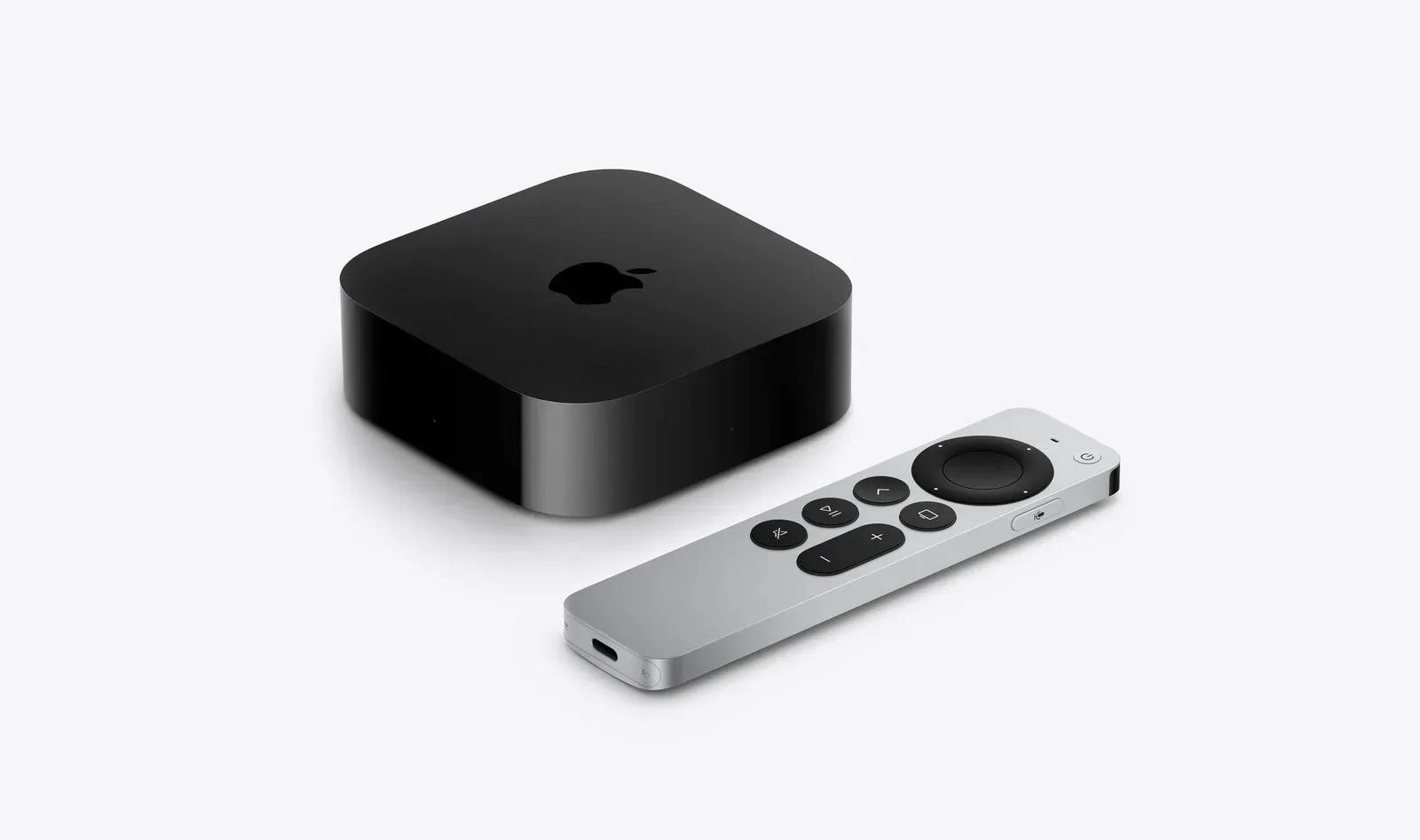
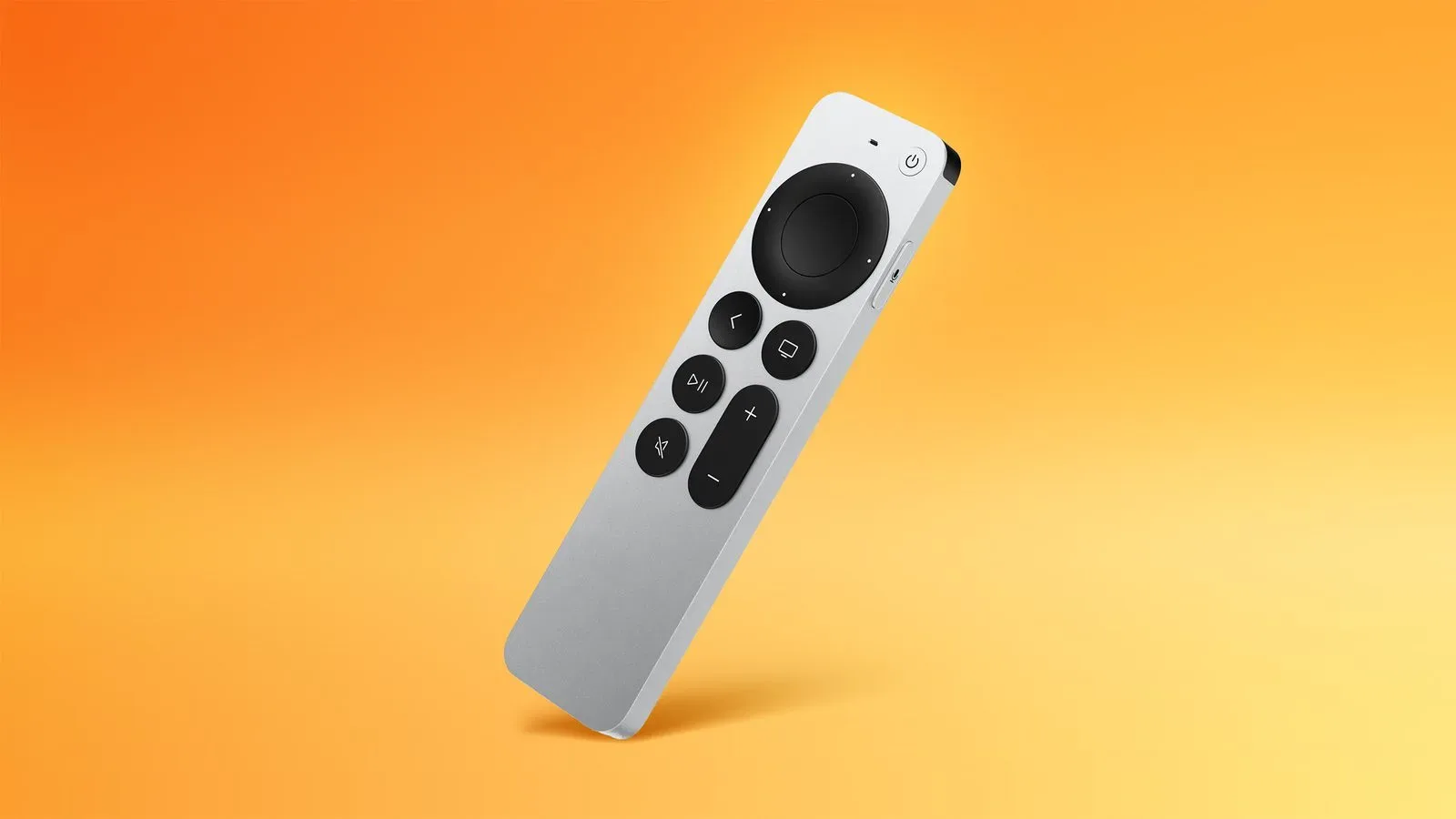
Apple has released a firmware update for the fourth-generation Siri Remote, moving the accessory from version 0001.0057.0000.0000 to 0001.0061.0000.0000. It is a small-looking change on paper, but it matters for a device that handles the most immediate part of the Apple TV experience: turning the box on, navigating apps, entering searches, controlling playback, and invoking voice functions.
The catch is that owners cannot initiate this update themselves. Siri Remote firmware is delivered automatically rather than through an on-screen “download now” command. The practical advice is simple: keep the remote charged and leave it near its paired Apple TV. Given enough time, the update should install on its own.
What has changed?
Apple has not published release notes for this Siri Remote firmware build. That means there is no official feature list, bug list, security summary, or stated reason for the revision. The only confirmed change is the version number itself.
That absence of detail is important. It would be easy to assume that every firmware increment fixes a particular annoyance—missed button presses, unreliable pairing, charging behavior, voice-command issues, or control of a television—but none of those outcomes has been specified here. Owners should treat the update as a maintenance release with undisclosed changes, not as confirmation of a new remote feature.
Firmware is the low-level software embedded in hardware accessories. Unlike an Apple TV app update, it does not generally arrive with a visible changelog or a new icon on the home screen. Its job is to govern how the device itself behaves: communication with the Apple TV, interpretation of button inputs, battery-related operation, and other hardware-facing tasks. An update can be useful even when its effects are invisible in day-to-day use.
How the automatic update works
There is no supported manual-install button for Siri Remote firmware. Owners cannot force the new build to appear immediately by repeatedly opening Settings, nor is there a stated timetable for when every remote will receive it.
The most useful conditions are also the least dramatic:
- Make sure the Siri Remote has charge.
- Keep it physically near the Apple TV it is paired with.
- Allow time for the automatic process to complete.
Those steps do not guarantee an immediate update; they simply remove the two obvious obstacles identified for the automatic delivery process. A remote left uncharged or far from its Apple TV has less opportunity to receive the firmware.
For players and households that use Apple TV as part of a living-room setup, this is a reminder that the remote is an accessory with its own software lifecycle. The Apple TV interface may be the thing on the television, but the handheld controller is a separate piece of hardware that can receive maintenance independently.
How to check the Siri Remote version
Apple TV provides a place to inspect the remote’s installed firmware. On the Apple TV, open Settings, then go to Remotes and Devices, and select Remote. The firmware information shown there can be compared with the current build number, 0001.0061.0000.0000.
- Open Settings on Apple TV.
- Select Remotes and Devices.
- Select Remote.
- Check the reported firmware version.
If the prior version, 0001.0057.0000.0000, remains visible, that only establishes that the remote has not yet moved to the newly identified build. Because installation cannot be manually triggered, the sensible next step is to leave the accessory charged and close to the Apple TV rather than attempting a forced download that the platform does not offer.
Why an opaque remote update can still matter
A remote rarely gets attention until something goes wrong. When it works, it disappears into the routine of selecting a show, pausing a game stream, adjusting volume, or searching for something to watch. That makes firmware updates for accessories unusually quiet: their ideal result may simply be that nothing interrupts the routine.
There is also a useful distinction between checking for an update and installing one. The Remote page lets an owner inspect the installed version. It is not a control panel for requesting a particular build. In this case, version checking is diagnostic: it answers whether the automatic process has finished, not whether it can be started on demand.
With no release notes, it is equally sensible not to frame the new number as urgent troubleshooting guidance. Someone whose remote already behaves normally does not need to change their setup beyond keeping the device charged and nearby. Someone seeing a problem cannot assume this exact firmware build addresses it. The update may help with an undisclosed issue, may be preventative maintenance, or may make changes that are not apparent to the user; the available information does not establish which.
A small part of Apple TV maintenance
Automatic accessory updates have an upside: once the necessary conditions are met, owners do not need to hunt through menus for an installer or manage a separate download. The trade-off is reduced visibility. A user can verify the version after the fact, but cannot choose the precise moment to install this Siri Remote build.
That approach makes simple habits more valuable than intervention. Charge the remote when needed, avoid treating the remote as something separate from the Apple TV it controls, and use the version screen only when there is a reason to confirm the installed build. For a home-theater or game-streaming setup, this is low-effort upkeep rather than a major platform event.
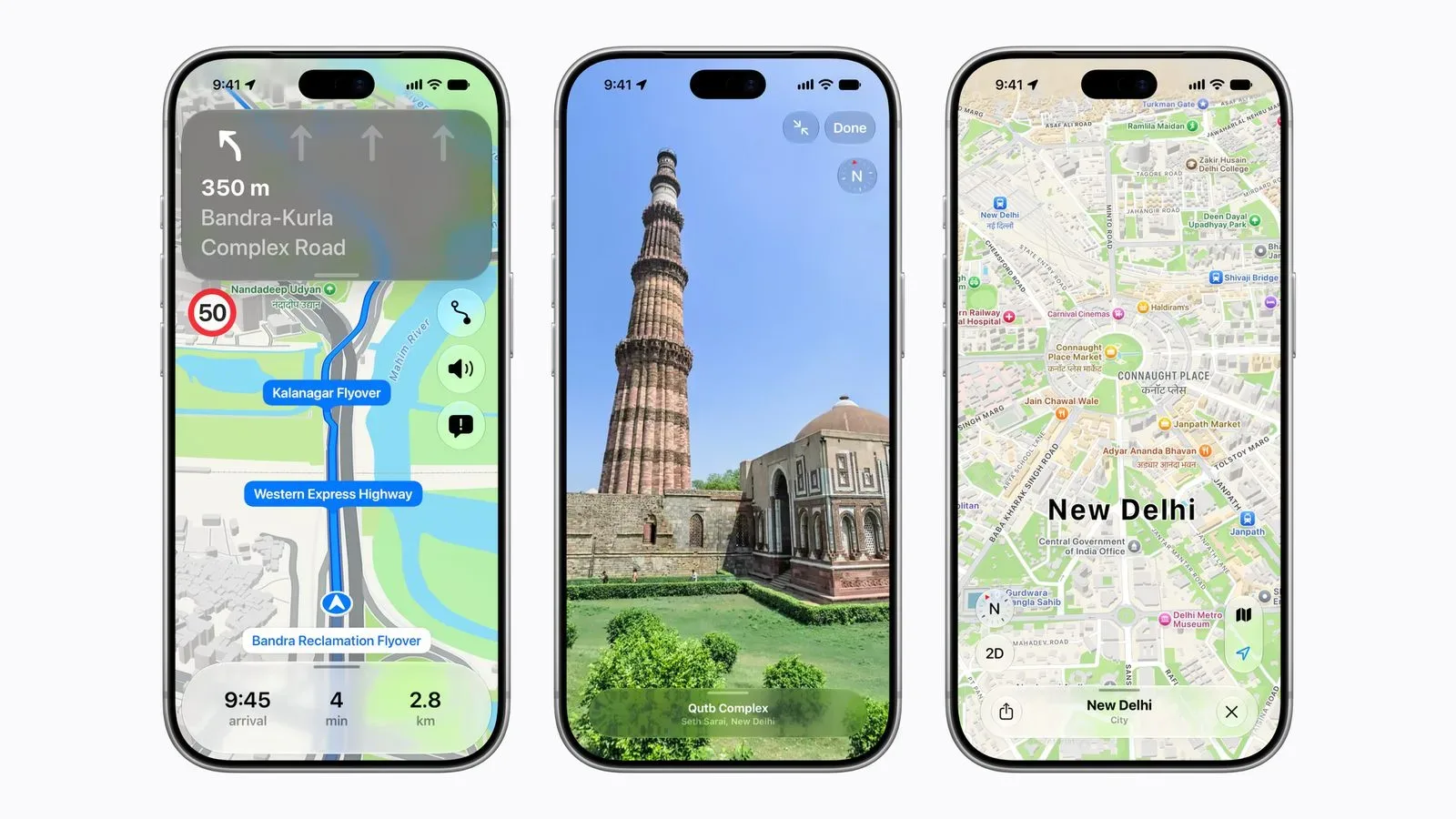
Apple’s wider software and services work remains active elsewhere as well, including changes to Apple Maps’ updated India experience. The Siri Remote release is much narrower: a firmware revision for one accessory, delivered quietly and without an accompanying description of what it changes.
What owners should do now
For most fourth-generation Siri Remote owners, there is nothing to download and no settings switch to enable. Keep the remote charged, keep it near the Apple TV, and allow the automatic update process time to run. Then, if confirmation is needed, check Settings > Remotes and Devices > Remote for version 0001.0061.0000.0000.
The lack of release notes leaves the practical message deliberately modest. This is a confirmed firmware revision, not a confirmed list of fixes. It may prove entirely unnoticeable—and for a television remote, that is often exactly the outcome users want.