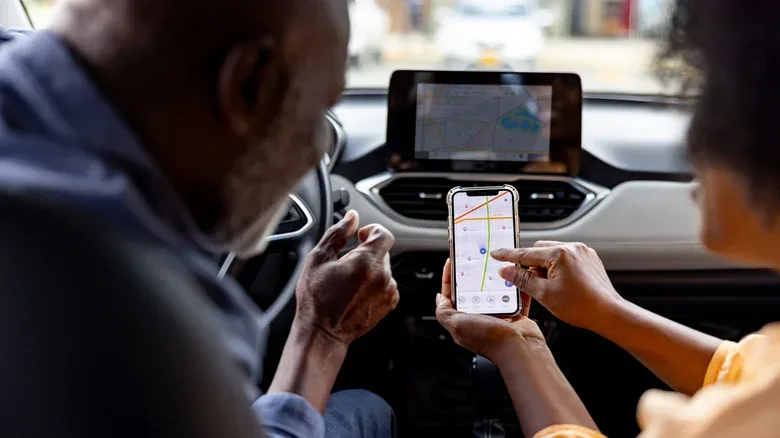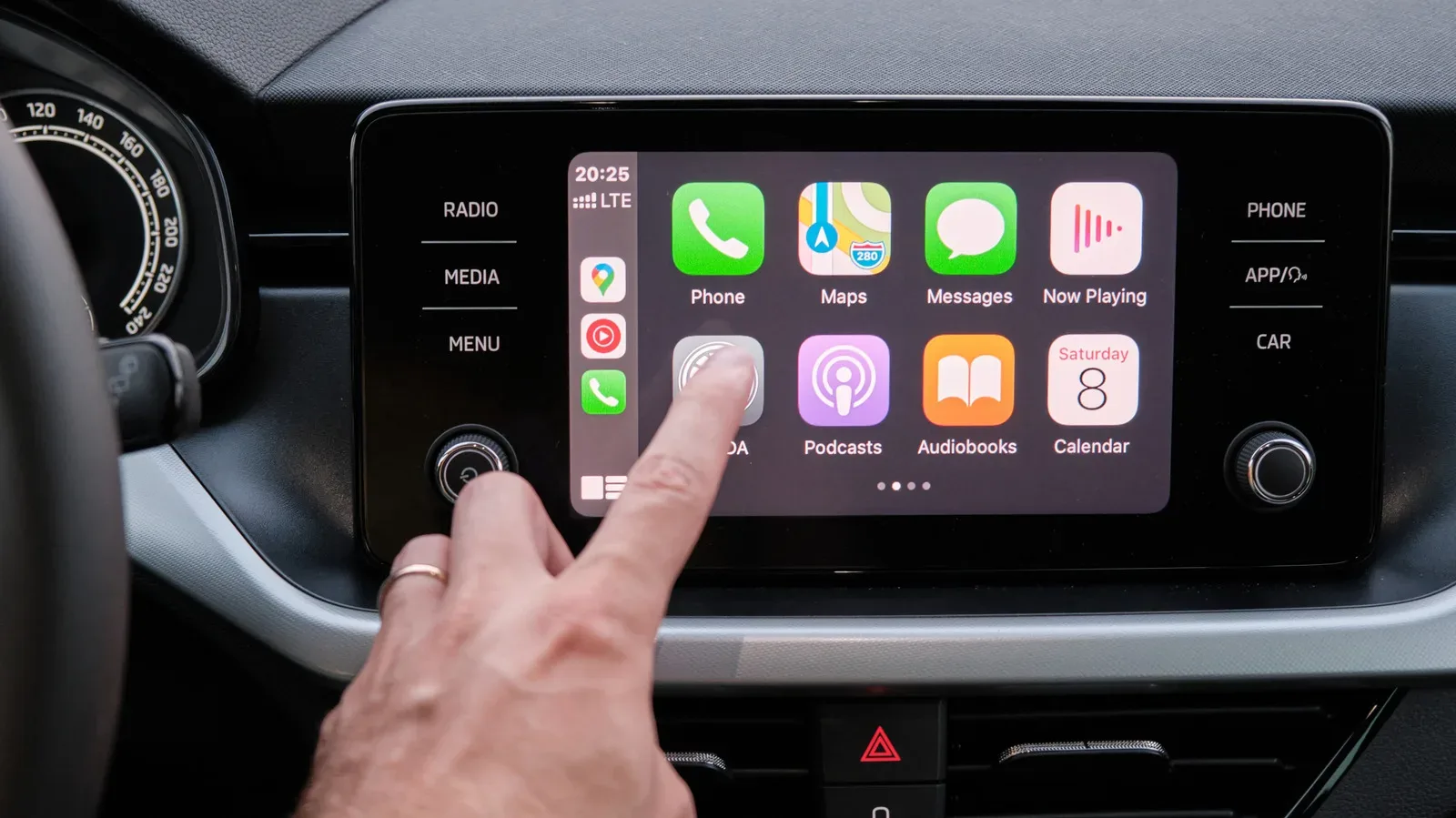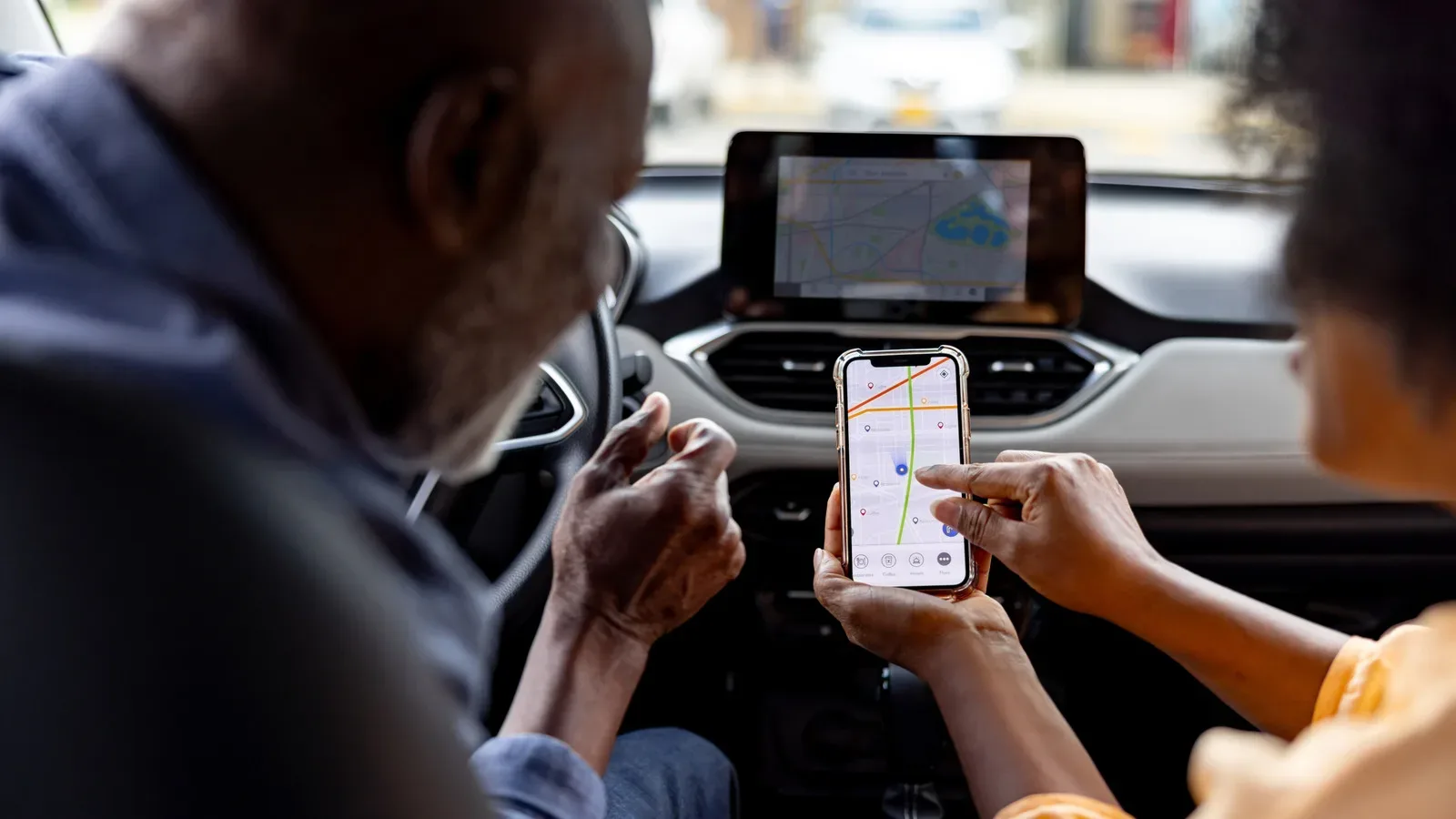
CarPlay is designed to make interacting with an iPhone less distracting while driving, yet a very ordinary two-phone problem can turn the dashboard into a tiny operating-system standoff. A vehicle can be paired with multiple iPhones, but CarPlay can actively project only one of them at a time. When both previously paired devices enter the car, the infotainment system may select the driver’s phone as expected—or decide the passenger is now captain of navigation, calls, messages and music.
The important distinction is between pairing and active CarPlay use. Pairing means the car remembers a phone as a device it can connect to. Active CarPlay is the single phone currently supplying the CarPlay interface to the vehicle display. Having two paired iPhones is supported; asking the car to predict which person should own the screen is where the experience can become inconsistent.
There is no universal button sequence because the choice is managed by the vehicle’s own infotainment software, not just the iPhone. That means the reliable first stop is the car display’s Bluetooth or device-management area. Look for a setting that identifies a preferred, primary or priority phone. If it exists, assigning the driver’s iPhone as the priority device is the least disruptive long-term fix.
Why the car may choose the “wrong” iPhone
Wireless CarPlay relies on the vehicle recognizing devices in range and deciding which connection to use. If two familiar iPhones are nearby, the system has to make that choice. The result can depend on the manufacturer’s implementation and its remembered device preferences rather than a simple rule that the driver’s handset always wins.
That is why this issue can feel random even when nothing has changed from the people in the seats. The phones were both paired successfully; the snag is the car’s selection of a single active projection connection. A setup that behaves perfectly with one person can become finicky as soon as another regularly paired iPhone rides along.
Some systems provide direct controls for changing CarPlay or Android Auto connections while the vehicle is in use. Hyundai is one example of a manufacturer with this kind of switching option. Where such a menu is available, choosing the driver’s phone may also establish the preference for future trips involving the same devices. That is a meaningful improvement over repeating a connection ritual every time two people get in the car.
The cleanest route: set a preferred device in the car
Before changing phone settings, inspect the vehicle’s infotainment menus. Labels vary, but the relevant section is likely to be called Bluetooth settings, connected devices or device management. The goal is not merely to confirm that both iPhones are listed. It is to find an option to select which phone has priority when more than one recognized device is available.
- Open the car’s Bluetooth settings or device-management menu.
- Find the list of phones that have been paired with the vehicle.
- Look for wording such as preferred, primary or a similar priority control.
- Select the driver’s iPhone if the system provides that choice.
- Use the car’s CarPlay or connected-device controls to switch to that phone when necessary.
This is preferable to removing a passenger’s phone outright. Keeping both phones paired preserves convenience for future trips, while a priority setting—where supported—gives the vehicle a clear answer to the question it otherwise has to guess at.
When the infotainment system offers no obvious priority setting
Not every dashboard is generous with controls. If the car does not expose a way to choose the active iPhone, the practical workaround is to stop the other device from competing for the connection. Turning off Bluetooth and Wi-Fi on the passenger’s iPhone is the blunt but effective version of that approach.
It is worth being clear about what this does. It does not transfer CarPlay control from one device to another through a dedicated handoff feature. It simply removes the passenger phone from the pool of wireless candidates, leaving the driver’s phone in the stronger position to connect. It is a workaround, not an elegant multi-user system.
That distinction matters because it sets expectations. Once the passenger turns Bluetooth and Wi-Fi back on, the two-device question can return on a later journey. Drivers who encounter this regularly will likely save time by revisiting the car’s device settings and looking for a remembered preference rather than treating the connectivity toggle as a permanent cure.
Will plugging in the driver’s iPhone solve it?
A wired connection is a reasonable thing to try: plug the driver’s iPhone into the car and see whether the vehicle gives that physically connected phone priority over a wireless device. However, it should not be treated as a guaranteed fix. Reports from users indicate that this method has not been consistently successful. The car’s own behavior still determines the outcome.
In other words, a cable can be useful as a troubleshooting attempt, but it is not a substitute for a proper preferred-device option. If the vehicle continues to favor another paired iPhone, returning to the infotainment menus or temporarily disabling wireless connectivity on the competing phone remains the more dependable path described here.
Music control does not always require a CarPlay switch
Many apparent CarPlay conflicts are actually music-control conflicts. A passenger may not need their phone to take over the entire dashboard just to add a song, reorder the queue or remove the one track everybody has silently agreed needs to go. In that case, switching the active CarPlay connection is unnecessary.
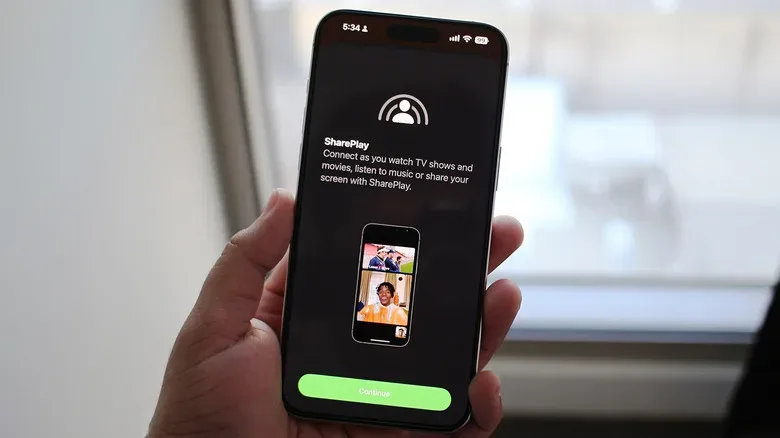
Apple’s answer is SharePlay, which gained CarPlay support with iOS 17. When the driver hosts an Apple Music session, other occupants with iPhones running iOS 17 or later can join and manage the music queue from their own phones. They can add tracks, rearrange them or remove them, while the driver’s iPhone remains the device handling CarPlay on the car display.
The subscription arrangement is especially useful in a group: only the host needs an Apple Music subscription for passengers to participate in this in-car SharePlay setup. That makes the feature a cleaner way to share DJ duties than repeatedly changing which iPhone owns CarPlay.
Spotify has a parallel option in Jam. People in the car can join the host’s listening session and contribute to the queue from their own phones. Participants do not need Spotify Premium when they are using Jam together in person. Functionally, the value is similar: shared music selection without changing the phone that is projecting the dashboard interface.
For people tracking Apple’s wider software changes, recent iOS and Siri developments offer broader context for how Apple is continuing to expand its platform features. In the car, though, the useful takeaway is much simpler: collaborative listening is often a better solution than a complete CarPlay handoff.
What SharePlay and Jam cannot do
Neither shared-listening feature grants a passenger control of the entire CarPlay display. They solve the music queue problem, not the navigation or messaging problem. If the passenger needs their maps, messages or other CarPlay-supported interface to appear on the vehicle screen, the car must still switch its active CarPlay connection to that passenger’s iPhone.
This boundary is helpful because it prevents a common misunderstanding. Letting everyone contribute songs is not the same as turning the dashboard into a multi-user interface. CarPlay remains centered on one phone at a time, which keeps the display’s active context clear even if the playlist becomes a group project.
A practical decision order for two iPhones in one car
The least frustrating approach is to decide first what the passenger actually needs. If the answer is music, use SharePlay or Spotify Jam and leave the driver’s CarPlay session alone. If the answer is navigation, messages or another screen-based CarPlay task, switch the active connection through the vehicle’s own device controls.
- For a lasting fix: set the driver’s iPhone as the preferred or primary phone in the infotainment system, when that option exists.
- For a one-off switch: use the vehicle’s CarPlay, Bluetooth or device-management menu to select the other iPhone.
- When the car will not cooperate: temporarily disable Bluetooth and Wi-Fi on the iPhone that should not connect.
- For shared music only: keep CarPlay on the driver’s phone and use Apple Music SharePlay or Spotify Jam.
- For maps or messages on the screen: perform a genuine CarPlay switch; shared music tools will not provide that access.
CarPlay has been available since 2014 and has accumulated frequent feature updates, with an app library that reaches beyond maps and playback controls to include tools such as fuel-price and parking finders, along with AI chatbot support. But the basic one-screen, one-active-phone limitation remains central to the experience. The best workaround depends on whether the second person needs control of the car display or merely a say in the soundtrack.
For couples, families and carpools with multiple paired iPhones, the quiet victory is not finding a secret universal CarPlay command. It is setting a device priority if the car supports one, using shared queue features for music, and reserving a full connection switch for the occasions when somebody genuinely needs their own navigation or messages on the dashboard.