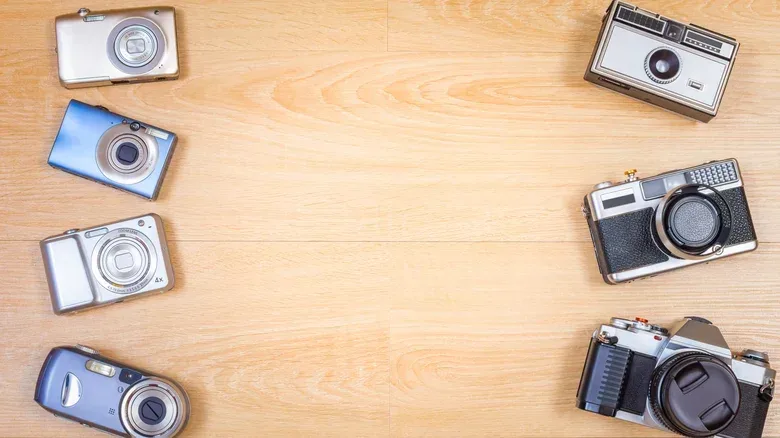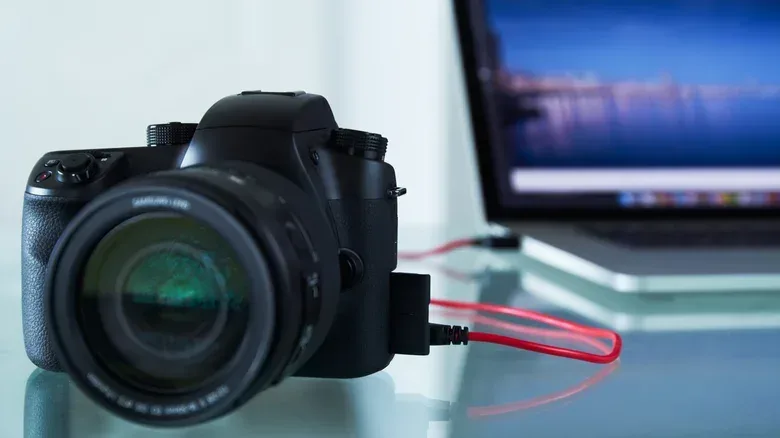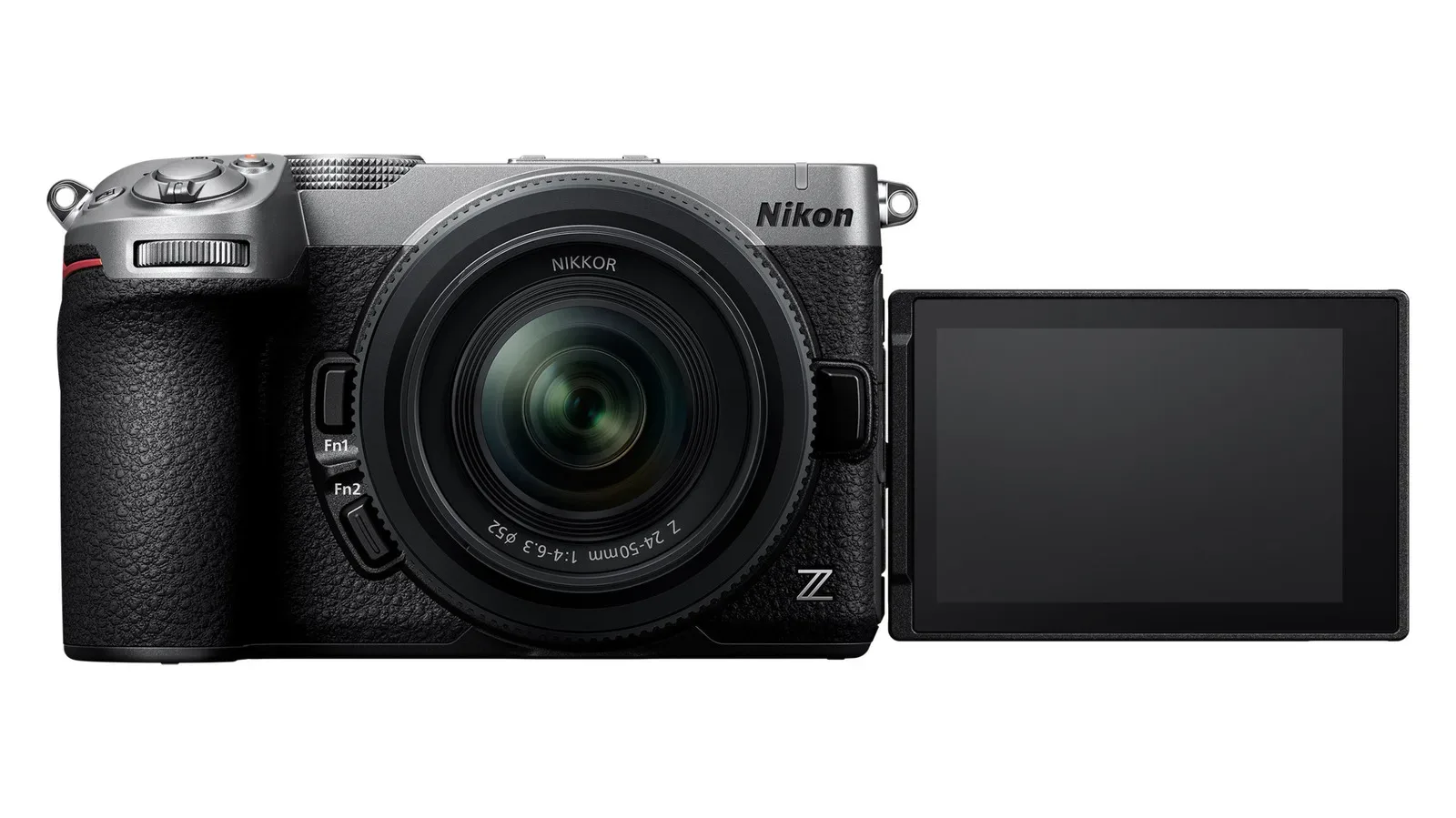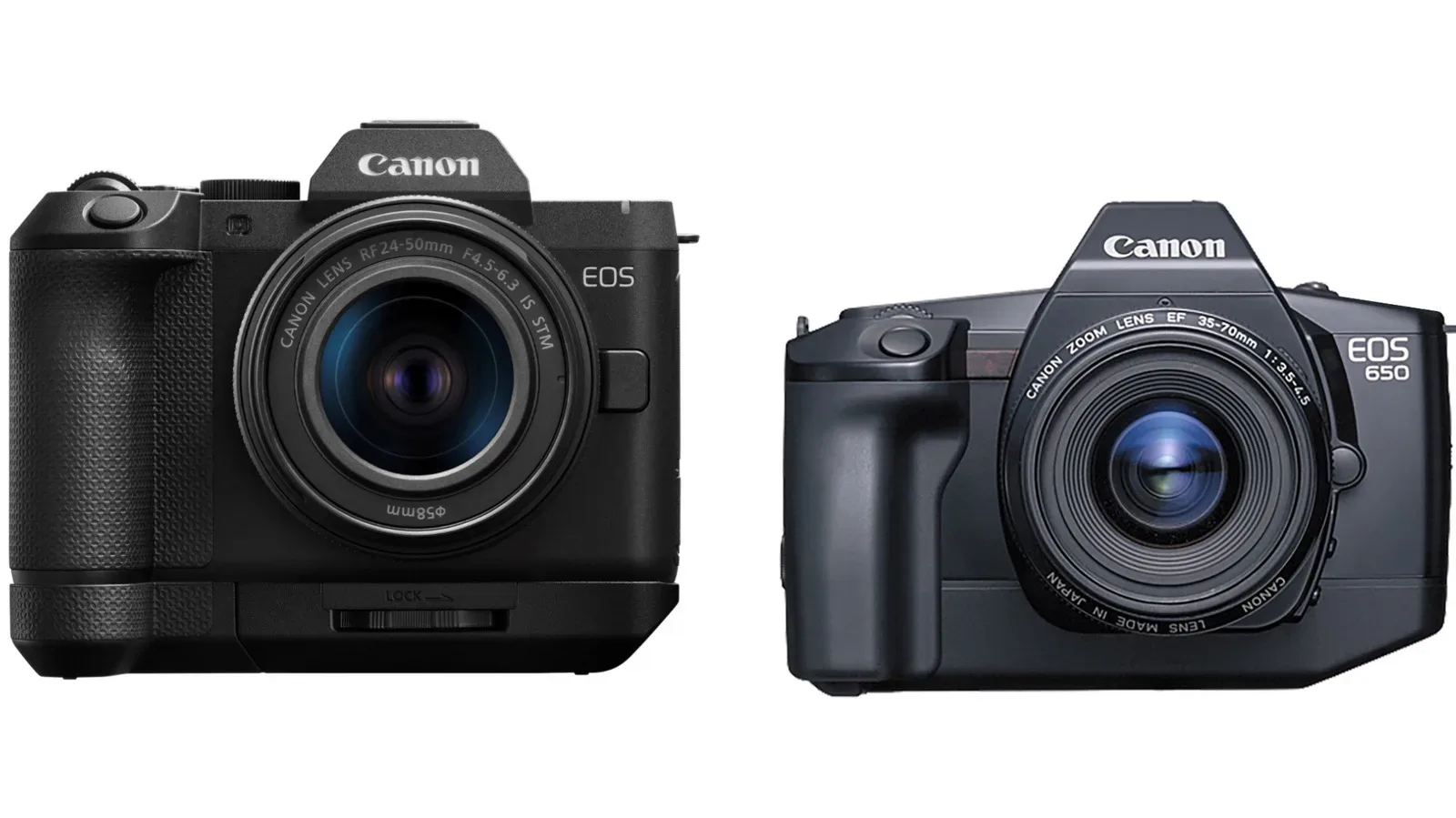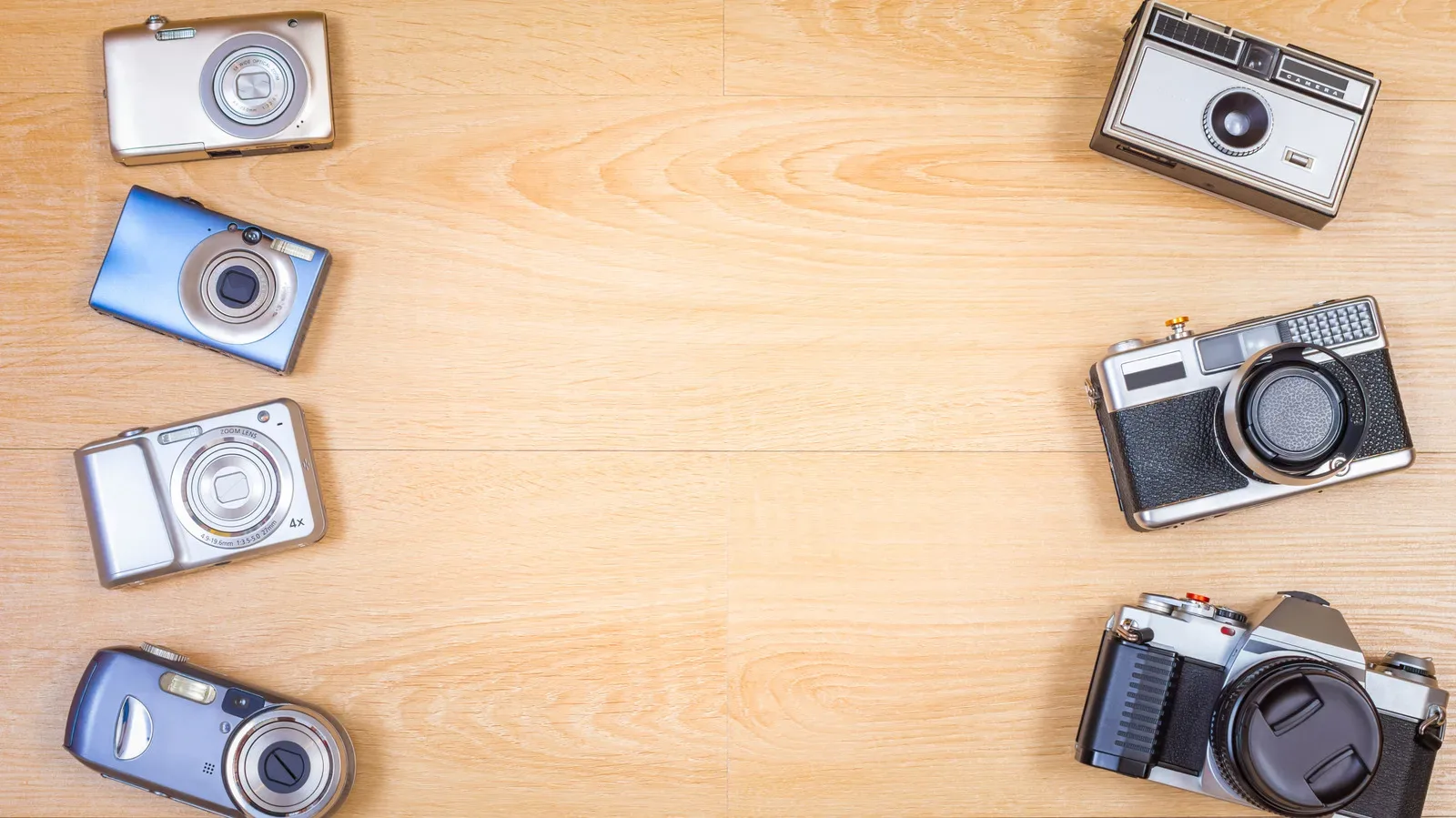
An old digital camera sitting in a drawer may have a more useful second act than gathering dust—or heading straight for electronics recycling. A surprising number of older DSLRs, mirrorless models and compact cameras can serve as computer webcams. For video calls, that can mean more control over framing, potentially stronger low-light performance and more natural-looking background blur than a laptop camera’s software approximation.
That possibility does not mean every old camera is automatically a webcam bargain. The sensible route depends on the exact model, whether its maker offers USB webcam support, whether it has a clean HDMI feed, how it handles power during extended use and what extra hardware would cost. In some cases, a modern USB webcam—or a compatible phone—will be simpler and cheaper. In others, the camera already on hand could be an excellent upgrade.
There is also a reason not to assume an aging compact is worthless. Built-in-lens digital-camera shipments rose 29.6% in 2025 to roughly 2.44 million units, with a further 13.6% increase projected for 2026 by the Camera & Imaging Products Association. That data does not establish why demand is rising, but it does underline that the category is far from forgotten. Certain older models may have meaningful resale appeal, so owners should weigh that option before buying a pile of adapters for a webcam project.
Start with the exact model number, not the camera’s age or size
The first check is straightforward: find the full model name and consult the manufacturer’s webcam compatibility information. A camera that looks capable on paper may not be supported, while a modest older model could work with a simple cable and utility.
Examples of models still supported for this purpose include Canon’s EOS 6D and EOS Rebel T6. Nikon’s D5300 and D750 work with Nikon Webcam Utility, while Sony’s A5100, A7 II and RX100 IV are among cameras supported through Imaging Edge Webcam.
If the specific camera is on the relevant list, USB is usually the best starting point. Install the required webcam software when applicable, connect the camera with a USB data cable, switch the camera into its appropriate video or remote mode, then choose it as the camera in an application such as Zoom, Google Meet or Microsoft Teams.
The word “data” matters. A cable that only supplies charging power will not create the computer connection needed for a webcam utility. Likewise, merely plugging in a supported camera is not necessarily enough if it remains in the wrong shooting or connection mode. The intended sequence is software, data connection, camera mode and then selection inside the video-call app.
What USB webcam support actually changes
A manufacturer webcam utility lets the computer recognize a compatible camera as a video source. This avoids the need for a separate video capture device, which is why it is the lowest-cost and lowest-complexity path for someone who already owns both the camera and an appropriate USB cable.
Related coverage includes Turn an Old Digital Camera Into a Webcam Before You Recycle It.
It is not a guarantee of top-tier sharpness, however. Older supported Nikon DSLRs can use only the VGA portion of the camera’s XGA live-view display. In plain terms, the computer may receive a lower-resolution slice of the camera’s live image rather than the maximum detail the camera can record in still photographs. A newer dedicated webcam can therefore deliver more detail despite having a smaller physical camera body.
This is an important expectation check. A DSLR or mirrorless camera may still offer appealing benefits through its sensor, low-light behavior and lens control, but “larger camera” is not synonymous with “higher-resolution webcam output.” The webcam mode’s particular limitations matter more than the camera’s reputation as a stills device.
Why the camera may still look better on a call
Resolution is only one part of an image. The available evidence points to three areas where an older interchangeable-lens camera, or some compact cameras, can remain attractive for desk video: low-light performance, framing control and background rendering.
Framing control is the simplest to understand. The user can position the camera and select a lens or focal length that puts their face and workspace in the desired composition. This may make it easier to avoid the very wide, close-up perspective often associated with laptop webcams.
Background blur is another potential advantage. Laptop webcams frequently use software processing to imitate separation between a person and the room behind them. A camera-and-lens setup can instead use optical characteristics to produce more natural blur, provided the model and lens support the look a user wants. It is an aesthetic benefit, not a mandatory one: a crisp, wider image can be preferable for demonstrations or group calls.
Low-light performance matters because many calls happen under ordinary room lighting rather than a dedicated studio setup. Larger sensors and camera controls can help a supported model compensate for limitations elsewhere in its webcam implementation. The precise result will vary by model, so it is better to regard this as a reason to test a camera already owned rather than a reason to assume any old model will outperform a current webcam.
Audio and battery life can spoil an otherwise easy setup
Video is only half of a webcam arrangement. Nikon and Sony indicate that their webcam utilities do not send the camera’s built-in microphone audio to the computer. That means the call needs another sound source, such as the laptop microphone or a separate microphone.
This is a practical distinction worth deciding before a meeting begins. Selecting the old camera as the video device does not necessarily mean its microphone is supplying audio. Check the call application’s microphone setting independently, and make sure the selected input is the one people can actually hear.
Power is the other major concern. Live view—the mode in which the camera actively provides its image—consumes battery power. A brief call may be fine on a regular battery, but long meetings can turn an interesting reuse project into a race against a battery indicator.
If the camera supports external power, it may be worth considering for sustained use. Before treating the camera as a permanent desktop fixture, confirm whether it can run from external power while providing video and whether its power-saving behavior can be disabled. Some older cameras were never designed for hours of continuous operation as computer accessories.
Clean HDMI is the alternative when USB support is absent
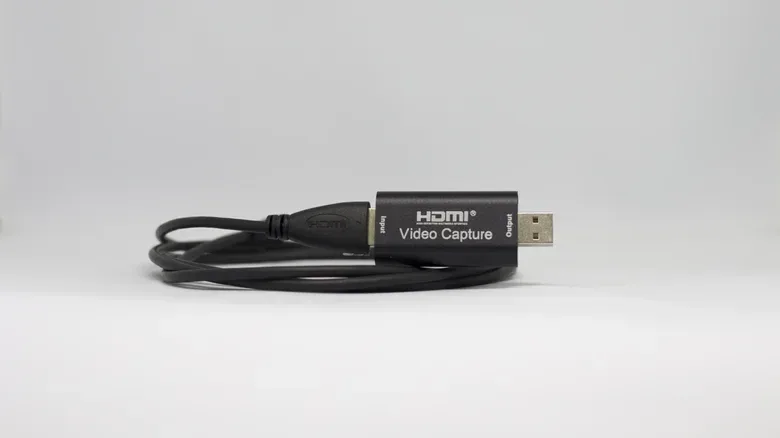
A camera missing from a USB webcam utility list is not necessarily out of the running. Some cameras can output video over HDMI to a capture device, which then appears to the computer as a webcam. HDMI is the same broad connection family commonly used to send video from devices to displays; here, a capture device acts as the bridge between the camera’s HDMI feed and the computer.
The key phrase is clean HDMI output. “Clean” means the video feed does not carry camera-interface clutter: autofocus boxes, exposure readouts, menu information or a flashing battery symbol. A call participant should see the speaker, not a camera status display that looks as if it has wandered into the meeting uninvited.
Clean HDMI is a model-specific capability, so it should be verified before purchases. A camera might have an HDMI port yet still place interface overlays on its output, which defeats the purpose for most webcam use. The ability to switch off power saving and use external power while transmitting video should be checked at the same time.
The HDMI route has a real budget threshold
Using HDMI can be more involved than installing a free utility. Elgato’s Cam Link 4K, one example of a capture device, is priced at $99.99 before adding an HDMI cable, a mount and potentially a dummy battery. A dummy battery is an accessory designed to let an externally powered camera operate in place of its usual battery.
Those additions can quickly change the value calculation. The 2K Anker PowerConf C200 webcam has been listed at $60 and includes microphones with a simpler USB connection. So an old camera that needs a capture device, cabling, mounting hardware and power accessories may be a fun or worthwhile project, but it is not automatically a money-saving one.
There are other no-cost routes for people who already own compatible devices. A compatible iPhone may work as a webcam for Mac users, while compatible Android phones can be used as webcams on Windows 11 without charge. For Apple-device owners, it may also be useful to keep up with changes affecting the wider iPhone software ecosystem, including new controls appearing in iOS 27.2 beta.
Do a value check before converting a retro compact
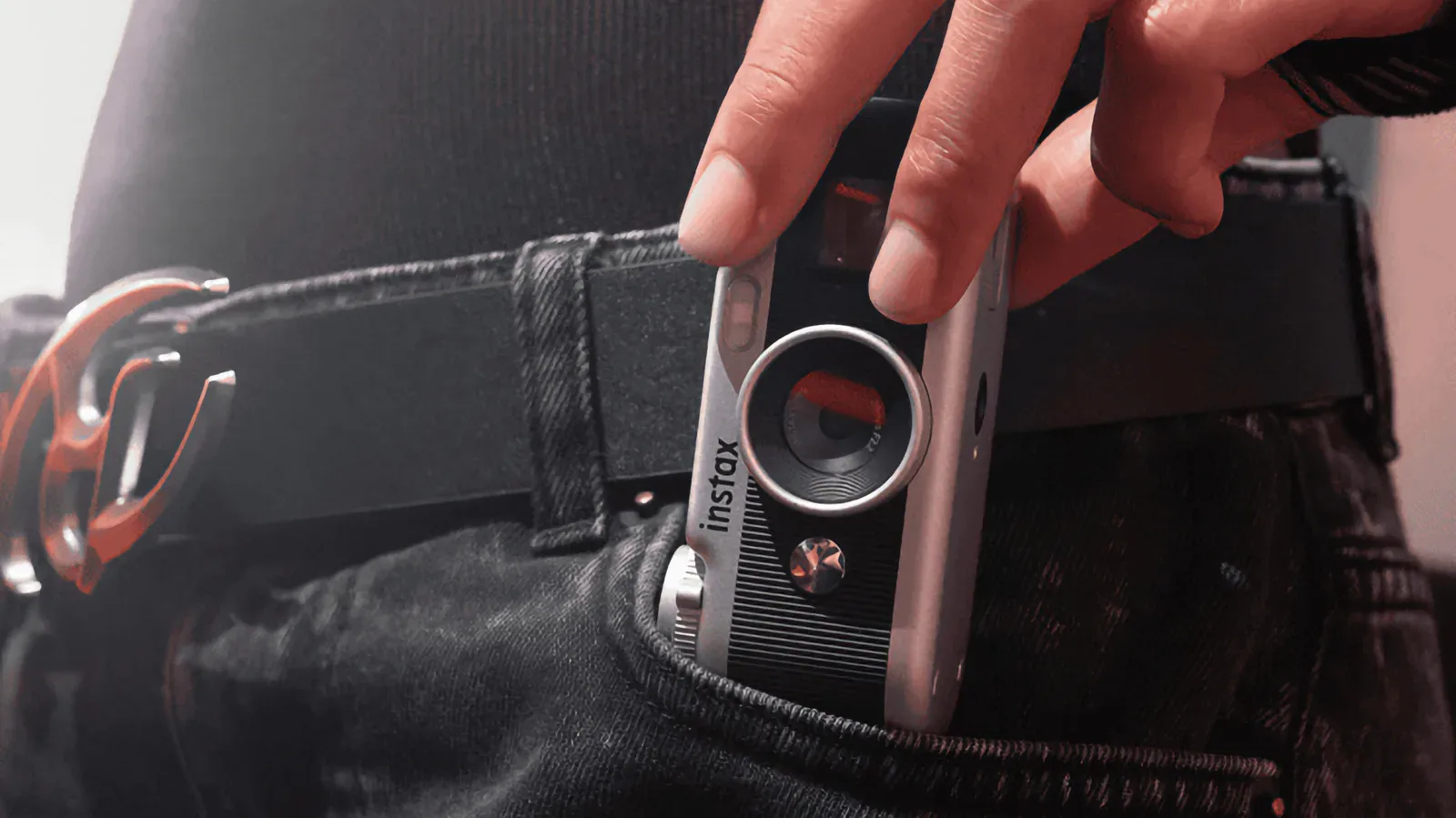
The final question is not technical: should the camera be repurposed at all? Interest in older digital cameras means certain models may sell for far more than an owner expects. One example is the Canon PowerShot S95. It was purchased for $130 in 2023 in one reported case, while average selling prices had climbed above $400 by 2026.
That does not mean every camera in a drawer is a valuable collectible, nor does it predict what any particular unit will sell for. Condition, model and buyer interest will matter. But it is enough to justify a pause before purchasing dedicated conversion gear or modifying a setup around a compact that could be more valuable sold intact.
The same principle applies to the total project cost. If USB support is available, using an existing camera could be a practical way to improve calls with little more than software and a cable. If HDMI conversion requires nearly $100 in capture hardware plus accessories, compare that total with a current dedicated webcam, a compatible phone option and the potential resale value of the camera.
A sensible pre-recycling checklist
- Identify the precise model: Check the name on the camera body rather than relying on a rough description such as “old Canon” or “Nikon DSLR.”
- Look for official USB webcam support: This is generally the simplest path and may require only software, a USB data cable and the correct camera mode.
- Set realistic image expectations: Camera webcam modes can have resolution limits, including VGA live-view output on some older supported Nikon models.
- Choose audio separately: Nikon and Sony webcam utilities do not pass the camera microphone’s audio to the computer, so select a laptop or external microphone.
- Plan for long sessions: Confirm battery behavior, external-power compatibility and whether power saving can be disabled.
- Verify clean HDMI before buying capture hardware: An HDMI port alone is not enough if status overlays remain on the output.
- Add up every accessory: Include a capture device, HDMI cable, mount and possible dummy battery—not just the headline price of one component.
- Check whether the camera is worth selling: Some older digicams may have gained enough demand that resale is the better outcome.
The best use for an old digital camera is therefore not one-size-fits-all. USB-compatible models are the easiest candidates for a low-cost webcam role. Clean-HDMI models can work too, but only after a careful accessory and power check. And where a compact camera has become desirable in its own right, keeping it intact or selling it may make more sense than building an elaborate desk rig around it.