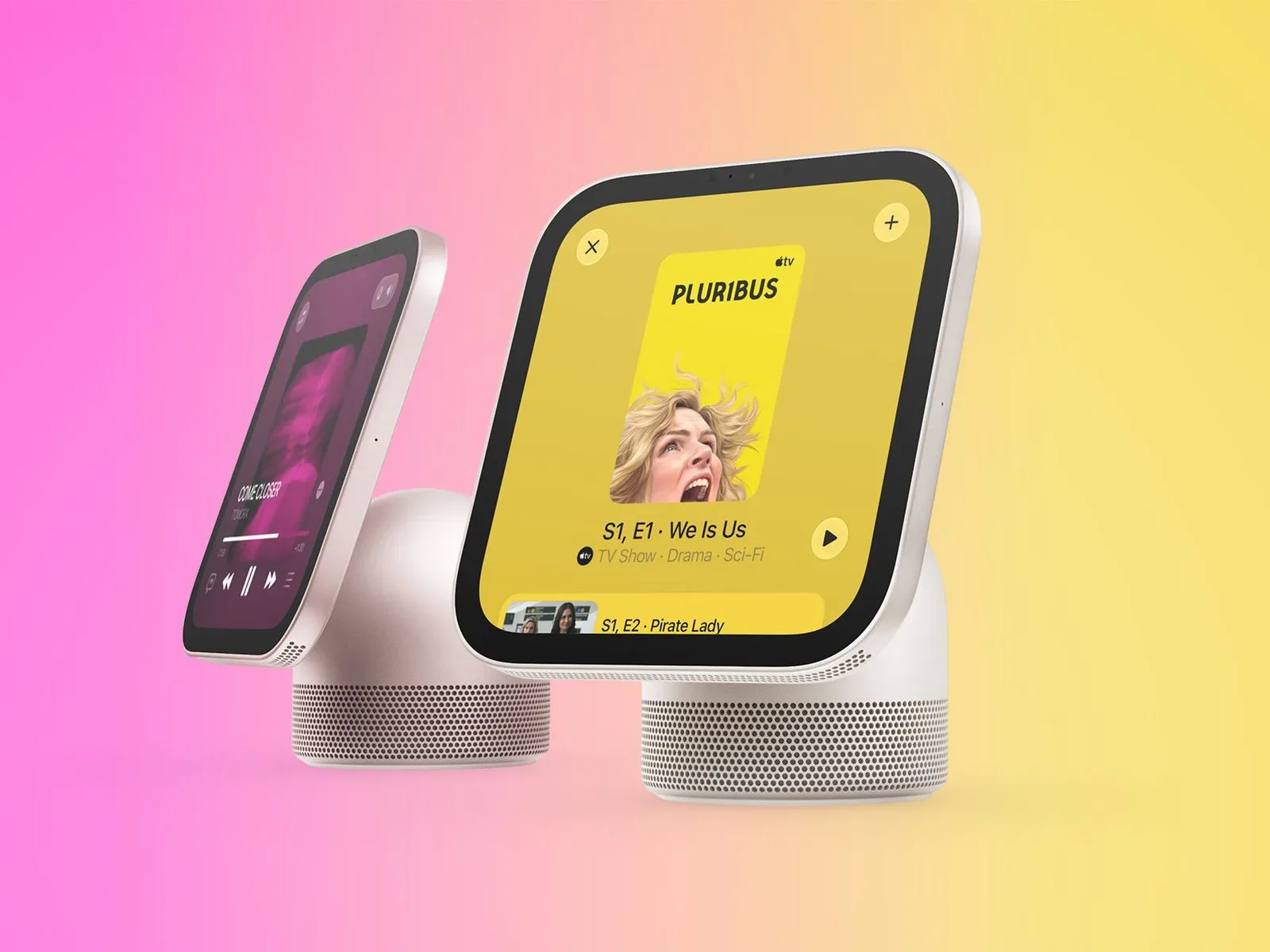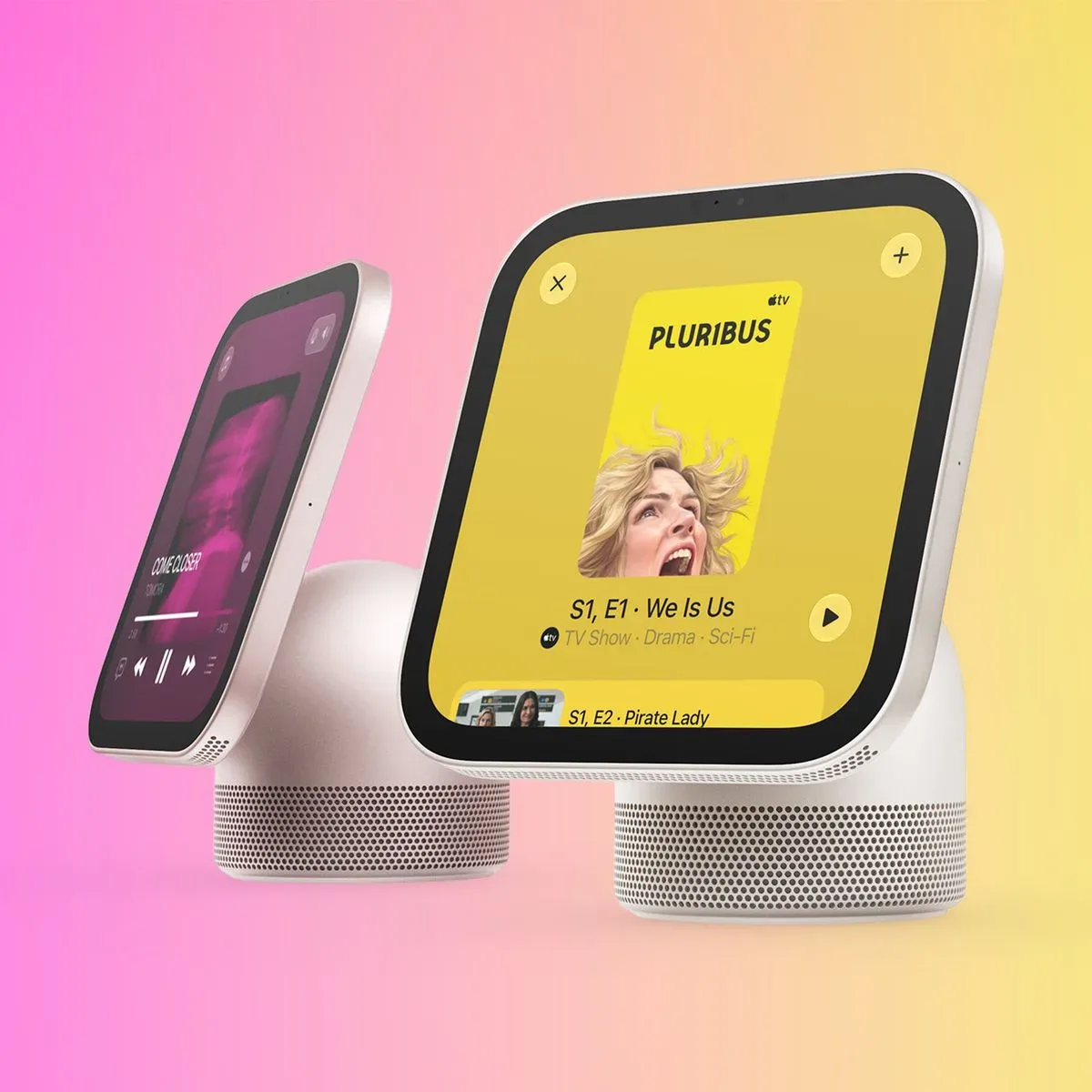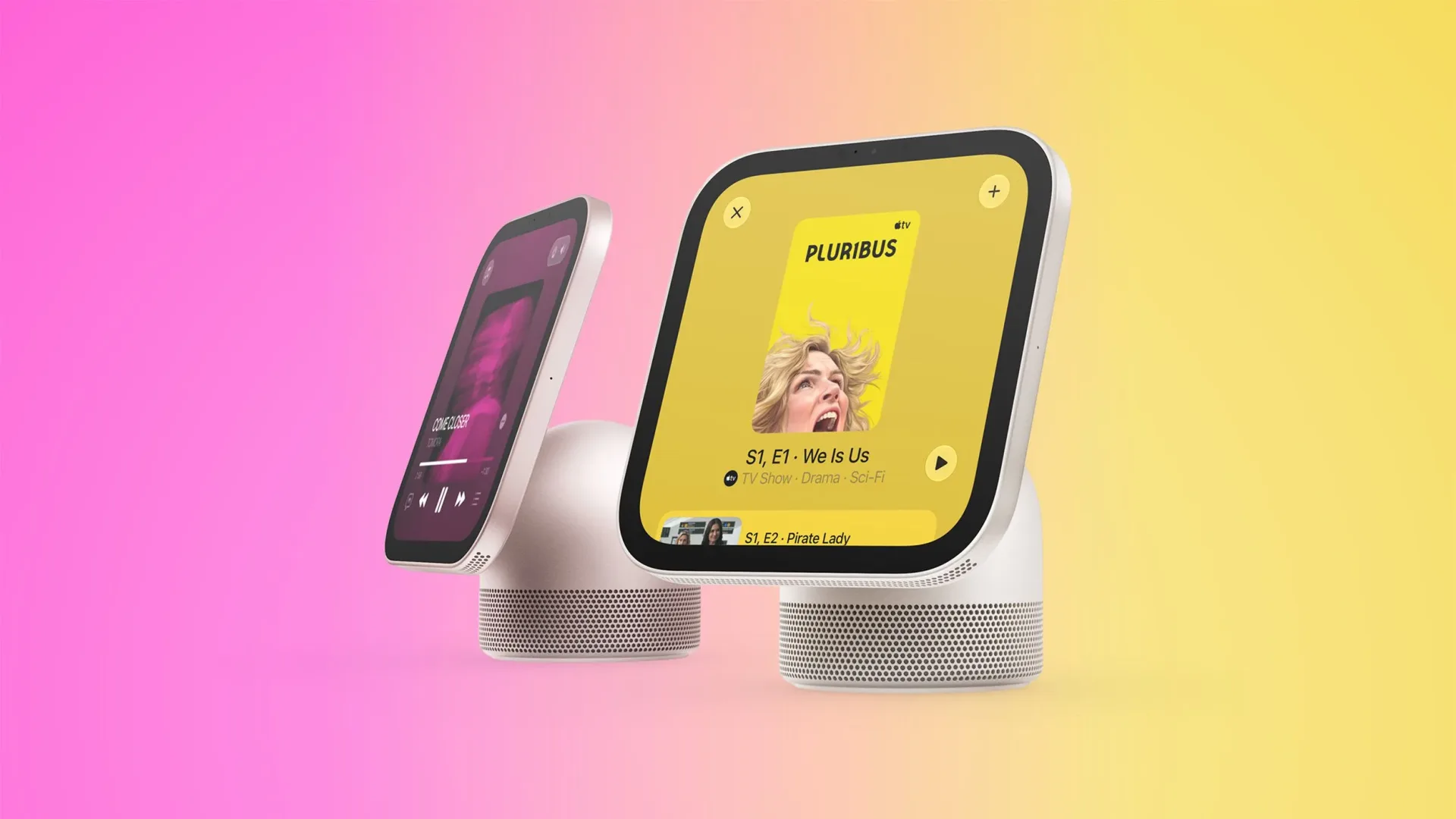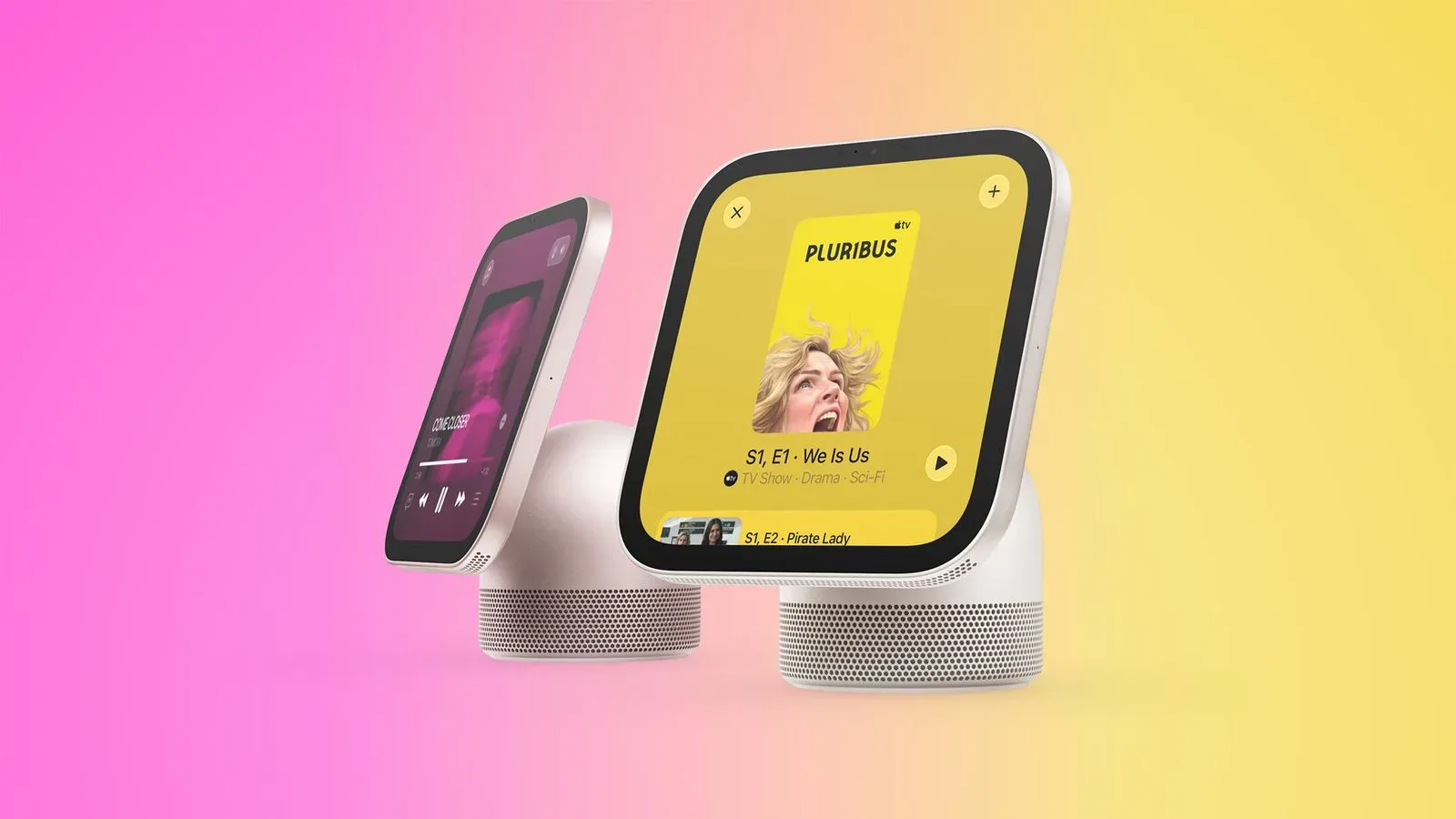
Apple’s upcoming HomeView smart-home hub is coming into focus through a detailed software tour that puts less emphasis on the hardware shell and more on the screens people will actually use. The available look at the interface covers the home screen, Control Center, clock faces, core utility apps, media playback and setup-adjacent elements. It also surfaces a few practical details that matter more than a pretty dashboard: HomeView supports as many as six users, relies on a built-in camera to recognize them, and uses that recognition to gate access to personal information.
That combination makes HomeView sound less like a passive smart display and more like a shared household device with individualized layers. It is a significant idea, but it also means the promise of personal content is tied directly to a feature that must correctly identify the person in front of the screen.
The software was examined in a virtualized HomeView environment created by Guilherme Rambo, with Steve Troughton-Smith walking through its interfaces and apps. Because it is a virtualized implementation rather than the retail hardware, the tour is especially useful for understanding menu structure and visual design, while still leaving some real-world questions unanswered—most notably how the camera-driven recognition works in daily use.
A household hub built around recognition
HomeView supports up to six users. Its built-in camera can recognize people and show their own content in Messages, Calendar, Reminders, FaceTime and Find My. That is the central software distinction revealed by the tour: rather than merely putting a family calendar or common media controls on a shared display, HomeView is designed to know who is interacting with it before opening certain personal apps.
In practical terms, this is meant to create separation on a screen placed in a communal part of a home. A person’s messages, reminders and location-related information are inherently more private than a kitchen timer or shared music controls. Requiring recognition before those apps appear establishes a boundary between information intended for everyone in the room and information intended for one recognized user.
There is an important limitation to keep in mind when viewing the software tour. Rambo and Troughton-Smith had not bypassed the recognition requirement in the virtualized HomeView, so Messages, Calendar, Reminders, FaceTime and Find My remained locked. The tour therefore demonstrates that these apps exist as part of the experience and that they are protected by recognition, but it does not provide a view of their personalized in-app layouts.
What “recognition requirement” means here: the system needs to identify a person through the device’s camera before it will present their private content in supported apps. It is not simply a cosmetic profile picker shown in the material available so far. The recognition step is the condition preventing access in the virtualized environment.
That design has an obvious upside for a multi-user home device: personal services need not be exposed merely because the hub is in a common space. It also creates an everyday dependency. The usefulness of those protected features will be closely tied to whether recognition is dependable in the situations people actually encounter. The current material does not establish performance, failure behavior or alternative access methods, so those points remain open rather than settled.
Core controls: home screen, Control Center and familiar utility apps
The tour shows the HomeView home screen and Control Center, along with Timers, Alarms, World Clock and Settings. These are straightforward inclusions for a device intended to live at the center of a room, but they reveal a product shaped around quick, glanceable interactions rather than only long-form media use.
Timers and alarms are particularly natural fits for a hub used in shared spaces. World Clock similarly points to utility that can be checked without pulling out another device. Settings, meanwhile, is where the software’s broader system choices become visible—including a menu that can be misleading when seen in virtualization.
The virtualized HomeView contains an Ethernet menu, but the device itself supports Wi-Fi only. That discrepancy is worth stating plainly because a visible software option can easily be mistaken for a shipping hardware capability. In this case, it should not be treated as evidence that HomeView will offer a wired network connection. The supplied hardware detail is Wi-Fi-only support.
Why this matters: network connectivity is not a trivial spec for a home hub. The device’s personal services, media functions and AirPlay-related interface all imply a connected role. But the current information supports only the conclusion that retail HomeView uses Wi-Fi, not Ethernet.
There is also a familiar organizational logic to the available interface: a home screen for launching functions, a centralized Control Center for fast controls, and dedicated apps for individual jobs. The software is said to be based on Apple TV’s tvOS, which helps explain why HomeView may feel closer to a living-room interface than a phone-first dashboard.
tvOS is the foundation, not a promise of identical behavior
Rambo and Troughton-Smith said HomeView’s software is based on tvOS, the platform used by Apple TV. That statement is useful context, but it should not be overread. “Based on” describes the underlying software lineage; it does not mean every Apple TV feature, interaction or interface convention has been confirmed for HomeView.
What the tour does show is a device with a home screen, Control Center, apps, media players and AirPlay pairing—elements that make sense within a tvOS-derived framework. HomeView also has clock faces, including Flow and Snoopy, adding an ambient display role that is distinct from a conventional television-focused box.
Clock faces are the visual modes shown when the device is functioning as a time display. The named Flow and Snoopy options suggest HomeView can spend part of its life as a room-facing clock rather than only an app launcher. That is meaningful for a device designed to remain visible between active tasks: the idle display becomes part of the product’s everyday presence.
The released software also includes wallpapers and a “hello” setup screen. Together with the clock faces, those elements suggest attention to the first-run and at-rest presentation of the hub. The currently available information does not establish the full range of wallpaper choices or setup behavior, so it is best to view them as visible interface components rather than a complete list of customization options.
Liquid Glass gets an adjustable appearance control
One of the more specific visual settings revealed in the tour is a Liquid Glass slider. It lets users alter how clear or tinted interface elements appear. Rather than locking the system to a single degree of transparency, HomeView appears to offer a spectrum between a clearer look and a more tinted one.
Liquid Glass, in the context shown here, refers to the look of interface surfaces and their transparency or tint. The slider is an appearance control: it changes the visual treatment of those elements, not the device’s networking, user profiles or app permissions.
The adjustment could be useful in a shared display environment because a hub may sit against different room lighting and backgrounds. However, the tour establishes the presence and purpose of the slider—not a claim about how it performs under particular lighting conditions. The strongest supported takeaway is simply that users will have a direct control over the interface’s clear-versus-tinted balance.
Typing, music, video and AirPlay
HomeView’s keyboard supports QuickPath swipe typing. QuickPath is a keyboard input method in which a user drags across letters to form a word rather than tapping each key individually. On a hub interface, that could be relevant whenever text entry is required, though the material does not spell out every situation in which the keyboard will appear.
The tour also provides a closer look at a music player, a video player in wide and square formats, and an AirPlay pairing interface. Those components position HomeView as a media-capable screen as well as a smart-home-oriented hub.
The mention of both wide and square video formats is a small but useful detail. It indicates that the player interface has been shown accommodating more than one aspect ratio. Aspect ratio is the proportional relationship between an image’s width and height: wide video is broader than it is tall, while square video has equal width and height. The available evidence identifies the formats seen in the player, but does not establish its complete format support or playback feature set.
AirPlay pairing is another relevant part of the media picture. Pairing is the process of connecting compatible devices so they can work together. The tour shows an AirPlay pairing interface, confirming that this connection step is part of HomeView’s software experience. It does not, on its own, document every device type or usage scenario that will be supported.
For readers interested in the broader role of television-adjacent software features, Joking Joystick has also covered how Dialogue Boost can make movie and TV speech easier to hear. HomeView’s disclosed player and pairing screens are different features, but they sit in the same broader category of devices increasingly expected to handle both room utility and entertainment controls.
What is known before launch
Apple released HomeView software ahead of the hardware’s launch. The device is scheduled to launch Friday, November 13, and pre-orders are currently being accepted. U.S. pricing is set at $299.
The pre-launch software material offers a clearer sense of the intended experience than a basic specification list would. HomeView is shown with a tvOS-based foundation, Apple TV-style structural cues, a set of utility apps, visual personalization through Liquid Glass and wallpapers, media interfaces, AirPlay pairing, QuickPath typing and camera-based identification for as many as six users.
At the same time, the virtualized tour has natural boundaries. It cannot unlock the personal apps without satisfying recognition, and the presence of an Ethernet menu does not translate to Ethernet hardware support. It also does not prove real-world recognition performance or fill in every detail of the protected apps and media functions.
The clearest read is that HomeView is attempting to reconcile two roles that often pull in different directions: a common household display and a personal computing surface. Its timers, alarms, world clocks, clock faces and media controls are built for shared visibility. Messages, calendars, reminders, FaceTime and Find My are shown as personal, recognition-protected destinations. Whether that split feels seamless will depend on the shipped experience, but the software tour makes the intended division unmistakable.