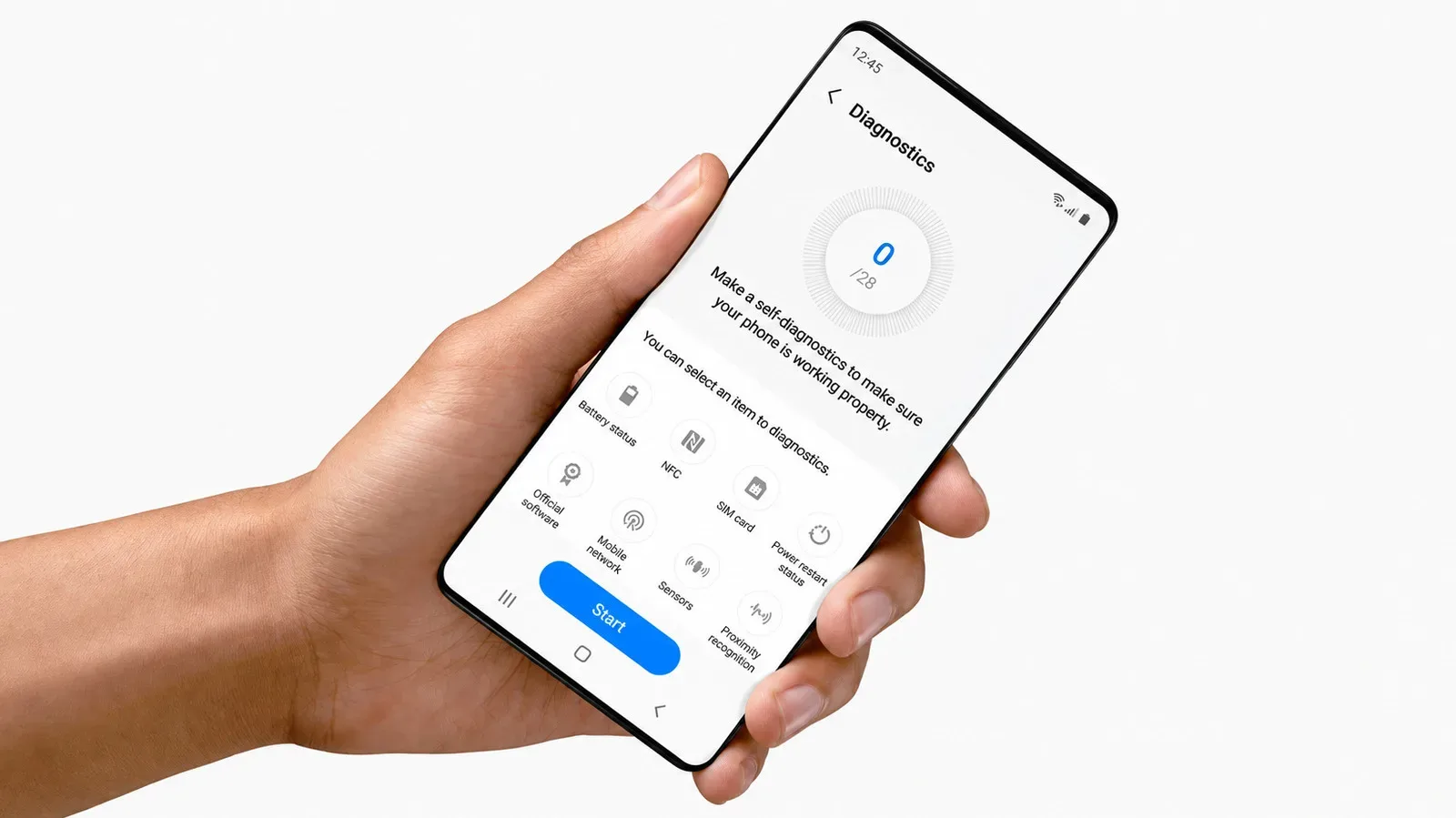
A bad phone call has a familiar rhythm: voices arrive muffled, the connection takes too long to start, background noise takes over, and somebody eventually asks whether they can be heard. Android offers several settings that can improve parts of that experience, but the important distinction is that they solve different problems.
Some controls change how a call reaches a carrier network. Others reduce noise picked up by the microphone. Others adjust what you hear through a phone speaker or headphones. None can entirely repair a weak signal, noisy room or poor microphone at the other end, but a quick check of the available options can help isolate the issue rather than treating every bad call as a volume problem.
Start by identifying which side of the call sounds bad
Before changing settings, it helps to put the issue in one of three broad categories:
- The other person cannot hear you clearly: consider microphone obstruction, environmental noise, and call noise-filtering features.
- You cannot hear the other person clearly: consider the call route, the phone speaker, headphones and audio personalization controls.
- Both people sound distorted, delayed or unreliable: the network path may be the main limitation, so VoLTE, VoNR or Wi‑Fi Calling are the settings most worth checking first.
This matters because turning up the volume will not clear a blocked microphone, while a noise-filtering mode may not improve a call that is being held back by older mobile-network voice service. There is also no single Android menu shared by every manufacturer. Labels and locations vary, and some features are limited to particular handset generations.
Use modern voice routing where it is available
What VoLTE and VoNR mean
VoLTE means Voice over LTE. Rather than handling a call over an older voice-focused network, the phone carries it over a 4G LTE data connection. The comparable 5G technology is VoNR, short for Voice over New Radio.
The practical potential benefits are clearer, HD-quality voice and a faster connection when placing a call. Older 2G and 3G systems were built largely with voice traffic in mind, while early 4G deployments could not carry phone calls. As a result, some calls can still fall back to older network technology where the newer voice service is unavailable or not fully deployed.
On many Android devices, look under:
Settings > Network & Internet > Mobile network > VoLTE calls
The setting may instead be called HD Calling or 4G Calling. On Samsung handsets, the usual route is:
Settings > Connections > Mobile Networks > VoLTE calls or VoNR
The naming is worth paying attention to, but it should not become a scavenger hunt. If the option is missing, the device, SIM or carrier configuration may not offer it in that form. A missing toggle is not proof that a phone has a fault.
Why Wi‑Fi Calling can help indoors
Wi‑Fi Calling takes a different route. It sends a call through a Wi‑Fi connection to the carrier’s network rather than relying on the cellular connection for that portion of the journey. The voice is converted into small digital packets, sent securely over Wi‑Fi, and then processed by the carrier before continuing to the recipient.
That can be particularly useful at home or work when mobile reception is poor but the local Wi‑Fi network is dependable. The appeal is not a universal promise that Wi‑Fi is always superior; it is that it can avoid cellular coverage obstacles and congestion that are limiting a specific call.
On many Android phones, look for:
Settings > Network & Internet > SIMs > Carrier SIM > Wi‑Fi Calling
Samsung’s route is commonly:
Settings > Connections > Wi‑Fi Calling, then enable the toggle.
A practical approach is to turn it on while connected to the home or office Wi‑Fi that is normally used for calls, then pay attention to whether the call problem changes. If it does not, the issue may be the other caller’s connection, their microphone, the local room noise, or a hardware obstruction rather than the mobile route alone.
Reduce the noise the other caller hears
Network quality and microphone quality are separate issues. A call may connect quickly and still sound unpleasant if traffic, wind, a television or nearby conversation is getting into the microphone. Manufacturers offer their own processing tools for this, with different names and availability.
Pixel Clear Calling
Google’s Pixel feature is called Clear Calling. It is intended to improve voice quality and filter background noise during calls. The standard settings route is:
Settings > Sound & vibration > Clear Calling > Use Clear Calling
It can also be changed while already on a call: press either volume button and choose Clear Calling from the volume panel.
The compatibility details are important. Clear Calling is available on Pixel 7 and later. Its operation inside VoIP apps, meaning internet-based calling apps such as WhatsApp and Zoom, is narrower: it works on Pixel 10 and later, with the Pixel 10a excluded. In other words, a person whose regular calls sound improved may not necessarily get the same result in every calling app.
Samsung Mic mode
Newer selected Galaxy devices offer a comparable tool called Mic mode. Unlike a permanent setup switch, it is accessed while a call is in progress. Open Quick Settings and select Mic mode at the top of the panel.
- Standard applies minimal filtering.
- Voice focus applies greater filtering to make the caller’s voice the priority.
- Full spectrum captures voice and surrounding sounds.
For a busy street, café or noisy household, Voice focus is the option that most directly addresses distracting sound. Full spectrum, by contrast, is suited to a situation where background audio is meant to remain audible. Select the desired option and tap Done to apply it.
Mic mode works with ordinary calls and VoIP apps on supported Galaxy phones, though the precise controls can vary by app. That variability is a recurring Android reality: the name of the feature is useful, but the exact screen may not look identical from one handset or app to another.
Improve what you hear, not just what you send
Some call problems are really listening problems. A caller’s speech might be present but hard to distinguish, particularly through headphones or in an environment with competing sound. Samsung and Pixel devices approach that challenge differently.
Samsung Adapt sound
Samsung’s Adapt sound tailors audio output to the listener. It is not a microphone noise filter and does not simply boost every sound. Instead, it adjusts audio to compensate for portions of the sound spectrum that may be harder for an individual to hear clearly.
Find it at:
Settings > Sounds and vibration > Sound quality and effects > Adapt sound
Users can select an age-based preset or complete a short hearing test for a more personal adjustment. The key limitation is easy to miss: Adapt sound works only while wearing headphones. It therefore may be worthwhile for calls taken on earbuds or wired headphones, but it is not the appropriate fix for an unclear earpiece or loudspeaker call.
Pixel Adaptive Sound
Pixel’s similarly named Adaptive Sound is a separate idea. It uses the phone microphone to automatically adjust speaker output for the surroundings. In a loud location, it may raise mid and high frequencies to make speech easier to hear.
That makes it an output-side tool: it responds to the listener’s environment rather than cleaning up the sound sent from the user’s microphone. Other Android manufacturers may offer their own form of Adapt sound or Adaptive Sound, so searching the Settings app for those terms can be more productive than assuming the Pixel or Samsung path applies everywhere.
Do the physical checks before blaming software
Settings cannot overcome a microphone or speaker that is physically covered. Dust, lint and some cases can obstruct either component and affect call quality regardless of which feature is enabled. A simple inspection is therefore a sensible part of troubleshooting, particularly if problems began after fitting a case or if the device has spent time in a pocket or bag.
It is also worth keeping expectations grounded. Improving your phone’s routing, filtering or output does not give you control over the other participant’s weak signal, noisy surroundings or microphone. Call audio is a shared chain, and only part of that chain is in your hands.
A quick order of operations
- Check whether the difficulty is with what you transmit, what you hear, or the connection in both directions.
- Enable VoLTE, HD Calling, 4G Calling or VoNR if the relevant option is available.
- Enable Wi‑Fi Calling when dependable home or office Wi‑Fi is available.
- For noisy surroundings, use Pixel Clear Calling or Galaxy Mic mode where supported.
- For listening difficulty, try Samsung Adapt sound with headphones or Pixel Adaptive Sound through the speaker.
- Inspect the microphone and speaker openings, and make sure a case is not blocking them.
These settings are also relevant when choosing call-focused accessories. For readers comparing headphones or other hardware, our guide to Alexa price alerts and auto-buy for games, headsets and hardware explains how to watch for qualifying price changes.
The best result usually comes from matching the tool to the actual fault: modern voice service for the network path, Wi‑Fi Calling for cellular weak spots, filtering for unwanted sound, and adaptive output for listening clarity. That is a more useful route than endlessly raising the call volume and hoping the conversation catches up.