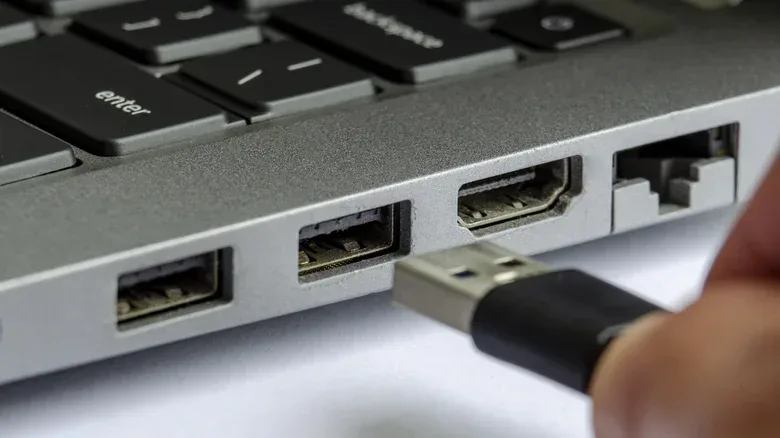
A powered-down PC is not necessarily a powerless PC. On some desktops and laptops, one or more USB ports can continue supplying electricity after the operating system has shut down. That can make the machine’s USB connection a handy place to leave a phone, controller or other small device charging without keeping the whole computer awake.
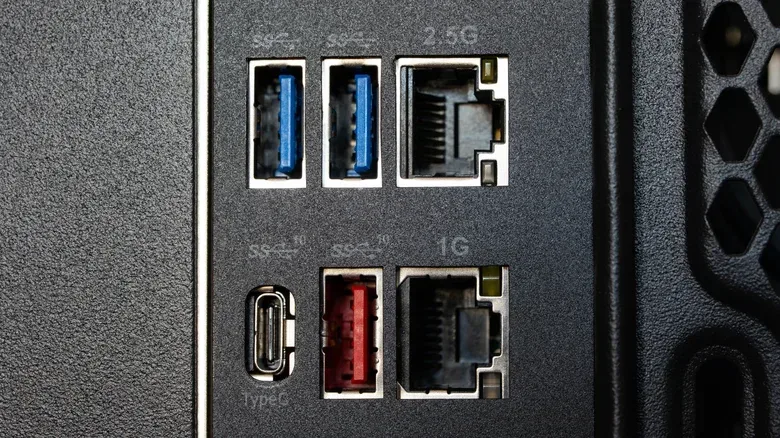
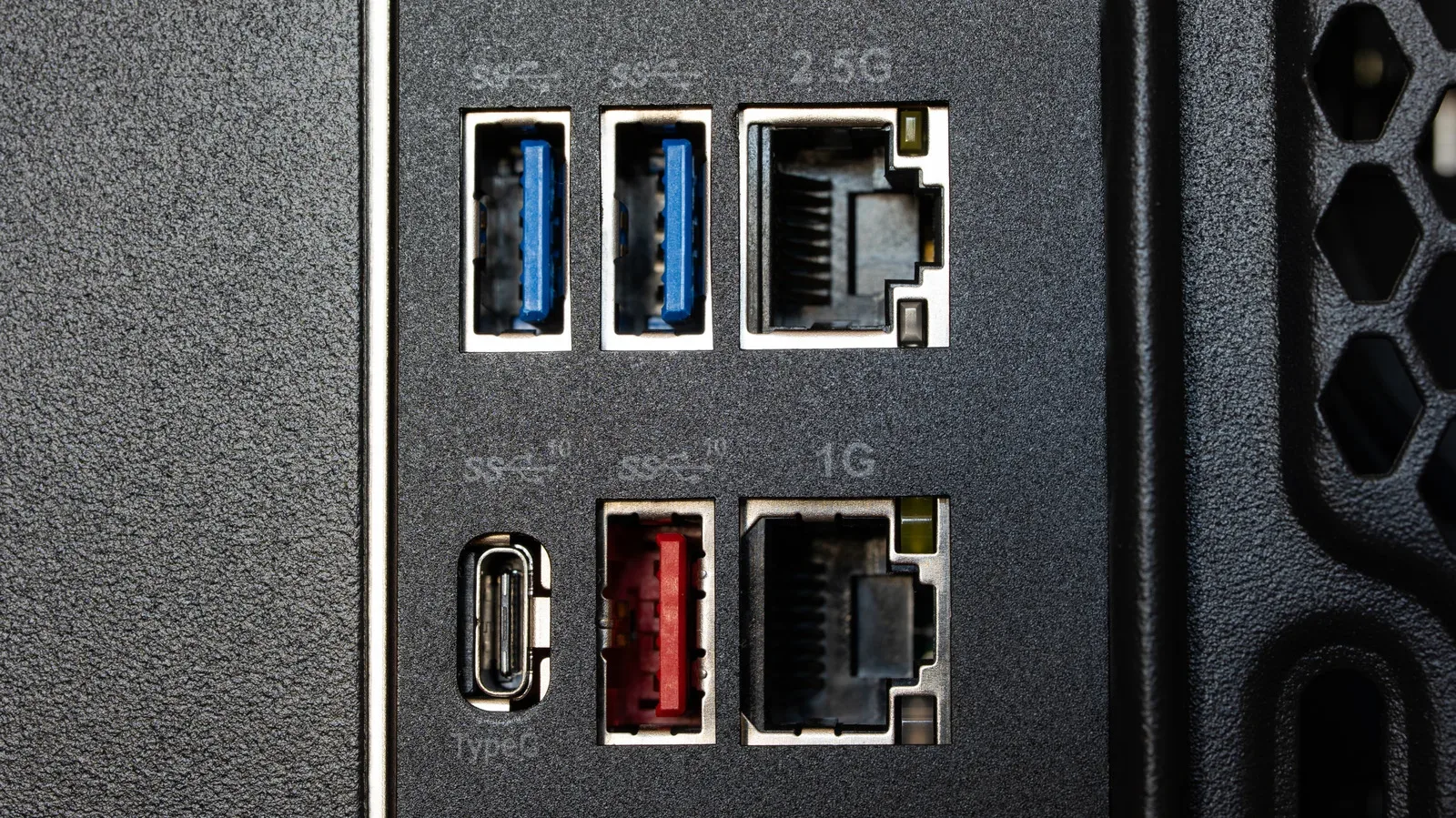
The catch is that this capability is far from universal, and the language surrounding it is inconsistent. Lenovo may call a supported connector Always On; Dell uses PowerShare on some systems. Elsewhere, the clue may be a battery or lightning-bolt icon beside a port. A system can also have the necessary hardware but have its post-shutdown USB power disabled by a firmware or energy-saving setting.
For PC players with a crowded desk, that distinction is useful. A spare powered USB port can reduce the need for another wall adapter when charging a phone between sessions. It should not, however, be mistaken for a universal feature, a promise of fast charging, or a way to use USB accessories normally after the PC is off.
Start with a simple shutdown test
The fastest and least risky way to find out whether a particular PC supports USB charging after shutdown is practical:
- Connect a phone using a cable you know works reliably.
- Check that the phone begins charging while the PC is running.
- Shut the PC down fully.
- Wait briefly and check whether the phone is still charging.
If charging continues, that port is receiving standby power in the system’s current configuration. If it stops, there are several possibilities: the port may not support post-shutdown power, the relevant option may be off, an energy-saving feature may be cutting standby power, or—especially on a laptop—the device may impose conditions related to its own battery or AC adapter.
Documentation remains the best tiebreaker. Check the manual for the desktop, laptop or motherboard rather than assuming every identically shaped USB connector works the same way. Support can vary between ports on the very same machine. A clearly marked port is a good lead, not an absolute substitute for the model’s documentation.
What “Always On” actually means
In this setting, Always On refers to the availability of electrical power from a USB port while the computer is in a low-power state. It does not mean that every USB function is permanently available, nor does it mean that every port will remain powered under every circumstance.
Most importantly, USB power and USB data are separate capabilities. A phone that draws power from a shut-down PC cannot use that connection to move screenshots, photos or files. With the PC off, the relevant feature is simply electricity supplied through the USB connection; ordinary data transfer requires the computer and its USB functions to be active.
Related coverage includes How to Keep a PC USB Port Charging Your Phone After Shutdown.
The exact states covered also differ by product. A vendor’s charging feature may operate while the PC is sleeping, hibernating, shut down, or only during some of those states. This is why a label alone can be misleading. “Always” is a marketing-friendly shorthand, not a technical guarantee that ignores all firmware settings, battery limits and power modes.
Where to look if charging stops at shutdown
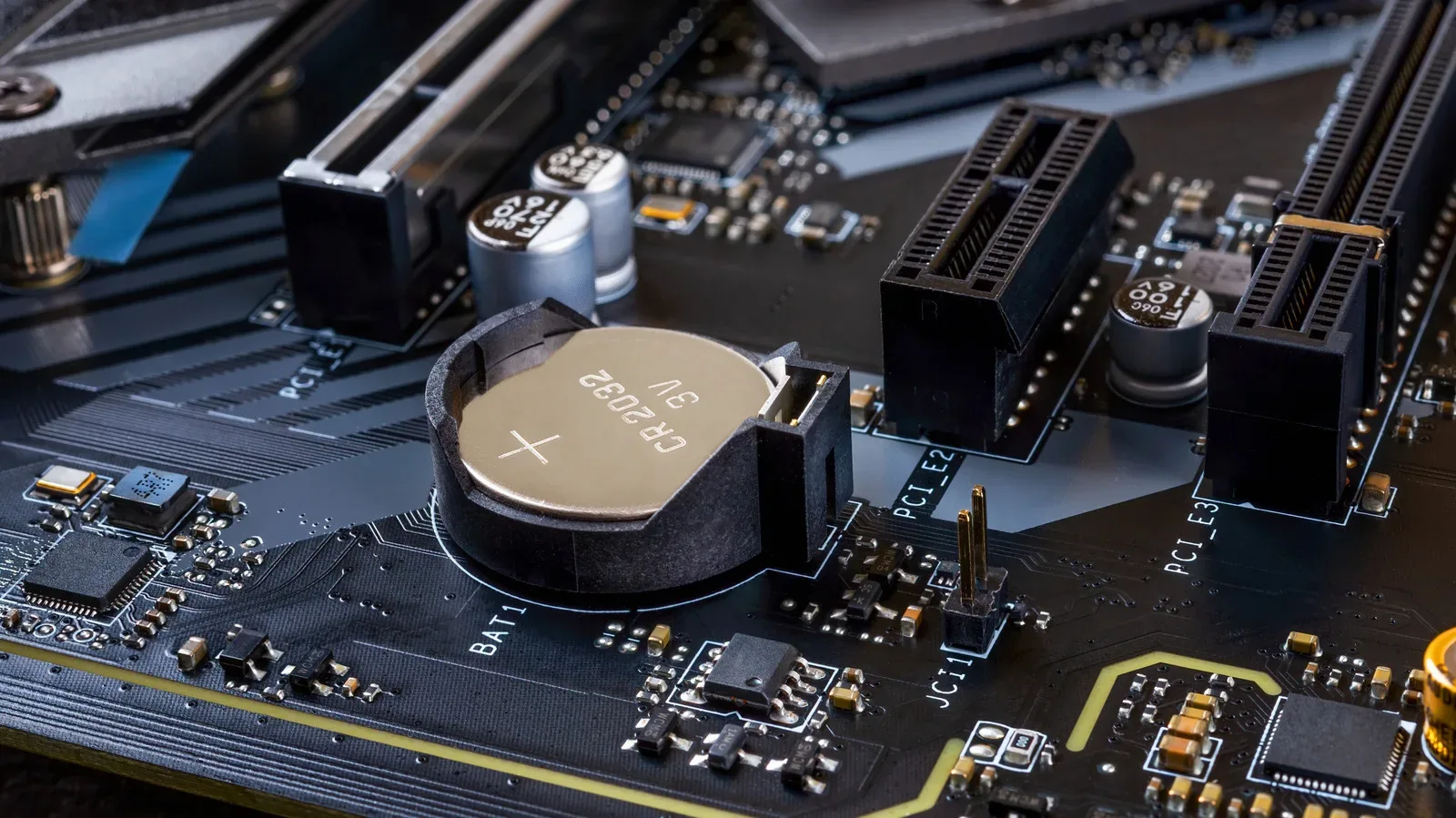
On many Windows PCs, the controls that determine USB standby power live in the BIOS or UEFI firmware menus. BIOS and UEFI are the low-level configuration environments that start before Windows loads and expose certain hardware and power-management choices.
To enter that menu, restart the computer and use the key named on its startup screen. Common choices include F2, Delete and F10, but the correct key depends on the system. Once inside, settings related to USB power may appear in sections called Advanced, Power or Chipset. The wording can include USB power delivery, Always On charging, USB charging or a vendor-specific name.
If a relevant option exists, enable it, then save changes and exit. The PC should restart normally. These menus can look intimidating, but changing a clearly identified USB charging option is generally a straightforward configuration task. The sensible approach is still to alter only settings you understand and to note the original value first, so it is easy to reverse an unwanted result.
Energy-saving modes can override the convenience
A common obstacle is a setting designed to reduce the PC’s standby energy use. USB charging after shutdown necessarily requires some standby power, so it can conflict with options meant to cut power more aggressively.
Two terms worth watching for are ErP and Deep Sleep. ErP refers to Energy-related Products power behavior in this context; enabling an ErP-oriented option can disable USB standby power during shutdown or hibernation on some systems. Deep Sleep settings can serve a similar power-conservation purpose. On select ASUS NUC PCs, for example, enabling ErP Ready disables USB standby power during shutdown or hibernation.
That does not mean every energy-saving setting should be turned off. It means the manual is important: determine whether a particular setting controls the state you care about and whether it affects the specific port you intend to use. The right decision depends on whether the small convenience of off-state charging is worth the system retaining standby power.
There is also a hard limit to troubleshooting. Firmware toggles cannot create a feature that the PC never included. If the manual lists no supported post-shutdown USB charging function, and a tested port loses power when the system shuts down, changing unrelated settings is unlikely to help.
Desktop and laptop behavior should not be treated as identical
Desktops and laptops can both offer USB charging with the system off, but laptops add battery-management rules that make the result less predictable. A laptop may stop powering USB devices once its own battery falls to a reserve threshold. Some models may require the AC adapter to remain connected before they will charge another device after shutdown.
That behavior is not necessarily a fault. It protects the laptop from losing too much stored charge merely because a phone or accessory is connected. It also means that a laptop test should be repeated under the conditions documented for that model—potentially with mains power attached—before concluding that the feature is unavailable.
For desktop owners, the key question is usually whether motherboard standby power is enabled for the intended USB port. For laptop owners, the questions are broader: Does the function work after shutdown, does it require AC power, and is it suspended at a battery reserve threshold? Those are distinct limitations, and none of them can be inferred solely from the fact that the phone charges while the laptop is running.
Practical checks before digging into firmware
It is worth ruling out ordinary connection problems before heading into a firmware menu. Make sure the plug is fully seated, test with a dependable cable and verify that the phone charges from that same setup while the PC is on. A worn or unreliable cable can turn a simple power-setting question into a misleading troubleshooting exercise.
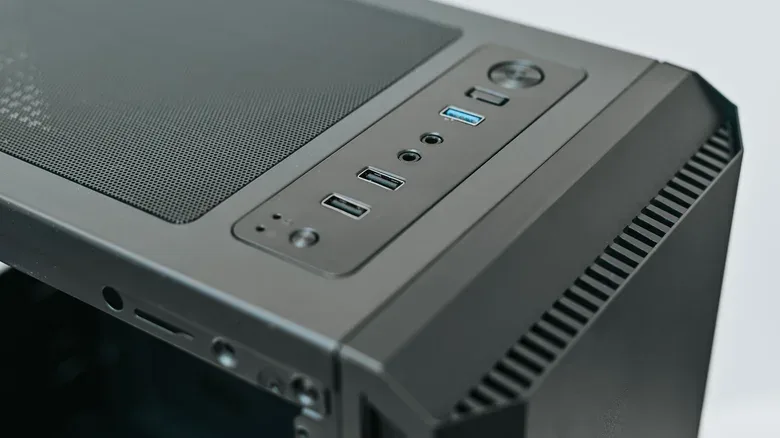
It is also wise to test the exact port you plan to use. A chassis front-panel USB connection, a rear motherboard port and a specially marked charging port may not all behave alike. If the PC has a battery or lightning symbol beside one port, begin there, then consult the documentation for the final answer.
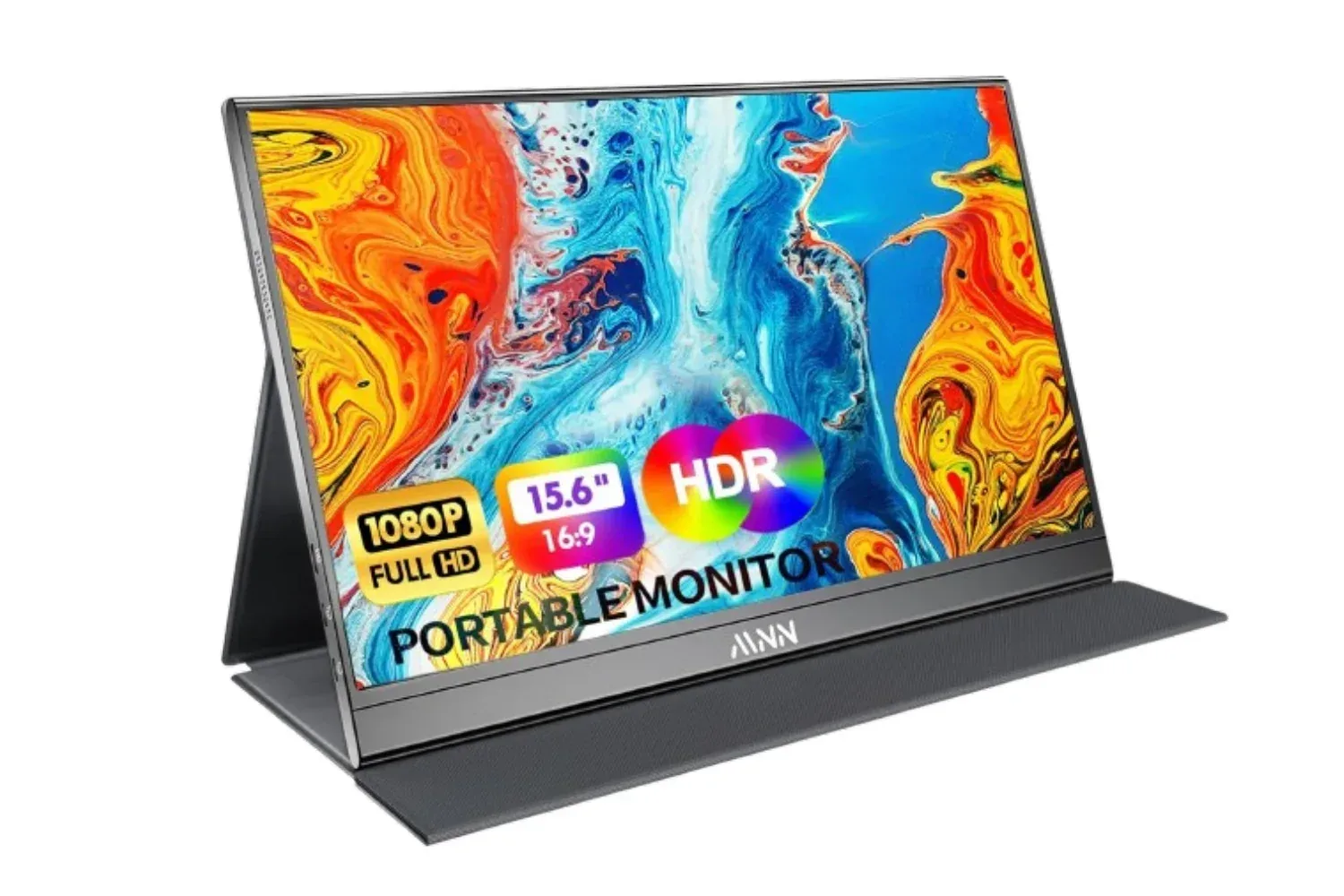
The same basic power-management awareness can help when deciding how to arrange a gaming desk. Hardware choices often come with their own compatibility and setup details; anyone considering a portable display for a console or PC can also review what to consider with a portable 1080p monitor for Switch play. The broader lesson is to separate physical connectors from the capabilities promised by a particular device configuration.
A compact checklist for off-state USB charging
- Identify the model: Use the PC, laptop or motherboard manual as the main reference.
- Look for labels: “Always On,” “PowerShare,” a battery symbol or a lightning bolt may identify a candidate port.
- Test before changing settings: Connect a working phone and cable, shut down the PC and see whether charging continues.
- Check firmware options: Search BIOS or UEFI menus under Advanced, Power or Chipset for USB charging or power-delivery controls.
- Review power-saving settings: ErP or Deep Sleep can prevent standby USB power on systems that otherwise support it.
- Account for laptop conditions: Battery reserve limits and AC-adapter requirements can govern off-state charging.
- Keep expectations narrow: The feature provides power, not file transfers, while the PC is shut down.
USB charging after shutdown is a small feature, but it is one that rewards checking the fine print. Once enabled on supported hardware, it can make a PC more useful when it is not actively being used. If it is absent, no amount of menu-diving will convert every port into an all-hours charging station—and recognizing that early is the most efficient fix of all.