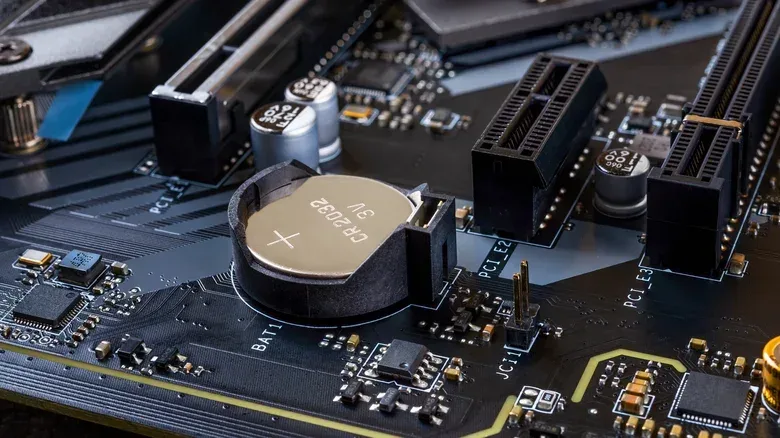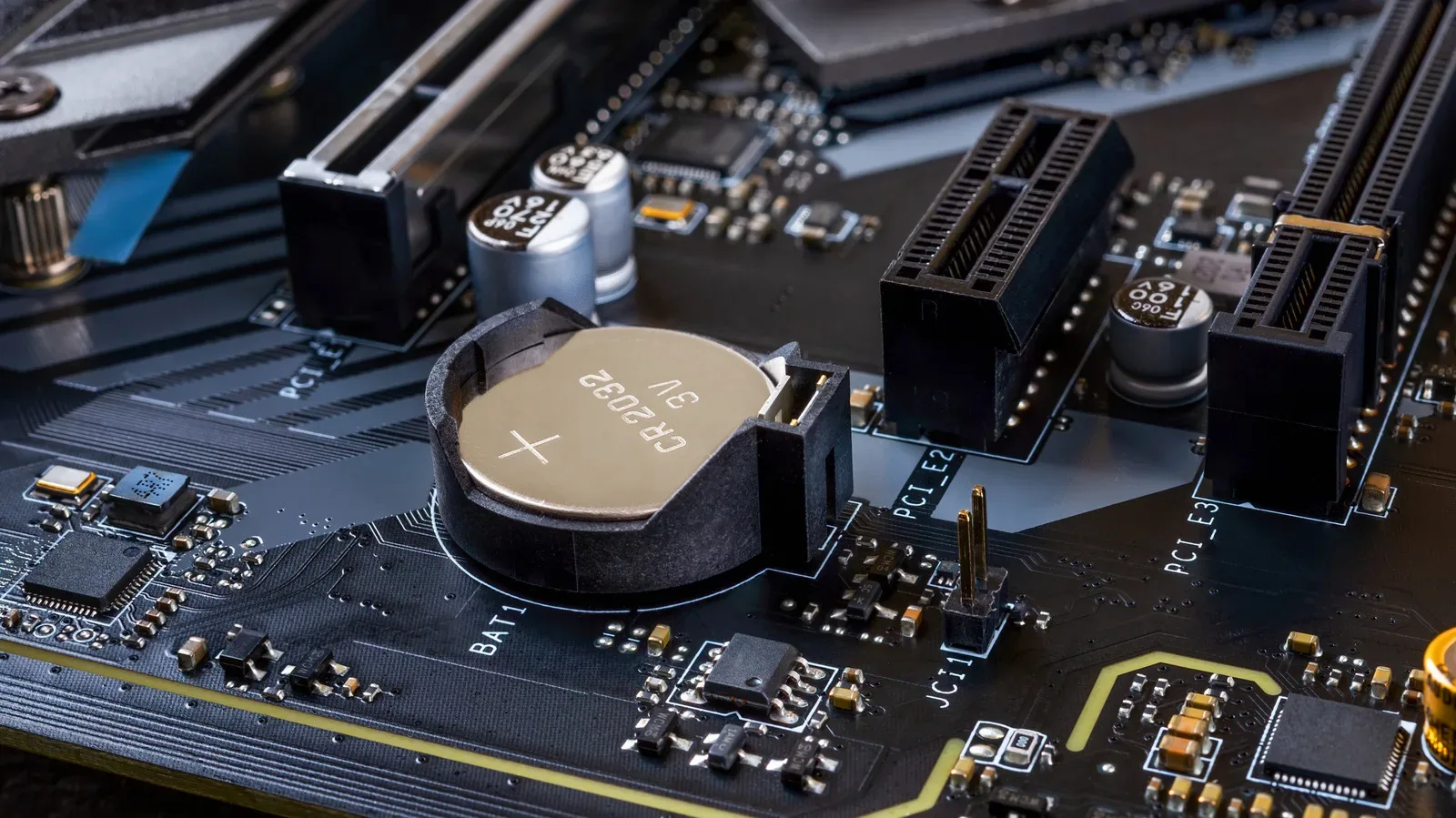
There is a small silver coin hiding on many desktop motherboards, quietly doing one of the least glamorous but most useful jobs in a PC: remembering what time it is and helping the board retain a handful of important settings while the machine has no power. It is the CMOS battery, and it tends to remain invisible right up until it decides your computer should live permanently in the year 2000.
For a gaming PC, a dead CMOS battery is usually not a disaster in the sense of lost games, corrupted personal files or vanished applications. It is more like an annoyingly committed amnesia spell cast on the motherboard. The system may forget its date and time, complain at startup, and return firmware settings to their defaults after every full power cycle. That can be especially irritating when a carefully configured PC suddenly stops using the memory settings or fan behavior its owner expects.
The good news is that this is generally a modest, straightforward maintenance job on a desktop. The more useful news is knowing what the battery actually does, which symptoms point to it, and which settings are worth checking once a replacement is installed.
The tiny battery that keeps the motherboard’s memory alive
CMOS is short for complementary metal-oxide-semiconductor. In everyday PC troubleshooting, “the CMOS battery” refers to the small backup battery on the motherboard rather than a part users need to interact with regularly.
Its two key responsibilities are supporting the real-time clock and preserving basic firmware configuration when the PC is switched off and unplugged. The real-time clock is exactly what its name suggests: the component that maintains the system’s date and time when ordinary power is unavailable.
The firmware configuration is found in the PC’s BIOS or UEFI. BIOS is the older term for the low-level startup firmware that initializes hardware before the operating system loads. UEFI is the modern successor found on contemporary systems. Regardless of which label a motherboard uses, this is the place where the system stores foundational choices such as boot order and fan configuration.
A normal desktop setup does not ask much of this battery. It only needs to feed the clock and small settings memory while the computer is not connected to power, which is why a CMOS cell can last years and, in some cases, as long as a decade. The PC can feel perfectly normal for most of that lifespan because the battery is not powering the processor, graphics card, storage or operating system. It is the motherboard’s backstage caretaker, not its engine.
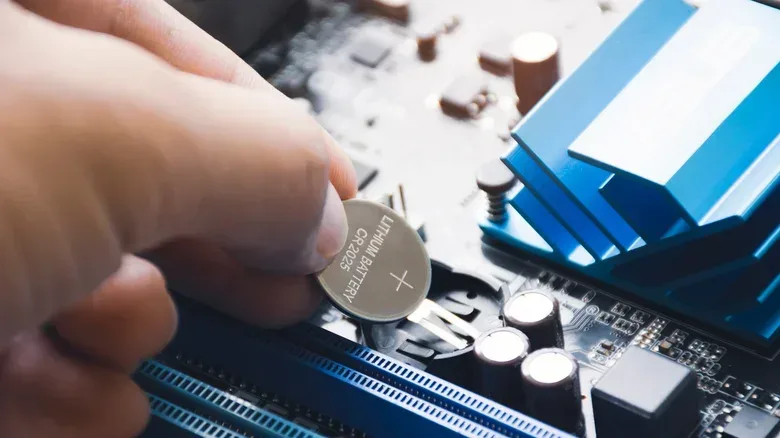
Most desktop boards use a CR2032 coin cell. Some use the less common CR2025 instead. That distinction matters when buying a replacement: check the marking on the installed cell or consult the motherboard documentation rather than assuming every board takes the same type.
The signs: a PC that cannot remember yesterday
The clearest warning is a clock that loses track of reality after the computer has been unplugged or fully powered down. A system may repeatedly start with a default date, potentially January 1, 2000 or January 1, 1970, rather than the present day.
That may initially look like a cosmetic nuisance. It is not always. Modern websites use HTTPS security certificates that are valid only within particular time ranges. When a PC believes it is living decades in the past, a browser can reject a secure connection because the certificate appears not to be valid yet, expired, or otherwise inconsistent with the machine’s clock. Incorrect timestamps also make local files more confusing, since “last updated” information no longer tells a reliable story.
Modern operating systems can obscure the early symptoms by retrieving the time from an online server when they start. In other words, a machine may correct itself fast enough that its owner never spots the wrong clock. But online time correction does not restore the underlying firmware memory. Once the cell is fully depleted, a PC can show a BIOS or UEFI warning during startup and reset firmware options to factory defaults each time it boots.
That reset behavior is the important distinction. If the boot order changes, the system may no longer try storage devices in the preferred sequence. If fan configuration returns to default, the machine may not behave as it did under a custom setup. These are motherboard-level choices, separate from game settings or files inside the operating system.
For desktop players, one setting deserves special attention after a reset: the memory profile. Intel XMP and AMD EXPO are profile systems used to run compatible RAM at its intended configured performance level. If firmware settings return to default, re-enabling Intel XMP or AMD EXPO may be necessary to restore the RAM configuration previously in use. This is a useful reminder that “the PC still boots” and “the PC is configured as intended” are not the same thing.
CPU overclocking settings may reset as well. Overclocking refers to operating hardware beyond its default configuration in pursuit of more performance. It can also increase power draw and heat, so restoring an earlier overclock should be a deliberate decision, not an automatic post-battery ritual.
A dead CMOS cell is inconvenient, not a data wipe
A depleted battery does not directly erase apps, personal files or installed games. It affects the motherboard’s persistent clock and firmware settings. That makes it possible to live with temporarily, but the practical friction can pile up: startup warnings, wrong dates, certificate errors and having to re-enter settings after a complete shutdown.
If replacing the battery cannot happen immediately, sleep mode can help preserve settings between sessions, while avoiding unplugging the PC from the wall reduces the circumstances in which the motherboard needs its backup cell. That is a stopgap, not a cure. A dead cell will not regain its memory-restoring powers through determination, positive thinking or one more reboot.
This issue is more commonly associated with desktop machines than laptops. Many laptops use their main battery to retain the internal clock instead of relying on an easily accessible, separate CMOS coin cell. That arrangement means the symptom is less likely to arise in the same way on a laptop, though it also does not turn a laptop into a user-serviceable motherboard playground.
The broader lesson is that a PC’s most important configuration controls often exist below the operating system. It is the same reason an unfamiliar settings menu can feel like a tiny dungeon of switches and consequences—an idea that applies beyond computers, as in this look at the settings tools tucked into Android. On a motherboard, though, the stakes are more immediate: the wrong default can change the way the machine starts and performs.
How to replace a desktop CMOS battery
Start by powering off the PC. Remove the side panel and locate the battery on the motherboard. It should look like a silver, coin-shaped cell fitted into a holder. Computer cases are often toolless, so opening the case may not require a screwdriver.
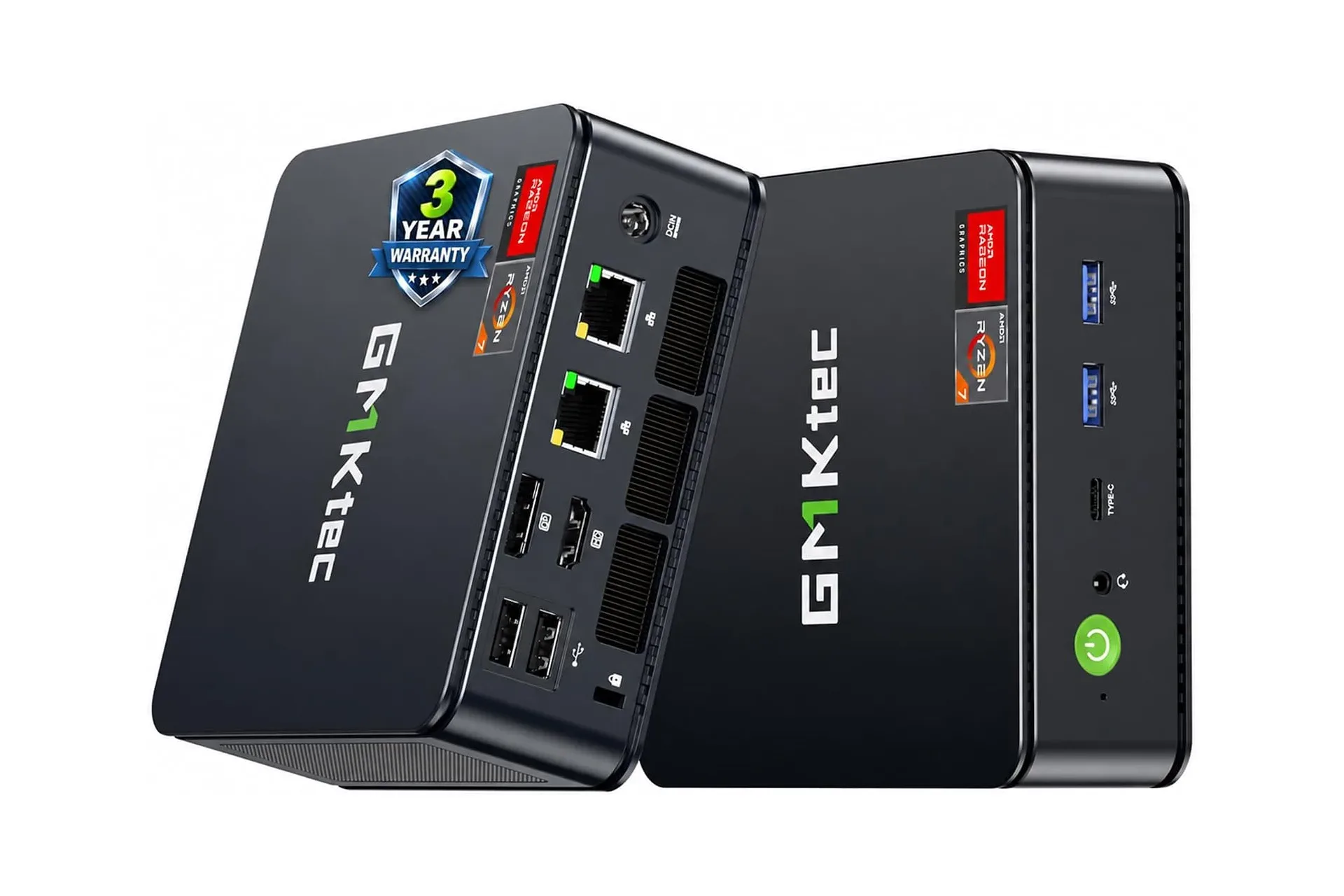
Access can be the real complication. A graphics card or another large installed component may block the battery’s position, requiring temporary removal of that hardware before the cell can be reached. There is no universal placement for the battery across all boards, which is why a mini PC or a non-standard motherboard is a strong case for checking the computer’s manual before starting.
The battery itself is normally secured by a small clip or latch. A flathead screwdriver, or another flat object, can gently release the mechanism and dislodge the old cell. The key word is gently: the holder is designed to retain a small battery, not to withstand a dramatic boss-fight finisher.
- Power off the desktop and open the case.
- Find the silver coin cell on the motherboard and identify its battery type.
- If needed, temporarily move obstructing hardware to access the holder.
- Release the retaining clip or latch with a suitable flat tool.
- Install the replacement cell, then close the case.
- Enter BIOS or UEFI on the next startup and restore the settings that matter to the system.
That final step is easy to overlook. Replacing the battery solves the failure to retain settings going forward, but it does not magically reconstruct every preference that was already reset. Check the date and time, boot order and fan configuration. For a system using a memory profile, verify that XMP or EXPO is enabled again if that was the prior configuration. Anyone who had adjusted CPU overclocking options should review those choices with the associated heat and power implications in mind.
Why a five-minute fix can matter to a gaming setup
CMOS battery failure is not a glamorous PC upgrade and will not add frames to a game by itself. Its effect is mostly about consistency. A desktop that remembers its firmware settings starts from the expected device, maintains the expected configuration and keeps a credible clock without needing the operating system to rescue it after the fact.
For someone who rarely unplugs a tower, the first clue may be an occasional inaccurate time. For someone who moves a PC, switches off power at the wall, or is troubleshooting a startup issue, the symptoms can become much more obvious. Recognizing the pattern prevents needless concern over applications or storage when the actual culprit is a coin cell that has finally retired from its very long, very quiet shift.