
An Android phone can be a handheld console, chat machine, wallet, camera and travel companion all at once. That flexibility is excellent right up until a convenience choice turns into a security problem, a performance drain or needless battery wear. The most useful Android maintenance is not about compulsively closing every app or becoming afraid of every setting. It is about recognizing which prompts, permissions and system features carry meaningful consequences.
For players, the stakes are particularly visible. A phone that is low on storage, busy with unnecessary background work or running hot may feel worse during a demanding game. Meanwhile, the same device may hold saved logins, payment information and two-factor authentication codes. Here are 10 habits worth avoiding, along with the technical reason each one matters.
1. Putting off software and app updates
Security updates are not decorative version-number changes. They deliver patches: fixes for vulnerabilities that have already been identified. Some patches respond to active threats rather than merely closing hypothetical weaknesses. Staying far behind can also create practical trouble, since banking, wallet and other high-security apps may eventually stop working on a phone that lacks recent security updates.
Android updates involve more than one company. Google maintains core Android software, but phone makers add their own software layers. Hardware suppliers also need to update the drivers that let their chips work correctly. That chain helps explain why update timing varies between devices, but it does not make an available update less worthwhile.
Install security updates when they arrive, and keep apps current through Google Play. Enabling automatic app updates removes one small recurring chore. If an update needs a restart, do it at a convenient moment rather than letting the prompt become permanent wallpaper.
2. Letting storage and memory get overwhelmed
A phone that feels sluggish after long sessions is not always old or broken. Android is constantly balancing work between storage, RAM and ZRAM. RAM is fast working memory for active tasks. ZRAM is a portion of RAM used to hold compressed data so the system can quickly retrieve active processes without constantly leaning on slower storage.
When memory becomes crowded, Android compresses more processes into ZRAM. If that area is also full, the phone can enter memory thrashing: it repeatedly retrieves and compresses data in a cycle. The processor has to keep working, performance drops and heat can rise. That is a particularly unhelpful companion when a game already wants as much system capacity as it can get.
A restart clears RAM and ZRAM, making it a reasonable first response when a handset is behaving unusually slowly. Closing a heavy game from the app switcher after playing can also make sense; constantly force-closing every ordinary app is unnecessary. The more durable cleanup is uninstalling apps that are no longer used, because apps can maintain background processes even when they are not open on screen.
Related coverage includes 10 Android Habits That Can Hurt Security, Performance and Battery Health.
Do not fill internal storage to the absolute limit, either. Android needs working space for caches and temporary helper data. If performance issues arise while gaming at home, it is also worth separating phone-side problems from network congestion; too many devices on home Wi-Fi can create a separate source of gaming lag.
3. Treating every download page like Google Play
Installing an app from outside Google Play is often called sideloading. It is not inherently identical to malware, but it removes an important screening layer and demands much more confidence in the developer and download location. Random forum links, social posts and imitation download pages are poor places to place that confidence.
Malicious apps frequently pursue powerful Accessibility controls. In legitimate use, accessibility features can help people interact with a device. In the wrong hands, the same privileges can enable screen copying and background actions. Google Play Protect identified more than 13 million malicious apps from outside the Play Store in 2024, a reminder that unofficial app distribution comes with a real and measurable risk.
If an app must come from outside Google Play, use a source you fully trust, such as the first-party developer. A security-conscious marketplace such as F-Droid is a materially different proposition from an anonymous download mirror, but caution still applies. Before installation, ask whether the app is necessary and whether the origin is genuinely verifiable.
4. Disabling Play Protect because someone tells you to
A warning that urges you to disable Google Play Protect should stop the process, not accelerate it. A common scam pattern involves someone posing as a bank or another trusted service, directing a victim toward a fake app, then insisting that the device’s warning is an obstacle to bypass.
Play Protect is Android’s frontline defense for potentially dangerous apps, and it has received continuing updates over many years. It is not a substitute for judgment: risky apps can still make their way onto a major app store. But turning it off on demand means deliberately removing a defense just when an installation is already raising alarms.
Keep Play Protect enabled. Treat a request to ignore or disable it as a red flag, especially if it arrives alongside urgency, a phone call, a text message or a claim that an account will be locked unless software is installed immediately.
5. Rooting a primary phone for no clear purpose
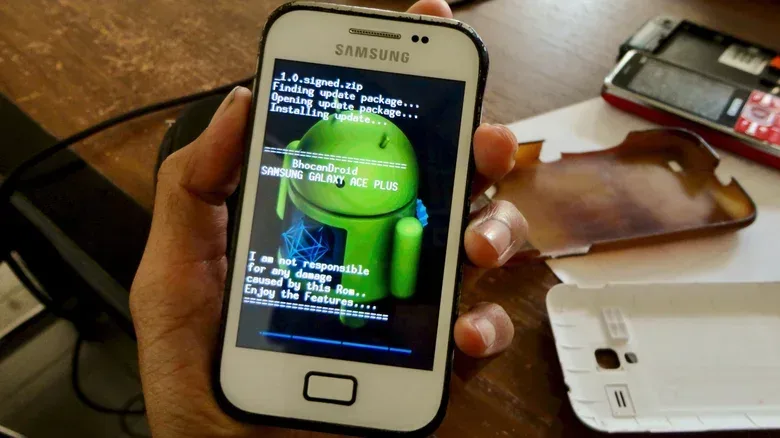
Root access gives a user or software deep control over Android’s system. It once had clear appeal for people who wanted to remove carrier software, unlock restricted features or replace a manufacturer’s version of Android with a custom ROM. On a modern everyday phone, the costs are much easier to see.
Rooting can cause Google’s Play Integrity API checks to fail. Apps that require the strongest integrity level, including banking and financial apps, may no longer function. More fundamentally, granting root access increases the potential damage caused by a mistake or a malicious app. The National Institute of Standards and Technology lists rooting and jailbreaking mobile devices as a threat.
That does not mean old hardware has no experimental value. An unsupported device may be a candidate for a custom ROM if its owner understands the trade-offs. But a current, supported phone used for payments, authentication and daily communication is a poor place to experiment unless the user is a software developer with a specific need.
6. Leaving developer tools enabled after the job is done
Developer options are useful, but they are not casual settings. USB Debugging, for example, allows a computer to manage aspects of a phone and its files. It can be helpful for technical tasks, yet it adds risk if left enabled and a user authorizes a computer connection without fully understanding the prompt.
The safe pattern is simple: enable an advanced tool for a specific purpose, complete that purpose, then switch it back off. Instructions for removing unwanted software or altering device behavior often focus on getting a result and skip the cleanup step. That omission matters.
Android does require authorization when connecting to a computer for the first time, but prompts only help if they are read carefully. Be especially deliberate around unfamiliar computers and unknown USB connections. For a related charging setup question, see how a PC may continue charging a phone while shut down and where to check its USB setting.
7. Handling sensitive accounts on open public Wi-Fi
Modern HTTPS websites encrypt the information sent between a browser and a site, including credentials. That improvement is meaningful, but it does not make a public network private. People on the same open network may still be able to observe which sites a device visits.
There is also the risk of a convincing imposter network. A café password posted on a wall does not prove that every network using the café’s name is legitimate. An attacker can establish a lookalike hotspot with the same name and password. A device may connect to the stronger signal, which might be the malicious hotspot nearby rather than the venue’s router.
Use a VPN as another layer of encryption when using an untrusted network. Without one, avoid bank details and other sensitive activity. If a site does not use HTTPS, wait until a trusted connection is available. The aim is not panic over every coffee-shop connection; it is refusing to treat public access as equivalent to a home network.
8. Trusting unknown USB ports with data access
A public USB port may provide power, but it can also present a data connection. This is the basis of the concern often called juice jacking. If a phone is asked whether to trust a connected device for data and the user grants access, a hostile setup could potentially access photos, install malware or intercept communications.
The important nuance is that no real-world juice-jacking incidents were reported in the provided evidence, even though the technique has been demonstrated at security events. It is a small theoretical risk, not a reason to assume that every airport charger is a trap. It is still easy to reduce that risk: use a wall outlet or portable battery pack when possible, and do not approve unexpected pop-ups or data-access requests.
Power is what is needed when charging away from home. A new data relationship with an unknown device is not.
9. Approving permissions without asking why
Permissions should match an app’s job. A calculator requesting photo access or a flashlight asking for microphone access deserves scrutiny. Camera and microphone permissions are familiar concerns, but two categories require especially close attention.
Accessibility permissions can let an app observe what is on screen, monitor SMS messages including two-factor authentication codes, and control other apps. Those powers may be vital to a legitimate accessibility tool, but they are far too broad for a suspicious productivity app. Display over other apps is another permission to inspect. It enables useful features such as chat heads, yet it can also be abused to place a deceptive button over another app and mislead a user into approving something else.
Android may revoke permissions from apps left unused for a long time, and developers are encouraged to request access in context rather than all at once. Those safeguards are helpful, not a reason to stop reviewing requests. Periodically check permission settings, remove access an app no longer needs and uninstall abandoned apps. A smaller app library is easier to assess.
10. Making battery heat and full charge the default
Lithium batteries dislike extremes, particularly heat and an always-full state. Keeping a battery at 100 percent continuously increases wear on its internal components and can reduce the total charge it holds over time. That is why modern Android and iOS devices include battery management features that can hold a phone around 80 percent during overnight charging before completing the charge closer to wake-up time.
Let those built-in protections operate instead of forcing the phone past its recommended charging limit every day. This does not mean a user must never charge to 100 percent; sometimes a full charge is practical. It means that maximum charge should not be treated as the ideal permanent resting condition if long-term battery capacity matters.
Cable quality matters as well. The supplied cable includes a controller chip intended to help provide steady voltage. Cheap, off-brand cables may lack that protection, increasing the chance of overheating or electrical damage. Heat accelerates battery chemistry and contributes to faster degradation, so a reliable cable and sensible charging behavior serve both safety and longevity.
The practical Android checklist: update the system and apps, preserve storage headroom, install thoughtfully, leave protective features on, question powerful permissions, and keep experimentation away from a daily-use phone. These are modest habits, but they protect the device that increasingly carries everything from a game library to a financial life.