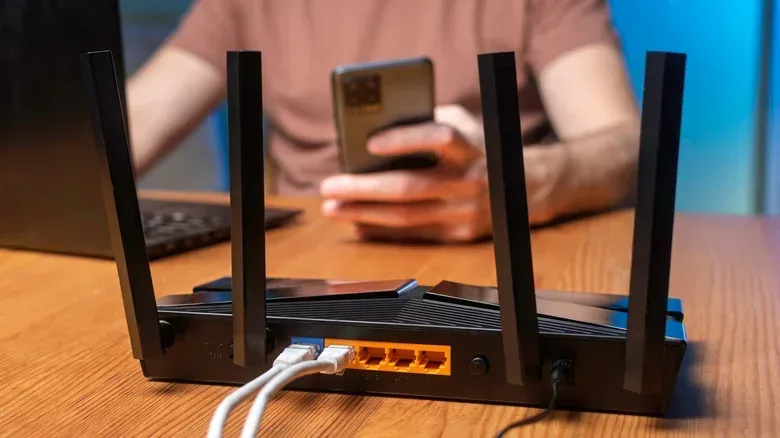
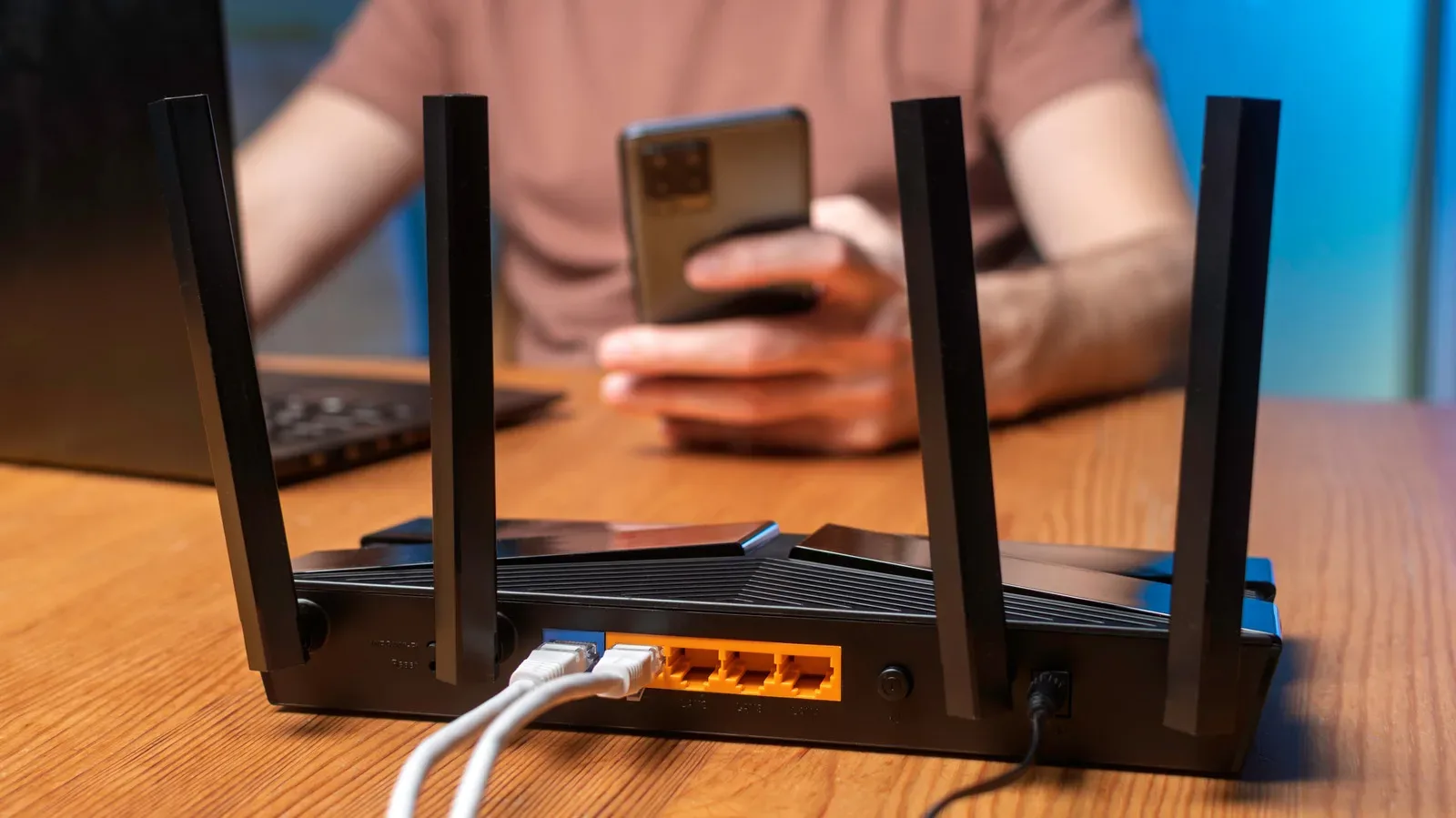
When an online match starts stuttering while somebody else streams 4K video, the instinct is usually to blame the router. That may be fair—but it is not automatically right. A home connection has two separate potential choke points: the broadband service arriving from the internet provider and the Wi-Fi link carrying that connection around the house. Treating those as the same problem can lead to an expensive upgrade that changes very little.
For players, the visible symptoms are familiar: lag during online games, painfully slow patches, downloads that seem to stop moving, and a buffering icon appearing at the worst possible moment. Those symptoms can arise when many devices are active at once, but the important question is not simply how many gadgets are connected. It is what they are doing simultaneously, where they are located, and whether the internet plan or the in-home wireless connection is under pressure.
Device count is not the number that tells the whole story
There is no universal formula that turns a broadband speed into a guaranteed device total. A house with 10 connected devices can be perfectly fine if most are idle, while a smaller number of devices can strain a connection when they are all transferring substantial data at once.
A practical way to plan is to estimate concurrent demand. As a reference point, Netflix recommends at least 15 Mbps for a stable 4K stream. Three such streams would therefore represent roughly 45 Mbps of recommended download capacity before allowing for other household traffic. The figure is a planning benchmark, not a promise that every stream continually draws precisely 15 Mbps.
Mbps means megabits per second, a measure of data-transfer rate. If 10 devices are each drawing about 10 Mbps at the same time, their combined demand is 100 Mbps. A 100 Mbps download connection—identified as the FCC minimum broadband requirement in the supplied information—would have no spare capacity in that simplified example. Real-world speeds fluctuate, and not every connected product is constantly active, but the calculation is useful because it exposes the margin, or lack of margin, in a household’s routine.
That distinction matters more than a raw tally of phones, consoles, televisions, PCs and smart-home devices. A device merely associated with the Wi-Fi network is not necessarily competing hard for bandwidth. Conversely, one active device can be consequential. A high-end smartphone, for example, can consume a meaningful share of available capacity depending on what it is doing.
For gaming, simultaneous activity is the useful snapshot
A better troubleshooting question is: What changed when the lag began? If a game becomes unreliable only while several streams, downloads, or other Wi-Fi-heavy jobs are underway, the household may be reaching the limit of its incoming connection. In that case, moving a router a few feet may improve wireless reception, but it cannot create additional capacity from the provider.
The reverse is also true. If performance is poor for a console or PC in one distant room even when the rest of the household is quiet, the broadband plan may not be the fundamental problem. A fast plan cannot compensate for a weak Wi-Fi signal caused by poor router placement. The connection is only as useful as the route from the router to the device.
Related coverage includes Too Many Devices Can Overload Your Home Network.
That is why a blanket recommendation to buy a Wi-Fi 6 or Wi-Fi 7 router, or to immediately move to a faster service tier, is incomplete. Either can be appropriate, but only after identifying which part of the setup is constraining the experience.
Download speed and upload speed solve different problems
Most households focus on download speed because it affects game downloads, updates, streaming and general browsing. Upload speed deserves its own check, particularly where video calls or security cameras are active. Camera footage being sent out of the home and outgoing video from calls depend on upload capacity.
Many internet plans are asymmetrical: they allocate substantially more capacity to downloads than uploads. That design means a connection can look generous on the download side while still becoming stressed by upload-heavy tasks. The exact impact will depend on the service and activity involved, but the key point is simple: a download figure alone is not a complete description of a household connection.
For a gaming household, this suggests a low-cost first move before changing hardware: schedule large downloads and other bandwidth-intensive activity for quieter periods when possible. It does not make the broadband pipe larger, but it reduces contention—the competition between active tasks for the available connection—when responsiveness matters most.
- List the devices and activities likely to be active at the same time, rather than counting every device that has ever joined Wi-Fi.
- Use a 4K stream’s recommended 15 Mbps as one planning reference, while remembering usage varies in practice.
- Check both download and upload speeds when calls or security cameras are part of the household mix.
- Move large downloads away from periods when gaming, streaming, or calls need the connection.
Wi-Fi congestion is separate from the broadband bottleneck
Even when an internet plan is sufficient on paper, Wi-Fi can still be the weak link. Router location matters. A router installed in an out-of-the-way corner can leave devices elsewhere in the home with a weaker connection than the broadband service itself would suggest. This is the in-home side of the equation, and it calls for a different remedy than increasing ISP speed.
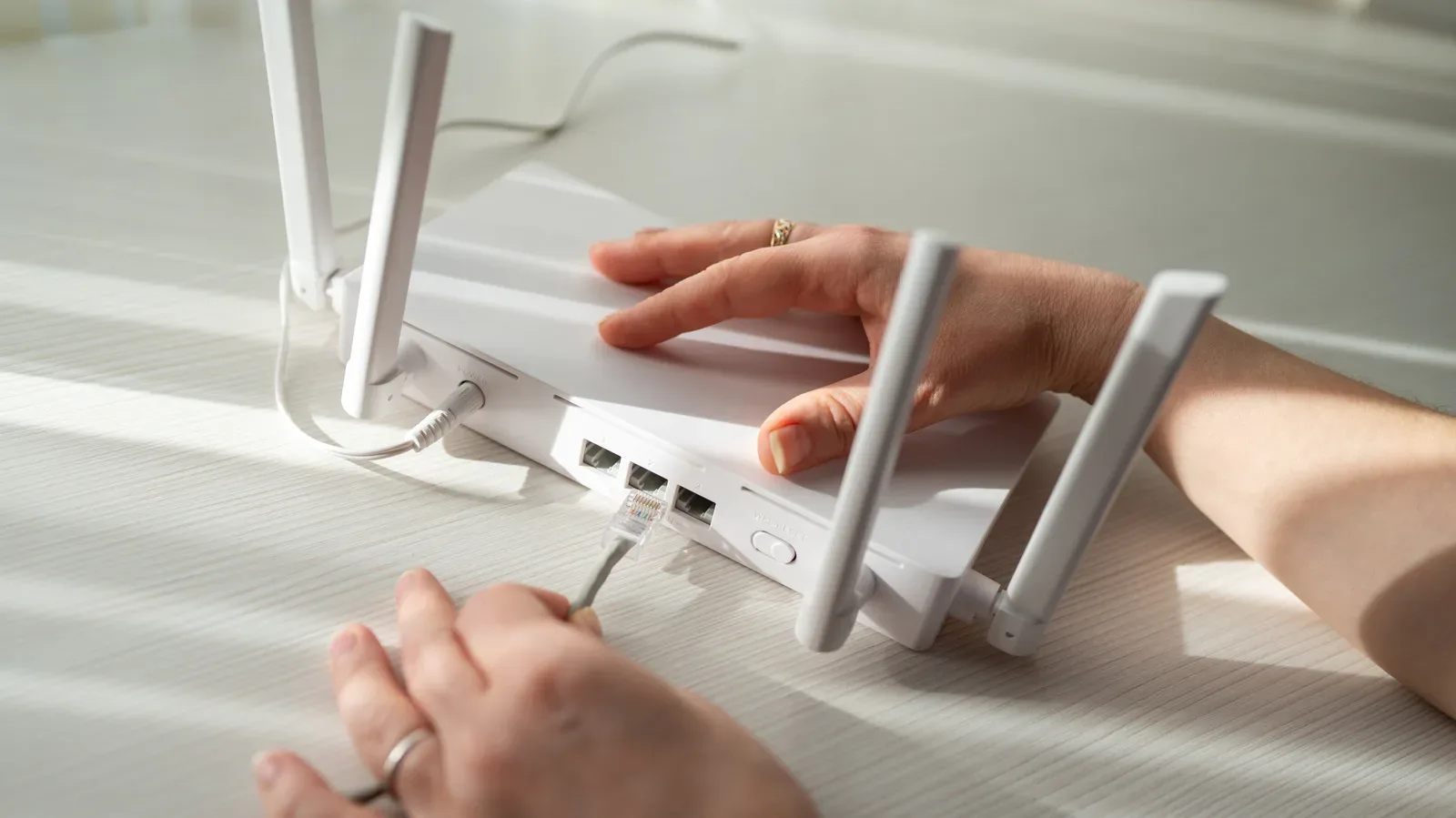
Stationary equipment provides the clearest opportunity to reduce wireless traffic. If possible, connecting a PC, console, or television through Ethernet takes its local connection off Wi-Fi. The device still shares the home’s broadband service with everyone else, so this does not eliminate internet contention. What it can do is reduce demand on the wireless portion of the network and give that stationary device a wired path to the router.
For a console or gaming PC that lives in one place, this is often a more targeted step than replacing all networking equipment. It directly addresses the Wi-Fi side without making claims about the ISP connection. Players also troubleshooting a computer more broadly may find our guide to DxDiag and Windows graphics and audio diagnostics useful, since not every apparent online-game problem begins with the network.
One router is normally enough
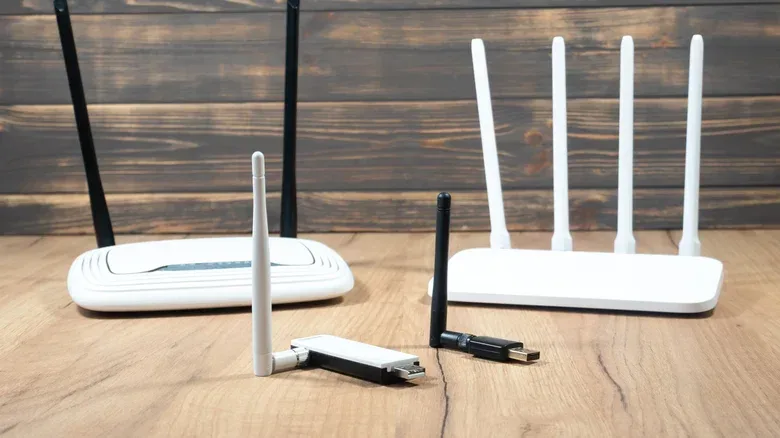
Most homes do not need multiple routers. One appropriately placed router is generally sufficient, while a mesh system or well-positioned access points can help address coverage problems in larger or awkwardly wired spaces. The goal is not to accumulate boxes; it is to build a reliable path from the gateway to the areas that need service.
An extra router can make sense under specific circumstances. If an ISP must install a gateway at a far edge of the home, for example, an Ethernet run from that gateway to a router in a more central location can improve the arrangement. That approach is about correcting placement rather than assuming a second router automatically doubles performance.
A gateway is the ISP-supplied device that connects the home to the provider’s service and may also handle router functions. A mesh system is a networking setup intended to extend coverage across more of a home through coordinated units. An access point provides a place for devices to connect to the local network. These terms describe different roles, and their setup matters when combining equipment.
Why mesh and gateway configuration matters for online games
If a mesh system is added alongside an ISP gateway, it is important to follow the product configuration instructions rather than leaving both devices to perform routing duties by default. Otherwise, the home can end up with double NAT.
NAT, short for Network Address Translation, is part of how a home network manages connections between private devices and the wider internet. Double NAT means two devices are attempting that routing role in sequence. The supplied information notes that this can cause problems for online gaming or port forwarding.
Port forwarding is a network configuration that directs incoming connection traffic to a particular device or service on the local network. It is relevant here not as a mandatory tweak for every player, but because double NAT can complicate the connection behavior some games and services expect. Adding a mesh system without checking which box is routing can therefore replace a coverage problem with a different kind of network problem.
Choose upgrades after identifying the constraint
There is a sensible order of operations. First, estimate the household’s concurrent demand. Next, consider whether the main issue is the broadband service, Wi-Fi coverage, wireless congestion, or a configuration problem. Then make the smallest targeted change that addresses that specific constraint.
- Start with the connection you have. Work out which devices are active during the slowdowns and what those devices are doing.
- Separate ISP capacity from Wi-Fi quality. A faster plan does not fix poor signal coverage, and a new router cannot overcome a fundamentally limited service tier.
- Use Ethernet for fixed devices where practical. This removes their local traffic from Wi-Fi, though not from the shared internet connection.
- Improve placement or coverage only if that is the issue. A centrally located router, access points, or mesh may be relevant when the gateway’s location is unfavorable.
- Check routing roles when combining equipment. Avoiding an unexamined double-NAT setup can be particularly important for gaming and port-forwarding needs.
Router advertising can emphasize how many devices a product can manage, but that claim does not override the limits of the broadband plan. Likewise, the fastest available plan is not a complete answer if a device receives a weak Wi-Fi signal in the room where it is used. The productive approach is less glamorous than buying hardware on impulse: do the capacity math, observe when the trouble occurs, and make the change that fits the actual bottleneck.
For households sharing games, 4K streams, calls, cameras and downloads, that process is the difference between guessing at the problem and narrowing it down. A crowded network does not automatically demand a full replacement. It demands a clear view of what is being shared, where it is being shared, and which link in the chain is running out of room.