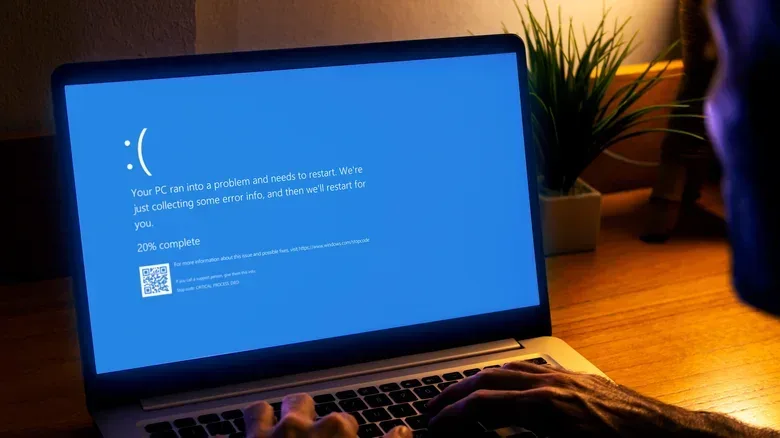

When a PC game refuses to launch, crashes during play, loses its sound or behaves as though a controller has vanished into another dimension, “DirectX problem” is often the first diagnosis offered. It is also an imprecise one. The failure may involve a graphics driver, an audio device, an input peripheral, a Windows configuration issue, a missing game update, or a capability the hardware does not support.
Windows includes a compact diagnostic utility called DxDiag, short for DirectX Diagnostic Tool, that can help narrow that sprawling list. It is free, already part of Windows, and useful because it brings several relevant pieces of system information into one report: the installed DirectX version, graphics and sound hardware details, driver information, input devices, and any notes the utility raises about those areas.
DxDiag is not a miracle repair button, nor can it prove that every part of DirectX is healthy. A clean result cannot rule out a game-specific fault or every hardware problem. But it can turn “my game is broken” into a more actionable question: is the display driver old, is acceleration available, is the wrong playback device selected, or is Windows reporting a problem with a connected device?
What DirectX does in a gaming PC
DirectX is Microsoft’s collection of programming tools that lets applications communicate with key PC components. For games, that chiefly means the graphics card, audio devices and input hardware. It is part of the path through which software can render visuals, play sound and respond to a keyboard, mouse or other peripherals.
That relationship explains why DirectX-related errors can be frustratingly vague. A game may require a particular DirectX capability. If the PC does not support it, the game can fail to start or crash while running. Yet the underlying cause is not necessarily the DirectX installation itself. An outdated or damaged graphics driver, a driver that does not work correctly with the application, or a Windows-level configuration issue can all produce symptoms that look similar from the player’s side.
In practical terms, DxDiag is best viewed as an evidence-gathering tool. It inventories the setup and flags some reported issues. That makes it valuable early in a troubleshooting process, especially before reinstalling software at random or assuming that a component must be replaced.
How to open DxDiag in Windows
There are two straightforward ways to launch it:
- Press Windows + R to open the Run command.
- Type dxdiag and press Enter.
Alternatively, search for dxdiag from the Windows Start menu and open the matching utility.
Related coverage includes How to Use DxDiag to Investigate DirectX, Graphics and Audio Problems.
Once it is open, enable “Check for WHQL digital signatures”. WHQL refers to Windows Hardware Quality Labs. In this context, the check is used to verify the integrity of installed drivers. It is a sensible option to enable before reading the results, because drivers are central to the communication between a game and the PC hardware it needs to use.
The utility separates its information into four major areas: System, Display, Sound and Input. Players troubleshooting a game should not stop after looking at the DirectX version on the first page. The more useful clue may sit in a device-specific tab or in its Notes section.
Reading the System tab: establish the PC’s baseline
The System page provides a broad hardware summary. It includes information about the motherboard, processor, memory and graphics card, along with the DirectX version installed on the computer.
This is the baseline for the rest of the investigation. If a game has a stated requirement involving DirectX, the version displayed here is an obvious first detail to record. The page is also useful when a support request asks for a concise account of the machine’s main specifications rather than a screenshot-filled tour through several Windows menus.
Still, a DirectX version alone should not be treated as a full compatibility verdict. A game can be affected by the graphics driver and by supported graphics features, which are details examined more closely under Display. The system page tells you what Windows reports at a high level; it does not settle every possible dispute between one particular game and one particular PC.
The Display tab is usually the key page for visual problems
For crashes, launch failures, visual problems or questions about a graphics requirement, move to the Display page. This tab contains a more detailed view of the graphics card, including its driver version and supported DirectX-related features. Relevant examples include Direct3D Acceleration and DirectX 12 Ultimate.
Direct3D Acceleration is a capability listed by DxDiag in its display information. DirectX 12 Ultimate is another DirectX feature set the tool can identify. Those entries are helpful because they shift the conversation from a generic “Does this PC have DirectX?” to a more specific question about what the graphics setup reports as available.
The driver version is particularly important. A PC may meet a game’s recommended hardware requirements and still have trouble if its driver is out of date or incompatible. Windows Update can provide driver updates, but it is not guaranteed to have the newest version available. When DxDiag points to a display issue, comparing the reported driver version against the latest one on the graphics hardware manufacturer’s official website is a sensible next step.
That comparison should be deliberate. Record the version DxDiag lists, identify the affected component, and use the manufacturer’s official site for the available driver. This avoids turning a useful diagnostic lead into a download from an untrusted location. It also gives the player a clear before-and-after checkpoint if the game’s behavior changes following an update.
At the bottom of the Display tab, read the Notes section. DxDiag may list errors it has reported there. A note does not automatically prove that it is the sole explanation for every crash, but it is stronger evidence than guessing based only on a game’s error message.
Sound and Input tabs can expose problems that look like game bugs
Not every DirectX-adjacent problem is visual. The Sound page identifies connected audio devices and provides their driver details. If a game is launching but lacks audio, crackles, or sends sound somewhere unexpected, this page helps identify what Windows sees.
Drivers matter for audio just as they do for graphics. If DxDiag reports an audio issue, compare the listed driver version with the current version on the affected manufacturer’s official site. There is also a simpler check worth making: verify the correct playback device in the Windows sound panel. An application can appear to have an audio problem when Windows is simply directing output to a device the player is not using.
The Input tab lists I/O devices, including the keyboard, mouse and other peripherals. “I/O” means input/output: the hardware through which the PC receives input or exchanges information with attached devices. For a controller, keyboard or mouse issue, this page can establish whether the device is visible to the system at all and expose any Notes that DxDiag has attached to it.
As with Display, the Notes area deserves attention. It is a quick place to look for a reported error before assuming the game itself has suddenly decided to reject a peripheral.
What DxDiag can do—and what it cannot
DxDiag can scan the PC, collect technical information and report on installed DirectX components and drivers. It can identify issues related to display, sound and input devices, and it can create a condensed text report for technical support. These are meaningful advantages: the utility offers a structured snapshot of the system without requiring a player to hunt through several settings pages.
Its limits matter just as much. DxDiag cannot conclusively determine that DirectX is corrupted, and it cannot repair DirectX problems. A report with no apparent errors does not eliminate all potential hardware faults or game-specific conflicts. In other words, it is a diagnostic starting point, not a final verdict.
That distinction prevents two unhelpful reactions. The first is dismissing the tool because it cannot fix everything. The second is treating a clean report as proof that the game, the hardware and Windows are all unquestionably fine. Both overstate what the utility is designed to do.
A practical escalation order when DxDiag reports an issue
If DxDiag identifies a display, sound or input error, work from the component outward rather than changing several unrelated settings at once.
- Identify the affected tab and read its Notes. Determine whether the report concerns display, sound or input.
- Record the driver version. This gives you a specific reference point instead of relying on a vague impression that drivers are “probably current.”
- Compare it with the latest official driver. If there is a discrepancy, consider downloading and installing the newer driver from the manufacturer’s official website.
- Check the affected game for an update or patch. Hardware-related bugs can sometimes be addressed by an application update.
- For sound issues, confirm the Windows playback device. This is separate from driver status and can resolve output being routed to the wrong place.
- Revisit DxDiag after changes. The tool’s report can help confirm the driver and device information Windows now sees.
This kind of ordered approach also helps when seeking support. Instead of reporting only that a game does not work, a player can explain which DxDiag page showed the issue, what driver version was present, whether it was updated, and whether the game has an available patch.
Use the saved report when the problem needs another set of eyes
DxDiag can generate a condensed text report, which is useful when passing technical details to a support person. That report can communicate the relevant system, DirectX, driver and device information more accurately than manually copying it into a message.
If updating the relevant drivers, checking the playback device and applying an available game update do not resolve the issue, Windows includes another troubleshooting step: run sfc /scannow as an administrator. The System File Checker command scans and repairs system files. It is not a substitute for identifying the correct graphics, sound or input driver, but it is an appropriate next measure when the earlier checks have not solved persistent errors.
Should the problem remain, sharing the DxDiag report with Microsoft support can assist an investigation into graphics, audio or wider compatibility problems. The report is especially useful because it moves the support conversation beyond a general claim that “DirectX is broken” and toward the actual system configuration.
Why this belongs in a PC gamer’s troubleshooting kit
DxDiag will not make every stubborn game launch perfectly, and it should not be used to declare a PC healthy after a single clean screen. Its strength is simpler and more practical: it shows what Windows reports about the hardware and drivers sitting between a game and the player.
For people maintaining compact builds, where component selection and driver housekeeping can require extra planning, the same disciplined troubleshooting mindset applies. Our guide on why building a Mini PC requires more planning than a standard tower explores that broader planning challenge.
Before reaching for drastic fixes, launch DxDiag, enable the WHQL signature check, inspect the appropriate System, Display, Sound and Input information, and read every Notes field. It may not pronounce the final diagnosis, but it is a far more useful opening move than blaming DirectX on sight.