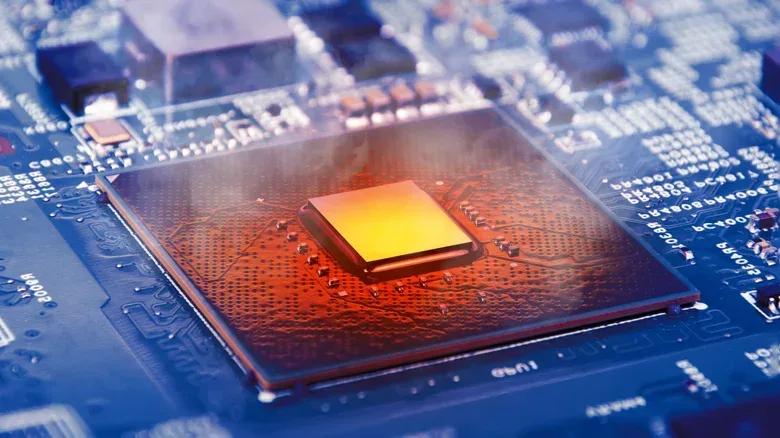
A laptop that feels hot after a long gaming session can inspire the kind of immediate concern normally reserved for a console making an unfamiliar noise. But warmth alone is not necessarily evidence that anything has gone wrong. Laptops place a processor, graphics hardware, battery, storage, cooling system and more inside a thin enclosure. Those components create heat while operating, and demanding work gives the cooling system more to manage.
For PC players, the most obvious example is a 3D game. Rendering graphics and keeping a game running can place a substantial load on the CPU and GPU, which is why fans may become louder and the chassis may warm up. Video editing can have a similar effect. Yet a laptop can also heat up while doing work that seems less dramatic, including operating-system updates, background tasks, browser tabs and programs that launch automatically at startup.
The useful distinction is not simply between a cool laptop and a warm one. The more important question is whether the machine settles down after the demanding task ends, or whether heat is accompanied by serious symptoms such as freezing and restarting. The former can be expected behavior; the latter can point to an airflow, fan or other hardware issue that deserves closer attention.
Heat is a byproduct of work, not automatically a fault
Every active component contributes some heat. As workloads become more intensive, heat can build more quickly than it does during lighter use. A game may be the obvious culprit, but it is worth remembering that the program in front of you is not always the only program consuming resources.
Background processes can keep the CPU and memory occupied without an obvious window on screen. Startup programs can do the same from the moment the laptop is turned on. Installing Windows or macOS updates can also raise system load and prompt the fans to run faster. In these circumstances, a temporary temperature rise and increased fan noise are part of the laptop responding to its workload.
Once a resource-heavy program is closed or a system task is finished, the laptop will often cool down within a few minutes. That return to normal is a useful practical sign: it suggests the heat was linked to an identifiable burst of activity rather than a persistent cooling problem.
What thermal throttling means
Modern laptops use internal temperature sensors to monitor their components. Those sensors help determine when the fans should speed up, slow down or stop. They can also activate protective behavior when temperatures rise: temporarily reducing the speed of the CPU and GPU. This is called thermal throttling.
In plain language, throttling is the laptop deliberately easing off performance to reduce heat. It is a safeguard, not a bonus performance setting. For someone playing a game, it can matter because a machine may have less performance available while it is trying to cool itself. The important point is that the laptop is designed to manage changing temperatures rather than remain at one fixed temperature or fan speed all day.
That context is especially useful when a fan suddenly ramps up during a new game area, an update, or an extended creative task. Fan activity can be a response to the laptop doing its job of moving heat away from internal components. A loud fan is therefore not, by itself, a diagnosis.
Airflow can turn routine heat into a bigger issue
Even a cooling system working as intended needs a clear path for air. Laptop vents are easily obstructed by soft surfaces. Using a laptop in bed or on a pillow can block those vents with fabric, making it harder for the device to shed the heat produced by its components.
A flat, firm surface is the straightforward preventive measure. It gives the bottom and side vents room to operate as intended, and it does not require changing game settings or installing extra software. It is also worth checking the immediate area around the laptop rather than assuming a performance-heavy game is the whole explanation for a temperature spike.
Room temperature matters, too. External heat affects how easily a laptop can cool itself. Apple recommends using a MacBook in an ambient range of 50 to 95 degrees Fahrenheit. Microsoft notes that Surface fans will run faster in environments above 77 degrees Fahrenheit. Those details do not establish a universal temperature rule for every laptop, but they illustrate why a machine can behave differently in a warmer room.
For people who regularly use demanding software, a cooling pad may be worth considering. These are fan-equipped trays that sit beneath the laptop and are intended to help keep it cooler. They should be viewed as an aid to airflow, rather than a substitute for checking whether vents are blocked or whether software is consuming unexpected resources.
Check what the laptop is doing before blaming the game
When a laptop seems unusually hot, a quick look at CPU use can help separate a normal workload from a surprise background drain. This is particularly useful if the heat persists after closing a game or if the fan stays active while the machine appears to be idle.
On Windows
- Press Ctrl + Shift + Esc to open Task Manager.
- Sort the running-process list by CPU usage.
- Look for programs using a large share of CPU resources.
- Close an unnecessary high-use program and see whether the laptop begins to cool.
- Review the Startup tab to stop unwanted programs from opening automatically when the computer starts.
It is sensible to identify a process before closing it. The goal is not to shut down everything that looks active, but to spot an app or background task that does not need to be running at that moment. Startup control can be particularly helpful when a laptop runs hot soon after booting, before a game or other primary task has even begun.
On MacBook
- Use Spotlight to open Activity Monitor.
- Select the CPU tab.
- Check for programs consuming a large amount of CPU resources.
- Close an unnecessary heavy-use program, then observe whether the laptop cools down.
Third-party utilities can also monitor component temperatures. Monitoring can provide extra visibility, but it does not replace the simpler checks: clear vents, a firm surface, manageable room temperatures, and a review of the processes using CPU power.
Gamers on Windows may already be familiar with unexpected background behavior getting in the way of play. System settings can intrude at inconvenient moments too; for example, Windows is testing an option related to the Sticky Keys prompt that can interrupt games. That PC gaming usability change is separate from heat management, but it underlines the same practical principle: investigate what the system is doing around the game, not only the game itself.
Clean carefully—and know the limits of DIY fixes
Dirty vents can interfere with airflow. If buildup is visible, the exterior of the vents can be cleaned gently with a soft cloth, brush or compressed air. Do not poke objects directly into the vents. The purpose is to clear dust carefully, not to force anything into the cooling system.
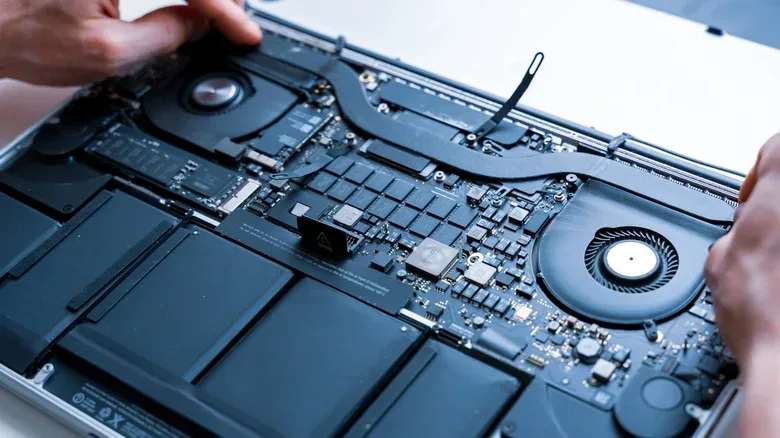
If a laptop continues to become very hot despite clear airflow and a review of background CPU use, technical support may be appropriate. A fan could be obstructed or otherwise not operating correctly. Another potential cause is dried-out CPU thermal paste. Thermal paste is material used to help transfer heat away from the processor; if it has dried out completely, it may no longer perform that role effectively.
Repeated freezing and restarts alongside high temperatures are more concerning than a fan becoming audible during a game. Those symptoms move the situation beyond ordinary workload-related warmth and toward a problem that should be assessed rather than ignored.
Older hardware may be facing a workload mismatch
Age can also be part of the story. Older laptops may overheat more readily when they can no longer keep pace with newer software. That does not mean every older machine needs immediate replacement, nor does it prove that heat is caused by age alone. It does mean that an older laptop handling current software may be working closer to its limits.
Where that is the underlying issue, the available choices are practical rather than magical: use older software where appropriate, reduce the demands being placed on the machine, or consider a newer laptop. A cooling pad or a cleared vent can improve conditions, but neither changes the performance limits of aging hardware.
The sensible routine is therefore simple: give the laptop unobstructed airflow, expect fans to react to demanding tasks, check CPU-heavy background activity when heat seems excessive, and treat persistent heat paired with freezes or restarts as a reason to get help. A warm chassis after a long session is often just the cost of compact hardware doing hard work. A laptop that cannot cool down or remain stable is a different problem.