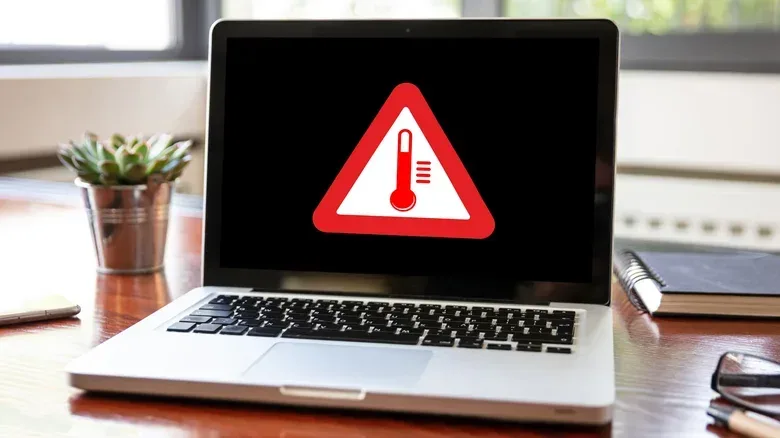
A laptop fan suddenly sounding like it is preparing for lift-off is irritating, especially when every visible app is closed. But an apparently idle machine is not necessarily an idle machine. Modern laptops continue to run maintenance, indexing, updates and background application processes after their windows disappear. Add a performance-focused power setting, a warm room, blocked vents or accumulated dust, and the cooling system may have a perfectly ordinary reason to become audible.
That does not mean every noisy fan should be ignored. The useful distinction is between a fan that is responding to heat and workload, and a fan making unusual mechanical noise or running hard persistently without an obvious explanation. The first case often calls for a few practical adjustments. The second can warrant software checks, built-in diagnostics or warranty support.
For players in particular, some fan noise is a normal cost of performance. Gaming puts sustained demand on a laptop’s processor and graphics hardware, creating heat that must be moved away. If you are also weighing the broader running costs around a desktop or laptop setup, see what a gaming sound system costs to run and how to measure it.
The desktop can be empty while the laptop is busy
Closing a program’s window does not always close its underlying processes. A process is a running piece of software work: it may be part of an application, a background helper or an operating-system task. Those processes can use the CPU, memory and storage even when there is nothing obvious on screen.
The CPU, or central processing unit, handles general-purpose computing work. Greater demand typically means greater power use and more heat. The fan’s role is straightforward: it moves air through the system so heat can be carried away. A fan speeding up after a workload rises is therefore a response, rather than automatically evidence of a fault.
Several legitimate background jobs can cause this behavior:
- Startup applications: Programs configured to launch with the operating system can continue operating in the background.
- System updates: Windows Update can create temporary demand while it downloads, installs or performs associated work.
- Search indexing: The operating system catalogs files to make later searches faster. Initial indexing can take hours.
- Background apps: Software may keep running tasks after its primary window has been closed.
On Windows, Task Manager is a sensible first place to investigate. Press Ctrl + Shift + Esc, then look at Startup apps to review programs that launch automatically. Disabling items that are genuinely non-essential can reduce baseline CPU activity and, in turn, reduce needless fan activity. Do not treat this as a contest to disable everything: some software and services are important to the system or to hardware features. The practical aim is to identify applications you recognize and do not need starting automatically.
Mac users can use Activity Monitor to identify background applications using substantial power. This is useful because it replaces guesswork with a current view of what the computer is actually doing. A fan that rises during an update or an indexing pass may settle after the work completes. That is different from a recurring pattern tied to one application or to a particular setting.
Related coverage includes Why Laptop Fans Get Loud When Nothing Is Open.
Power mode can deliberately trade quiet for speed
Power settings are not merely battery-saving switches. They determine how a laptop balances energy efficiency, responsiveness and performance. A mode intended to favor the highest performance can permit higher power consumption when demand arrives. Higher power creates more heat; more heat asks more of the cooling system. The result is often earlier or louder fan activity.
Windows provides power mode controls at Settings > System > Power & battery > Power mode. The available choices can prioritize energy efficiency, a balance of factors, or performance. Behavior can also differ depending on whether the laptop is plugged in or operating on battery.
The important practical point is that performance mode is not “wrong.” It is appropriate when its extra responsiveness and cooling behavior serve the task. A game, for example, can benefit from maximum available performance and cooling headroom. Writing documents or browsing lightly may be better suited to a balanced or energy-efficiency mode if quieter operation matters more than peak speed.
Some manufacturers add their own control software on top of Windows. Certain Dell systems, for example, offer an ultra-performance setting that raises processing performance and cooling fan behavior, alongside quieter modes. A quiet setting can reduce noise, but it may also reduce performance and allow temperatures to rise during demanding work. In other words, quiet mode is a trade-off, not a repair for a fault.
Change one thing, then use the laptop normally
It is tempting to alter every setting at once, blow out the vents and update software in one long troubleshooting session. That may improve the result, but it makes the cause difficult to identify. A more useful approach is to adjust one power or cooling setting, then use the laptop in the way you normally would.
- Note whether the machine is plugged in or on battery.
- Choose one power mode.
- Use the laptop for your usual task, whether that is a game, web browsing or document work.
- Observe whether fan noise, performance and heat change.
- Only then try another mode if needed.
This does not require specialized testing. It simply recognizes that a gaming workload and a light productivity workload call for different compromises. It also helps distinguish a normal response to a specific performance profile from noise that persists across every profile.
Airflow and room temperature change the equation
Software demand is only half of laptop cooling. The surrounding environment controls how easily heat can leave the machine. Ambient temperature means the temperature of the air around the laptop. In a warmer room, the cooling system has less favorable conditions, so the fans may start sooner and run faster than they would in a cooler space.
Placement is just as important. A laptop needs clear ventilation paths for its fans to draw and exhaust air effectively. A hard, flat desk is generally more suitable than a bed or other soft surface, which can restrict airflow around openings. Raising the laptop slightly can create additional space for air movement. Side and rear vents matter too; keeping them unobstructed supports the system’s intended cooling behavior.
This is especially relevant to gaming sessions. A laptop can be working hard even if the room is quiet and the game itself is running smoothly. If it is placed on bedding, a cushion or another surface that limits airflow, the fan may have to work harder to compensate. Moving it to a clear, firm surface is a low-risk check before assuming a component has failed.
Dust raises the cooling system’s workload
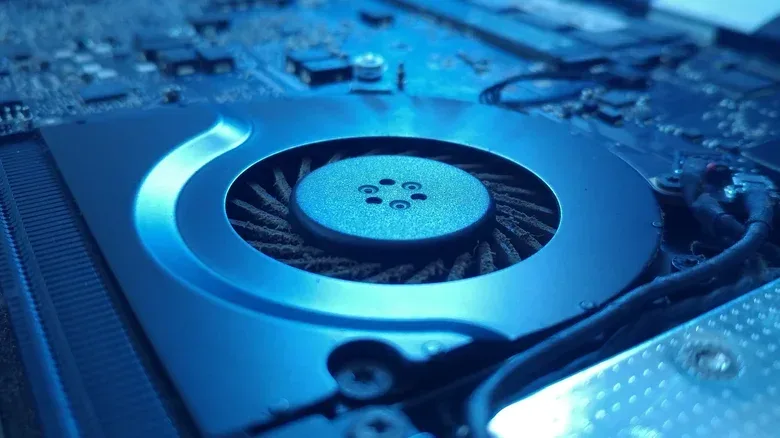
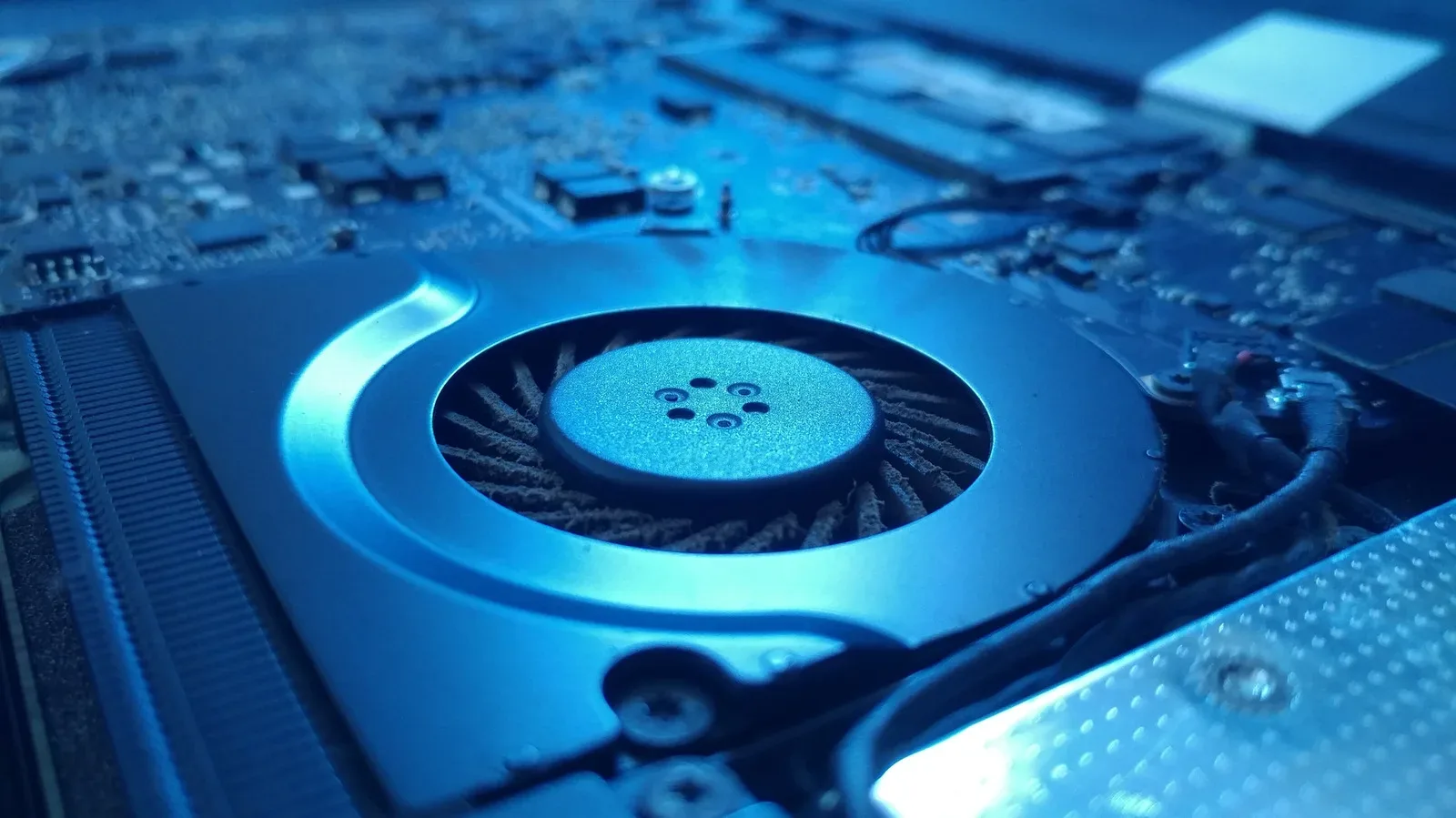
Airflow also brings dust. Over time, dust and debris can collect around vents, cooling fans and fan blades. That buildup reduces the ease with which air moves through the laptop. The machine may then need higher fan speeds to handle the same kind of work that once produced little noise.
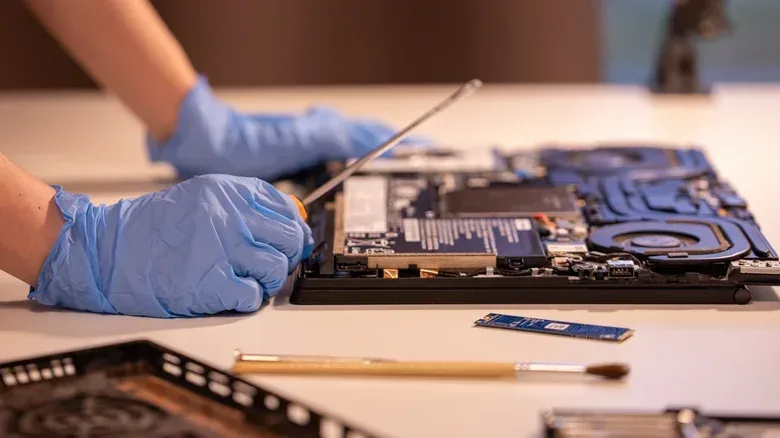
Cleaning the vents can therefore be a practical maintenance step. Compressed air can help clear dust without opening the laptop in many situations. Some models allow the bottom panel to be removed for more thorough access, but that is not always necessary, and owners should consider the device’s warranty status before attempting deeper work.
The purpose of cleaning is not to make a laptop fan completely silent. Fans may still operate during normal background tasks and demanding applications. The aim is to remove an avoidable airflow restriction so the hardware does not need to work harder than it should.
When fan sound points beyond ordinary cooling
The character of the noise matters. Steady rushing air can be the sound of a fan doing its job. Persistent grinding or rattling is more concerning, because it can indicate a worn or damaged fan. In that situation, dust removal alone is unlikely to solve the underlying mechanical problem.
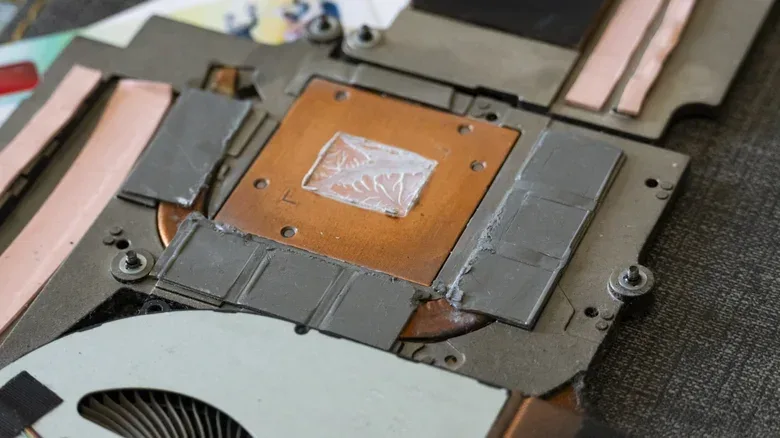
If unusually heavy fan use continues during light workloads after you have reviewed background activity, power settings, ventilation and dust, software maintenance is another sensible layer to check. BIOS updates, manufacturer utilities, chipset drivers and graphics drivers can all be relevant. The BIOS is low-level firmware that helps the system initialize hardware; chipset and graphics drivers help the operating system communicate properly with core components. Graphics hardware can affect fan behavior, so keeping these elements current can matter when investigating unexpected cooling activity.
Manufacturer tools may also offer diagnostic options. Some Dell laptops include a preboot fan test: restart the system, press F12 when the Dell logo appears, then choose Diagnostics. This is useful because it tests hardware outside the usual desktop environment, narrowing the question from “what software is open?” to “does the cooling hardware itself pass its available checks?”
Apple’s recommended path depends on the MacBook’s hardware. On an Intel-based MacBook with unexpected heavy fan use, resetting the System Management Controller can be relevant. For newer Apple silicon MacBooks, closing and reopening the lid or restarting the computer is the simpler suggested step.
A sensible order for troubleshooting loud fans
Not every fan surge demands a repair. A laptop that briefly becomes louder while indexing files, updating, gaming or operating in a warm room may be behaving normally. The priority is to look for patterns and warning signs rather than reacting to every audible burst.
- Check the workload. Use Task Manager on Windows or Activity Monitor on Mac to see whether background work is active.
- Review startup apps. Remove non-essential automatic launches rather than indiscriminately disabling software.
- Try an appropriate power mode. Use performance-oriented settings for demanding games; consider balanced or energy-efficiency modes for lighter work.
- Improve ventilation. Place the laptop on a hard, flat surface and keep side and rear openings clear.
- Address dust. Use compressed air to clear accessible vent and fan dust.
- Update the system side. Check BIOS, chipset, graphics and manufacturer-provided control software where applicable.
- Escalate unusual noise. Grinding, rattling, persistent excessive fan activity or signs of overheating justify checking diagnostics and warranty options.
Fans are supposed to be heard sometimes; their job is to protect the laptop as heat rises. What deserves closer attention is a change in behavior without a clear workload, airflow or setting explanation, especially if the sound itself becomes mechanical rather than simply loud. Start with the non-invasive checks, make changes methodically, and use manufacturer diagnostics or support when the machine still cannot keep its cool.