An ageing Android phone can be a poor fit for modern daily life without being useless hardware. Even after it has become slow, inconvenient or no longer receives the support you want from a primary handset, it may retain a capable screen, speakers, cameras, Wi-Fi, GPS and a collection of sensors. The trick is not to force it to resume being an all-purpose smartphone. Give it one job.
For players, that job can be especially compelling: a dedicated portable gaming device. Pair a phone with a Bluetooth controller, load the games and services it can reasonably handle, and suddenly the handset no longer has to compete with messages, work apps, photographs or a dwindling daily battery. It becomes the thing you pick up specifically to play.
That same principle works beyond games. A retired phone can become an offline navigation unit, a smart-home dashboard, a reading player, a camera monitor or a compact workshop reference screen. The best choice depends less on the phone’s age than on which parts still work well. A sharp display may matter most for books and games; reliable Wi-Fi matters for a home panel or camera feed; healthy battery capacity is far more important for a hiking GPS than for a wall-mounted controller.
Start by deciding whether it should be a truly dedicated device
Before installing a mountain of apps, decide whether the phone will have a single permanent role or remain a flexible spare. A factory reset is useful for the former. It clears old accounts, data and clutter, leaving a simpler device that is easier to hand to a family member, leave in a shared room or reserve for games.
That reset is irreversible for data stored only on the handset, so back up photos, documents and anything else important first. Once it is reset, install only what supports the new purpose. This is not merely tidiness. Fewer apps means fewer notifications, fewer competing background tasks and a home screen that tells the device’s new story at a glance.
There is a sensible limit, too. An older phone may not support every current app or service. Treat compatibility as a question to check before building a plan around a particular application, controller or feature. A device that cannot run the newest software can still be excellent at a narrower workload, particularly older games, downloaded media, simple utilities and Wi-Fi-connected home tasks.
A pocket retro machine is the most game-friendly second act
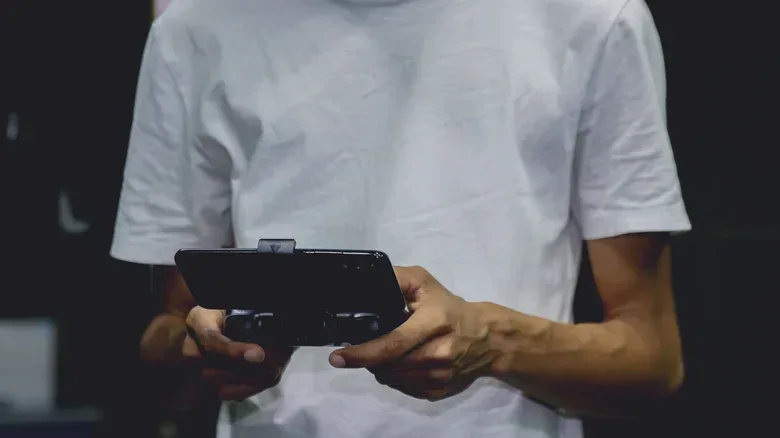
An Android phone with a respectable display is already most of the way to becoming a handheld. Add a Bluetooth gamepad and it can be used for Android games with controller support, cloud gaming, or legally obtained retro software through compatible emulators. “Emulation” means software recreating the behavior of another gaming system so that compatible game files can run on the phone. It is a technical capability, not a blanket permission to obtain games you do not own.
The attraction is focus. Your everyday phone is a communications device first; the old one can be a play device first. Keeping games on the retired handset also separates their storage demands and battery use from the phone you depend on for calls, tickets, messages and directions.
Controller choices include conventional Bluetooth pads and designs that physically attach around or to a phone. The 8BitDo SN30 Pro for Android, for example, supports Android 9 and newer and includes a clip for securing a phone above the controller. Other options range from Bluetooth pads such as the Pro 2 to controllers that mount directly to a handset. The important practical question is not simply whether a controller looks retro: confirm that it supports the Android version on the device and that the games or service you intend to use recognize controllers.
Build the setup around the phone’s limits
Older hardware does not need to win a benchmark contest to earn a place in a game bag. A phone that struggles with newer apps may still be suitable for older games. Conversely, cloud gaming shifts some of the game processing away from the phone, but makes a dependable network connection more significant. A local retro setup and a cloud setup therefore fail in different ways: the first is shaped more by the handset and storage, while the second leans more heavily on connectivity.
Make the device comfortable before treating it as a handheld. Pair the controller, check that buttons are recognized, and consider whether the phone is secure in its clip. Download what can be downloaded while on Wi-Fi, rather than discovering a missing file or update when away from home. Most importantly, preserve enough free storage for the games and media you actually intend to keep. A dedicated device feels more relaxing when it does not constantly demand cleanup.
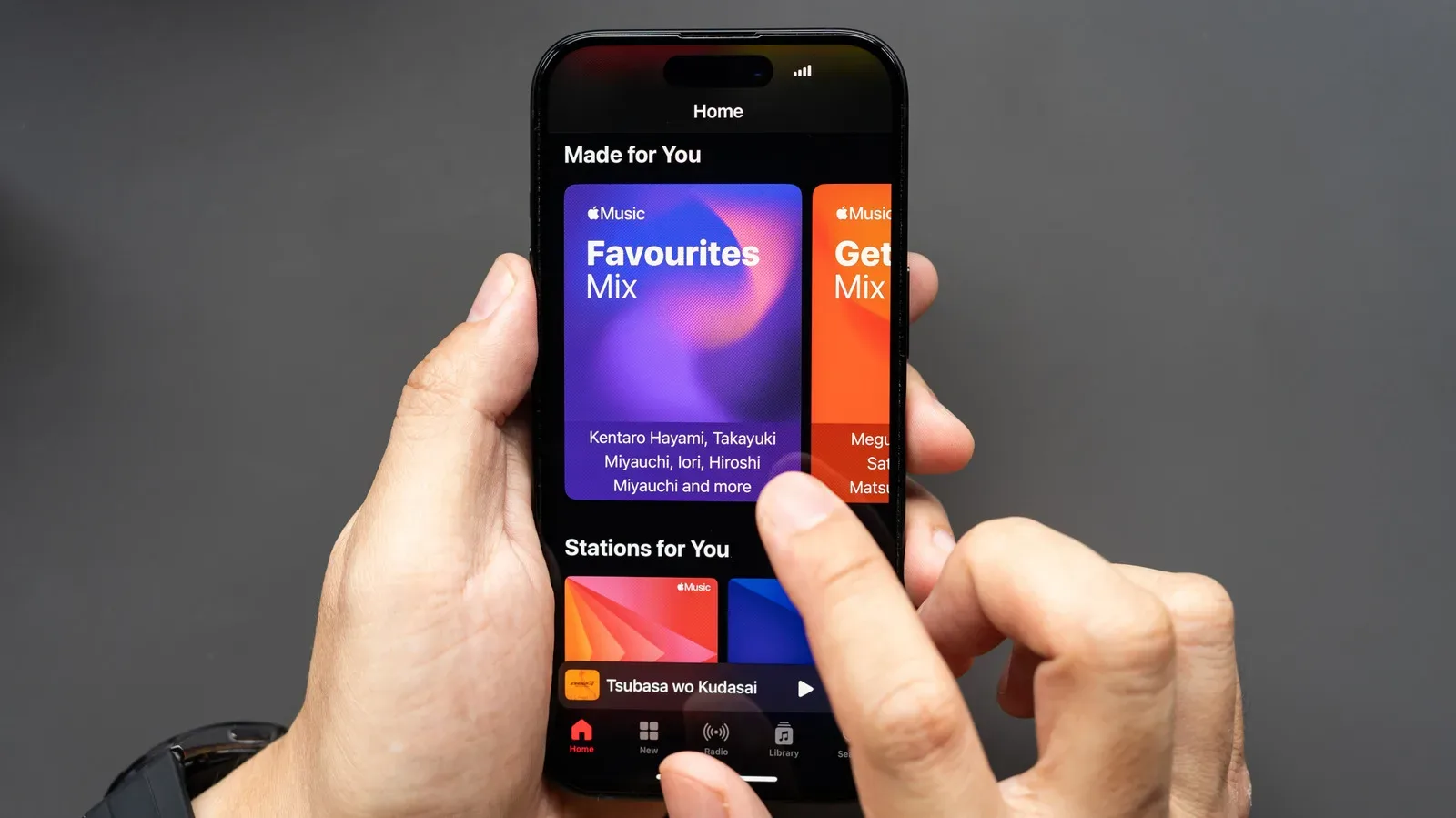
It can also serve as a non-gaming listening device between sessions. Downloaded podcasts, music and audiobooks pair naturally with headphones or a Bluetooth speaker, while a separate handset keeps the notifications of a primary phone from barging into a walk or bedtime chapter. For anyone tuning audio on their wider setup, our guide to Apple Music audio quality settings across major platforms explains why formats and device settings can matter as much as the label on a streaming tier.
Outdoor GPS: offline means prepared, not invulnerable
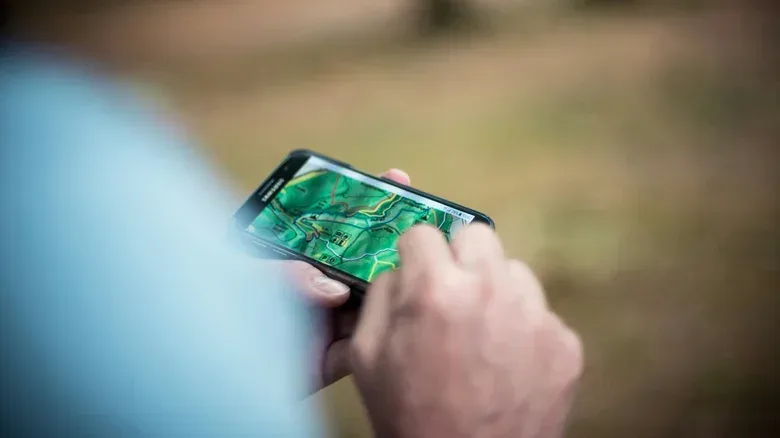
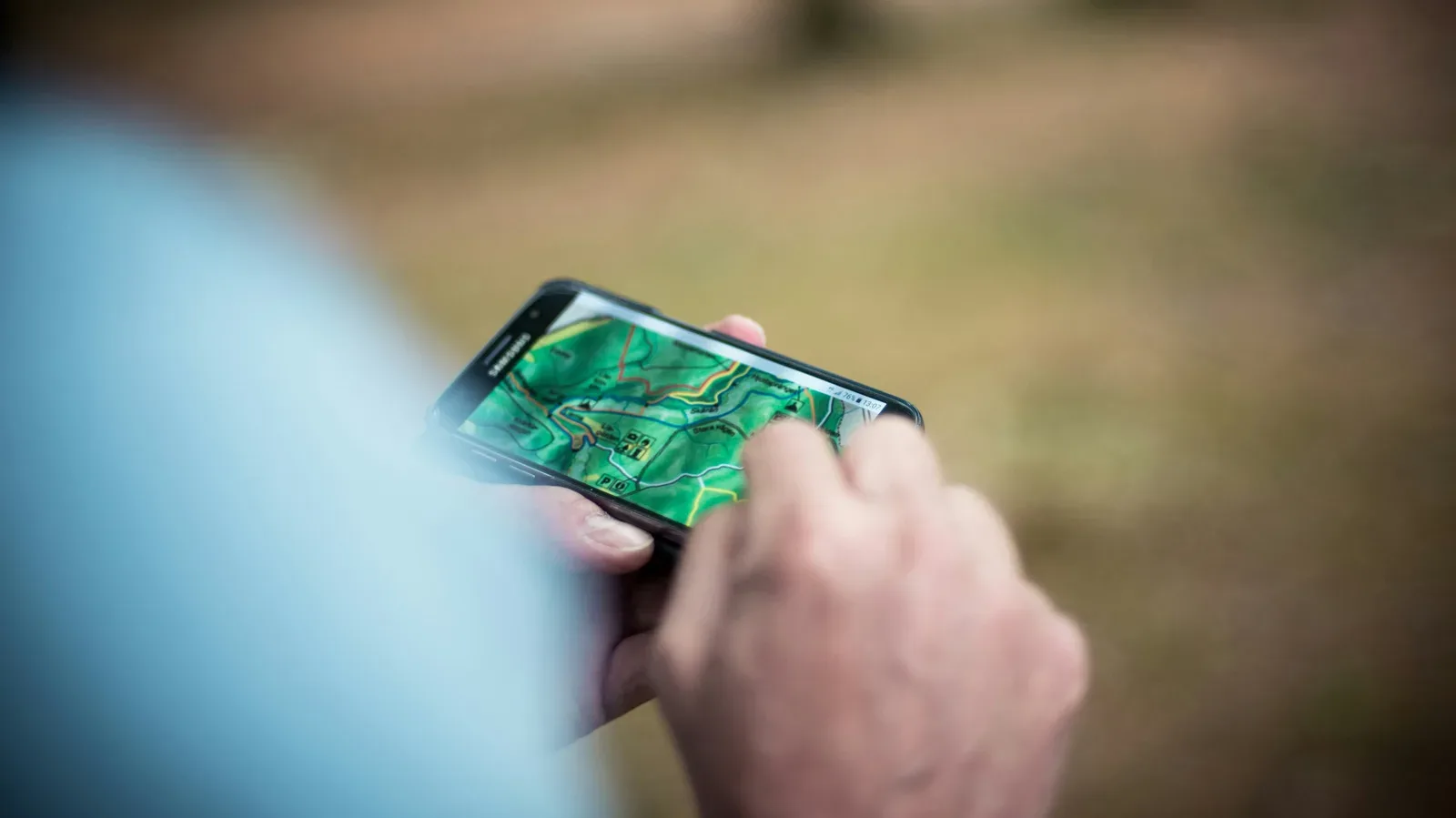
A retired Android can make sense outdoors because GPS location does not inherently require a cellular data connection. Download maps while connected, then use the phone’s GPS receiver to follow your position in areas with weak or absent mobile service. That makes the device useful for hiking, camping, hunting and off-roading while leaving the daily phone safely packed away.
Offline maps are maps saved to the device in advance rather than fetched over the internet during a trip. AllTrails and Gaia GPS support offline maps, though both require a paid plan to download them. AllTrails says those downloaded maps can use a phone’s built-in GPS without a data signal. Google Maps also supports offline maps for national parks, providing another option for pre-trip preparation.
Preparation is the essential word. Download the whole area needed over Wi-Fi and test the maps before travelling somewhere remote. Check that the route or area appears as expected and that the location indicator works. Bring a power bank for longer outings, because navigation and screen use can consume battery. A separate device can preserve the battery of a primary phone, but it does not remove the need to manage power.
Home jobs reward a permanent place and permanent power
Some uses are almost the opposite of the portable handheld: the phone never needs to leave its spot. A kitchen display can show recipes, conversion tools, timers, grocery lists, music, podcasts or video. Put it on a stand or mount it where it can be read without putting your normal phone near flour, splashes and greasy hands.
Recipe-focused software such as Paprika Recipe Manager can store recipes, build grocery lists, plan meals, adjust quantities and convert measurements. Its screen-on option and built-in timers are suited to a device used beside a cutting board. Google Keep and Google Home may also fit a setup centered on lists, music or connected devices. Even when a kitchen phone is largely usable offline, reconnecting it occasionally for app and content updates is prudent.
A wall-mounted smart-home control panel is another practical home role. Platforms such as Home Assistant can use an Android phone as a dashboard for compatible lights, thermostats, cameras, plugs, TVs and other devices. Fully Kiosk Browser can present a glanceable display of temperature, cameras and controls, while Google’s smart-home controls offer a way to organize frequently used devices. The real benefit is not just novelty: a shared screen means common controls do not have to live solely inside one person’s pocket.
A phone that is plugged in all day can also be assigned camera duty. AlfredCamera can pair an old Android with a current phone, tablet or computer so the old handset acts as the camera and the other device views its feed and listens to audio. Possible placements include a crib, entryway, garage or pet area. The service works across Android and iOS, and offers features including video quality controls, night vision, audio and multiple cameras.
That convenience deserves a security check. A device with a view and microphone inside the home should use a strong, unique password, and App Lock should be enabled. Encryption is useful, but it does not replace account hygiene. Consider where the camera points and who could physically access the phone, particularly if it sits in a visible shared location.
Make the phone a reference tool where phones are most at risk
The workbench, garage and household utility drawer are excellent destinations for a phone that is no longer precious. Keep repair guides, manuals, wiring diagrams and project PDFs on it. iFixit provides step-by-step repair and troubleshooting material, which can be more practical on a nearby screen than on a handset repeatedly handled with dusty or greasy fingers.
Basic built-in features remain surprisingly valuable: calculator for measurements, flashlight for dark spaces, level app for quick checks and a camera for recording wire positions before disassembly. Photograph labels, part numbers and measurements before they become a scavenger hunt. The same device can hold appliance manuals, maintenance notes, emergency information, replacement filter labels and serial numbers.
That is also a useful framing for a general household phone. A magnifier, QR-code scanning camera, calculator and flashlight are small tools that may not warrant buying separate devices. Rather than calling it a junk-drawer phone as an insult, think of it as an organized digital version of the junk drawer: mundane, accessible and useful precisely because it is already nearby.
Use the camera for projects that move slowly
Many recent Android phones, including Samsung Galaxy A and S models and Google Pixel phones, include a time-lapse or Hyperlapse mode. A retired handset can therefore become a small project camera for a garden, renovation, craft build or changing sky. If the installed camera software lacks such a mode, a third-party camera app may provide it.
Time-lapse condenses a long process into a shorter video by capturing frames over time. Stability matters more than flair. Use a tripod or a secure fixed surface; shifting the phone partway through can spoil the sequence. Frame the shot before recording, make sure enough storage is available, and supply enough power to last the job. Camera quality varies widely between devices, so results will be shaped by the particular phone, but a stable, well-planned setup gives any suitable handset its best chance.
A travel-only companion can protect the phone you rely on
For travel, a previous Android can carry offline maps, translation tools, entertainment and trip documents. Load boarding passes, hotel information, reservations, downloaded shows or movies, and relevant airline, hotel or transit apps. This reduces the clutter on a daily phone and gives you an alternative for beaches, pools, campsites and other situations where you would rather not expose your newest device.
Google Maps supports offline search and navigation, which is useful where service is unreliable or data is expensive. Download needed areas before leaving Wi-Fi. Compatible phones and carriers may also support Wi-Fi calling, potentially allowing calls without cellular service, but that depends on the handset and carrier rather than being a promise every old phone can meet.
Ultimately, the value of an old Android is not in pretending it remains a flagship. It is in assigning the hardware a task it can still perform well. For gaming, that can mean a purpose-built retro and controller-friendly handheld. For everything else, the same phone might be the kitchen’s timer, the garage’s manual library, the wall’s home dashboard or the bag’s offline map screen. A single clear role turns an obsolete daily driver into a device worth keeping charged.