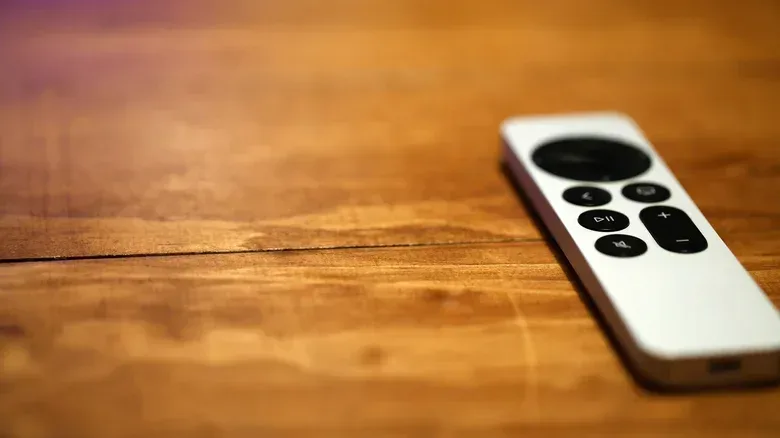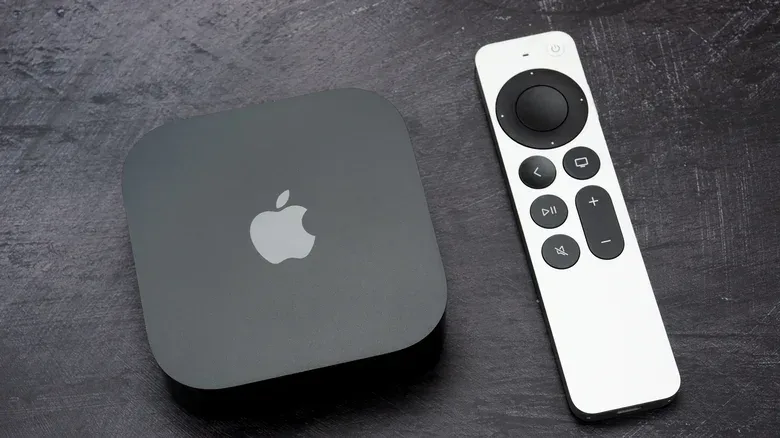
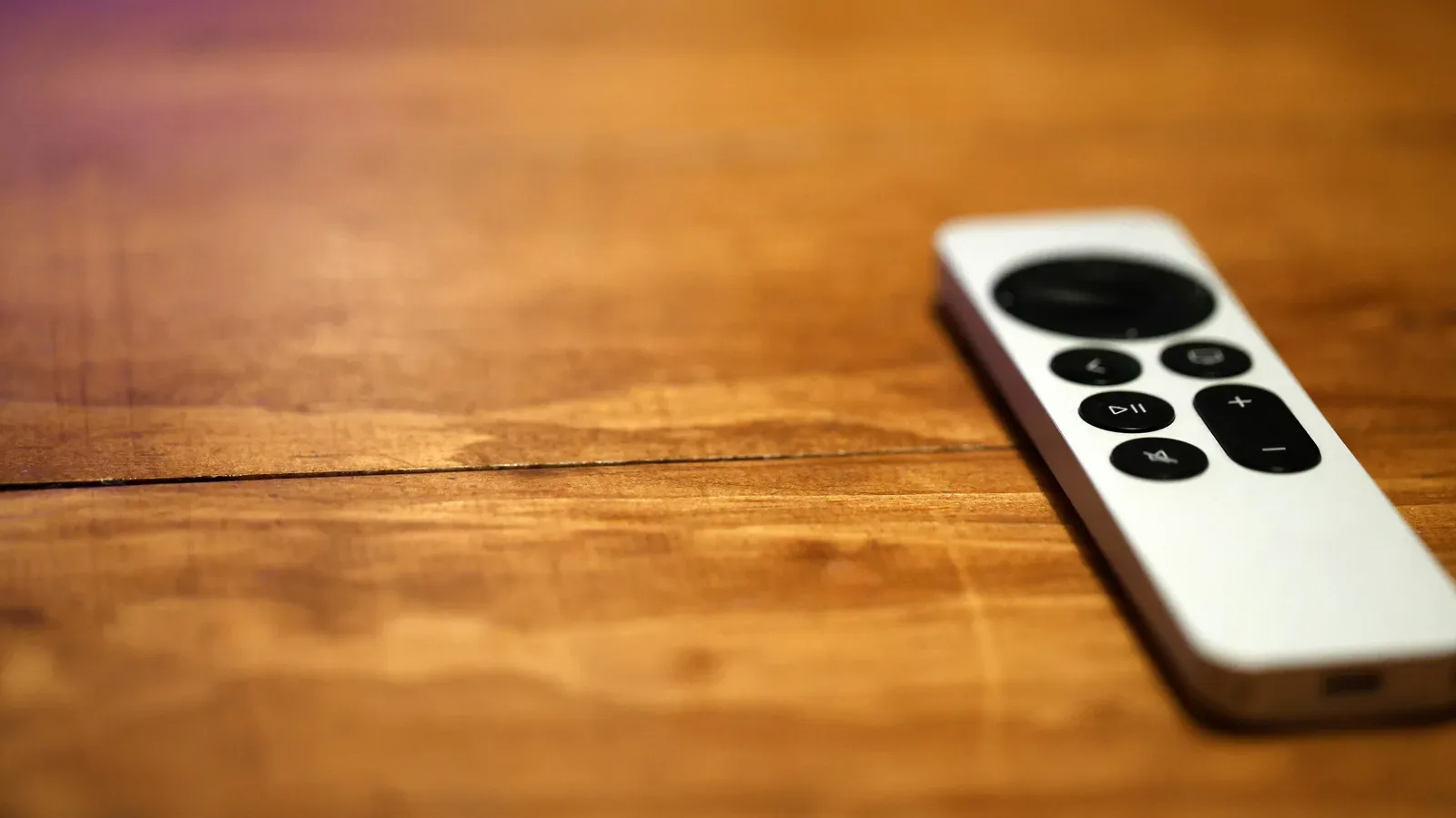
The Apple TV remote has a special talent: becoming invisible at the exact moment somebody needs to lower the volume, pause a show, or leave an app that has started loudly previewing something. A cushion, blanket, toy bin, or the short walk to get water can be enough to turn a tiny Siri Remote into a household side quest.
The useful part is that a missing physical remote does not necessarily mean a stranded Apple TV. Apple’s Remote controls on iPhone and iPad can provide a replacement controller, and compatible newer hardware can help point the way to the remote itself. The distinction matters. One feature is about finding the remote; the other is about controlling Apple TV while the search continues.
For players and streaming households, that is a practical fallback. The television setup can stay usable for volume changes, playback controls, app switching, and other routine navigation while the real remote is still presumably conducting reconnaissance somewhere inside the sofa.
First: check whether the remote can be located
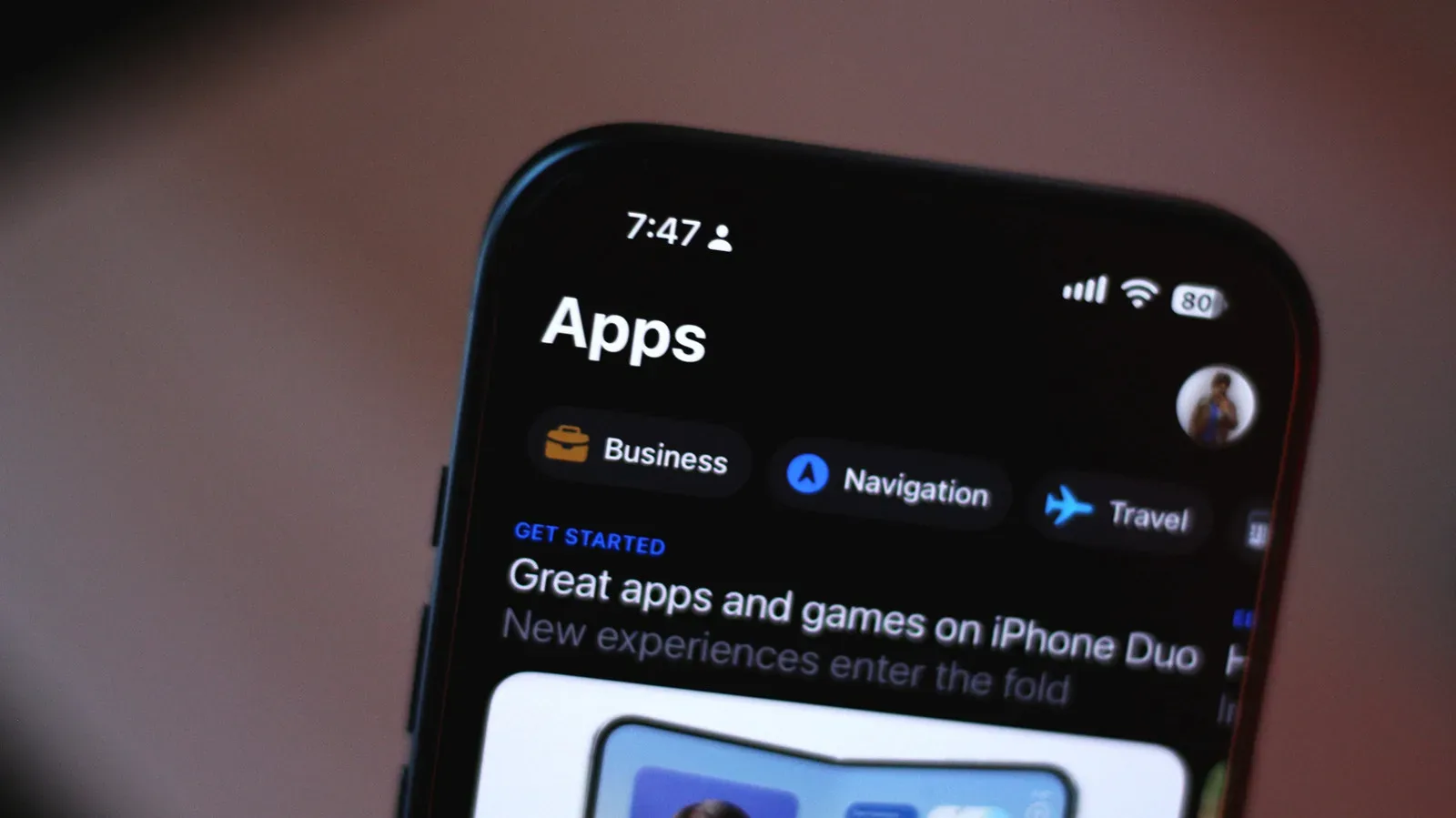
On an iPhone running iOS 17 or later, with an Apple TV using tvOS 17 or later, open Control Center and select Apple TV Remote. From there, open the device list, choose Find, and follow the prompts shown on the phone.
The locating interface communicates relative closeness rather than simply presenting a map pin. Its indicator expands as the phone gets nearer, with status wording moving through “far,” “near,” and “here.” In practical terms, this turns the phone into a guide for narrowing a search area: start with the room where the remote was last used, then work through likely hiding places instead of repeatedly re-checking the entire house.
Precision Finding versus proximity searching
Not every Siri Remote has the same search experience. The Siri Remote released alongside the refreshed Apple TV 4K in October 2026 includes Precision Finding hardware. Precision Finding means the iPhone can provide directional arrows and live distance guidance, making the final few steps of the hunt more explicit. That remote also has a built-in speaker that can play a chime.
Older compatible remotes use proximity searching instead. Put simply, the phone can indicate whether you are getting closer, but it does not offer the same directional-arrow guidance described for the newer model. That is still useful when a remote has slipped behind furniture or under bedding, but it calls for a more methodical search.
The important expectation-setting point is that a newer Apple TV box alone is not the whole story here. The more detailed Precision Finding experience is tied to the new Siri Remote included with the October 2026 refreshed Apple TV 4K. If the phone is only offering proximity-style clues, that can be normal for an earlier remote rather than evidence that the feature is failing.
A sensible search routine
Technology can narrow the area, but it cannot lift a cushion or look inside a blanket. Pair the phone’s feedback with a simple physical sweep, especially once the readout indicates that the remote is nearby.
- Begin in the most likely room, rather than walking through the home at random.
- Use the iPhone’s locating flow to determine whether the signal improves in that room.
- Check couch seams, between cushions, beneath throws, and underneath the furniture.
- Move outward to places where somebody may have carried the remote: nearby tables, bedding, or bins where other items end up.
- When the phone indicates the remote is very close, slow down and search the immediate area carefully. A chime, where available, can make that final step easier.
This approach is less glamorous than a treasure map, but it makes the on-screen “far” and “near” feedback meaningful. It also avoids an easy mistake: confusing an inability to spot the remote with an inability to operate the Apple TV. Those are separate problems, and the second one has a fast workaround.
Use an iPhone or iPad as the replacement remote
Whether the remote is temporarily lost or genuinely gone, an iPhone or iPad can become the active controller through Control Center. Open Apple TV Remote, then select the Apple TV—or an AirPlay-compatible smart TV—from the device list. A four-digit passcode may be required to confirm the connection.
Once paired, the device can handle the core job of the handheld remote: control volume, open and close the device, move among streaming apps, and manage playback. That means a missing remote need not force a replacement purchase or, more drastically, a replacement Apple TV setup.
There is one essential condition: the phone must be connected to the same Wi-Fi network as the Apple TV. “Same Wi-Fi” is not a vague recommendation here; it is the connection requirement that lets the phone discover and control the streaming device. If the Apple TV does not appear in the list, confirm that the phone is on the appropriate household network before assuming the remote-control option is unavailable.
This is also worth remembering for a shared living-room setup. If one person has misplaced the physical remote, another iPhone or iPad connected to that network may be enough to get playback paused, a game-night stream back on track, or a noisy menu under control. The phone is not just a search tool—it is a continuity plan.
What the phone fallback changes
The phone route solves the immediate access problem, but it does not necessarily reveal where the physical remote went. That is why the two features work best together: start the locating process if the hardware supports it, then use the digital controls to keep the Apple TV functional during the search.
It is a small distinction with a big practical payoff. A remote can be missing without the viewing session being interrupted. If the remote later turns up, nothing has been lost except a few minutes and perhaps some dignity for the person who checked the same cushion three times.
Android has a workaround, not an Apple-made equivalent
Android users do not have an official Apple remote app. The workaround is a third-party app, such as Remote for Apple TV, available through Google Play. These apps are described as replicating the physical remote’s core controls rather than providing the Apple-made iPhone locating experience.
The setup follows the same basic network principle:
- Install a compatible third-party Apple TV remote app on the Android phone.
- Connect the Android phone to the same Wi-Fi network as the Apple TV.
- Select the Apple TV in the app and enter the on-screen pairing code when prompted.
- Use the digital controls to navigate, change playback, and choose apps.
That makes Android a reasonable escape hatch when the physical controller is absent, although it should not be confused with the iPhone’s Apple TV Remote flow or with Precision Finding. The supplied information supports third-party control functionality on Android, not an official Apple locator for Android phones.
Why Wi-Fi is the quiet star of this fix
For the replacement-controller part of the process, Wi-Fi is doing the unglamorous but crucial work. The Apple TV and phone need to be reachable through the same network so that pairing and control can happen. This is one reason a healthy home network helps more than game downloads and streaming quality: it also determines whether a phone can quickly step in for a missing controller.
If a living-room device is not appearing when expected, start with the basic network check rather than repeatedly opening and closing the remote panel. For broader placement advice that can make household connections more dependable, see why router placement can make gaming connections more reliable.
There is also a useful boundary to keep in mind. Same-network control can restore navigation within minutes, but it cannot compensate for a phone that is not connected to the relevant Wi-Fi network. Before trying more elaborate steps, make sure the basic connection requirement is satisfied.
Choose the route that matches the problem
- The remote is somewhere in the home: On a compatible iPhone and Apple TV software combination, use Apple TV Remote in Control Center, open the device list, choose Find, and follow the proximity guidance.
- You have the October 2026 Siri Remote: Use the enhanced Precision Finding cues—directional arrows, distance guidance, and the remote’s chime—to tighten the search.
- The remote cannot be found right now: Use Apple TV Remote on an iPhone or iPad as the temporary controller after selecting the relevant Apple TV or AirPlay-compatible TV and completing any passcode prompt.
- You use Android: Connect to the same Wi-Fi as the Apple TV and pair a third-party app using the on-screen code for core remote controls.
The key is not to let the hunt and the control problem blur into one. A remote can vanish under the blankets, but the Apple TV does not have to vanish with it. Locate it if the hardware supports the feature; otherwise, or while searching, let the phone handle the controls and save the replacement decision for later.