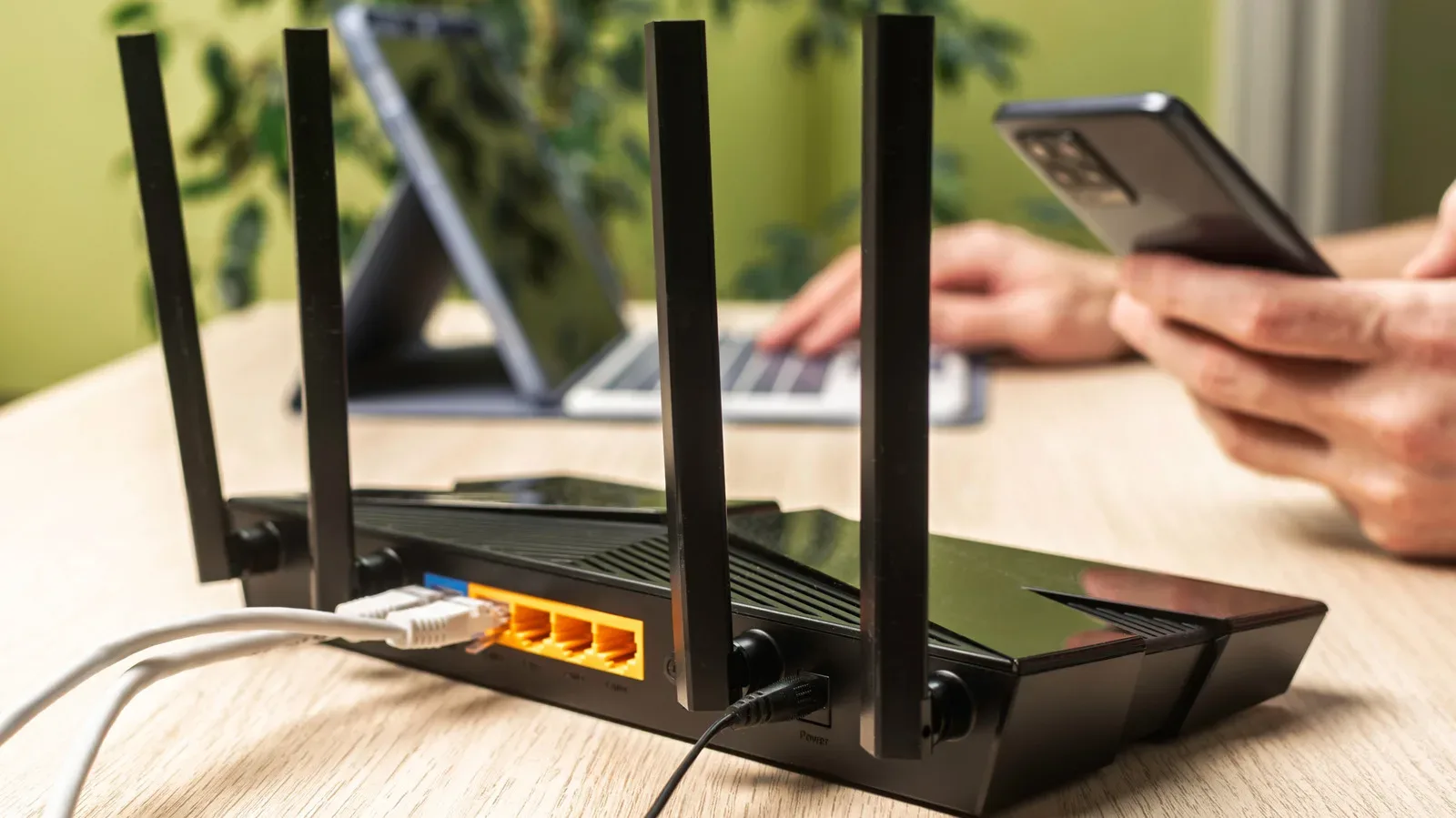
When a download crawls, a multiplayer match stutters, or a console seems to lose the room-to-router lottery every evening, it is tempting to blame the internet provider or assume the router has reached its retirement age. Those can be real problems, but there is a far less dramatic possibility worth checking first: the router may simply be sitting in the wrong place.
Wi-Fi is a radio signal. A router broadcasts it outward, and that signal becomes weaker over distance. Obstacles and nearby electronics can further compromise the connection before it reaches a PC, console, handheld, television or phone. Put the router in a cabinet, bury it in a corner, or crowd it with signal-disrupting equipment, and a capable internet connection may deliver a much less capable experience where it matters.
For gaming households in particular, router placement is a practical quality-of-life issue. The game machine that needs a stable connection may not be in the same room as the broadband entry point. Before shopping for replacement hardware, a booster, or a multi-node system, it makes sense to treat placement as the first troubleshooting step. It costs nothing but a little testing, and it can establish whether new equipment is actually necessary.
Why the corner-of-the-room setup works against you
Routers send Wi-Fi in all directions. That means their location determines not only how much of the home receives coverage, but also where the signal is effectively being spent. A router placed at one outer edge of a home may direct a substantial portion of its coverage outside the living area, while devices on the far side contend with the longest distance and the most barriers.
The goal is not a universally perfect spot; building layouts and desired coverage areas differ. An apartment may benefit from a central location that is removed from interfering devices. A larger house presents a different challenge, particularly when important devices are distributed across floors. Still, the core principle remains straightforward: position the router as centrally as the home and its cabling allow, and keep it exposed rather than hidden away.
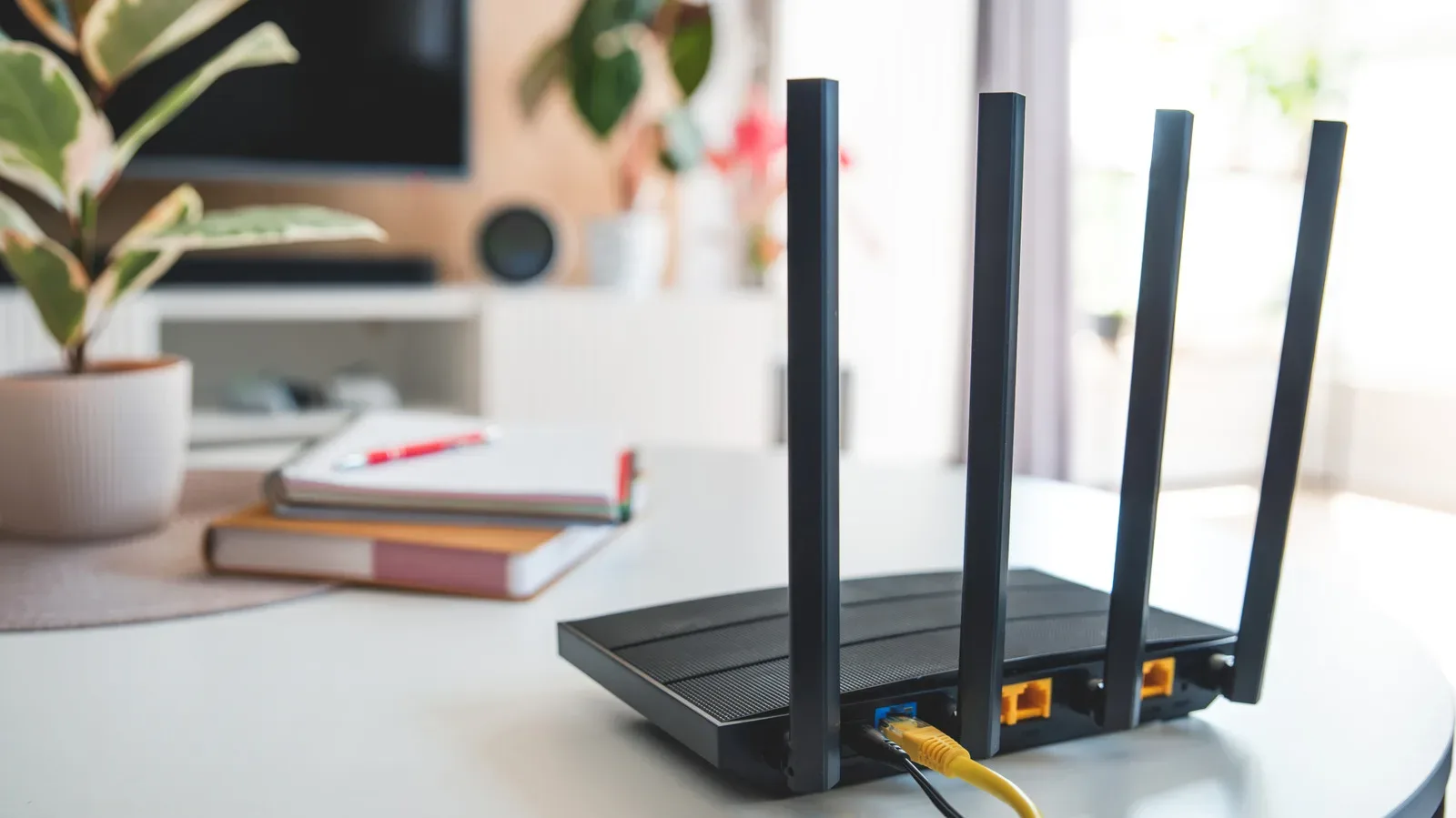
Elevated placement matters, too. A side table, desk or cabinet top can be more useful than a low, enclosed spot. If the available furniture does not create a good position, a purpose-made or improvised stand may be a sensible answer. The router does not need to become a centerpiece, but it should have space around it to do its job.
That also means resisting a common aesthetic impulse: stuffing networking gear into a closed cabinet. Concealment may make a room look tidier, yet it can place the router behind physical obstructions and force the signal to work harder before it ever reaches a device. A corner compounds the issue, because it limits useful distribution across the space.
A practical placement checklist before buying anything
Rather than moving the router repeatedly without a plan, establish a baseline and compare locations. This turns a vague feeling that the Wi-Fi is “bad” into a useful set of observations.
- Run an initial speed test. Check performance before moving the router. This gives you a point of comparison rather than relying on memory or one unusually good or bad evening.
- Choose a central, open and elevated candidate location. A table, desk or cabinet top can work, provided the router is not enclosed or forced into a corner.
- Keep it clear of known interference sources. Avoid placing it immediately beside metal objects, thick walls, Bluetooth devices and microwaves.
- Retest as you adjust. Run speed tests after each meaningful move and compare the results with the baseline.
- Check the places that actually matter. The best central location on paper is not automatically best if the gaming PC, console or work machine still sits in a dead zone.
This process is particularly useful because an apparent connection failure can have multiple causes. The tests cannot magically diagnose every networking issue, but they can show whether router placement changes signal quality and internet speed. If a small move produces a meaningful improvement, the placement was part of the problem. If several sensible positions make no difference, it becomes more reasonable to consider coverage hardware or investigate other causes.
Interference is not just clutter
Distance is only one part of Wi-Fi performance. Nearby objects and electronics can interfere with the signal. Metal objects, thick walls—especially concrete and metal—and Bluetooth devices all deserve attention when selecting a router location. Microwaves are another concern because they can interfere with the 2.4GHz Wi-Fi band.
Interference here means conditions that degrade the wireless signal or make communication less clean between the router and a connected device. In practical terms, a router can be close enough to a console and still produce disappointing results if its immediate surroundings are hostile to the signal. Moving a router into the open and away from those sources is not about chasing a single magic shelf; it is about reducing avoidable obstacles.
Thick walls are especially important because they may be unavoidable. When the path between router and gaming setup goes through substantial concrete or metal, simply changing antenna angles may not solve the coverage issue. That is when a more deliberate approach—moving the router closer to the space it must serve, or considering expanded coverage—becomes more relevant.
Use the right Wi-Fi band for the job
Many routers offer both 2.4GHz and 5GHz bands. They are not interchangeable in practice, and understanding the trade-off can help allocate devices more intelligently.
The 2.4GHz band reaches farther but provides slower speeds. The 5GHz band offers faster speeds over a shorter range. That makes 5GHz the stronger fit for devices where speed and connection stability carry the most weight, including desktop PCs and gaming consoles, provided they are close enough for the shorter-range band to remain effective.
Conversely, 2.4GHz is useful for devices that sit farther away, move around the home, or do not require as much speed. The distinction is important because blindly putting every device on the same band ignores the strengths of each one. A console near the router and a phone used at the far end of the home do not necessarily have identical networking needs.
This is also why placement and band selection should be evaluated together. A 5GHz connection may be ideal for a desktop in a nearby office, but less suitable once multiple thick walls or floors separate the device from the router. If a console is receiving a weak connection in a distant room, switching bands may be a useful test, but it does not erase the underlying limits imposed by distance and obstructions.
Antenna positions and multi-floor homes
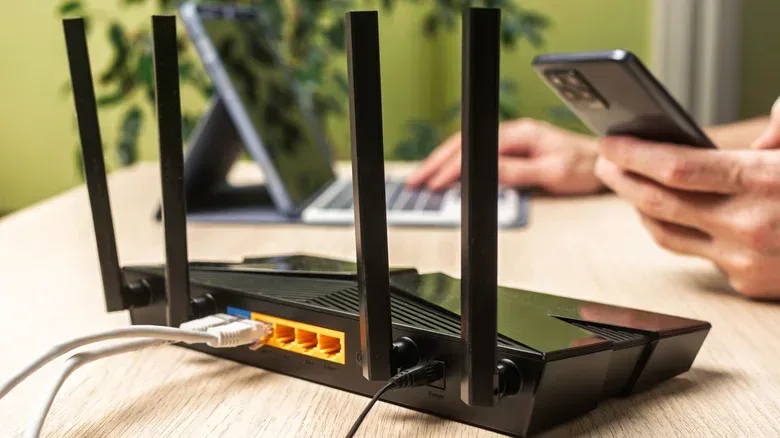
External router antennas are not merely decorative. Their orientation can influence coverage. For a single-floor home or apartment, vertical antenna placement is recommended. In a multi-floor building, angle at least one antenna to around 30 degrees while keeping the other antennas vertical.
The floor on which the router sits matters as well. If it is on the ground floor in a two-story home, positioning it nearer the ceiling can better support coverage above. If it is on the second floor, moving it closer to the floor can help the level below. These are modest adjustments, but they are easy to try during the testing process and may be more useful than immediately writing off a difficult room.
For anyone following developments around gaming hardware, such as the discussion of Project Helix as an Xbox-focused console proposition, the larger lesson is uncomplicated: the experience of any connected game device is shaped not only by the box under the TV, but also by the network conditions around it. A high-speed plan and modern hardware can still be undermined by a poorly positioned router.
When a Wi-Fi extender makes sense—and its compromise
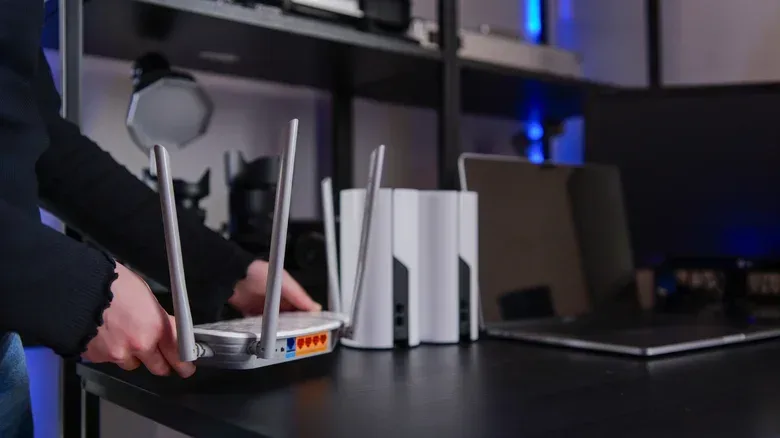
A router cannot always cover every room, even when it is positioned thoughtfully. Large buildings and homes with three or more floors are particularly likely to retain dead zones. A dead zone is an area where usable Wi-Fi coverage is absent or too weak for reliable use. At that point, it is reasonable to look at a Wi-Fi booster, also called an extender or repeater.
An extender receives the router’s signal and retransmits it to nearby areas, expanding coverage beyond what the router can reach alone. It can be a practical choice for a smaller coverage gap when budget and simple setup are priorities. But it carries meaningful trade-offs: extending the signal usually halves bandwidth, and finding the correct location for the extender itself can be difficult in larger spaces.
That placement challenge is worth emphasizing. An extender still needs a usable signal to repeat. It is not a cure for every remote location merely because it is placed there. As a result, an extender can be helpful for a limited problem but increasingly awkward as the home gets bigger or the number of dead zones rises.
Why mesh systems are better suited to broader coverage problems
A mesh network addresses the same broad objective—expanding Wi-Fi coverage—but works differently. Rather than relying on a single repeater, it uses multiple nodes placed around areas that need coverage. The network remains a single network, which is a key practical distinction for a home with several rooms or levels to serve.
Mesh systems generally offer better performance than extenders, though they cost more. They are especially suited to larger buildings, multi-story homes and layouts containing several dead zones where one extender would not be enough. Tri-band mesh systems provide a further advantage by avoiding the bandwidth-halving drawback associated with extenders.
That does not make mesh the automatic purchase for every weak-signal complaint. A small apartment with an unfortunate router location could see major improvement from a central, elevated and open placement. Buying a mesh system before testing that basic fix risks paying to solve a problem that could have been corrected with a few feet of cable and a less hidden shelf.
Make placement the first networking upgrade
The useful order of operations is simple. First, get the router out of a cabinet or corner. Place it centrally, elevate it, and keep it away from nearby sources of interference. Next, adjust antennas with the home’s floor plan in mind, make sensible use of 2.4GHz and 5GHz, and test each change rather than guessing. Only then should a persistent dead zone prompt a decision between an extender and a mesh system.
That approach does not promise that every connection issue will disappear. It does ensure that the router is being given a fair chance before more costly or complicated steps enter the picture. For homes where the wireless network carries online matches, game downloads, streaming and everyday devices at once, a router location is not an afterthought. It is part of the setup.