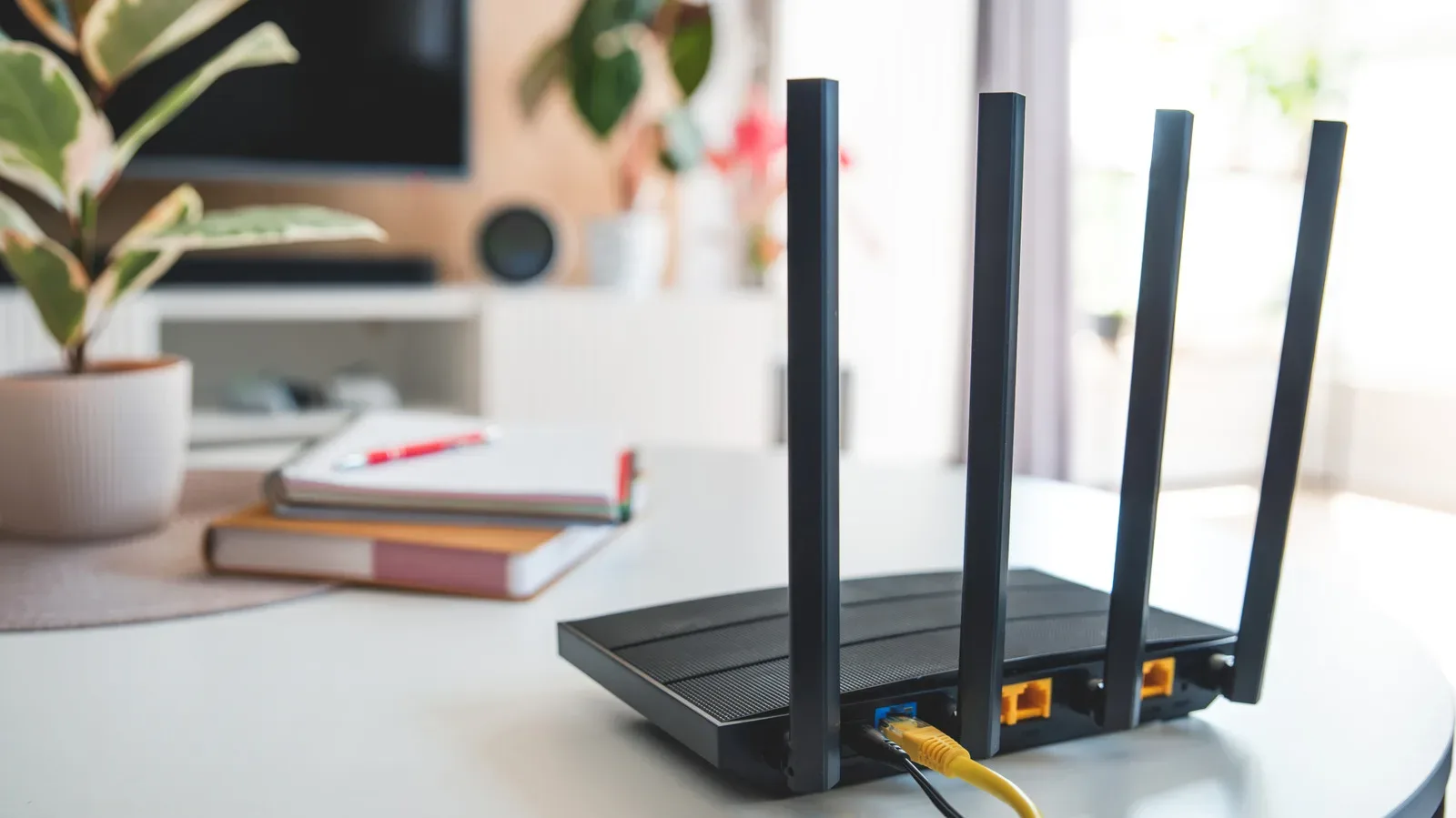
A home router is one of the least glamorous pieces of gaming hardware, right up until it turns a close multiplayer match into a slideshow. It runs for long stretches, manages traffic for every connected device, and contains processors, memory, wireless radios and power-management hardware. Heat is therefore normal. A router that has been operating for several hours may feel warm to the touch without being in trouble.
The warning sign is when “warm” becomes uncomfortably hot, particularly if that heat arrives with changing speeds, dropped connections, freezes, shutdowns or weaker Wi-Fi coverage. Those symptoms do not prove temperature is the culprit—network trouble can have other causes—but the combination is reason to investigate rather than simply rebooting and hoping for the best.
There is a practical order to this: improve ventilation, clear the vents, make sure firmware is current, then consider whether the power adapter is correct and healthy. If none of those steps stabilizes the device, the router itself may be failing and replacement may be the sensible outcome.
Why routers generate heat in the first place
Routers are active computers built for networking. Their internal hardware handles the movement of data, operates Wi-Fi bands and manages power. Many modern designs use a system on a chip, often shortened to SoC: a single semiconductor chip that combines key networking functions. A router such as one using Broadcom’s BCM6765 SoC integrates core components in that way.
That compact design does not mean the work is effortless. Modern routers can transmit thousands of megabits of data per second. Moving that much traffic places demand on the router’s processor, which creates additional heat. The goal is not to make the device cold; it is to let it shed the heat it produces so it remains within its recommended operating-temperature threshold.
If temperatures rise too far, performance can become inconsistent and the device may shut down. Persistent overheating can also damage internal components, potentially leaving the router unusable. For a household that games online, streams, works remotely or relies on smart devices, that makes a cooling problem more than a minor inconvenience.
The symptoms that make heat worth investigating
Start with the physical clue. If the router is too hot to comfortably touch, take that seriously. Then look for a pattern in its behavior:
- Connections drop repeatedly.
- Network speed varies sharply or performance degrades.
- The router freezes or switches itself off.
- Wi-Fi bands appear to switch and their useful range diminishes.
- Performance improves after the router cools, then deteriorates again after it has been running.
One technical term that may explain this pattern is CPU throttling. A CPU is a processor. Throttling means it reduces its own performance to help control temperature and avoid damage. That protective response can make the connection feel less reliable, but it is not a repair. Cooling the unit down can temporarily restore normal behavior, only for the cycle to return when heat builds again.
Related coverage includes How to Tell if Your Router Is Overheating—and What to Do About It.
It is important not to overdiagnose from a single lag spike. A dropped connection or slow download on its own is not a definitive verdict on the router. Physical heat plus recurring instability, however, gives a far stronger reason to work through the setup.
First fix: give the router room to breathe
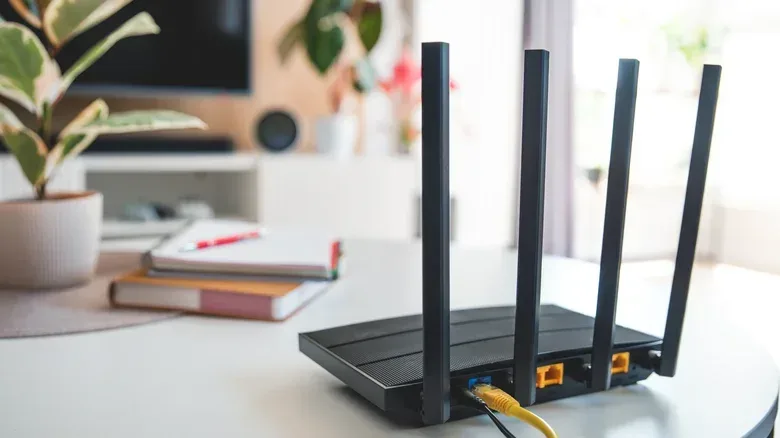
Ventilation is the simplest and most useful place to begin. Routers typically use vents to move heat away from internal parts. Those vents only work when air can reach them.
Do not pack the router tightly into a closed compartment or crowd it with objects that restrict airflow. A cleaner, more open location can be enough to reduce the problem if trapped heat was the main issue. Also keep it away from windows where direct sunlight may warm the device, and away from computers or consoles that produce substantial heat under load.
This matters especially in entertainment setups, where the easy cable-management choice is often to hide the router among the rest of the equipment. A router squeezed beside a working console or PC is dealing with its own workload while sitting in another device’s heat. Moving it to a more open position separates those heat sources and gives its vents a fair chance.
A quick placement audit
- Check whether objects are pressing against or closely surrounding the router.
- Look for a closed shelf, cabinet or similarly confined space.
- Check whether direct sun reaches the router during part of the day.
- Identify nearby PCs and consoles that may be producing heat under load.
- Move the router to a well-ventilated area and observe whether the overheating symptoms change.
The key is to change one obvious environmental factor rather than treating every network hiccup as a reason to buy new hardware. If the device becomes markedly more stable after a placement change, the original location was likely contributing to the issue.
Clean dust and debris from the vents
Even a well-placed router can lose airflow when its vents collect dust and debris. The vents exist to facilitate cooling; blockage undermines that job. Regular cleaning helps maximize airflow and minimize temperatures.
Before treating cleaning as the full answer, remember what it can and cannot establish. A dusty vent is a plausible contributor to overheating. But a router that continues to become uncomfortably hot after its vents are clear and its location is open may have a different underlying problem. Cleaning is an essential maintenance step, not a guarantee that every heat-related issue has been solved.
Update the firmware before blaming the hardware
Firmware is the software that operates the router’s hardware. Router updates can address stability and performance problems, including bugs and unusual overheating behavior. That makes an update a sensible part of the troubleshooting process after addressing basic airflow.
It is not a promise that new firmware will cure a physically failing router, but it prevents an avoidable software issue from being mistaken for a terminal hardware fault. In other words, ventilation handles the physical environment; firmware updates address the software layer that can influence stability and performance.
For players trying to eliminate avoidable causes of disconnects, router maintenance belongs beside broader connection planning. For example, a connection can also disappear during an outage for reasons that have nothing to do with overheating; our guide to keeping home internet alive during a power outage covers that separate mid-match problem.
Do not ignore the power adapter
If placement, vent cleaning and a firmware update have not brought temperatures under control, turn attention to the power adapter. A faulty adapter—or one that is not rated for the router—can deliver more current than the router’s components can handle. The result can be excessive heat dissipation and a risk of component damage.
The practical takeaway is simple: use an adapter rated for the specific router. Replacing a suspect adapter with the properly rated one may restore appropriate power delivery and help bring temperatures down. This is not an area for improvisation. The adapter is part of the router’s power system, not merely a generic cable that happens to fit.
When replacement becomes the realistic answer
A router that still overheats after being moved to a ventilated location, having its vents cleaned, receiving firmware updates and using the correct power adapter is more likely suffering from an internal fault. At that point, repeated cool-down-and-restart cycles are only temporary relief. Continuing to operate an overheating device can damage its crucial components and may eventually make it unusable.
That is the distinction worth keeping in mind: a router that runs warm is behaving like active electronics; a router that is painful to touch and repeatedly destabilizes the network is signaling that something needs attention. Start with the low-risk causes that are easy to verify. If the heat and instability persist, treat the router as hardware nearing the end of its useful life rather than as a device that merely needs another reboot.