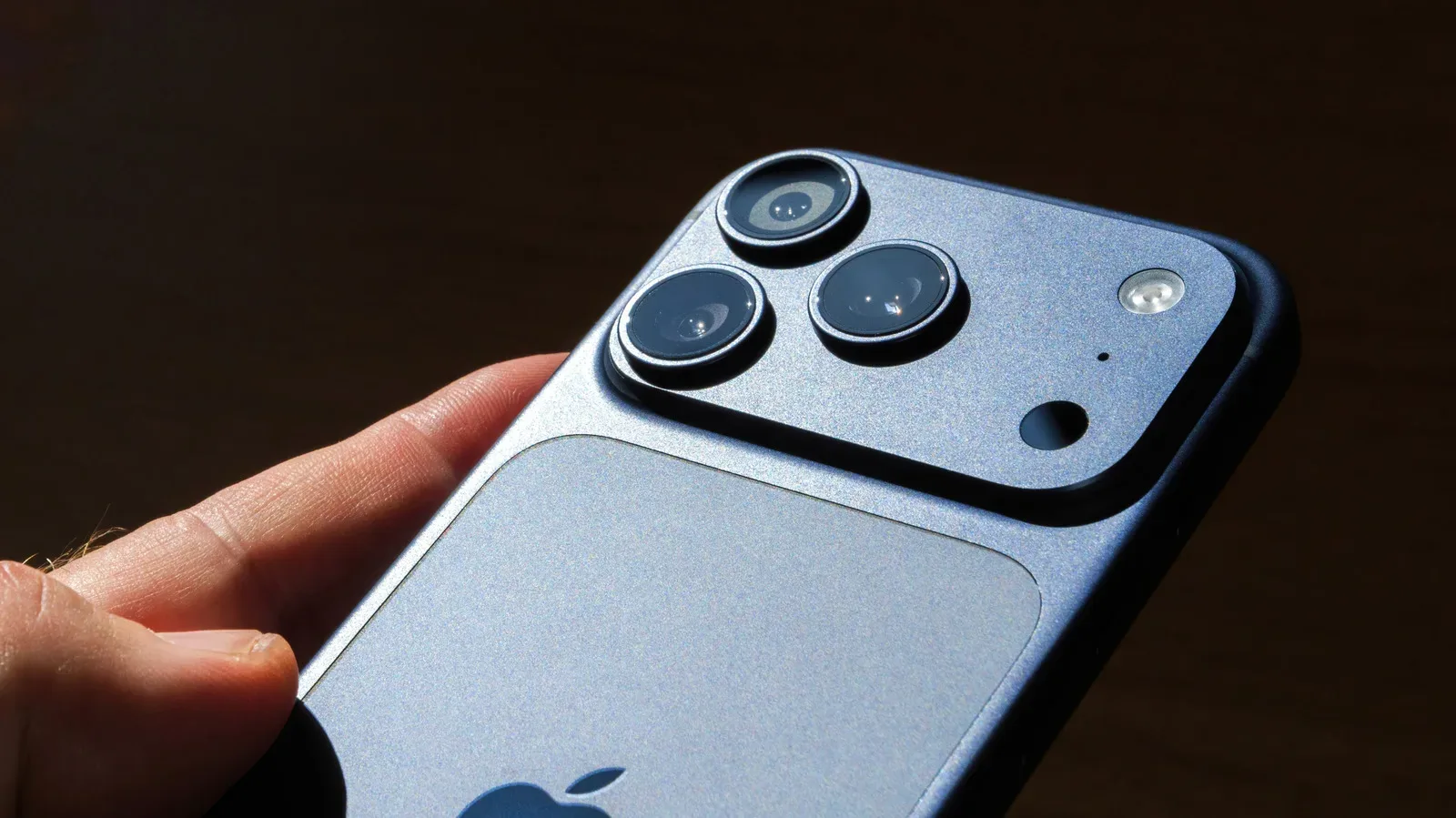
The iPhone Camera app has a job most people understand immediately: point it at something, press the shutter button, and preserve the moment. But the viewfinder can also be a surprisingly useful utility screen. For a player trying to decipher an imported game case, a traveler reading a sign, a collector checking tiny print, or a creator grabbing a quick gameplay-adjacent clip, the camera can turn what it sees into text, links, conversions and more.
The key idea is that some camera functions do not require taking a photo at all. Instead, the phone identifies information while it is in view. Other options are aimed at improving video when a spare hand, tripod or dedicated stabilizer is not available. None of this replaces careful verification for important information or a proper camera rig for every project, but these tools can reduce friction in ordinary situations.
Live Text turns the viewfinder into something you can interact with
Live Text is the feature behind several of the iPhone camera’s practical tricks. In simple terms, it recognizes printed text seen by the camera and lets you act on it rather than merely photograph it. With Live Text enabled in Settings, point the camera at the relevant writing. When a yellow frame appears, tap the Live Text button at the lower-right corner of the screen.
That matters when text is more than text. A web address can become a link instead of a string that needs to be laboriously retyped. A phone number can become a call option. A foreign-language sign can become a translation prompt. The workflow is particularly useful when the original is awkwardly placed, written in a small typeface or only visible briefly.
For gaming and collecting, consider the low-stakes but familiar cases: a URL on an event poster, a support number on a device label, a publisher’s website on a physical game insert, or instructions on a display that should be opened without risking a typo. The camera is not confirming that a destination is trustworthy; it is simply providing a faster route to the number or website it recognized. Treat unfamiliar links with the same caution you would use anywhere else.
Translation and conversion are the more flexible uses
Live Text can translate text visible through the camera. After activating the Live Text controls, select Translate. Apple’s own Translate app and Google Translate are also options for people who prefer a dedicated translation workflow.
This can be valuable when navigating another country or encountering material in a language you do not read. It may also help give immediate context to foreign packaging, menus, signage or written instructions. The practical limit is important: a camera translation is a convenience tool, not a guarantee that nuanced wording, technical terminology or proper names have been rendered perfectly. If a detail affects a purchase, safety decision or formal transaction, checking the original carefully remains sensible.
The same Live Text capability can convert currencies and units of measurement. That is useful whenever a sign, label or printed material presents a quantity in an unfamiliar format. The meaningful advantage is speed: the camera can surface a conversion from what is already in front of you rather than requiring a separate search and manual entry.
Related coverage includes What your iPhone camera can do without taking a photo.
QR codes, numbers and web addresses are built for quick handoffs
QR codes are perhaps the clearest example of why the camera is no longer solely a photo tool. Aim the iPhone camera at a QR code and it offers the associated link for you to tap. There is no need to capture the square graphic first or install a separate scanner just to open a page.
It is the same principle as using Live Text on a printed web address: the camera makes a physical prompt actionable. This can be useful for event information, setup materials, retailer displays or shared resources. It also avoids a common tiny frustration: entering a complicated address by hand and discovering that one missed character sent you nowhere.
Phone numbers receive the same treatment through Live Text. Point the camera at the number, tap the Live Text icon, and the device can offer to place a call. It is a small feature, but the value is not having to swap between the camera and Phone app, memorize digits or copy them into a dial pad.
As with any link, a QR code’s convenience should not override judgment. The camera can open the destination it reads; it does not establish that the destination is legitimate. Pause before following an unexpected code, particularly when it asks for credentials or other sensitive information.
The camera can also be a fast magnifier
Sometimes the problem is not language or a link. Sometimes the words are simply too far away or too small. The iPhone camera can serve as a basic magnifying glass by using its digital zoom controls. The Camera app includes zoom presets, while a pinch gesture can push farther in. Holding one of the preset controls and dragging left also adjusts the zoom level.
This is handy for checking a distant sign, seeing detail when glasses are not available, or taking a closer look at small print. For physical-media fans, it can be a convenient way to inspect the visible text on a box or case without immediately taking a photo. It is still digital zoom, so magnifying an image cannot create detail the camera did not capture in the first place. Better lighting and a steadier hand can make the viewed result easier to read.
The broader lesson across translation, links, QR scanning and magnification is that the viewfinder is an interface. Rather than treating it only as a frame for future photos, it can be used to interpret information in the present.
Action mode is for steadier handheld video
The video side of the Camera app has also gained tools that address a familiar handheld problem: movement. Action mode stabilizes video footage, helping reduce the wobble and shake that can come from filming while walking or moving with the subject. It is useful when there is no gimbal available. A gimbal is a dedicated device designed to hold and stabilize a camera; Action mode is the phone-based alternative for situations where carrying extra gear is impractical.
In the iPhone Camera app’s Video mode, Action mode is accessed by tapping the lower-right control marked with six dots. Apple notes that it works best in bright conditions. That caveat deserves attention. Stabilization can make a moving shot look calmer, but it is not a magic fix for every environment, and the supplied guidance specifically favors good light.
Action mode is available on iPhone 14 models and newer. Owners of older devices should not assume the icon will appear simply because the Camera app is in Video mode.
For a quick clip of a tournament queue, a convention floor, a friend’s reaction, or a walk toward a display, stabilization can make the difference between footage that is merely documented and footage that is easier to watch. The best use is a practical one: use it when the camera operator is in motion and brightness is on its side, rather than expecting every static or dimly lit scene to benefit equally.
Cinematic mode lets focus become part of the shot
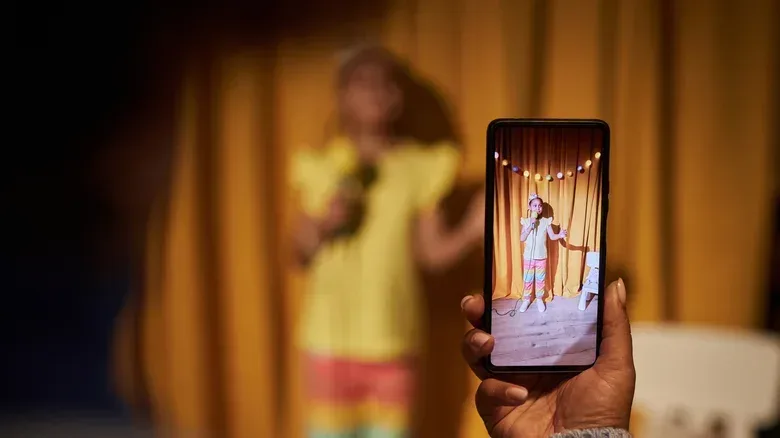
Cinematic mode is a separate video option that adds depth of field. Depth of field describes how much of an image appears sharp at one time. In this case, the subject can be in focus while the background is blurred, producing a more deliberate separation between the viewer’s attention and the surrounding scene.
The mode can keep a moving subject in focus and can shift focus when it detects a new subject. Focus can also be adjusted manually while recording. That manual control is useful because automatic choices are not always the storytelling choice. If the point of a short clip is a controller in the foreground, a person behind it, or a detail on a shelf, the ability to direct focus gives the person recording more control over what the viewer notices first.
Cinematic mode is available from the iPhone 13 mini onward. As with Action mode, device support matters: users with a compatible iPhone can look for the mode, while those without one should not interpret its absence as a broken setting.
It helps to distinguish this effect from simple stabilization. Action mode is about handling motion more smoothly. Cinematic mode is about focus and background blur. They solve different visual problems. One is especially relevant to a moving handheld capture; the other helps shape visual emphasis in the frame.
A small pre-recording checklist
These tools are quickest when the camera is already set up for the task at hand. Before relying on one, a brief check can prevent needless hunting through controls:
- For translation, conversions, phone numbers and websites, confirm that Live Text is enabled in Settings.
- Point the camera steadily at the text and wait for the yellow frame before selecting the Live Text control.
- For QR codes, aim the regular Camera view at the code and review the offered link before opening it.
- For distant or tiny details, use zoom deliberately and seek better light if the image is difficult to read.
- For moving video on an iPhone 14 or newer, enable Action mode in Video mode and remember that bright light is recommended.
- For an intentional blurred-background video look, use Cinematic mode on an iPhone 13 mini or newer and adjust focus manually when the automatic selection is not emphasizing the right subject.
The camera is only one way an older or current phone can be put to work beyond calls and snapshots. For another practical repurposing idea, see how to turn an old phone into a smart-home remote.
The takeaway is not that every outing needs a cinematic recording or every printed word needs to be scanned. It is that the iPhone camera has options worth remembering when a real-world task appears. Translation, conversion, magnification, link detection, QR scanning, stabilization and focus control all begin with the same familiar move: open the Camera app and point it at the problem.