Smart-home control often promises the convenience of a futuristic command center, then delivers a small pile of apps and a routine that still starts with finding a phone. That is especially awkward for simple, repeated actions: switching on a desk light, checking the front door camera, starting a robot vacuum, or changing music on a speaker. A spare smartphone or tablet can make a useful difference here—not because it adds more smart-home hardware, but because it gives those controls a permanent place to live.
The basic idea is straightforward: mount or stand an old device somewhere convenient, keep it powered, and leave a smart-home app or dashboard open. The result is a dedicated touch remote rather than another personal device that happens to have smart-home controls buried among messages, games and notifications.
It is a practical second life for older hardware. A dashboard does not need the latest processor or a premium camera system. Its main job is displaying buttons, device states and, in some setups, a camera view. If an old phone or tablet can run the relevant app or load a webpage reliably, it may be enough for the role.
The appeal is placement, not raw power
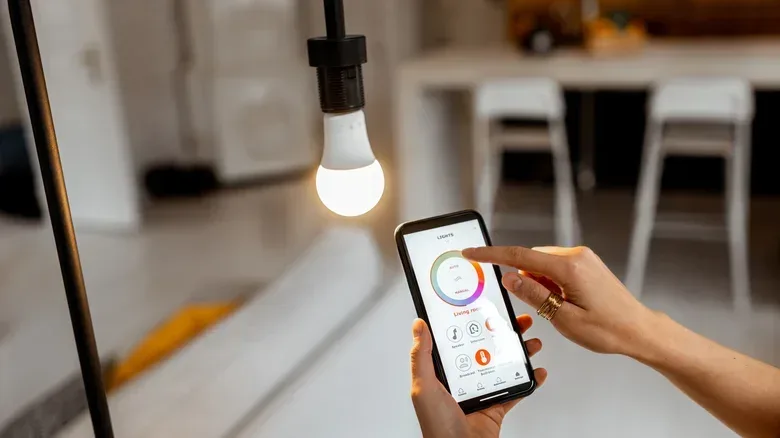
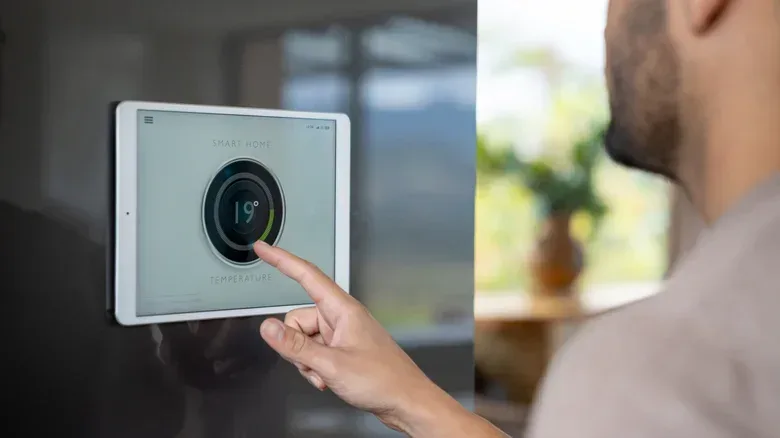
A fixed dashboard changes the interaction more than it changes the technology. Voice commands can be helpful, but they are not always the most natural option for a quick action. Using a primary phone can also turn a one-tap task into several steps: pick up the handset, unlock it, find the right app, then find the device control. A screen that is already awake at a desk, kitchen counter or entryway makes the control visible and immediately reachable.
That can be valuable whether a home has only a few connected bulbs or a much larger collection of devices. Lights are the obvious starting point, but the same screen can potentially bring together robot-vacuum controls, smart-speaker music controls and camera feeds. A front-door camera is a particularly clear example of why a fixed display can be handy: the information can be checked at a glance instead of requiring a hunt through a phone.
There is no requirement to buy a dedicated smart display simply to get that convenience. A spare handset can fill a similar niche for people who already have compatible devices and an old phone or tablet available. A stand, wall mount or charging arrangement determines whether it feels like a deliberate household control panel rather than a phone left on a counter. A magnetic charging stand paired with a compatible ring is one possible approach on Android hardware, but the larger point is simply keeping the dashboard in a predictable spot and powered for regular use.
Start by reducing the number of apps
The most useful dashboard is usually the one that avoids reproducing the very problem it is meant to solve. Smart-home products often arrive with their own manufacturer apps. A household with lighting from Philips Hue, TP-Link Kasa devices and Govee hardware, for example, can otherwise end up moving among separate interfaces for routine tasks.
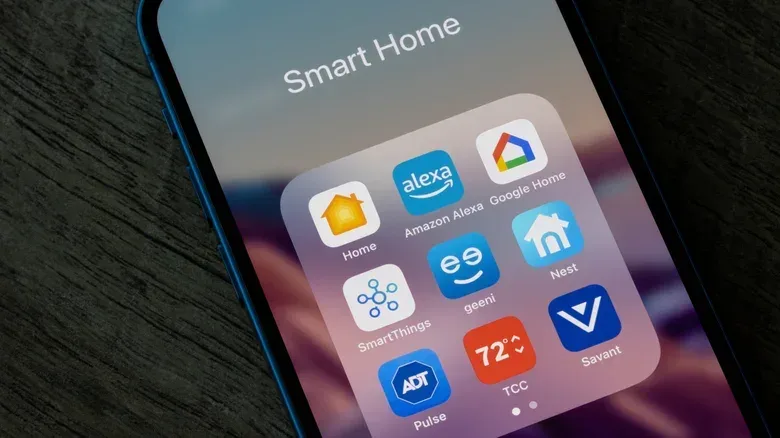
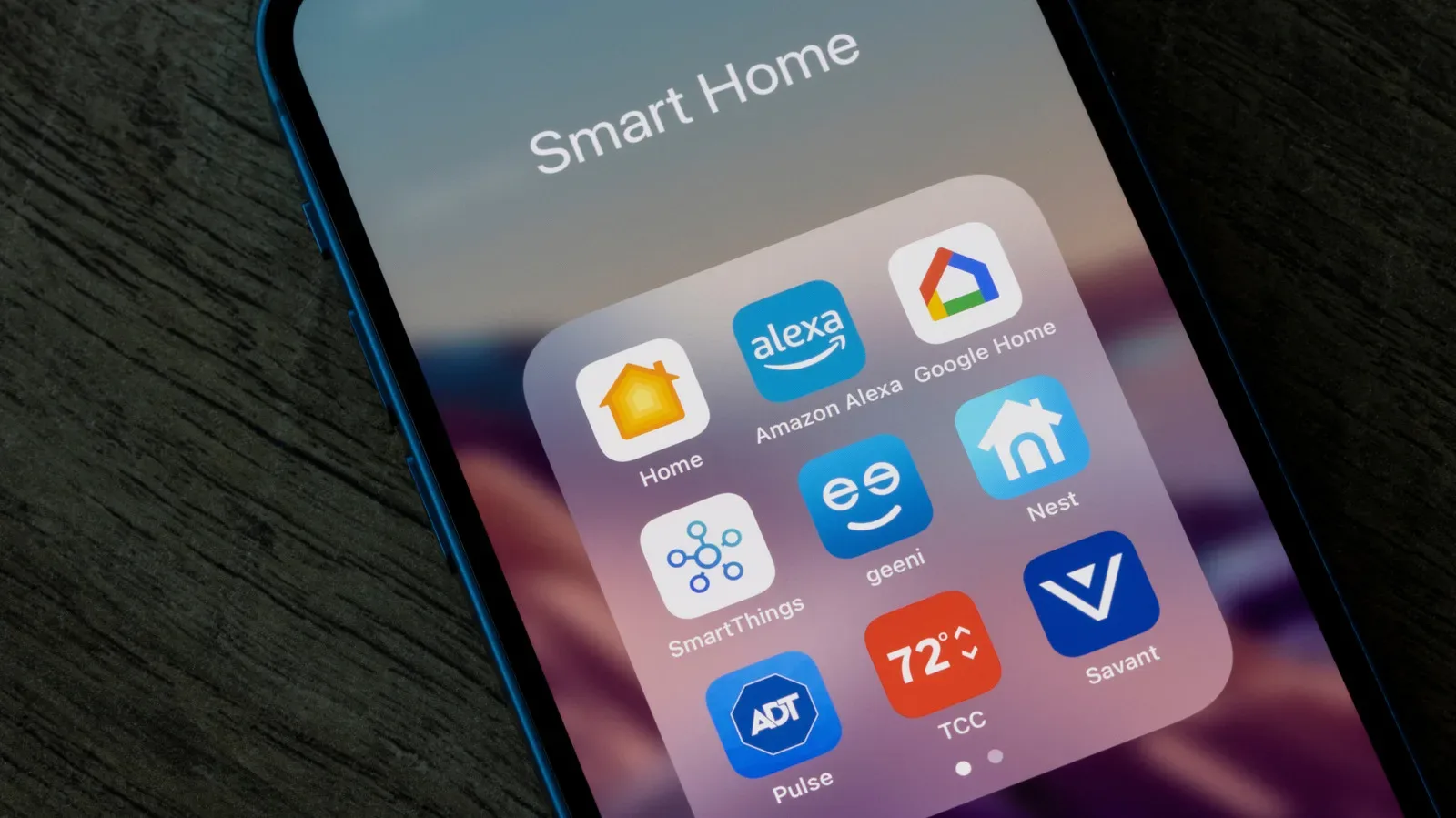
A smart-home hub, in this context, is the central software environment that brings compatible devices and services into one control surface. Google Home, Apple HomeKit and Samsung SmartThings are examples named for this job. If devices can be linked to one of these systems, the dashboard device can focus on that single hub app instead of opening an app per brand.
Related coverage includes Turn your old phone into a dedicated smart home remote.
This is also where Matter matters. Matter is a connectivity standard intended to improve interoperability among smart-home devices and ecosystems. In plain language, it aims to make it easier for products from different makers to operate under a common standard. It does not mean every existing device automatically works everywhere, but it represents an industry effort to cut down ecosystem fragmentation.
Older or non-Matter hardware does not necessarily rule out a unified screen. Many devices can still be added through one of the major hub platforms. The practical test is whether the products in question can be linked to the chosen hub, not whether every item in a household carries the same brand name.
A simple hub-first setup
- Choose the ecosystem that already supports the most important devices in the home.
- Link compatible brands and services to that hub, where available.
- Put the hub app on the spare phone or tablet.
- Arrange the most-used device controls so that lights, cameras, speakers or cleaning controls are easy to reach.
- Place the device where those controls are actually needed, rather than treating it as a generic extra screen.
For an Android dashboard, Google Home can remain open to show paired devices, their status and tap-based controls. On an iPhone or iPad, Apple’s Home app provides the corresponding route. Apple’s layout may be particularly well suited to an always-available remote, though the best fit ultimately depends on which platform already accommodates the household’s devices.
This hub-first route is the low-friction answer for anyone who wants a functional control panel in minutes. It is also the least technical option: the dashboard is fundamentally a spare device running an app that already knows about the home’s connected gear.
Keeping the dashboard visible
An always-on dashboard is less useful if its display sleeps before anyone reaches it. The relevant settings differ between platforms.
On Android, the Developer Options setting called Stay Awake can keep the screen on while the device is plugged in. That directly suits a phone or tablet intended to sit on a powered stand or dock as a persistent controller.
iOS does not offer the same Stay Awake setting, but its Guided Access accessibility feature can serve a related purpose for a dedicated dashboard. It is available through Settings > Accessibility > Guided Access. Guided Access locks the iPhone or iPad into one app until the lock button is triple-clicked. That is a useful fit for a device whose entire job is to remain in the Home app or a chosen dashboard app, rather than switching among general-purpose phone tasks.
There is a trade-off embedded in that choice. Guided Access makes the device more appliance-like, which is exactly the point for a shared room remote. At the same time, it deliberately makes ordinary app-switching less immediate. For a spare device that is fine; for a handset that is still occasionally needed as a phone or tablet, it may be more restrictive than desired.
Placement should follow behavior. A desktop dashboard makes sense when desk lights and speakers are the priority. A screen in a common space makes more sense if several people need access to shared lighting, music or vacuum controls. The source material supports cameras as another dashboard option, so an entry-area setup may make sense for households that want fast visual access to a front-door camera.
When the stock apps are enough—and when they are not
Google Home and HomeKit can centralize controls, but a hub app is not necessarily the same thing as a fully designed information display. Their customization is limited: device controls can be rearranged, but custom elements such as a clock, calendar or weather readout cannot simply be added to the main experience.
That distinction is important. A remote is primarily about commands: turn something on, start a device, adjust volume. A dashboard combines commands with information that helps at a glance. Time, weather, music status, air quality and reminders do not control a light, but they can make a wall-mounted or desk-mounted screen more useful throughout the day.
On iOS and iPadOS, HomeDash and HomePad are examples of third-party apps intended to create that more personalized dashboard. They can incorporate elements that the standard hub interfaces do not foreground, including clocks, weather and music controls. HomePad also offers an idle image screensaver using personal albums, allowing the spare device to double as a digital photo frame when it is not actively being used for home controls.
Android users face a different constraint: Google Home does not allow third-party apps to connect to devices through Google Home itself. Standalone remote software such as HomeHabit instead connects directly to supported ecosystems, including Philips Hue. That approach bypasses Google rather than extending it.
Neither route is inherently better. A central hub app emphasizes simplicity and may be enough for people who only want a few dependable buttons. A third-party dashboard emphasizes layout and extra information, but it depends on direct support for the device ecosystems being used.
Home Assistant is the deeper customization route
Home Assistant is the most flexible option described here, and it is free to use. It is a smart-home platform capable of incorporating devices across a broad range of manufacturers and ecosystems, then presenting them in a custom interface. It can also use marketplace widgets for data beyond basic device controls, such as weather, air quality and trash-day reminders.
The technical catch is significant but clear: Home Assistant needs an always-on host computer. That could be a mini PC or a Raspberry Pi. The spare phone or tablet remains the display and control surface; the separate always-on machine runs the platform behind it.
This setup also introduces two terms worth separating. Zigbee and Thread are connectivity protocols used by smart-home devices. Home Assistant supports both, enabling direct pairing with products from brands including Philips Hue and IKEA without relying on those brands’ respective hubs. A protocol is the method devices use to communicate; a hub is the bridge or control environment that organizes devices for the user. In some configurations, Home Assistant can take on more of that bridging role itself.
The practical implication is not that every home needs Home Assistant. It is that people who have outgrown a basic hub layout have an option beyond merely rearranging icons. It can turn the old phone into a genuinely tailored household panel: device controls alongside status widgets and reminders chosen for the home’s routines.
Choose the setup by the problem you actually have
- Too many manufacturer apps: Begin with Google Home, Apple HomeKit or Samsung SmartThings and consolidate compatible devices.
- Need one fixed screen for common controls: Use the spare device as a dedicated hub-app remote and keep its display active through the relevant platform setting.
- Want weather, time, music and photos alongside controls: Consider iOS/iPadOS dashboard apps such as HomeDash or HomePad, or Android software that connects directly to supported ecosystems.
- Want deep integration and custom widgets: Home Assistant is the more ambitious route, provided an always-on mini PC or Raspberry Pi is acceptable.
Repurposing older mobile hardware is also a reminder that a device’s useful life is not limited to its original job. Even a phone that no longer suits someone’s everyday needs may still be perfectly adequate as a stationary display. If an aging iPhone’s physical condition is the obstacle rather than its performance, the broader repair question is worth considering too: Apple may repair cracked iPhone Duo inner screens rather than replace the full phone.
The best version of this project is not necessarily the most elaborate one. For many homes, one spare phone, one familiar hub app and a few prominent controls will solve the actual annoyance: turning routine smart-home actions back into something closer to using a switch.