“My internet speed is 100 Mbps” is a perfectly normal thing to say—and a slightly misleading one. Internet providers commonly market a connection’s bandwidth as its speed, while the result from a speed test is generally the throughput actually reaching a device at that moment. Both use Mbps or Gbps, so the language gets muddled quickly.
The distinction is more than technical trivia. It is the difference between buying a more expensive plan because a game feels laggy and identifying whether the real issue is household congestion, Wi-Fi, the router, or the time it takes data to make a round trip across the network. For gaming especially, a huge download number and a responsive connection are related, but they are not the same thing.
Bandwidth is the connection’s capacity ceiling
Bandwidth is the theoretical maximum amount of data a connection can carry in a second. A plan rated at 100 Mbps has a 100 Mbps ceiling: it cannot deliver more than that, even when everything between the provider and a device is working ideally.
The familiar road comparison is useful here. Bandwidth is the number of lanes on the highway. More lanes allow more traffic to move at the same time. That does not mean every car instantly arrives at its destination, but it does determine how much total traffic the road can reasonably support.
This is why a plan that feels completely adequate for one person can struggle in a full household. Capacity is shared among the devices and activities using the connection. The demand does not care whether it comes from a console update, a PC download, a 4K stream, a tablet or a work call; all of it competes for the same available room.
Consider a 100 Mbps connection. Three 4K Disney+ streams at around 25 Mbps each account for roughly 75 Mbps. A video call around 4 Mbps leaves limited space for a large game download. The download will take whatever is left, and the entire network is near its limit. Buffering, reduced streaming quality and a video call that freezes can follow without a provider outage or a faulty console. The household has simply reached the plan’s capacity ceiling.
That is the situation where more bandwidth is meaningful. More capacity gives concurrent activities more room. It can allow a game to download while others watch high-resolution video and take calls with fewer compromises. It is not automatically a fix for every complaint that gets described as “slow internet,” however.
Speed-test results are throughput, not the promise on the box
What people usually mean by internet speed in day-to-day conversation is throughput: the rate at which data is successfully transferred to or from a device right now. A speed test measures that real-world result. It does not directly measure the maximum capacity listed on the plan.
Related coverage includes Internet Speed vs. Bandwidth: Why the Difference Matters at Home.
Bandwidth therefore establishes the upper limit, while throughput tells you what a particular device is getting under particular conditions. Throughput may come close to the plan’s bandwidth, but it cannot exceed it. It can also fall far below it for many reasons.
Back to the highway: the connection may have plenty of lanes, yet an exit ramp can restrict how many cars reach the destination. In a home network, Wi-Fi and the router can be that ramp. Network congestion can be another constraint. A result well below a plan’s advertised bandwidth is not proof that the plan itself is too small; it is a reason to examine where the restriction is occurring.
For players, throughput matters most when moving a lot of data. Downloading an enormous patch, installing a fresh game, syncing cloud saves, streaming gameplay or sharing files all benefit from higher throughput. If those jobs take too long because several people are regularly competing for a limited connection, an upgrade can be practical.
But a player can have a speedy download and still encounter delayed reactions in an online match. That problem points toward latency.
Latency is the stat that explains why a fast connection can still feel late
Latency measures the time it takes for data to travel from a device to a server and back. It is normally expressed in milliseconds, or ms. On a speed test, it often appears as ping; lower is better.
Latency is not a measure of how much data can fit through the connection. It is a measure of delay. Adding highway lanes permits more cars to travel at once, but it does not shorten the distance for a single car completing a round trip. In network terms, buying more bandwidth does not inherently reduce the time between pressing a button and receiving the server’s response.
That is why latency is particularly significant for online games and video calls. They use data in real time. A delayed response can make a call feel awkward or make an online game feel unresponsive, even if a download test reports a strong Mbps number.
Distance matters. The farther away a server is physically, the more latency the trip can involve. Connecting to the closest available game server is therefore a sensible first move for players trying to reduce delay. It will not solve every problem, but it addresses a factor that a plan upgrade alone cannot erase.
Connection type matters, too. Fiber generally offers lower latency than traditional satellite internet. A wired connection also avoids the added challenge of sending data over Wi-Fi before it even begins its wider journey. Traditional satellite service involves data travelling enormous distances to a satellite and back, which helps explain why a connection can carry data yet still be poorly suited to latency-sensitive activity.
Congestion can hurt both throughput and ping
Network congestion happens when the activity trying to use a connection exceeds the capacity currently available. Data has to wait its turn. The visible symptom might be a download that slows down, but the gaming consequence can be worse: delay can increase at the same time.
That shared effect makes congestion easy to misdiagnose. Someone may see high ping during a match and assume their game server is at fault. Yet the immediate cause could be a large download or several streams competing for the home connection. Likewise, a household may assume that buffering proves its Wi-Fi is broken when it has simply overloaded its plan.
The useful question is not “is the internet slow?” It is “what else is using the connection when the problem starts?” Repeatable trouble during simultaneous streams, calls and downloads is evidence that capacity or traffic management deserves attention. Trouble that occurs when the network is otherwise quiet points more strongly toward a local Wi-Fi or router bottleneck, latency, or another issue outside the plan’s raw bandwidth.
A bufferbloat test can help identify whether congestion is producing excessive delay under load. Bufferbloat is the practical problem of latency growing badly when a connection is busy. It is particularly relevant if a match is fine until someone starts a download, or if calls become choppy whenever the network is under pressure. Testing before upgrading avoids treating a more expensive plan as a guaranteed cure.
QoS can decide who gets priority when the network is busy
Many routers include Quality of Service, commonly shortened to QoS. This is a traffic-prioritization feature. When there is not enough capacity for every active task to get everything it wants, QoS lets the router favor selected devices or kinds of activity.
That does not create extra bandwidth. A 100 Mbps plan stays a 100 Mbps plan. QoS instead determines how the constrained connection is shared. In a gaming household, that can mean preventing a huge update from taking all of the remaining capacity while a game or video call needs timely traffic. It is an attempt to make a congested network behave more deliberately rather than a substitute for capacity when the household is consistently exceeding it.
Router settings vary, so there is no universal set of QoS rules to copy. The important idea is simple: prioritize the activity where delay is most noticeable during periods of congestion. Real-time play and calls usually have a different need from a download that can continue in the background.
Do not confuse plan bandwidth with Wi-Fi channel width
The word bandwidth creates a second trap in router settings. An internet plan’s bandwidth is measured in Mbps or Gbps, referring to the amount of data the internet connection can carry each second. Wi-Fi bandwidth in a router menu can instead refer to channel width, measured in MHz.
A wider Wi-Fi channel can carry more data, but it can also be more susceptible to interference from nearby Wi-Fi networks and devices. Those are distinct measurements and distinct decisions. Changing a router’s MHz channel-width setting does not upgrade a home’s subscribed Mbps capacity.
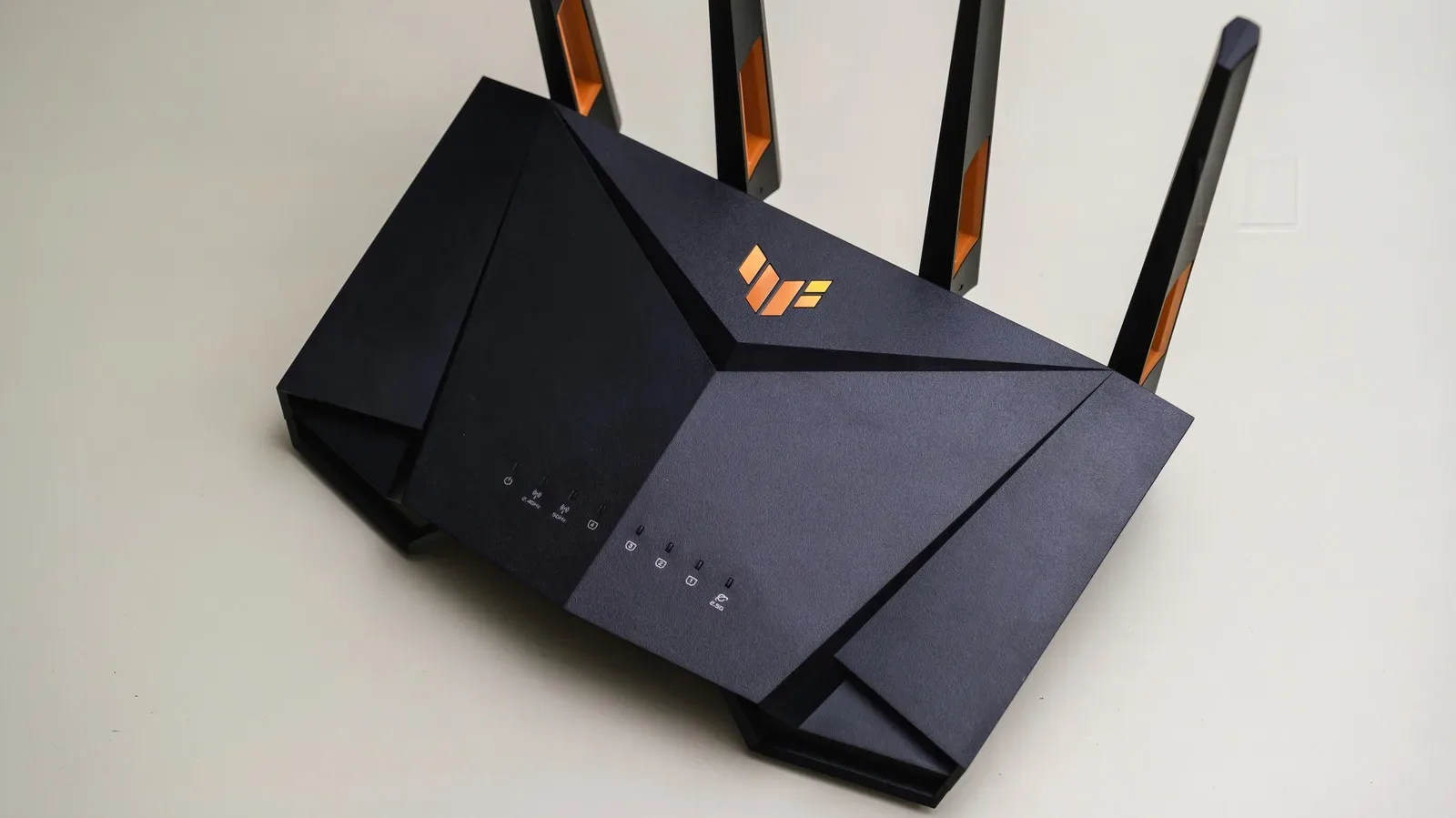
If tests repeatedly come in far below the plan’s capacity even when the network is not busy, the local wireless setup is a credible suspect. An Ethernet cable is the straightforward way to remove Wi-Fi from the path for a device that can use it. For a gaming PC or console close enough to the router, a wired connection can reduce delay and eliminate wireless interference as part of the diagnosis.
When Ethernet is not practical, the 5 GHz band—or 6 GHz where available—can offer faster wireless performance. Wireless conditions still matter, and a wider channel is not consequence-free, but using the appropriate band can be more productive than assuming the internet plan needs replacement. For more on one common source of local interference, see why USB gear can add to a crowded 2.4 GHz Wi-Fi environment.
A practical order for diagnosing gaming lag and slow downloads
Before spending more on a plan, separate the symptoms. That makes the next move easier to justify.
- Check whether the problem is a download-time issue or a real-time delay issue. Slow game updates and slow general browsing point toward throughput or congestion. Bad responsiveness in games and calls points toward latency, though congestion can cause it too.
- Look for competing activity. Streams, calls and downloads share the connection. If the issue appears only when the household is active, capacity may be the limiting factor.
- Test when the network is quiet. Consistently poor throughput under otherwise quiet conditions suggests that Wi-Fi or the router may be the bottleneck rather than the plan’s advertised capacity.
- Try Ethernet where possible. It is a direct way to reduce local wireless delay and determine whether Wi-Fi is contributing to the problem.
- Select the closest available game server. This addresses the distance component of latency.
- Use QoS and investigate bufferbloat when congestion is suspected. Traffic prioritization may improve the experience for time-sensitive tasks, while testing can show whether delay rises sharply under load.
- Consider an upgrade when the ceiling is regularly the issue. If the household repeatedly fills its available bandwidth, a higher-capacity plan is the logical fix. Fiber can also bring latency advantages where it is available.
The terminology may be annoyingly interchangeable in advertising, but the troubleshooting does not have to be. Bandwidth is the maximum capacity purchased. Throughput is the actual data rate a device receives. Latency is the delay in a round trip. Once those are separated, it becomes much clearer whether the next upgrade should be the plan, the router setup, a wired connection, or the server selection screen.