
A 500 Mbps speed-test result can look like an airtight defense against complaints about lag. Then an online match starts, inputs feel late, opponents appear to jump across the map, or voice chat turns into a polite but painful contest of “sorry, you go first.” The apparent contradiction is real, but it is not especially mysterious: download speed and game responsiveness measure different things.
The number gamers usually need to investigate is ping, not just bandwidth. Bandwidth is the maximum rate at which a connection can move data. It is the figure commonly shown as Mbps on an internet plan or speed test, and it matters for big downloads, updates and simultaneous activity. Ping, by contrast, measures the time needed for data to travel from a device to a server and back again. Online games depend heavily on this round-trip responsiveness because player inputs and server responses need to arrive consistently and quickly.
A ping of 50 milliseconds or below is generally good for most online games. At 800 milliseconds, however, the round trip is close to a full second. A connection can therefore download enormous files quickly while still feeling dreadful in a match. The useful question is not “Is my internet fast?” but “Where does latency increase, and under what conditions?”
The three connection problems gamers should separate
“Lag” is a catch-all term, but it can describe several different faults. Separating them makes troubleshooting much less random.
- Latency (ping): The time for a request and response to make a round trip between the player and the server. Higher latency means a longer delay.
- Jitter: Sudden variation in latency. A connection might look acceptable on average but still feel inconsistent if its response time repeatedly rises and falls.
- Packet loss: Some pieces of data fail to arrive. Lost packets can make a game or call feel unreliable even when the headline speed is high.
These measures explain why a single download-speed result is incomplete. A nearby speed-test server can produce an impressive result while the game server is much farther away, or while other activity in the home is forcing game traffic to wait. A strong speed test is useful information, but it is not a verdict on every server and every kind of online activity.
Start with the home network, not a new router
The first suspect is often congestion inside the home. This does not mean that having many devices connected is automatically bad. What matters more is what those devices are doing at the time.
Consider a phone uploading videos to cloud storage while a laptop is on a video call or a console is in an online match. If the upload occupies the available bandwidth, time-sensitive traffic can become stuck behind it. The resulting queue creates extra delay known as bufferbloat. A large game download on another device can produce the same sort of problem.
Bufferbloat is worth understanding because it changes the usual instinct to focus on raw speed. The issue is not necessarily a lack of capacity in ordinary conditions. It is excessive waiting when the connection is under load. A household may have ample bandwidth for many tasks but still experience miserable game responsiveness when a backup, update or upload fills the line.
Related coverage includes Fast Internet, Bad Ping: How to Find the Real Cause of Lag.
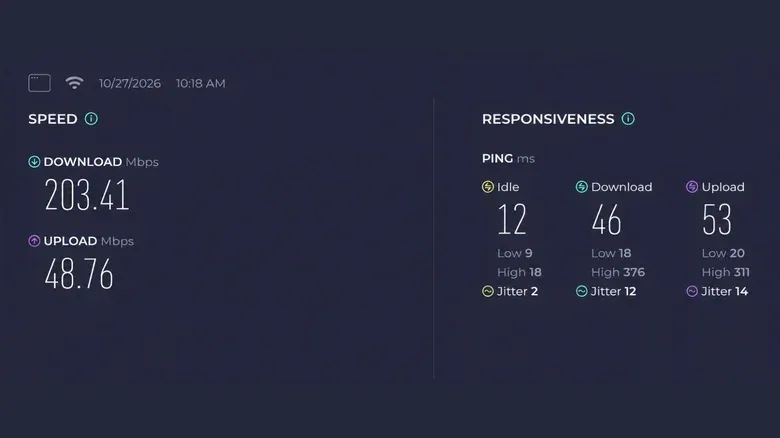
One practical way to check is to run a speed test and compare ping while the connection is idle with ping while download and upload tests are running. If latency rises significantly under load, household congestion is a strong lead. A bufferbloat-focused tester can examine this specific behavior too.
A simple test sequence for suspected congestion
- Check your game’s own connection display, if it has one, and note ping and packet loss.
- Run a speed test and compare idle, download and upload latency rather than looking only at Mbps.
- Pause cloud backups, automatic updates and large transfers temporarily.
- Retest the game or call while the network is quiet.
- If responsiveness improves, restrict those transfers or schedule them for a time when nobody needs low-latency access.
This approach does more than create a temporary fix. It identifies a pattern. If lag appears only when the connection is busy, replacing a PC, console or headset is unlikely to address the actual cause.
Use Ethernet to rule out Wi-Fi interference
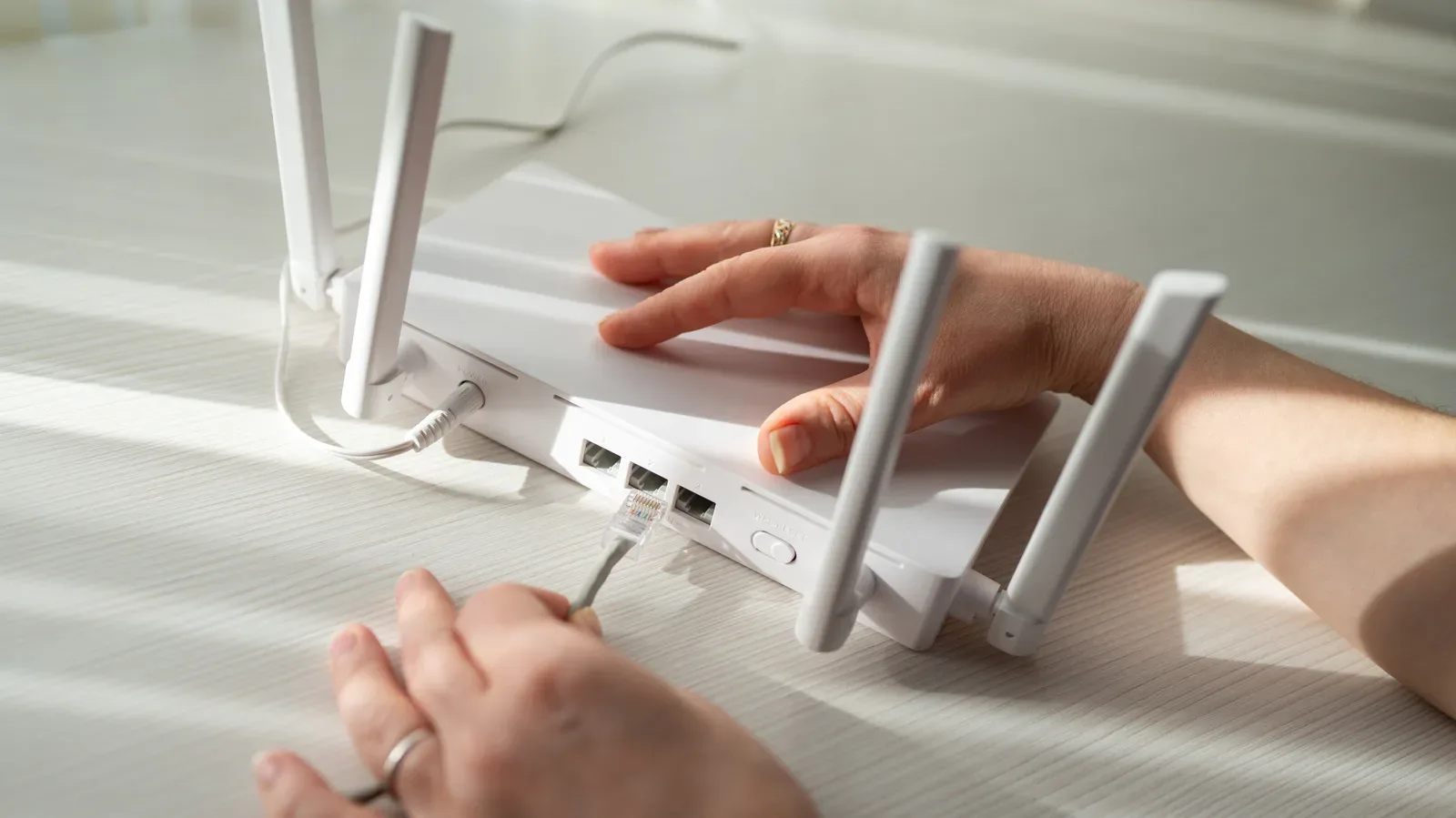
If spikes continue after the network is quiet, a wired test is one of the clearest next steps. Connect the PC or console to the router with an Ethernet cable and see whether the problem changes. This does not guarantee that Ethernet will solve every case, but it can rule out Wi-Fi interference as a major variable.
For phone play, getting closer to the router and switching to 5 GHz Wi-Fi are sensible tests. The goal is diagnosis before spending money: change one relevant factor, then see whether the ping, packet loss or in-game feel improves.
That principle also prevents a common mistake: treating all lag as one issue. If wired play is stable but wireless play is not, attention belongs on the Wi-Fi environment. If wired play remains poor while the home network is quiet, the cause may be farther along the route or at the game-service side.
QoS and SQM can prioritize responsiveness over top speed
Routers may offer Quality of Service (QoS) or Smart Queue Management (SQM) settings in their app or administrative page. In broad terms, these tools manage congestion so that traffic is not left waiting as badly when the connection is busy.
The trade-off matters: certain configurations can reduce the maximum download speed. That can sound like a step backward, but it may be worthwhile for households that care more about stable calls and online matches during busy periods than about the largest possible benchmark result. In a 2025 evaluation, QoS improved latency under simulated congestion on nine of 11 routers tested. That is encouraging rather than universal; results depend on the router and its configuration.
For a gamer, the practical lesson is to judge the setting by behavior under load, not by a single idle speed-test score. Test before and after a change while another device is performing the kind of transfer that normally triggers trouble. If ping becomes more stable and the gaming experience improves, a slightly smaller peak throughput may be a reasonable exchange.
Distance is a hard limit that a faster plan cannot erase
A quiet, wired home network still cannot overcome geography. When a player connects to a game server far away, every input and response has farther to travel. A player in London reaching a server in New York, for example, is sending data across the Atlantic and waiting for it to return. A suitable server in Europe would generally mean a shorter trip.
This is why upgrading to a more expensive internet tier is not automatically a ping solution. More bandwidth does not move a distant server closer. It also explains why a speed test to a nearby testing server may look excellent while a specific game remains sluggish: the test and the match are not necessarily using the same destination.
Check the game’s available server regions and connection statistics when possible. The server with the smallest geographic distance may be a good starting point, but it is not an absolute rule. Internet traffic does not always take the shortest possible path, and two people in the same area can have different latency if their providers route data differently. Even a geographically closest game data center is not guaranteed to provide the best connection.
For players who are sorting out other network questions at the same time, our guide to VPNs and encrypted DNS covers the distinct privacy roles of those tools. That is a separate question from identifying whether a game’s delay is coming from local congestion, Wi-Fi, server distance or routing.
Use the game’s server information whenever it is available
Game-specific statistics are more actionable than a generic Mbps number because they relate to the service being played. Compare regions, ping and packet loss where the game allows it. If only one game is affected, check its server status and try another available region rather than assuming the entire home connection is broken.
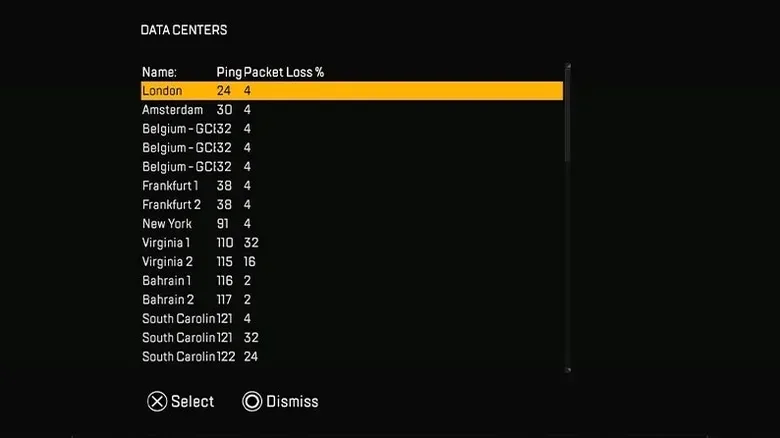
Apex Legends provides a concrete example. On the launch screen, select Data Center at the bottom-left before choosing Continue. The menu lets players compare the listed servers’ ping and packet loss before selecting one. That makes the decision based on the connection to the actual game infrastructure, not merely on a nearby speed-test endpoint.
When the ISP becomes the likely next conversation
If high ping affects every service even while the home network is quiet and the gaming device is connected by Ethernet, the evidence points beyond routine Wi-Fi interference or a single overloaded game server. At that stage, contacting the internet provider makes more sense than immediately buying new hardware.
Bring observations rather than just “my games lag.” Note whether latency rises under download or upload load, whether a wired connection changes the result, whether packet loss is present, and whether the issue occurs across multiple services. Those details distinguish a local-device issue from a broader connection or routing problem.
The important reframing is simple: internet quality is not one number. Bandwidth determines how much data can move; ping measures responsiveness; jitter describes stability; packet loss measures reliability. Once those are treated as separate clues, a shiny speed-test score stops ending the investigation and starts becoming only one part of it.