When a download crawls, voice chat breaks up, or an online match starts behaving like it has been routed through a toaster, the immediate suspect is usually the internet provider. That may be the right call sometimes. But a gaming desk can also become a surprisingly noisy neighborhood for wireless networking: USB receivers, wireless peripherals, a busy USB 3.0 port, nearby appliances, neighboring Wi-Fi networks, and the router’s own placement can all be part of the picture.
The practical message is not that every USB gadget is secretly sabotaging a connection. It is that Wi-Fi is radio communication, and a desk packed with radio-enabled accessories and high-speed connections can make a crowded radio band harder to use. Before changing service plans or opening another support ticket, it can be worth reducing the clutter around the router and PC, then seeing whether the connection becomes more consistent.
Why the 2.4GHz band gets crowded
Many wireless devices operate in the 2.4GHz band, a shared slice of radio spectrum also used by microwave ovens. It is widely used in part because it is relatively easy and inexpensive for manufacturers to support. That convenience produces a familiar modern problem: lots of equipment wants room in the same place.
Wireless mice, keyboards, headsets and other accessories can use this territory, alongside Wi-Fi equipment and devices in neighboring apartments or offices. In a dense building, the radio environment is not limited to the hardware in one room. Nearby networks and devices add their own activity. The result can be contention: multiple signals competing for usable space, with some transmissions delayed, disrupted or failing to get through cleanly.
For a PC player, the important distinction is between a connection that is simply slow and one that is inconsistent. A game can be playable with a modest connection if it remains stable. When radio interference or local congestion is involved, the troublesome symptom may instead be interruptions, variation, or a connection that feels fine until the desk is at its busiest.
Band and channel are not the same thing
A band is the broad frequency range in use; 2.4GHz is the relevant band here. Within it, Wi-Fi is divided into channels, typically numbered 1 through 11, with channels left free to create separation and reduce friction among connections.
Channels help, but they do not make an overloaded 2.4GHz environment empty. Dozens of devices and networks operating in the same band can still affect one another even when they are distributed across channels. In short, channel selection can mitigate crowding; it cannot guarantee that the air around a packed desk or apartment block will be quiet.
Why newer Wi-Fi bands do not erase the issue
Networks using 5GHz or 6GHz—associated with Wi-Fi 6E and Wi-Fi 7—have access to bands described as faster and less congested than 2.4GHz. That makes them valuable options where a device can maintain a strong connection. They have a trade-off, though: range and distance can be limiting factors, especially when walls stand between the router and the device.
Related coverage includes USB 3.0 Devices Could Be Hurting Your Wi-Fi: What to Move First.
That is why having a newer router is not an automatic cure. A Wi-Fi 7 network can still feel slower if its signal cannot effectively travel through the home. A device may fall back to 2.4GHz to stay connected, returning it to the busy band shared with the surrounding wireless gear. The useful question is therefore not just, “What Wi-Fi generation does the router support?” It is also, “Which band is the device actually using where the PC, console, or handheld sits?”
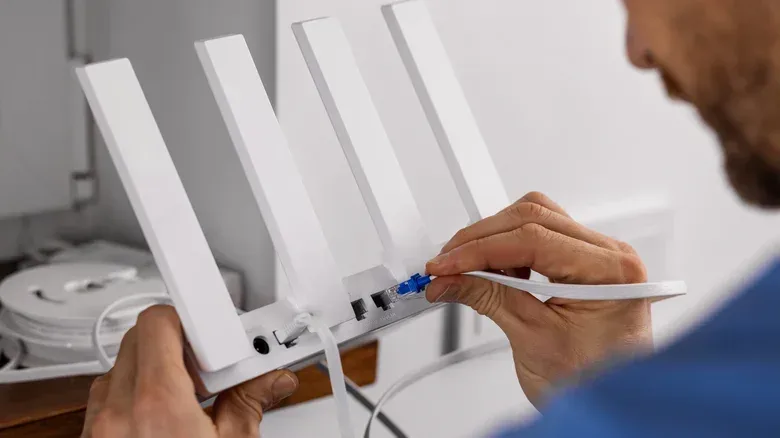
This is also one reason that router location deserves attention before digging deep into settings. The router is not merely a box that supplies an internet connection. It is the starting point for the local wireless link, and obstacles or competing electrical equipment near it can make that link more difficult.
USB 3.0 can be part of the local noise
The less obvious desk-side factor is USB 3.0. High-speed data activity on USB 3.0 can create electromagnetic radiation across 2.4GHz to 2.5GHz—the same neighborhood used by 2.4GHz wireless networking. That overlap means USB 3.0 activity may interfere with Wi-Fi operating there.
This does not mean abandoning useful high-speed storage or declaring every USB 3.0 port an enemy of online play. It does mean physical arrangement can matter. A wireless receiver pressed right beside a busy high-speed USB connection is a more plausible concern than one with space around it.
One simple response is an extension cable. Moving a USB wireless dongle farther from the computer’s ports can reduce the noise affecting it. A hub or extension can also create room between accessories rather than leaving receivers, cables and ports compressed into one small area. For basic peripherals, the other question is whether USB 2.0 is sufficient. If it is, that may avoid adding another USB 3.0 source to an already congested setup.
Think of this as desk hygiene rather than a miracle fix. Physical separation does not generate extra broadband capacity. It can, however, reduce one avoidable source of interference around a receiver that depends on a clean wireless signal.
A practical cleanup order for a gaming setup
It is easy to change many things at once and never learn what helped. A more useful approach is to make small, reversible adjustments, observing whether the connection improves after each one. Start with the items closest to the router, PC and wireless receivers.
- Identify what is using 2.4GHz nearby. Look at the desk and router area first: wireless dongles, accessories, cordless phones and other radio-enabled equipment are more relevant than gear stored elsewhere.
- Create distance around receivers and the router. Do not leave a cordless phone or microwave oven immediately beside the router. Where possible, spread equipment out rather than stacking every accessory and receiver into the same compact area.
- Move USB dongles away from USB 3.0 ports. An extension cable is a targeted way to reposition a receiver away from high-speed USB activity. USB hubs can also help create physical separation when used to reorganize a crowded setup.
- Ask whether each always-connected peripheral needs to be connected. Temporarily removing unneeded dongles and devices is a straightforward test. It is not a demand to discard useful gear; it is a way to identify whether local clutter is contributing to the problem.
- Use USB 2.0 for basic peripherals when practical. If an accessory does not need high-speed USB 3.0, moving it to USB 2.0 may reduce one source of noise in the 2.4GHz-to-2.5GHz range.
- Account for heavy transfers. Uploading or downloading very large files can contribute to a poor network experience. Avoid treating a busy network moment as proof that a single dongle or the router alone is responsible.
- Reboot the router before making extensive settings changes. A reboot clears its cache and prompts it to select the least noisy available channel, potentially giving the network a less crowded place to operate.
The sequence matters because it begins with no-cost changes. Unplug what is not needed, add distance, reboot, and then judge the result. That is usually more informative than immediately buying equipment or changing a long list of router options.
What this can and cannot fix
Decluttering is most relevant to interference and local wireless contention. It can help explain a situation where the service seems acceptable in one spot but unreliable at a desk loaded with receivers and high-speed USB accessories. It is also especially sensible in apartments and offices, where overlapping Wi-Fi channels and neighboring devices increase the number of signals in the area.
It is not a universal diagnosis. Router placement, walls and distance still matter. A weak 5GHz or 6GHz connection may struggle to reach a room and can push a device back toward crowded 2.4GHz. Large uploads and downloads can make the network feel poor even in a well-arranged room. And if the issue lies outside the home network, moving a dongle will not repair it.
That limitation is useful rather than discouraging. It sets a reasonable expectation: tidy and separate the local gear to remove easy sources of trouble, then assess what remains. If a problem persists after the immediate radio environment has been simplified, the evidence points away from the desktop pileup and toward other parts of the connection.
Put the router area on the same checklist as the gaming desk
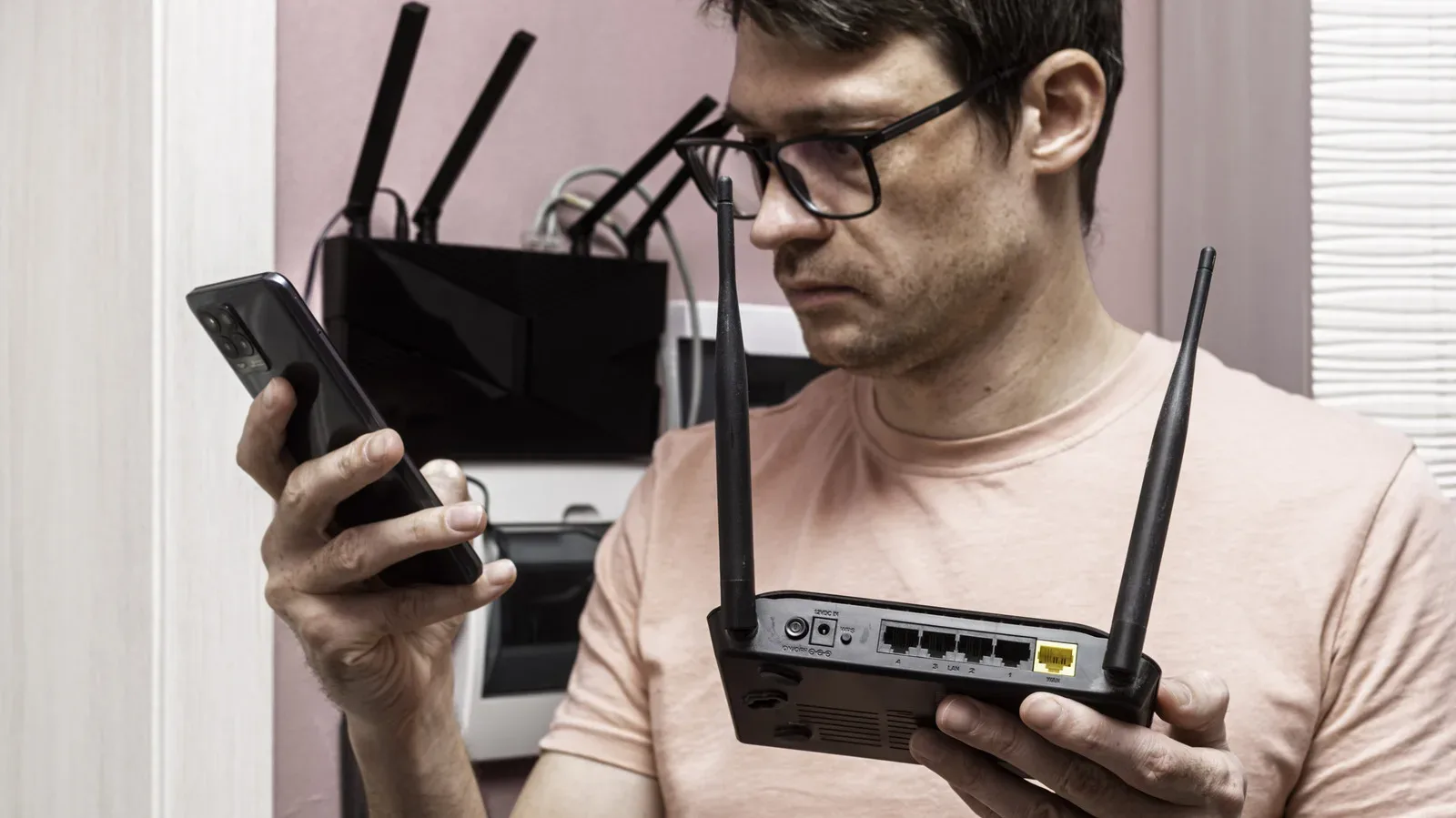
PC setups often get the attention because they visibly accumulate hardware, but the router deserves the same audit. A router positioned beside interference-prone equipment is starting from a disadvantage. Likewise, placing it where walls and distance make the newer bands less dependable can lead devices toward 2.4GHz, where the crowd is already waiting.
The goal is not an impossibly empty room. Modern homes need wireless accessories, networked devices and USB connections. The goal is to avoid making them all compete at point-blank range. A little spacing, a selective approach to dongles, and a router reboot can be a more sensible first move than assuming the broadband line itself is the only culprit.
For homes dealing with patchy coverage in specific rooms, it is also worth separating Wi-Fi reach from cellular coverage. Wi-Fi calling can help with a home dead zone, but it depends on the home Wi-Fi connection being sufficiently reliable in the first place.