When a Windows 11 PC is misbehaving, the slowest part of troubleshooting can be finding the right control panel before the actual diagnosis even begins. A frozen app, an unexplained crash, a crowded startup list, a network issue or a question about a drive partition can each send users into different parts of Settings and administrative utilities.
Windows 11 has a compact answer for that hunt: the Quick Link Menu, also commonly called the Windows-X Menu. Press Win+X to open it. Rather than being a mysterious repair button, it is a launcher that consolidates useful system locations and management tools. That modest distinction matters: it cannot solve a hardware fault by itself, but it can remove several steps between recognizing a problem and reaching a tool that may explain it.
The menu appears at the lower-left portion of the desktop, just above the Windows logo on the taskbar. It includes familiar destinations such as Settings, File Explorer, Search and shutdown controls, alongside utilities that can otherwise feel scattered across Windows. Those include Installed Apps, System, Power Options, Network Connections, Mobility Center, Event Viewer, Disk Management, Computer Management and Task Manager.
For PC players in particular, that makes Win+X worth learning as a single shortcut. Games, launchers, voice software and background services can all compete for attention on the same machine. The right response is not always to start disabling things at random. Opening the appropriate tool first provides a clearer picture of what Windows is doing.
Open the menu before you need it
Use the Windows key and X together: Win+X. The resulting list is designed around direct navigation rather than a search result or a large Settings dashboard.
Several of its entries are ordinary daily-use destinations. File Explorer is where files and folders are managed; Settings is the main hub for many Windows options; Search helps locate apps and material; and the shutdown entry handles power actions. The menu earns its keep, though, through the less visible entries that sit beside those everyday choices.
- Installed Apps: a direct starting point for reviewing installed software.
- System: a route to system-focused settings.
- Power Options: a shortcut to power-related controls.
- Network Connections: a place to reach network connection settings.
- Mobility Center: a laptop-oriented utility for display, keyboard and wireless settings.
- Event Viewer: a log-reading utility that can help investigate harder-to-pin-down issues.
- Disk Management: a view of active disk partitions and their status.
- Computer Management: an administrative management destination.
- Task Manager: a key utility for observing processes and dealing with programs that stop responding.
The value here is consistency. Instead of remembering one keyboard command for Task Manager, a different route for power settings and a buried chain of menus for disk information, Win+X becomes a reliable first stop. That is especially useful when a problem is stressful enough that recalling a collection of shortcuts is the last thing anyone wants to do.
For another example of the broader principle—keeping useful controls close at hand—see this guide to Android flashlight shortcuts on Pixel and Galaxy phones. The platforms are different, but the practical idea is similar: a small shortcut can matter when speed is more valuable than a tour through menus.
Related coverage includes Use Windows 11’s Win+X Menu to Reach Troubleshooting Tools Faster.
Task Manager: start with what is running
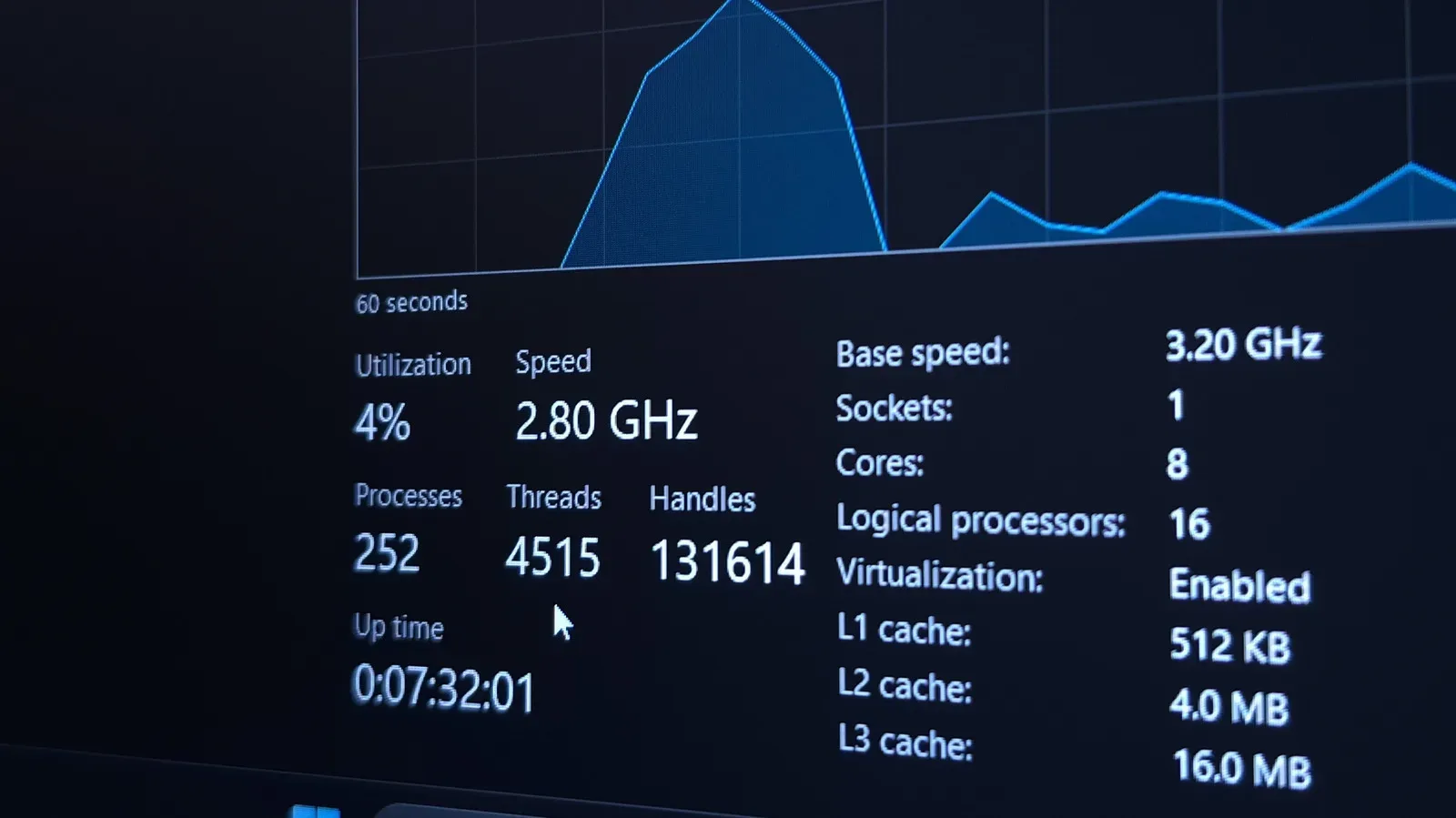
Task Manager is perhaps the most immediately useful Win+X entry when an application will not respond. In plain terms, it is Windows’ view into active programs and background processes. A process is an instance of a program or system activity that is currently running. Seeing those processes can help distinguish between an app that has stalled and one that is still working.
Task Manager can close non-responsive programs. Its Processes tab can be used to monitor activity, while its Startup tab provides a way to review startup processes and disable inessential ones that consume resources. “Startup” in this context means programs configured to launch as Windows starts, not merely apps that happen to be open now.
That makes the tool relevant to more than an immediate lockup. If a PC feels busy before a game, work application or browser has even opened, the Startup tab gives the user a focused list to review. The sensible aim is not indiscriminate removal. Windows and installed software may rely on some entries. Instead, identify the items that are clearly nonessential resource users before changing anything.
A measured Task Manager workflow
- Open the Quick Link Menu with Win+X.
- Select Task Manager.
- Use Processes to observe what is active and to close a program that is not responding.
- Use Startup to review what is set to run when Windows begins.
- Disable only startup items you consider inessential, rather than treating every listed item as clutter.
This is a troubleshooting workflow, not proof of a diagnosis. A high-activity process may be relevant to a slowdown, but the menu’s role is to make observation and basic management quicker. It does not turn every background process into a problem.
Event Viewer and the MemoryDiagnostics-Results path
Event Viewer is for problems that are less obvious than a single frozen program. It presents Windows logs: recorded system information that can help with investigating issues such as random crashes, file corruption or suspected hardware trouble. Logs are useful because intermittent problems may leave a trace even when the user cannot reproduce them on command.
One route highlighted in the utility concerns memory diagnostic results. From Event Viewer, navigate through Windows Logs > System > Filter Current Log, then choose MemoryDiagnostics-Results under the Event Sources section. This filters the System log toward the relevant memory-diagnostic entries and provides a readout of existing system issues.
Two technical terms are useful here. Random crashes describes failures that do not follow an easily repeatable pattern. File corruption means files may no longer be intact or usable as expected. Neither symptom automatically establishes that memory is at fault. The practical advantage of the Event Viewer path is that it narrows the logs to a relevant set of results rather than asking users to scan every system entry.
In other words, Event Viewer is best approached as evidence gathering. If Windows has diagnostic information relevant to memory, this filtered view is a more direct place to inspect it. It is not a substitute for understanding the wider symptoms, nor does a user need to interpret every event in the log to make use of the targeted filter.
Disk Management: check partitions without guessing
Disk Management is another administrative utility exposed by Win+X. It lets users read the status of the different disk partitions active on the computer. A partition is a section of a storage drive that Windows treats as a separate logical area. A single physical disk can therefore be divided into more than one partition.
The key word is status. Disk Management gives a user a place to look at how those partitions are represented on the system. That can be valuable when storage-related questions arise, because it directs attention to the drive layout rather than relying on assumptions based solely on what appears in File Explorer.
It is also a tool where restraint is sensible. Checking status and understanding what is present are different tasks from making changes. The Quick Link Menu makes the utility easy to reach, but ease of access should not be mistaken for a reason to alter partitions casually. Start by observing the layout and statuses that Windows reports.
Mobility Center offers laptop-focused controls
For laptop users, Mobility Center is another standout inclusion. It provides controls for display, keyboard and wireless settings. Those are categories that can matter when a portable PC is moving between a desk, a television, a different room or a new network environment.
The tool is not framed as a universal repair center. Its benefit is convenience: it pulls several laptop-relevant configuration areas closer together. If the question is about a display option, keyboard setting or wireless configuration, opening Mobility Center from Win+X is often faster than beginning an open-ended search through Settings.
Customize the Quick Link Menu carefully
The menu can also be organized through its shortcut folders. In File Explorer’s address bar, enter:
%LOCALAPPDATA%MicrosoftWindowsWinX
Three folders in that location contain the menu’s shortcuts. The shortcuts can be moved between those folders, renamed, and supplemented by dragging app shortcuts from elsewhere in File Explorer into one of them. Renaming a shortcut changes the name shown for that item in the menu.
This is useful if the default arrangement does not match the way a PC is used. Someone who regularly opens a particular management destination may want its shortcut arranged where it is easier to spot. Likewise, clearer shortcut names can make the menu more legible for a shared computer or for users who prefer plain labels.
There is an important practical boundary: customization changes the menu’s shortcuts, not the underlying purpose of the administrative tools they open. Keep changes deliberate. Moving, renaming and adding shortcuts can make the launcher suit an individual workflow, but it does not replace knowing whether Task Manager, Event Viewer, Disk Management or Mobility Center is the appropriate place to investigate a given symptom.
Why this small menu is worth memorizing
The strongest case for Win+X is not that it unveils hidden Windows powers. It is that it reduces navigation friction. Task Manager is there when an app has stopped responding. Event Viewer is there when a crash or suspected hardware issue needs more context. Disk Management is there when partition status is the question. Mobility Center is there for laptop display, keyboard and wireless controls.
That collection turns one easy shortcut into a useful troubleshooting habit: open Win+X, choose the tool that matches the problem, observe before changing settings, and avoid broad “cleanup” actions when a targeted check will do. For Windows 11 users, especially those who want fewer detours through menus, it is a small piece of muscle memory with an outsized practical payoff.