When a PC game starts stuttering, loading slowly, or behaving as though it has suddenly developed a personal objection to fun, it is tempting to blame the game immediately. Sometimes that is warranted. But the desktop may also be quietly hosting a crowd of launchers, update jobs, browser tabs, recording tools and Windows services, all requesting a slice of the same machine.
That is why keeping an occasional eye on background processes is a useful PC-gaming habit. The point is not to pursue the smallest possible process list or to hit End task on everything with an unfamiliar name. Modern Windows PCs are meant to run many things at once. The useful skill is recognizing your own normal baseline, noticing an outlier when performance changes, and closing only the applications that are genuinely unnecessary at that moment.
For players, this is particularly practical before launching a demanding game, while a download is unexpectedly chewing through the connection, or when a previously smooth session develops hitching. Task Manager supplies the first clues: which process is using CPU, memory, disk activity, or network bandwidth, and whether that usage makes sense.
What “background process” actually means
A background process is a program—or one component of a program—that is working without an open window demanding your attention. That can be completely ordinary. Windows needs services running to manage updates and core system behavior. Cloud software may be synchronizing files. A game launcher can be downloading or installing an update after its main window has disappeared. A browser can retain processes for tabs, extensions and other features.
Not every background process is optional, and not every active process is a problem. The important question is contextual: is this process using a meaningful amount of a limited resource at the same time that the PC feels slow?
Those resources are worth separating because they point to different bottlenecks:
- CPU is the processor’s working capacity. A process using substantial CPU time can compete with the game and other software for processing attention.
- Memory, often called RAM, is the fast working space used by running programs. A memory-hungry application leaves less room for the game.
- Disk activity reflects reading and writing to storage. Installation and update work can create noticeable disk use.
- Network activity is data moving across the internet connection. Background downloads can matter especially when online play needs a stable connection.
One number in isolation is not a verdict. A launcher using CPU, disk and network capacity may simply be patching a game. That could explain a performance dip, but it is not inherently suspicious. Likewise, a long list of Windows processes is normal on a working PC. The value comes from matching the numbers to what the computer is doing and what you intended it to do.
Start with Task Manager, not guesswork
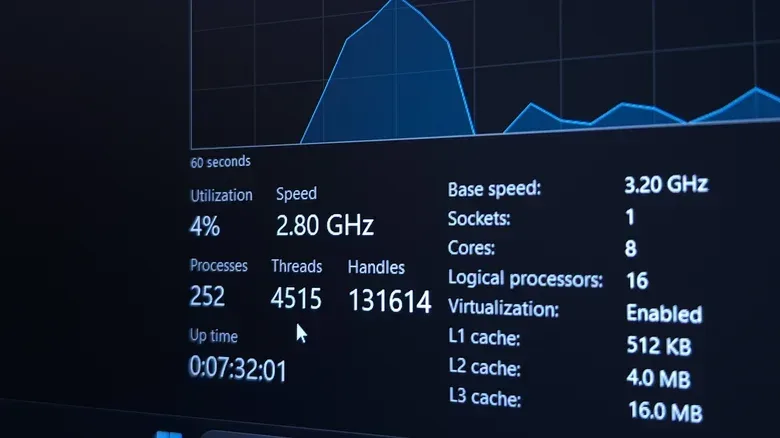
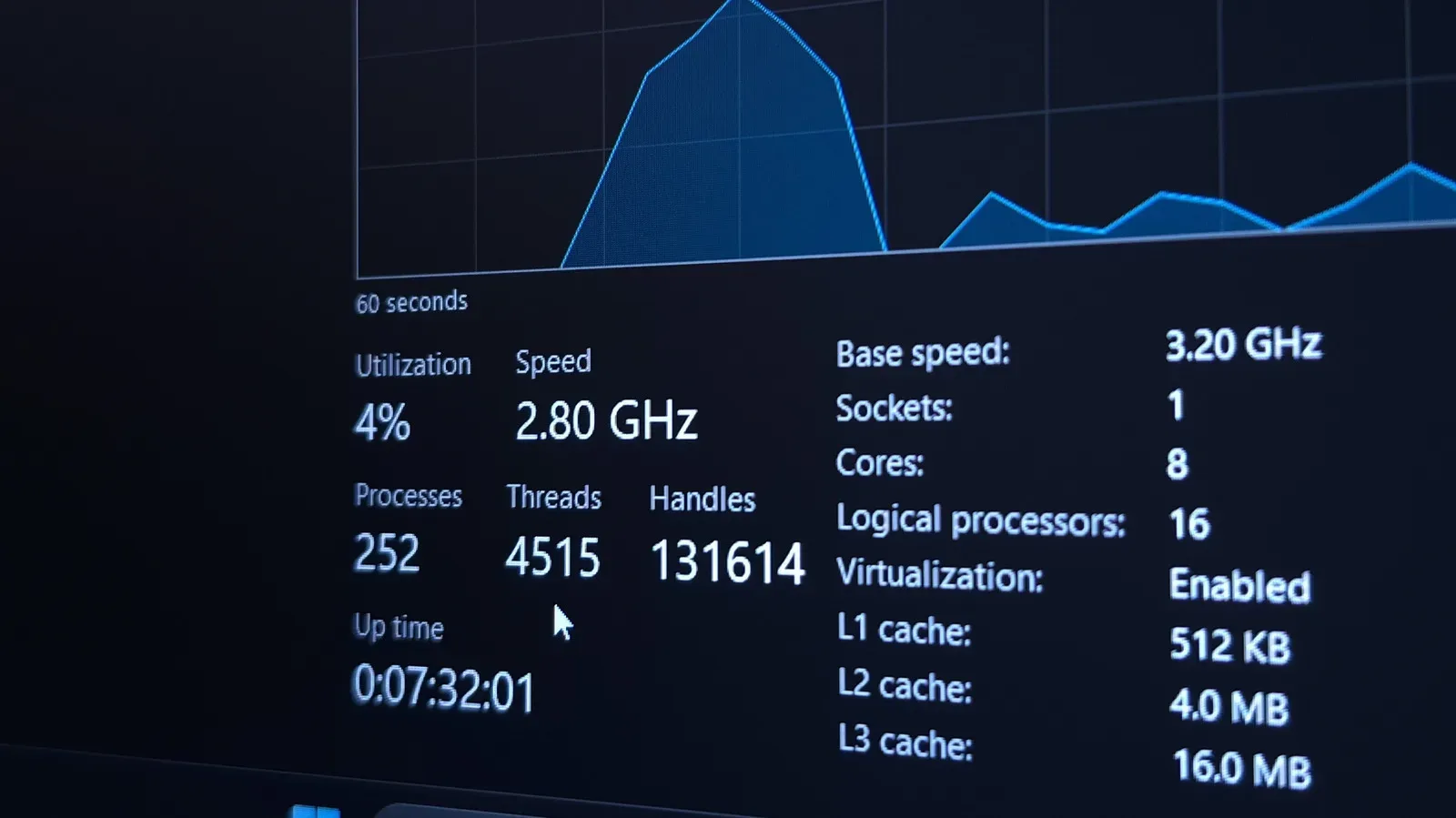
Task Manager is the built-in Windows view that brings open applications, background processes and Windows processes into one place. It also shows resource use per entry, so it is the sensible first stop when a game or desktop begins to feel unusually busy.
Related coverage includes How to Monitor Background Processes on a Windows PC.
The fastest way to open it is Ctrl + Shift + Esc. Other routes include pressing Ctrl + Alt + Delete and choosing Task Manager, or right-clicking the Start button or a blank area of the taskbar and selecting Task Manager.
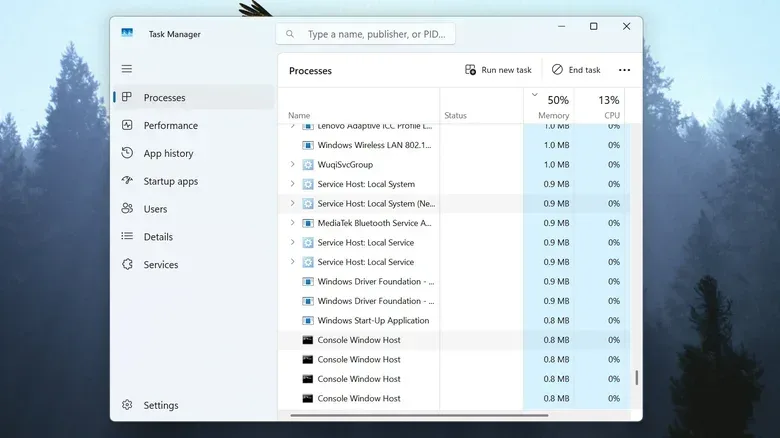
Open the Processes tab from the left sidebar. Here, entries are organized into active apps, background processes and Windows processes. Sorting by Name can make it easier to group related entries and see the software you recognize. Sorting by the CPU, Memory, Disk or Network column instead is often more useful during a slowdown, because it moves the busiest users toward the top.
This is the difference between vague troubleshooting and a useful observation. Rather than deciding that “the PC is lagging,” you can see whether a browser, a launcher, a recorder, or an installer is unusually active. If a game is open and the network column is dominated by another launcher, that is actionable information. If disk use is high and a platform is applying an update, the mystery may already be solved.
Build a baseline while nothing is wrong
The best time to inspect Task Manager is not only when performance has collapsed. Open it during a typical idle or normal-use moment and note the kinds of software that usually appear. You do not need to memorize every process or monitor the screen all day. You are simply building recognition.
That baseline matters because there is no universal “correct” number of processes. Hardware differs, installed apps differ, and the impact of the same workload will not be identical on every PC. A process list becomes useful when you can compare today’s behavior with the usual behavior of your own system.
When something changes, look for sustained activity rather than reacting to a brief spike. A process that stays near the top of a relevant column while the PC is sluggish deserves investigation. A quick burst may be routine work finishing in the background.
Why one app can appear as several processes
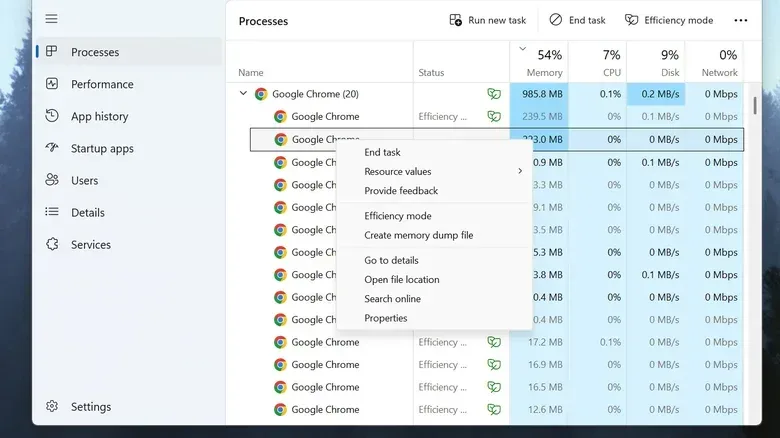
Seeing repeated names does not automatically mean duplicated software has gone rogue. Google Chrome provides a clear example: while it is being used, it can create separate processes for tabs as well as functions such as extensions and hardware acceleration. Chrome has its own Task Manager, opened with Shift + Esc, which can help identify what those browser processes are responsible for.
The broader takeaway applies beyond browsers. A process is not always equivalent to one visible app window. Programs can use helper processes, updaters and services. A game launcher may still have an updater running despite appearing closed. That is why the process name should begin an investigation, not end one.
If an unfamiliar entry appears, do not rely on the fact that it sounds technical or obscure. Windows includes services with names that are not designed to be self-explanatory; svchost.exe, for instance, is associated with various background Windows services. Search for the specific process name rather than guessing. You can also right-click an entry in Task Manager and choose Open File Location to see where it is stored.
Those steps are safer than indiscriminately ending system tasks. Closing a process that Windows relies on can create trouble without addressing the original performance issue. In practice, the processes most likely to be easy wins are the applications you installed and recognize: a browser with unnecessary tabs, a launcher downloading something you do not currently need, or a recorder you do not plan to use.
Close software cleanly before forcing it to stop
Task Manager’s End task option is useful, but it is a last resort rather than a standard cleanup button. It forcibly stops an application, which means the software may not get the chance to save work or shut down gracefully.
Try the normal exit route first:
- Close the application with its window controls, including the X in the upper-right corner where applicable.
- Use the app’s own quit command, often found under a File menu or similar menu option.
- Check the system tray at the lower-right corner of the desktop. Some applications stay active there after their main window is closed and provide a proper Quit or Exit command from their icon.
- If the app will not close normally, find it in Task Manager’s Processes list, right-click it and select End task.
For a crashed or frozen application, a forced stop may be unavoidable. Otherwise, a clean exit protects any unsaved work and reduces the risk of mistaking normal update or synchronization work for a failure.
A practical pre-game check for launchers, downloads and capture tools
Games benefit when other applications are not competing heavily for the PC’s finite resources. This does not mean every utility must be shut down before every match. It means avoiding unnecessary overlap.
Downloads are a logical first check. Running several game launchers at once can create simultaneous network, disk and CPU use if more than one decides to update. Before playing, take a quick look in Task Manager and ask whether the activity at the top of the list is needed right now. If an update or download can wait, pausing it or exiting its launcher may leave more capacity for the game.
That network side is especially relevant for online gaming. A busy connection is only one possible source of instability, but it is one players can directly inspect when a launcher is downloading in the background. For broader home-connection considerations, see why Wi-Fi can worsen at night and what may help evening gaming stability.
Recording is another area where overlap can be easy to miss. Windows 11 includes recording features through Xbox mode and the Game Bar. If captures affect gameplay, their settings can be checked at Settings > Gaming > Captures. Players who also have third-party recording software should review that software’s settings too. The goal is to avoid accidentally having multiple tools trying to capture activity at once.
This is not an argument against recording, overlays or launchers. They can all be useful. It is an argument for deliberately choosing what is active for a given session instead of allowing every installed tool to remain in the background by default.
Trim startup apps instead of fighting them every boot
If the same applications return every time Windows starts, handle the problem at startup rather than repeatedly closing them before gaming. Task Manager includes a Startup apps section in the left sidebar. From there, right-click an application that is not needed immediately after sign-in and choose Disable.
Disabling an entry from startup does not remove the application or prevent you from using it later. It simply stops it from launching automatically with Windows. That distinction is important: a game launcher may be useful, but it does not necessarily need to be running every time the desktop appears.
A restrained startup list can mean fewer background applications competing for attention from the moment you log in. It also makes your baseline easier to understand. When fewer optional apps start automatically, it is simpler to spot the cases where an update, browser process or unexpected program is responsible for fresh resource use.
When an unfamiliar process becomes a security concern
Performance monitoring can also help flag software that deserves closer scrutiny. An unknown process is not proof of malware, and failure to close is not proof either. Still, if something looks unfamiliar, consumes resources without an obvious explanation, or remains stubborn after you try to end it, it is reasonable to run a security check rather than assuming it is harmless.
Windows includes Microsoft Defender through Windows Security > Virus & threat protection. For a deeper scan aimed at persistent threats, select Scan options > Microsoft Defender Antivirus (offline scan) > Scan now. This scan requires a restart and runs in a separate environment, intended to prevent stubborn malware from blocking its own quarantine or removal.
The sensible order is investigation first, action second: identify the process name, inspect its file location, consider whether an installed application explains it, then use the available security tools if the behavior remains concerning. Treating every strange-looking Windows service as malicious creates risk of its own.
The useful goal is awareness, not a perfectly empty desktop
Windows is built to prioritize work, and background activity will always exist. Chasing a zero-process machine is neither realistic nor necessary. The better approach is modest: learn what normally runs, check Task Manager when the machine feels different, sort by the resource that seems under pressure, and close only what you understand and do not need.
For gaming, that habit turns an opaque slowdown into a manageable checklist. A patching launcher, an overstuffed browser, an unnecessary startup app or overlapping capture tools may not always be the culprit, but Task Manager gives each one a chance to identify itself before the blame lands on the game—or on your hardware.