There is a very specific kind of late-night living-room panic that begins with a Roku suddenly reading every highlighted item aloud. You press a button. A voice announces it. You move to another tile. The voice announces that too. Before long, the television seems less like a streaming device and more like a ship computer that has decided it needs to supervise your choices.
The reassuring answer is that the TV is not doing anything mysterious. Roku’s Screen Reader has likely been enabled. It is a text-to-speech accessibility feature designed to speak on-screen text and navigation information, making the interface more usable for people who are visually impaired. For anyone who did not mean to activate it, however, the constant spoken feedback can be surprising—especially when it begins without an obvious explanation.
The good news: turning it off is quick, and there is also a setting that can help prevent an accidental repeat.
What Roku Screen Reader actually does
Screen Reader is an accessibility tool, not a fault with the television, remote, Wi-Fi connection, or streaming app. Text-to-speech means software converts written interface information into spoken audio. On a Roku, that can include the labels of highlighted items and other text encountered while moving through menus.
That narration is useful when a viewer needs spoken confirmation of what is on screen. It can make a menu-driven interface easier to navigate without relying entirely on visual labels. It is also why the feature sounds so comprehensive once it is on: it is intended to communicate what the user is selecting, rather than merely provide an occasional alert.
If the voice begins while browsing streaming options or adjusting the TV, the most likely explanation is simply that Screen Reader has been switched on. There is no need to reset the TV or start digging through unrelated picture and audio controls.
The quickest way to stop Roku’s voice narration
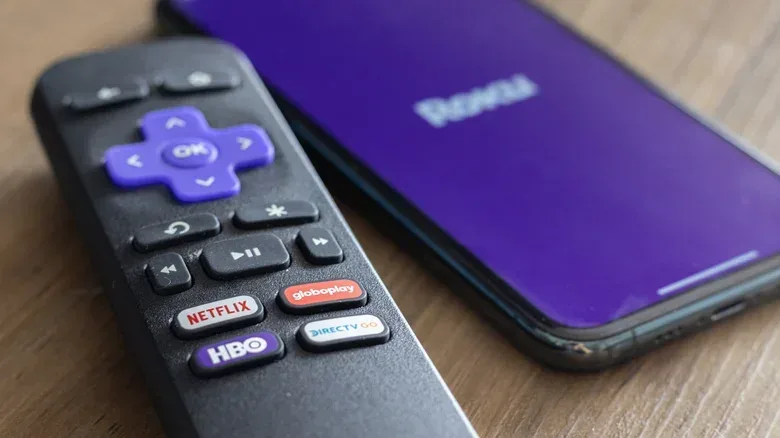
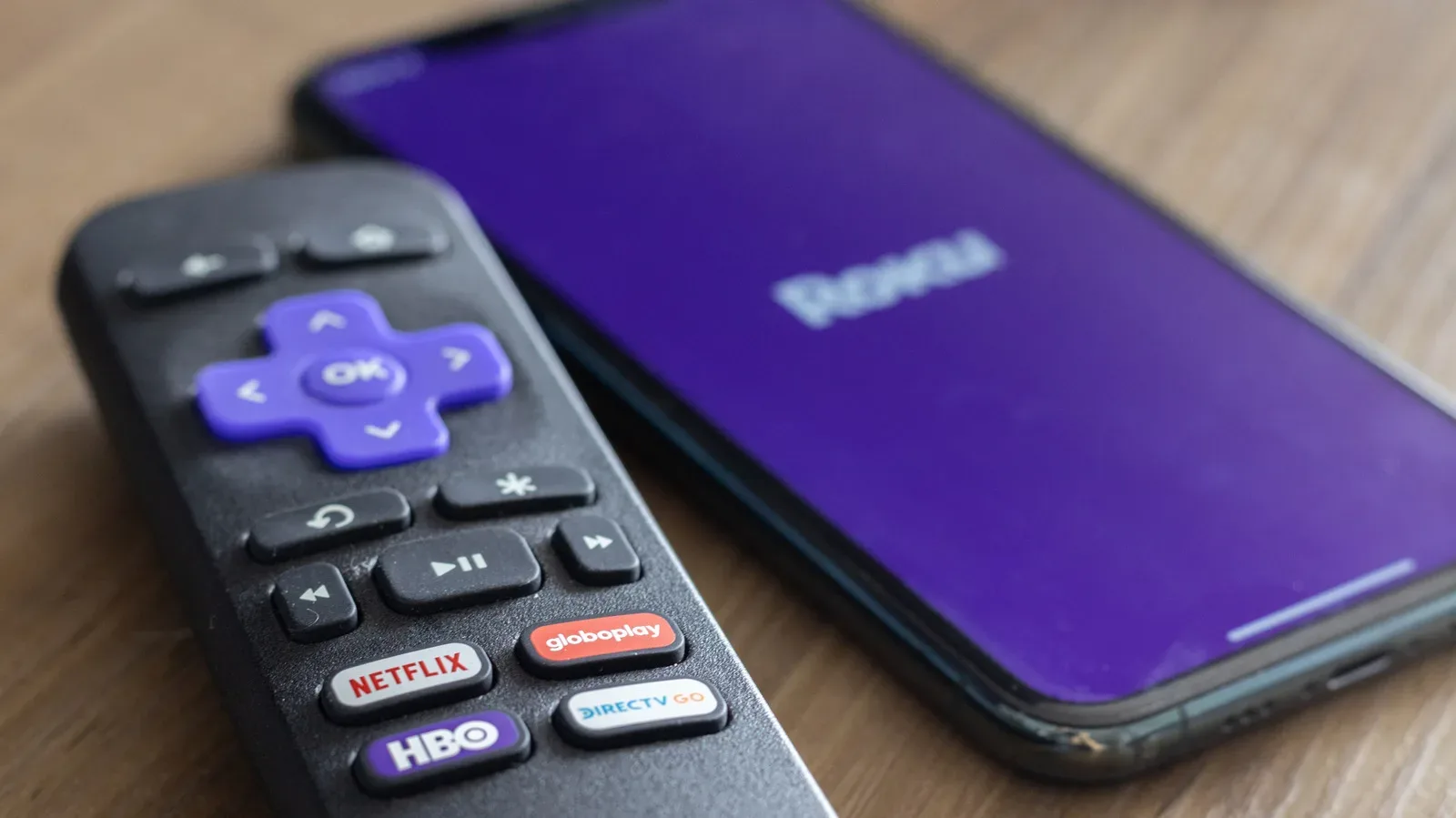
By default, Roku includes a remote shortcut for Screen Reader. Press the Options button—the one marked with a small star—four times in a row. That shortcut turns Screen Reader on, but it also turns it off when the feature is already active.
So, if Roku starts narrating the interface unexpectedly, try pressing the star button four times again before changing anything else.
This shortcut explains why the feature can appear to switch on at random. A remote wedged into couch cushions can register repeated presses, and a pet stepping across it can produce the same result. It is easy to mistake the outcome for a strange software glitch when it is really a sequence of button inputs.
Quick fix: Press the star-shaped Options button four times to toggle Screen Reader off.
Turn Screen Reader off through Roku Settings
If the four-press shortcut does not suit the moment—or if you would rather confirm the setting visually—Screen Reader can also be disabled through Roku’s on-screen menus. Use the remote and follow this path:
- Press Home.
- Open Settings.
- Choose Accessibility.
- Scroll to Screen Reader.
- Select Off.
This route is worth knowing because it identifies the setting by name and places it in its intended context. Accessibility settings are not errors to be erased; they are tools configured around different needs. The menu approach lets a household deliberately decide whether Screen Reader should be enabled rather than treating its presence as a technical problem.
How to prevent the shortcut from being triggered again
Turning Screen Reader off fixes the immediate interruption. But if the star-button sequence keeps being activated accidentally, Roku also provides a way to disable the shortcut itself.
Return to Settings, then Accessibility, then Screen Reader. Within that area, find the Shortcut option and turn it off.
That changes an important distinction:
- Screen Reader: Off stops the current spoken narration.
- Shortcut: Off prevents the four presses of the Options button from toggling Screen Reader in the future.
For a remote that regularly disappears into furniture, is shared by several people, or has to coexist with curious pets, disabling the shortcut may be the practical choice. It removes one easy path to an unplanned settings change while leaving the broader Accessibility menu available for intentional use.
A useful troubleshooting order
When a Roku starts speaking menu text, it is tempting to reach for more disruptive fixes: restarting the TV, reconnecting the network, or changing settings at random. In this case, a much narrower process makes more sense.
- Identify the behavior. If the device is reading on-screen labels as you move around, it matches the purpose of Screen Reader.
- Use the fast toggle. Press Options four times.
- Verify in Settings if needed. Go to Settings, Accessibility, Screen Reader, and select Off.
- Decide whether to retain the shortcut. If accidental presses are plausible, turn off Shortcut in the Screen Reader settings.
This approach avoids conflating separate kinds of problems. A sluggish Wi-Fi connection, for example, may affect buffering or loading, but it does not explain a voice narrating every menu label. Likewise, advertising preferences are a different configuration topic. Screen Reader belongs to accessibility controls, so that is where the solution lives.
Why the feature can be startling even when it is working correctly
The experience is unsettling mainly because spoken feedback changes the expected relationship with a television. Most streaming interfaces stay quiet until content begins. Screen Reader deliberately breaks that pattern, delivering audio immediately in response to navigation. It is behaving as designed, but it can feel abrupt when activated unintentionally.
That contrast matters. Calling it “voice narration” describes the symptom people hear, but Screen Reader is more specific: it narrates the interface itself. It is not necessarily commentary from the show or movie currently playing. If dialogue from a program is accompanied by a separate description track, that would be a different type of audio setting to investigate. The behavior described here is Roku speaking the menus and on-screen text.
For people who use Screen Reader, the speed of the shortcut may be a convenience. For people who do not need it, the same convenience can be a liability when four accidental star-button presses are enough to activate it. Roku’s separate Shortcut control is therefore the key long-term setting for homes where the remote gets knocked around.
Keep accessibility choices deliberate
If Screen Reader is useful to someone in the household, do not disable the feature or shortcut merely because another viewer was surprised by it. Instead, make sure everyone using the television knows what the voice is and how the four-press toggle works. That turns an alarming moment into a predictable control choice.
If nobody needs the feature, disabling Screen Reader and then disabling its shortcut offers the simplest setup. The interface goes back to being quiet, and accidental remote inputs are less likely to produce an unexpected robotic co-host during the next streaming session.
And when the screen is quiet again, the real argument can resume: what to watch. For one current example of TV-focused pop-culture news, see the latest on The Last of Us Season 3’s cast additions.