A missing TV remote can derail a gaming session with an absurd amount of efficiency. The console may be on, the controller may be charged, and the screen may be sitting right there—yet changing the input, searching for an app, or entering a password suddenly becomes a sofa-cushion excavation project.
For many smart TVs and streaming devices, a smartphone is a capable fallback remote. It can provide directional controls, volume buttons and, crucially, a full phone keyboard for TV text fields. That last point matters whether somebody is hunting down a streaming app, signing in, or trying to locate a game trailer without pecking through an on-screen keyboard one character at a time.
The right method depends on the television or streaming platform, the phone, and whether the TV is already connected to a network. There are three broad routes: a phone with an IR blaster, the platform’s official companion app, or a third-party universal remote app. Apple TV owners with an iPhone also have a built-in option in iOS.
Start with the connection your equipment already supports
Modern remotes may use Bluetooth, but infrared is still relevant. Infrared, usually shortened to IR, is the line-of-sight signal used by traditional remotes. A phone with an IR blaster can emit those same commands, so it can potentially control a TV directly without relying on the home Wi-Fi network.
That approach is straightforward when the hardware exists. Open the phone’s preinstalled IR remote application, choose the option to add a device, select the TV manufacturer, then test the prompted buttons. Those tests are intended to identify the command set that matches the particular television. Once configured, an IR-equipped phone can generally handle the fundamental remote job, including powering the TV on or off.
The catch is hardware availability. IR blasters are uncommon on current mainstream phones, and they are not found on mainstream Samsung, Google or Apple handsets. It is worth checking a phone’s specifications or looking for a preinstalled universal remote app, but most users should expect to use a network-based companion app instead.
Official companion apps are usually the sensible first choice
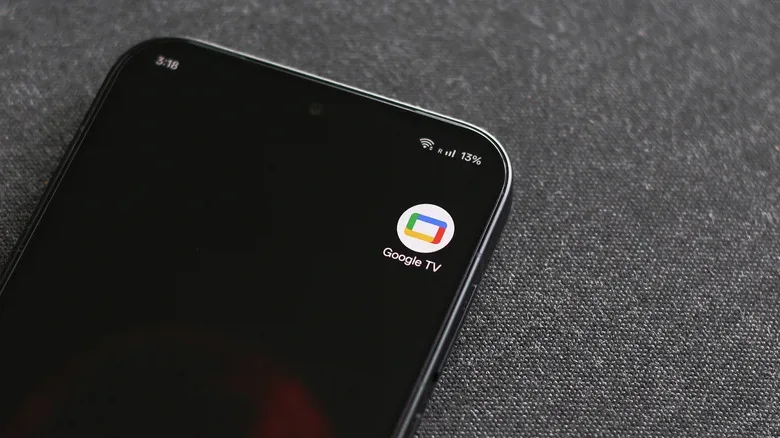
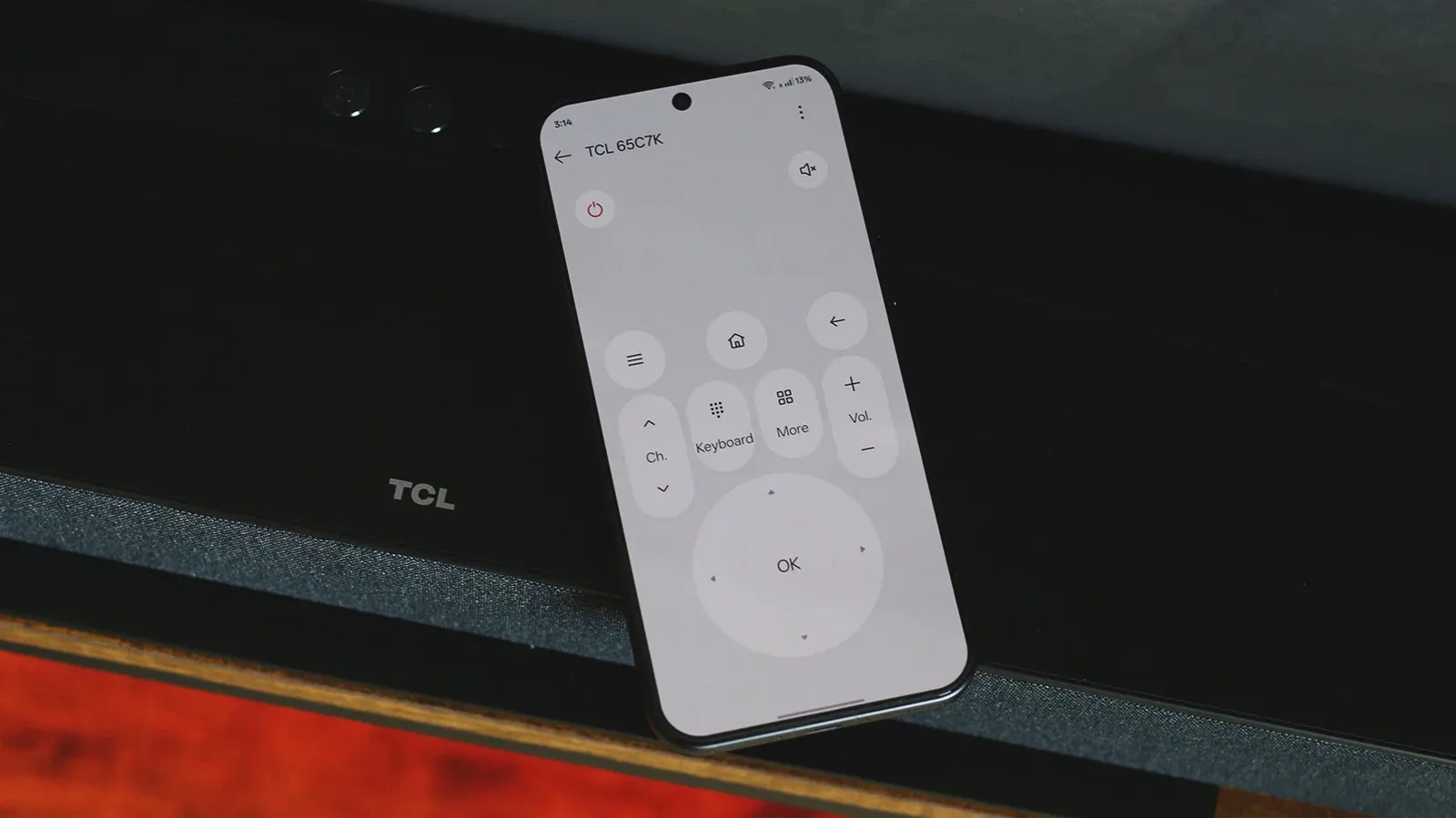
A platform’s own app is normally the most direct replacement for a physical remote because it is made to recognize that ecosystem. Google TV and Android TV sets can be controlled through the Google TV app on Android and iOS. In the app, select Connect TV at the bottom, then choose the TV from the device list.
For this route, the phone and television need to be on the same Wi-Fi network, and Bluetooth needs to be enabled on both. That distinction is important: being physically near the TV is not the same as being ready to pair. If the television is connected to a guest network while the phone is on the main network, for example, it may not appear in the list.
Related coverage includes How to Use Your Phone as a Smart TV Remote.
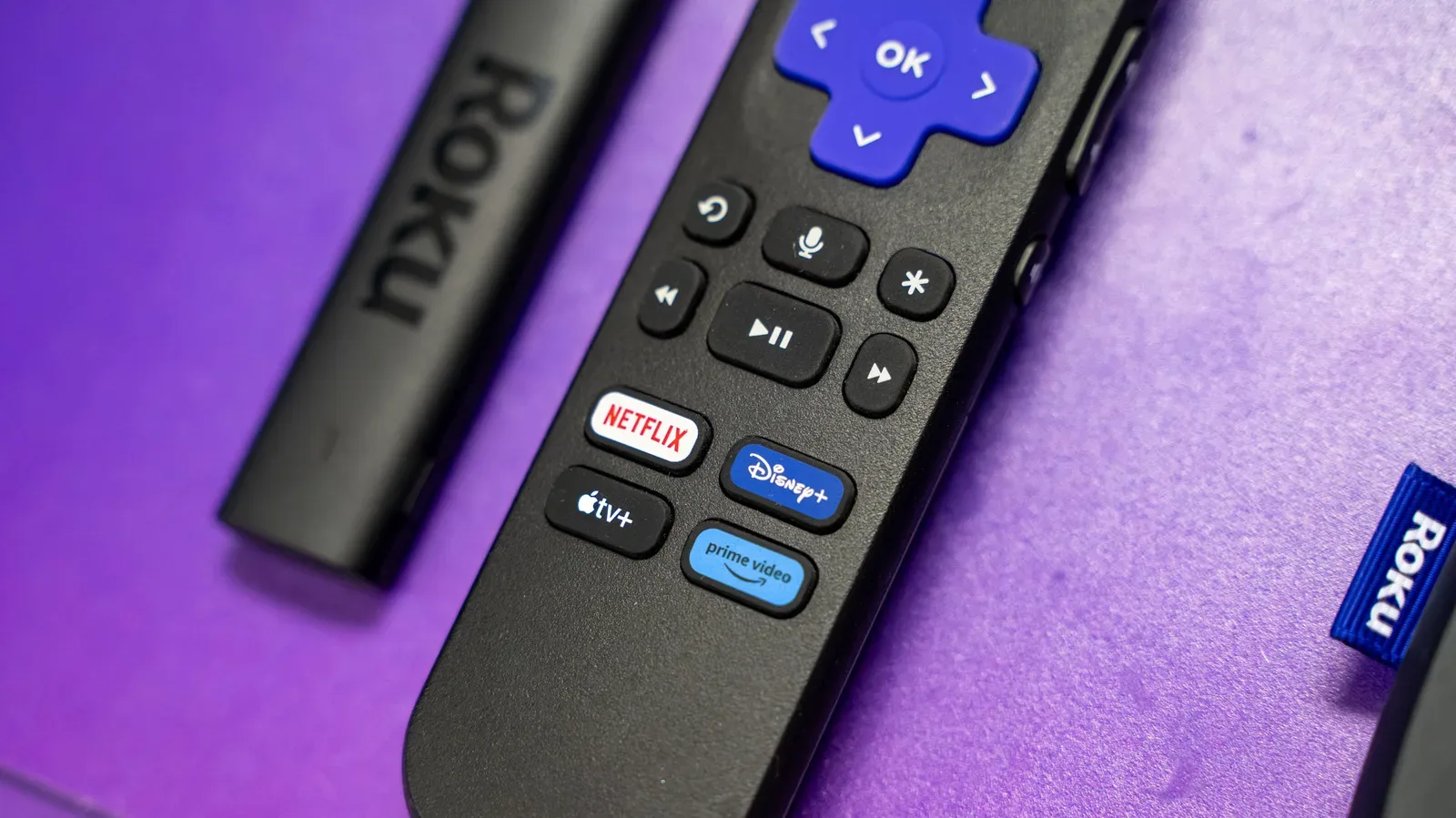
Roku’s mobile app supports Roku TVs and Roku streaming sticks, while the Fire TV mobile app serves Fire OS devices. The precise screens may differ, but the basic idea is consistent: install the relevant app, connect it to the same network as the screen, and follow its pairing process.
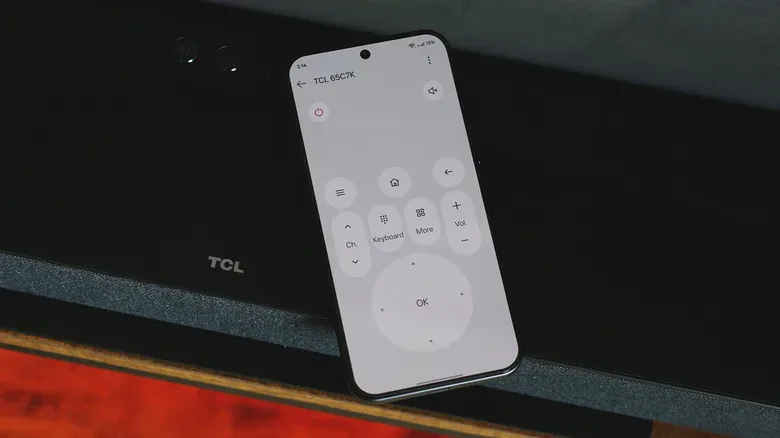
These virtual remotes generally reproduce the controls people reach for first: a directional pad, selection and navigation buttons, volume controls and other common functions. Their best quality is often what they do not imitate. When a text field opens on the TV, the phone can offer its regular QWERTY keyboard. Entering account credentials or a title to search becomes a normal mobile typing task rather than a lengthy sequence of directional-pad presses.
Many companion apps also double as content hubs, with options to browse programming, build watchlists, or launch apps on the TV. Those discovery tools can be useful, but they are not required merely to use remote controls. Be aware, though, that many such apps require a sign-in before the virtual remote can be paired.
A quick pairing checklist
- Confirm the TV or streaming device is connected to Wi-Fi.
- Put the phone on that same Wi-Fi network.
- Enable Bluetooth on both phone and TV when the platform requires it.
- Open the official companion app and look for its TV connection or remote option.
- Select the correct device from the list and complete any on-screen pairing steps.
This also explains a limitation of network-based control: it is most helpful after the TV has already joined the network. An infrared phone is different because it sends commands directly, but that capability depends on the increasingly rare IR blaster.
Apple TV has an iPhone shortcut
Apple TV users with an iPhone do not necessarily need another remote app. iOS includes Apple TV controls in Control Center. Open Control Center and select the remote icon. If it is not visible, use the + button to add it.
This is an iPhone feature rather than an Android option. Android users looking to control an Apple TV may instead consider third-party apps, while remembering that their success can depend on the connection method supported by both the phone and television setup.
Third-party apps can be an alternative, not an automatic upgrade
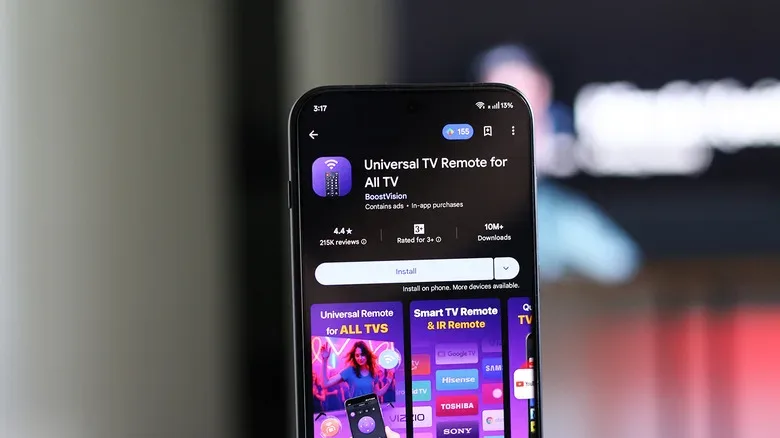
Third-party universal remote apps can be useful when an official app’s layout does not suit someone or when they need controls across more than one kind of device. One Android option, TV (Apple) Remote Control, uses a layout similar to Apple’s own remote and can send commands via a local Wi-Fi network or infrared. It has more than 500,000 downloads and a 4.6-star Play Store rating.
Those details show that an app is widely used, not that it will work in every setup. The practical question is whether the app supports the television or streaming platform, and whether its required connection method is available. A phone without IR hardware cannot magically gain infrared capability by installing software. Likewise, a Wi-Fi remote needs the relevant devices to be able to communicate on the local network.
For that reason, an official app is a strong first attempt for a Roku, Fire TV, Google TV or Android TV device. A third-party option becomes more attractive when the official layout is inconvenient or when a supported alternative offers the controls a household actually needs.
Turning the TV on is the part that can vary
Remote replacement is easiest once the TV is awake. Some smart TVs can be woken from standby by a phone, but it is not universal and may require a settings change. Look in the TV’s network settings for Wake-on-LAN and enable it where available. Wake-on-LAN is a network feature that permits a compatible device to wake another device that is in a standby state.
Some models place a comparable control elsewhere. Check the power settings for an energy mode labeled Increased or Optimized. The exact label matters less than the outcome: the TV must be configured to remain available for network wake-up rather than becoming unreachable while in standby.
If no wake feature is available or enabled, the phone may still be an excellent remote after the TV is powered on by another means. An IR-equipped phone has a particular advantage here because infrared control can include the power command.
Why this matters for a gaming setup
A phone remote does not replace a game controller, nor does it change the TV settings that affect a console’s image. It solves the more mundane but frequent layer of living-room setup: getting to the right input, opening a media app, managing volume, or entering text quickly. It can also be a useful backup when the physical remote is worn out or has vanished during multiplayer chaos.
That convenience is most noticeable around the edges of play. A player may want to queue a trailer, search for a guide on a TV app, sign into a service, or switch from a show back to a console. The phone makes typing far less cumbersome, while the virtual directional pad handles basic navigation. For a broader screen setup check, the 30-degree TV viewing-distance rule is a useful starting point for thinking about how the display fits the room.
The dependable plan is simple: keep the official TV or streaming app installed before the physical remote disappears, make sure the phone and TV share Wi-Fi, and enable a supported wake feature if remote power-on is important. It will not make every phone a universal wand, but it can turn the device already in hand into a practical escape hatch when the actual remote goes missing.