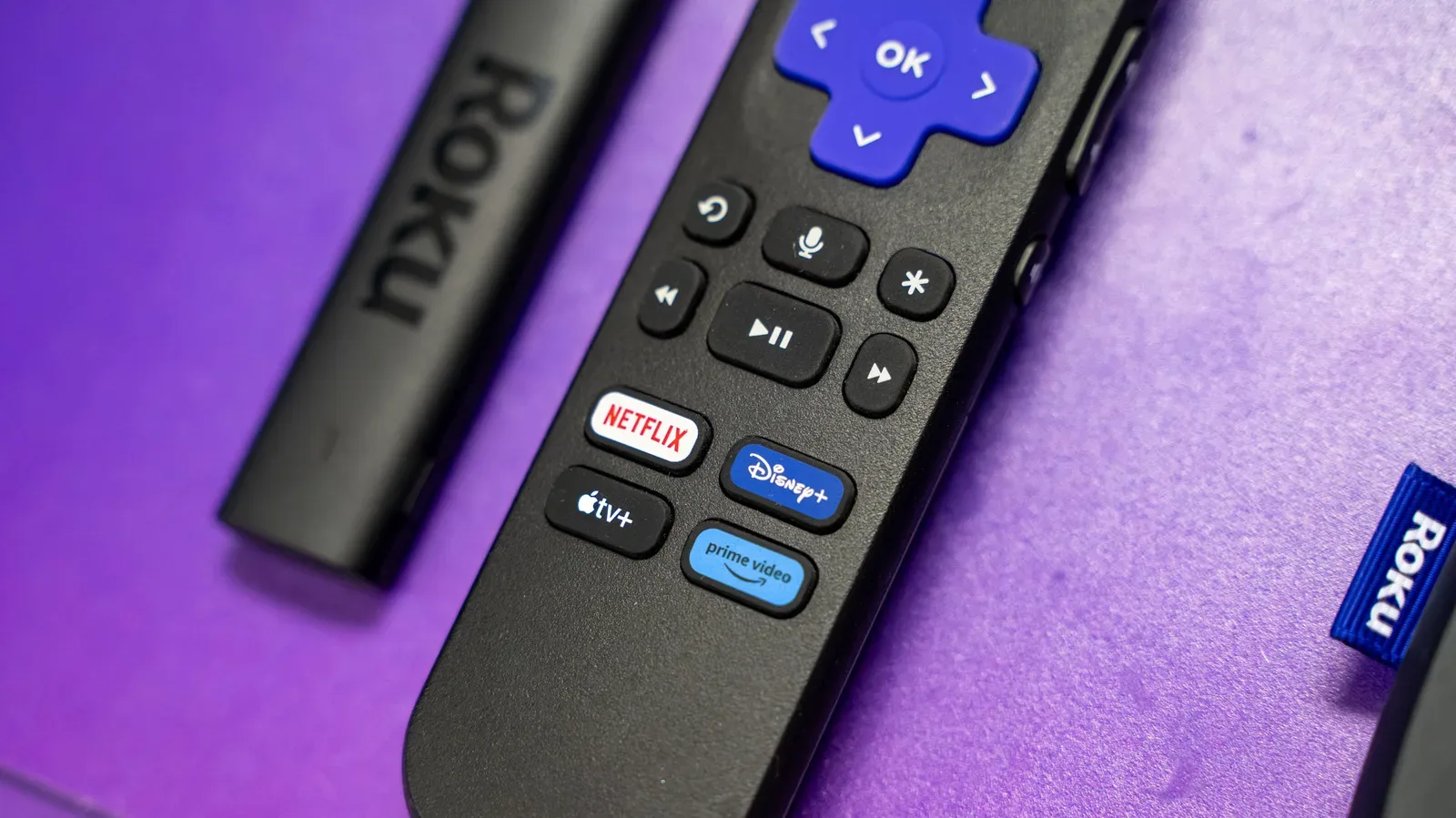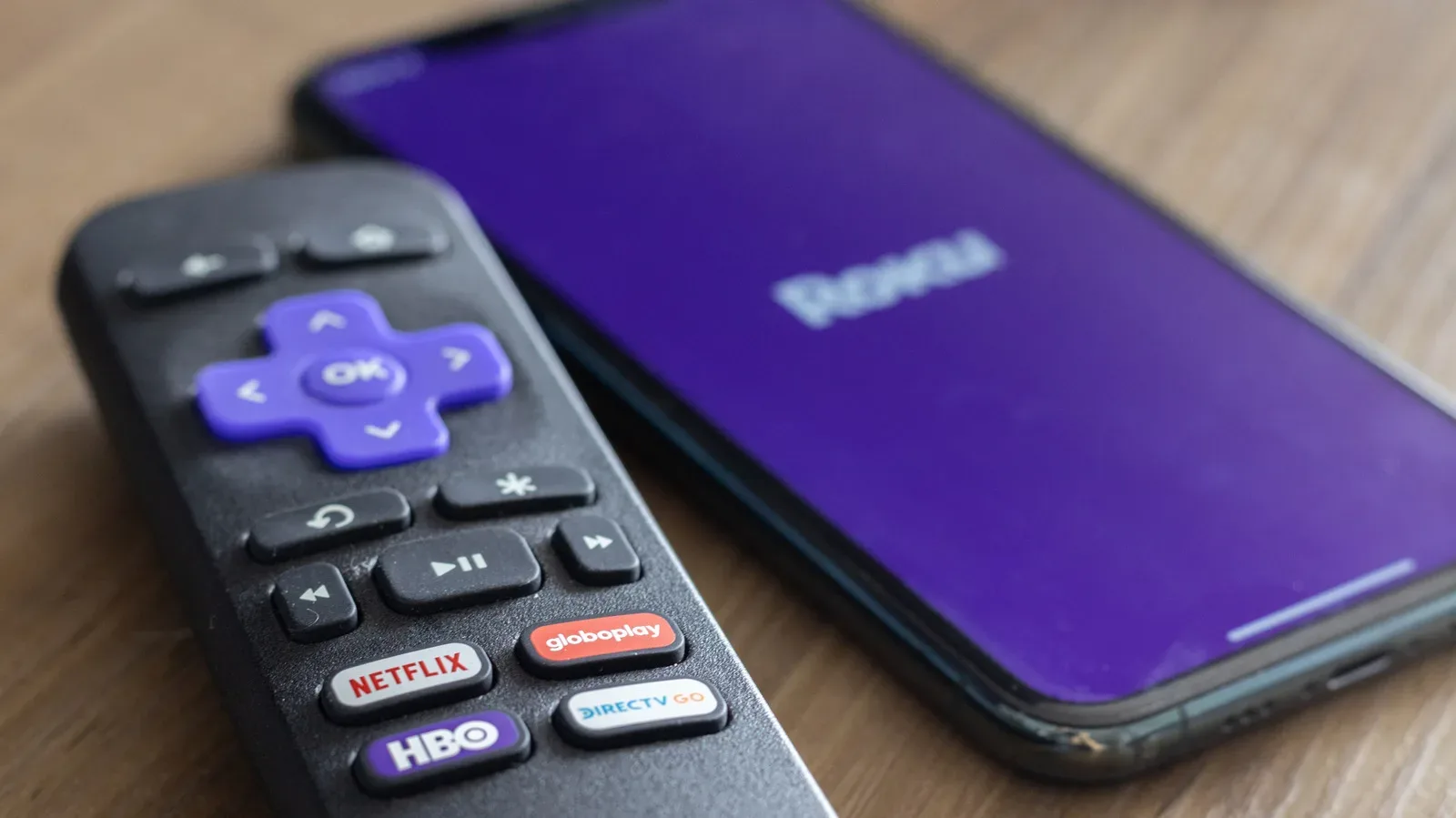
There is a familiar kind of gamer muscle memory behind Roku’s lesser-known settings screens: a rapid, oddly specific run of button presses that feels less like changing a Wi-Fi setting and more like entering a cheat code before the title screen fades out. Roku devices have a set of hidden or “secret” menus that can reveal technical information, provide troubleshooting options, and expose a few settings that do not normally sit on the everyday home screen.
These screens are not a vault full of free channels, magical picture upgrades, or a developer’s treasure chest waiting to turn every streaming stick into a new console. They are mostly practical tools. Depending on the menu, a Roku owner may be able to see network identifiers, inspect wireless signal data, check HDMI behavior, view app versions, look at memory or temperature information, manage developer settings, restart the device, or reach a factory-reset option.
The important word is carefully. A diagnostic page is useful when a stream stutters or an app starts acting strange; a reset page can solve serious software trouble, but it can also erase setup information. Think of these menus as the options screen behind the options screen. Look first, make a note of what is shown, and change something only when there is a clear reason.
How Roku hidden-menu shortcuts work
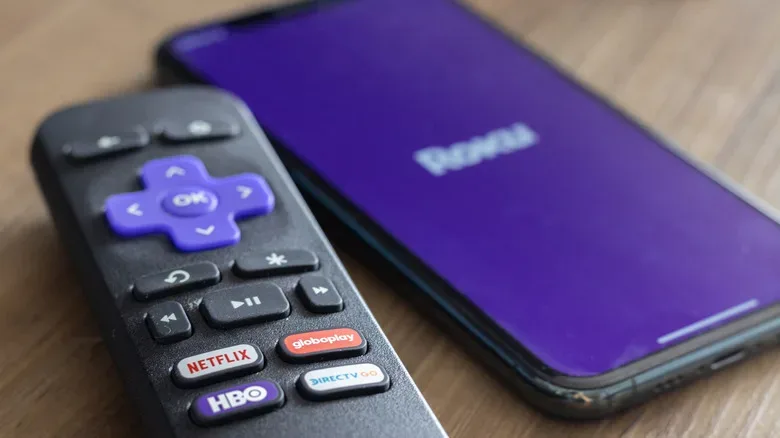
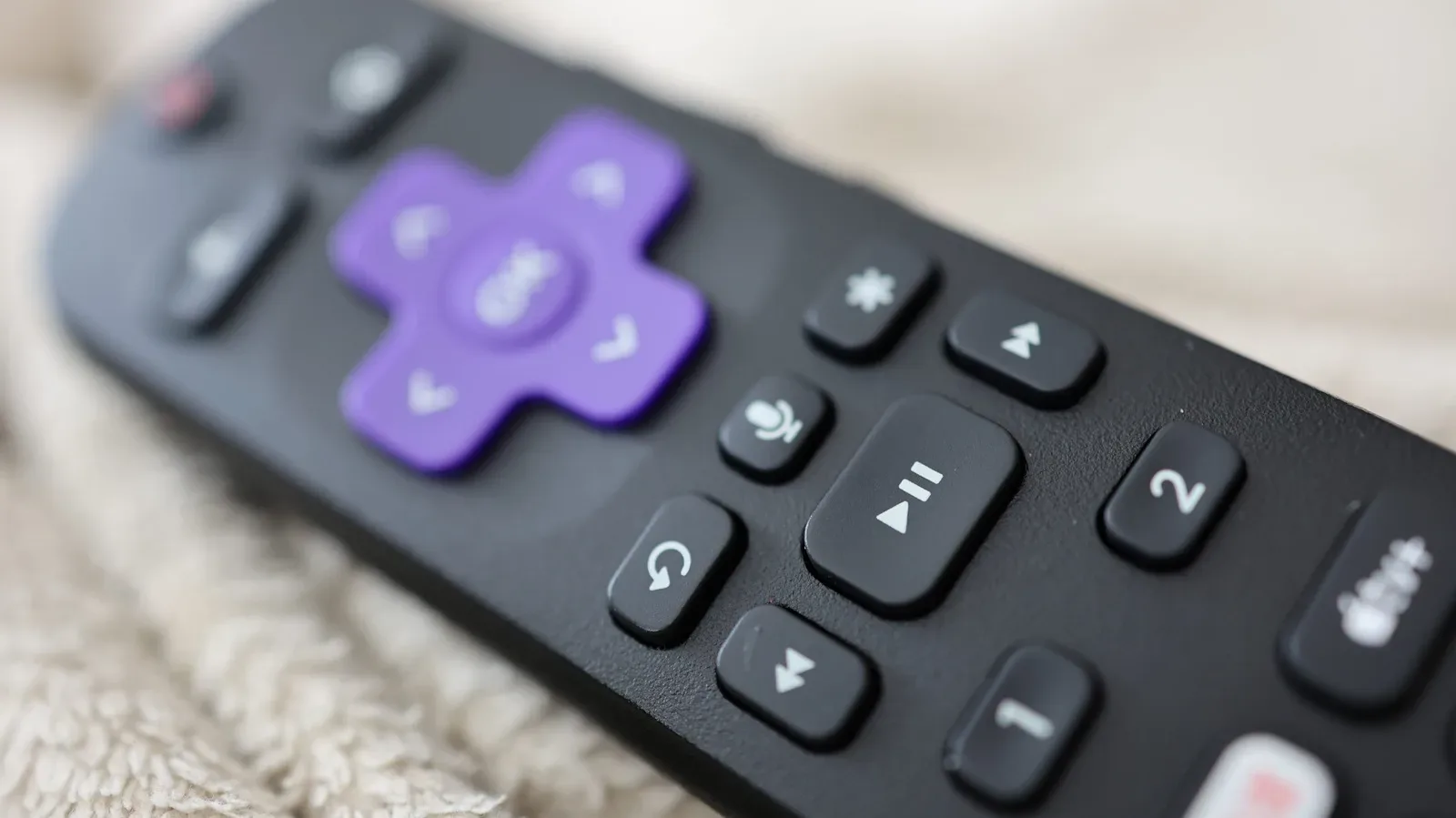
Each shortcut begins from the Roku home interface and uses buttons on the Roku remote in a precise order. “Home × 5,” for example, means press the Home button five times. Directional inputs use the remote’s navigation pad, while Fast Forward and Rewind refer to the transport controls.
A Roku phone remote can also be used for these combinations, provided it presents the needed controls and is connected to the same Roku device. Still, the physical remote is generally the least fussy option when a sequence needs several quick repeated inputs. If nothing opens, return to the home screen and try again from the beginning rather than improvising a new combo like a player who has forgotten whether the final input was B, A, or Start.
These interfaces are intended mainly for setup, diagnostics, and technical information. Labels and available options can vary with Roku hardware and software, so it is wise not to assume every device will display every item described below.
Developer Settings: the route for development and sideloading
The Developer Settings shortcut opens access to Roku’s developer installer and developer-account management tools. This is the menu with the most obvious advanced-user implications: it can be used to sideload custom applications and work with a testing environment.
Sequence: Home × 3 > Up × 2 > Right > Left > Right > Left > Right
For someone building or evaluating a Roku channel, that functionality is the point. For everyone else, it is a reminder that “secret menu” does not automatically mean “recommended menu.” Installing software from outside ordinary distribution paths carries the usual responsibility to understand what is being installed and why. If your actual goal is fixing video buffering, start with the network screens rather than wandering into developer tools for the sheer thrill of having found the door.
Network screens for connection problems
When a streaming app spins endlessly, drops resolution, or pauses at exactly the moment a detective is about to explain the plot, Roku’s network information can be more useful than repeatedly closing and reopening the channel. One shortcut opens a Network Settings page that includes connection details, bandwidth saver access, and the device’s IP and MAC addresses.
Network Settings sequence: Home × 5 > Right > Left > Right > Left > Right
The IP and MAC details can be useful when checking router-connected devices or working through a home-network problem. Bandwidth saver controls may also matter for households that want to keep an eye on streaming behavior, though it is worth reading the on-screen descriptions before changing anything.
For Wi-Fi-specific information, the Wireless Secret Screen goes deeper. It can show signal strength and glitch-rate data, offer a speed test, and provide an option to reset network settings.
Wireless Secret Screen sequence: Home × 5 > Up > Down > Up > Down > Up
The most sensible order here is simple: inspect signal information, run the available test, then decide whether a reset is justified. A network reset may require reconnecting the Roku afterward, so it is not the first button to press just because one episode loaded slowly. A bad result can also point to the router, internet connection, distance, obstacles, or general wireless congestion rather than a Roku problem alone.
Secret Screen 2 and advertising or screenshot options
Secret Screen 2 is a more specialized page tied to Roku’s ad experience and screenshot-related settings. It includes controls associated with image service, screenshot output format, ad channels, and screenshot output behavior.
Secret Screen 2 sequence: Home × 5 > Up > Right > Down > Left > Up
Changes involving ad preferences may require a Roku restart before they take effect. That is a useful detail to remember before treating an unchanged screen as proof that the setting did nothing. The page is not an invitation to indiscriminately toggle every unfamiliar option. Screenshot formats and ad-related configuration are a very different kind of power-up from the ones most people want out of a streaming device, and the safest play remains changing only the control relevant to the task at hand.
Platform diagnostics: a status screen for the curious
The Platform Secret Screen provides a broader look at Roku operation. It can surface memory usage, remote battery information, and device temperature, along with more advanced diagnostics involving IPv6, remote-button usage, and RF remote behavior.
Platform Secret Screen sequence: Home × 5 > Fast Forward > Down > Rewind > Down > Fast Forward
This is a particularly handy information-first menu. A remote that seems unreliable, for example, may benefit from a battery check before being blamed for every missed directional input. Network-focused users may find the IPv6 information helpful while mapping a connectivity issue. And device-temperature or memory details can add context during strange behavior, even if they do not independently diagnose the root cause.
For a broader look at the complicated relationship between home entertainment hardware and software behavior, see Apple’s 140W USB-C Power Adapter firmware update, another example of how a small version number can leave owners asking what changed.
HDMI settings for picture and input checks
Not every apparent streaming problem starts with the network. If picture behavior is the issue, Roku’s HDMI screen can help check inputs, refresh rate, and resolution performance.
HDMI Settings sequence: Home × 5 > Down > Left > Up > Up > Up
This page is relevant when a display seems to be using an unexpected resolution or refresh behavior, or when an input-related issue needs closer inspection. It can be especially useful as a fact-finding stop before swapping cables, restarting the TV, or changing multiple display settings at once. As with any video-output configuration, record the existing setting if you plan to alter it. That makes reversing an unhelpful adjustment much less of a side quest.
Channel Info for installed app details
The Channel Info Menu lists version information for Roku applications, including services such as Netflix or Kanopy. It also provides paths for troubleshooting, uninstalling, or rebooting an individual app.
Channel Info Menu sequence: Home × 3 > Up × 2 > Left > Right > Left > Right > Left
That makes it a logical destination when one channel misbehaves while the rest of the device is fine. Restarting or reinstalling one troublesome app is far more targeted than factory-resetting the entire Roku. Version data can also be useful context when an app issue appears after an update, though it does not by itself establish what caused the problem.
Reset, update, USB test, and the emergency restart
The most consequential hidden page is the reset and update screen. It can initiate a factory reset, trigger software updates, and test the USB port.
Reset and update screen sequence: Home × 5 > Fast Forward × 3 > Rewind × 2
A factory reset is a last-resort troubleshooting step for persistent app crashes, startup freezes, or software glitches that remain after simpler actions. It should not be approached as a casual tune-up. Resetting means the device will need to be set up again, so consider less disruptive options first: check the connection, restart the Roku, and isolate a problem app through Channel Info.
If a basic reboot is all that is needed, Roku has a direct restart sequence:
Restart sequence: Home × 5 > Up > Rewind × 2 > Fast Forward × 2
A restart is usually the cleaner first move when the interface feels stuck or an app begins behaving like it has entered its own glitchy boss phase. It is far less destructive than a factory reset and may clear temporary software trouble without requiring a full device rebuild.
A compact Roku hidden-menu cheat sheet
- Developer Settings: Home × 3 > Up × 2 > Right > Left > Right > Left > Right
- Network Settings: Home × 5 > Right > Left > Right > Left > Right
- Wireless Secret Screen: Home × 5 > Up > Down > Up > Down > Up
- Secret Screen 2: Home × 5 > Up > Right > Down > Left > Up
- Platform Secret Screen: Home × 5 > Fast Forward > Down > Rewind > Down > Fast Forward
- HDMI Settings: Home × 5 > Down > Left > Up > Up > Up
- Channel Info: Home × 3 > Up × 2 > Left > Right > Left > Right > Left
- Reset and update: Home × 5 > Fast Forward × 3 > Rewind × 2
- Restart: Home × 5 > Up > Rewind × 2 > Fast Forward × 2
Roku’s hidden menus are best understood as a troubleshooting toolkit disguised as a cheat-code list. Keep the sequences somewhere accessible, use the information screens to narrow down a problem, favor a straightforward restart over a reset whenever possible, and treat any unfamiliar setting as something to investigate rather than a button begging to be pressed.