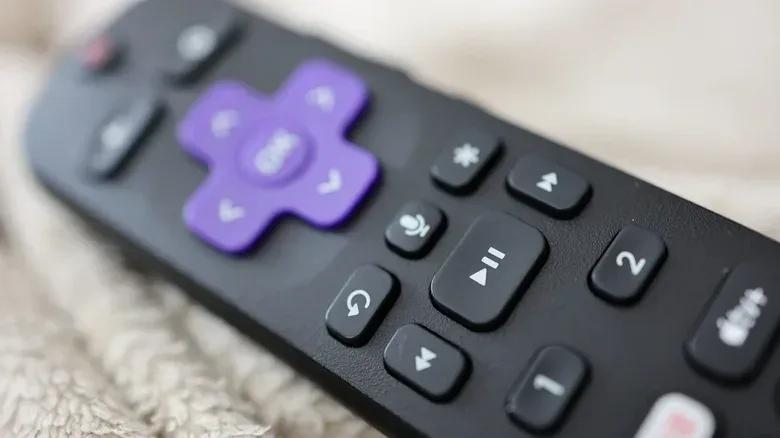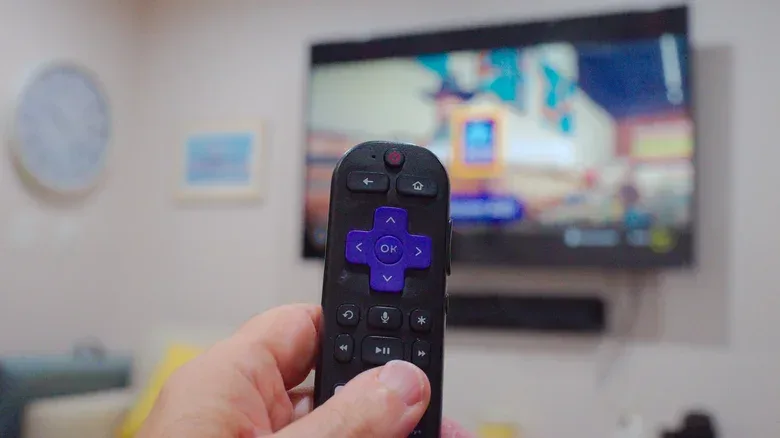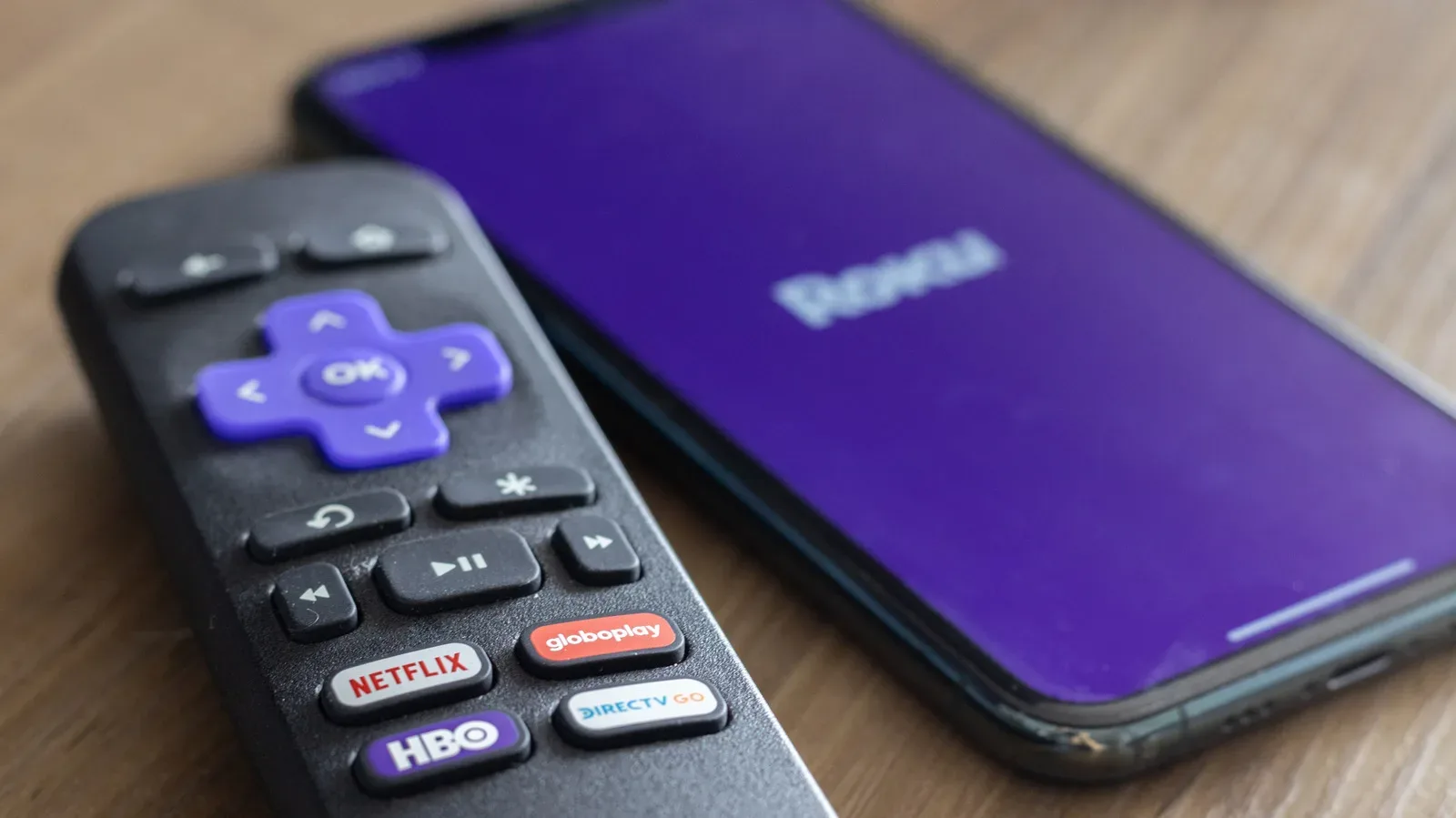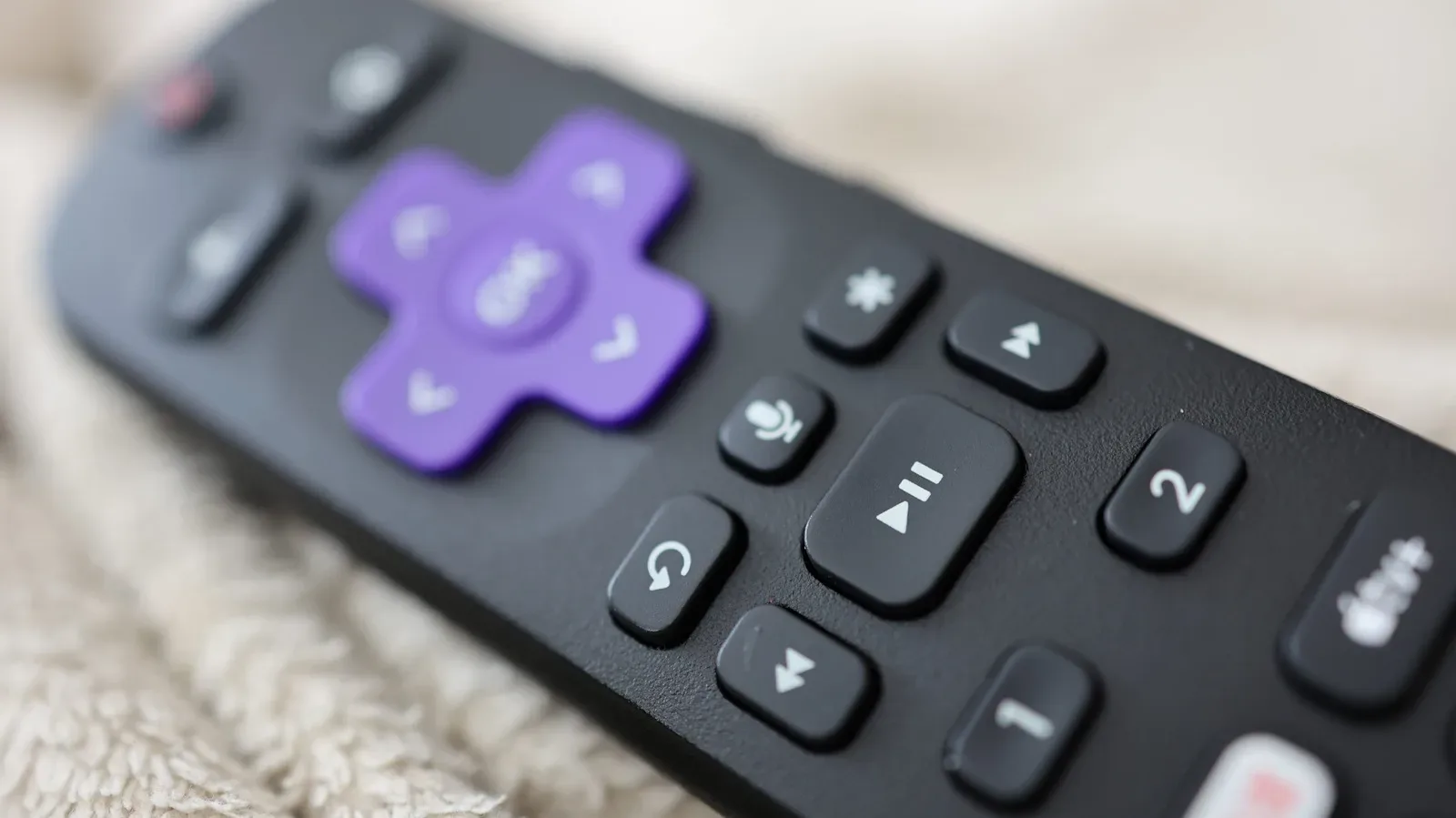
The star button on a Roku remote is not a mystery button so much as a context button. Its job changes based on what the device is doing when you press it. On the home screen, it manages apps and, on Roku TVs, external inputs. While video is playing, it opens a menu for viewing-related settings. On compatible devices, pressing it four times quickly can also toggle Roku’s text-to-speech screen reader.
That makes the small asterisk-shaped key more useful than its quiet placement above the fast-forward button suggests. It is best understood as Roku’s version of an options menu: rather than taking you to one fixed destination, it exposes actions relevant to the item or screen currently selected.
The star button behaves differently depending on where you are
There are three main situations in which the button matters:
- On the Roku home screen: manage a highlighted app, or rename a highlighted external input on a Roku TV.
- During playback: open a sidebar of picture, captioning, audio and timer controls, with choices that vary by device and app.
- As an accessibility shortcut: rapidly press the button four times to turn the supported screen reader on or off.
The important practical point is that a single press usually applies to the currently highlighted item. If an option does not appear, first check whether you are on the home screen, in the full app list, watching a stream, or highlighting an input. The menu is not meant to look identical everywhere.
Managing apps from the home screen
On the Roku home screen, highlight an app and press star to reveal management choices. In the full app list, the available actions include viewing the app’s version and build number, moving its position, removing it, rating it, sending feedback, and checking for updates.
These choices are modest, but they solve a few common organizational problems without a long detour through Settings. Moving an app changes where it appears in the app grid, so frequently used services can be placed closer to the top. Removing an app clears it from the device’s selection screen. Checking for updates can be useful when an app is behaving oddly or when someone wants to verify its installed build.
Quick Access is more limited
Roku separates its Quick Access area from the general app selection screen. If an app is highlighted in Quick Access, pressing star only offers the ability to remove that app from the section. It does not bring up the fuller set of app-management actions.
This distinction matters because it can otherwise seem as if the remote is offering inconsistent controls. It is not necessarily a problem with the button or the app; Quick Access is simply designed for a narrower kind of home-screen cleanup. To reach such actions as moving an app, checking its update status, or seeing its version details, use the main app list instead.
Roku TV owners can rename connected devices
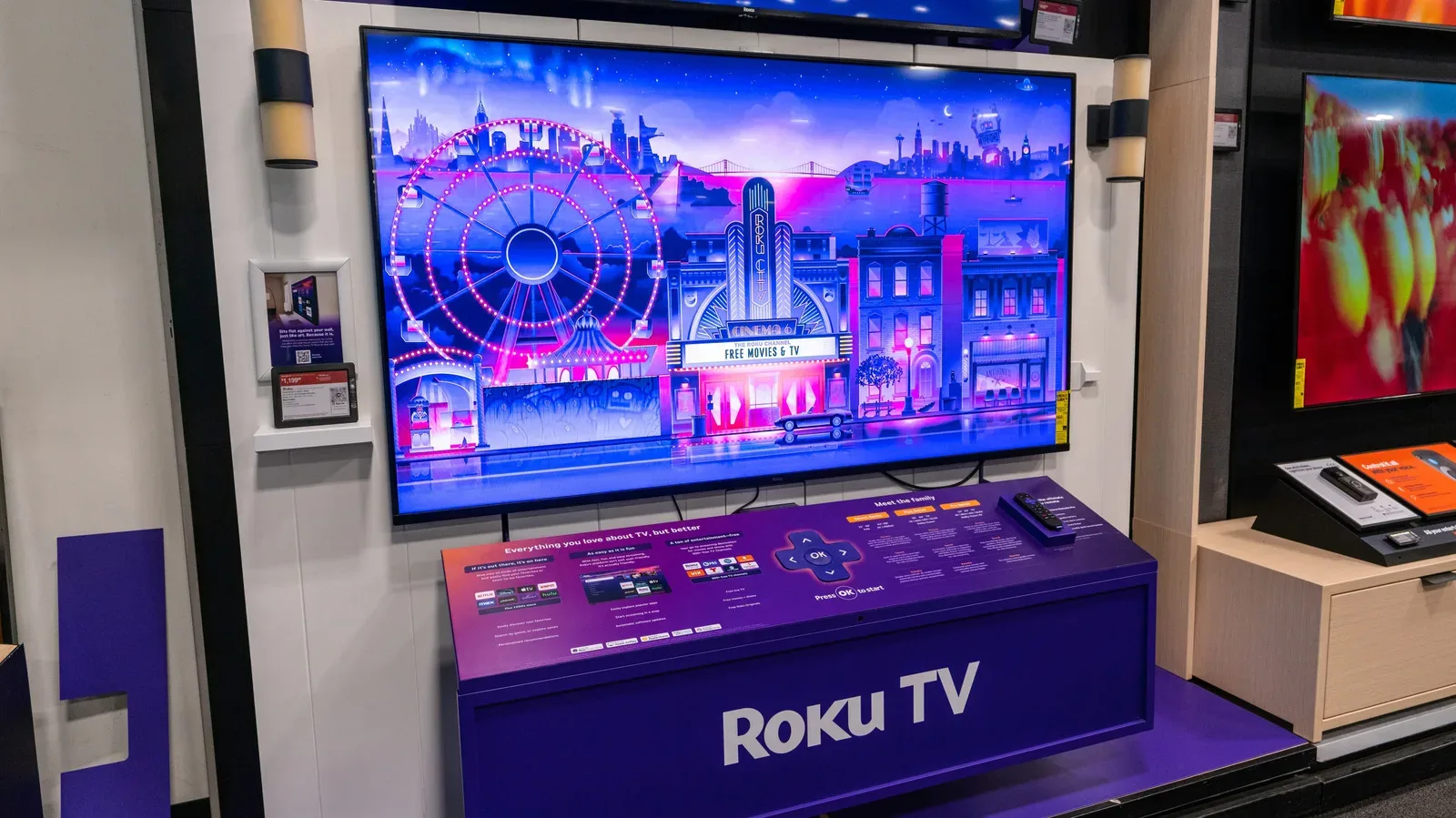
On a Roku TV, the star button also has a role beyond streaming apps. Highlight an external device, such as a video game console, and the menu provides an option to rename that input.
That is a small quality-of-life feature with an outsized benefit in a living room with several HDMI devices. A recognizable label can make the input list easier to scan than a generic device name. It is especially handy for households switching among a console, another streaming device, and other connected equipment.
Roku’s context-based approach is a reminder that the software interface around a screen can matter almost as much as the screen itself. The same broader issue comes up with unusual displays and device layouts; our Galaxy Z Fold 8 app-scaling guide explores a different example of how interface settings can affect day-to-day use.
What happens when you press star while streaming
While actively watching video on a Roku TV, the star button opens a viewing-options sidebar. It is the fastest route to a collection of controls that can affect how the current program looks, sounds, or behaves.
The menu can include image-quality adjustments, a sleep timer, closed captioning, and volume-mode controls, among other options. The exact selection can differ between apps because the app itself may or may not support a given playback feature. Roku streaming boxes also offer fewer choices here than Roku TVs, reflecting the added television-level controls available on a Roku TV.
Picture controls and app differences
Image-quality options are the part of the menu most likely to invite experimentation, but the star button does not promise one universal picture-control set for every stream. An app’s capabilities can influence what appears, and a Roku TV has more scope for image-related adjustments than a standalone Roku streaming box.
In plain terms, image quality refers to how the TV presents the video: settings in this area can affect the picture experience rather than the show or film itself. If a control is not visible during one service, that does not establish that it will be absent in all others. Check the playback menu while using the specific app in question.
Closed captioning, volume modes and a sleep timer
Closed captioning displays text for spoken dialogue and other relevant audio information. Keeping its toggle close to playback controls can be useful for viewers who need captions regularly, as well as anyone who needs them temporarily because of a noisy environment or low listening volume.
Volume mode is another sound-related control available in the playback sidebar. The precise choices can differ depending on the app and device, so it is worth treating the menu as the place to inspect what that current setup supports rather than expecting every option on every Roku product.
The sleep timer is a convenience setting for people who want the viewing session to have a defined endpoint. Again, the advantage of the star-button route is speed: it brings a relevant control to the current playback screen instead of requiring a search through the broader interface.
The four-press shortcut for Roku’s screen reader
The star button has a separate accessibility function on supported Roku devices. Press it four times in rapid succession to toggle Roku’s text-to-speech screen reader, previously known as Audio Guide.
A screen reader is an accessibility tool that speaks interface elements to assist with navigation. The shortcut does not replace the settings menu entirely. Users who want to alter the screen reader’s speech rate or volume still need to visit the Accessibility category in Settings. What the four-press gesture provides is a quick way to turn the feature on or off without navigating there first.
This screen-reader capability is currently available only in the United States, and support depends on the Roku device. The listed compatible products include:
- Roku TV
- Roku Streambar and Roku Streambar Pro
- Roku Smart Soundbar
- Roku Express and Roku Express+
- Roku Express 4K and Roku Express 4K+
- Roku Streaming Stick and Roku Streaming Stick+
- Roku Streaming Stick 4K and Roku Streaming Stick 4K+
- Roku Premiere and Roku Premiere+
- Roku Ultra and Roku Ultra LT
The shortcut is useful to remember because it is deliberately different from the normal one-press behavior. A single press opens context-sensitive options. Four quick presses act as an accessibility toggle. If speech begins unexpectedly, the same four-press action is the relevant control to try on a supported model.
A quick workflow for using the button without guesswork
- On the home screen, highlight what you want to change. For an app in the full list, press star for management choices. For an item in Quick Access, expect only removal from that section.
- On a Roku TV, highlight an external input to rename it. This applies to connected equipment such as a game console.
- During video playback, press star once. Use the sidebar to look for picture-related settings, captions, volume modes, or a sleep timer.
- For the screen reader, press star four times quickly. This works only on supported products and in the United States.
- Use Settings for detailed screen-reader adjustments. Speech rate and speech volume are adjusted under Accessibility rather than through the quick toggle.
The star button is therefore not an all-purpose settings key, even though it can feel like one. It is more specific: it surfaces controls tied to the current screen and adds one memorable accessibility shortcut. Once that pattern clicks, the button becomes less mysterious—and much more practical.