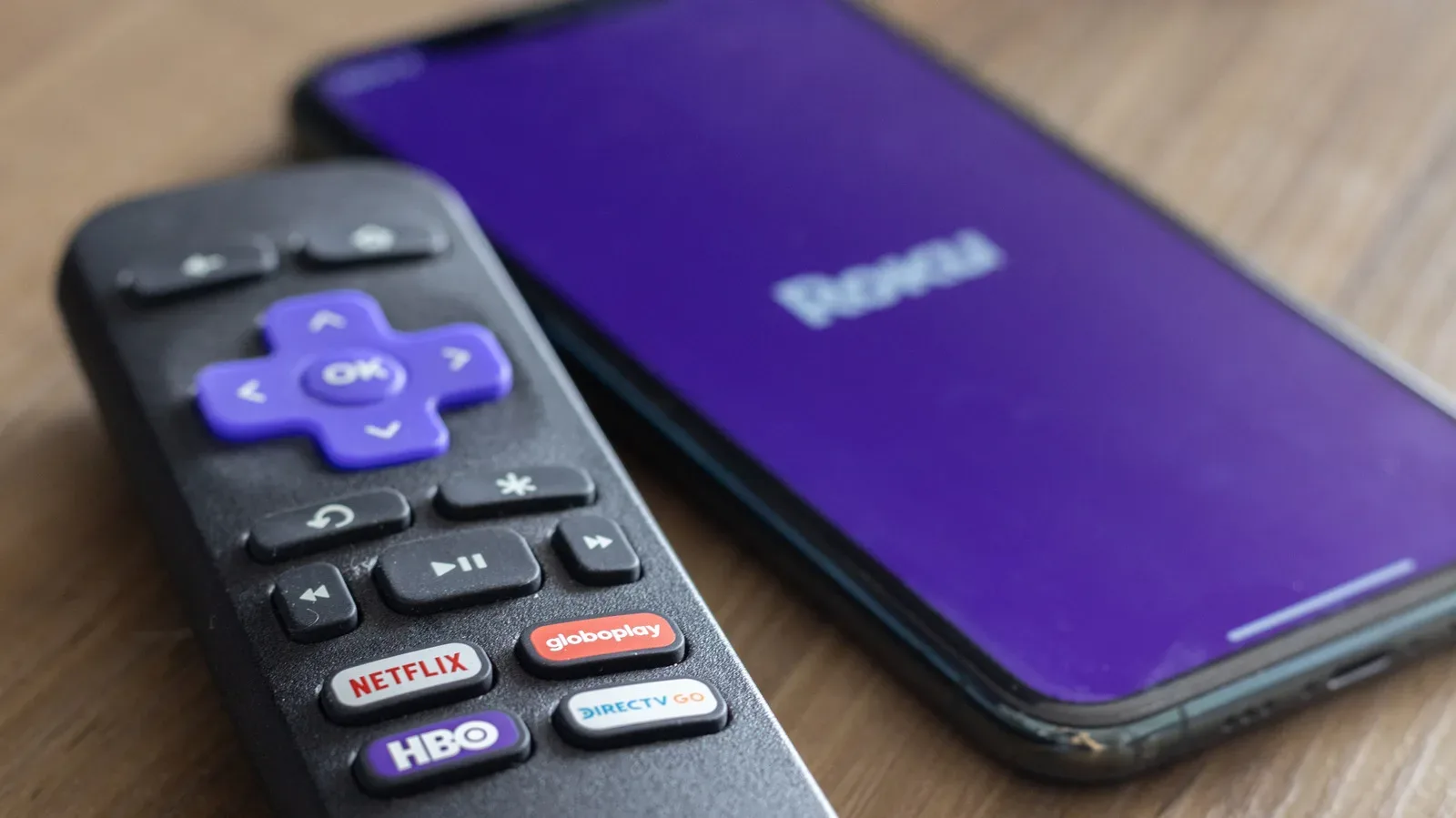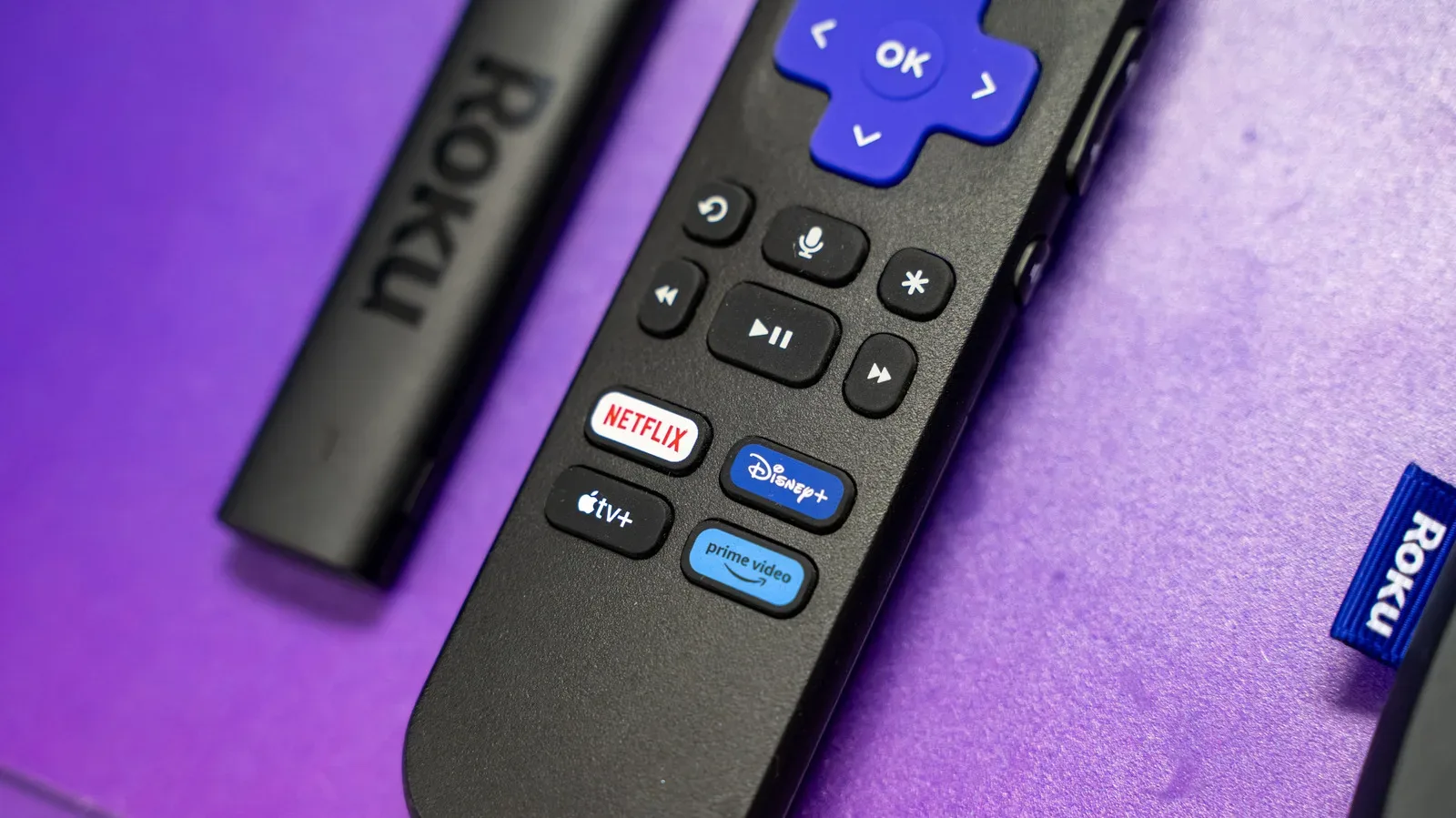
A Roku remote flashing green can feel like an ominous little verdict delivered in LED form, particularly when the television is ready, the snacks are deployed, and the only thing standing between you and a show is a palm-sized controller having a moment.
The useful news is that a green flashing light generally narrows the problem down rather than broadening it. The most likely explanations are low power or pairing activity. Those are remote-level issues: they concern the controller’s batteries, charge or wireless connection to the Roku TV or streaming player. They do not automatically mean the television, internet connection or Roku software has failed.
That distinction matters because it points to a sensible troubleshooting order. Start with the remote itself, move on to pairing and restarting it, then consider the Roku device only if the basic remedies do not restore control. A factory reset of the TV or streamer is a particularly poor opening move: it requires setting up the device again and is unlikely to correct a light that is normally tied to remote power or pairing.
What the flashing green LED is actually telling you
An LED, or light-emitting diode, is the small status light built into the remote. It is not a detailed error display. Instead, its blinking pattern is a quick indicator that the remote is either attempting to communicate, is being placed into a setup state, or needs attention because it lacks adequate power.
For most people, the first practical interpretation is simple: check the batteries or charge state. Roku remotes vary. Some have user-replaceable batteries, while others use an internal rechargeable battery. A green flash on either type can be associated with a power problem, so the proper remedy depends on which remote is sitting on the sofa.
- Replaceable-battery remote: Install fresh batteries.
- Rechargeable remote: Recharge it before assuming something more serious is wrong.
- New or replacement remote: Green flashing may be expected while it is being paired.
That last point is important. Blinking is not always an error. If you have deliberately begun the pairing process, the light is doing its job by indicating that the remote is in a state where it can connect to the Roku device.
Start with battery power, including the kind of batteries you use
For a remote with a battery compartment, the lowest-effort fix is to fit a new set of batteries and test the controls again. Roku recommends alkaline batteries for remotes that take replaceable cells. Rechargeable batteries may be convenient, but if low-battery behavior becomes frequent with them, their use could be part of the issue.
This is not an argument that every remote problem is a battery problem. It is an argument for ruling out the common, reversible cause before attempting more disruptive steps. Fresh batteries provide a clean test. If the flashing stops and the remote works, there is no reason to spend time rebuilding a pairing connection or changing settings on the television.
Where the Roku interface remains accessible through another controller or a phone, the battery information can be checked in advance. Navigate through:
- Settings
- Remotes & devices
- Remotes
- Select Your remote
- Choose About
That menu route is especially useful when the remote is still responding intermittently. It can turn a vague suspicion into a direct check before the controller quits at the most dramatically inconvenient moment.
When green flashing means pairing, not failure
Pairing is the process through which a remote establishes its connection with the Roku TV or streaming player. It is most relevant when adding a replacement remote, reconnecting one after a problem, or intentionally placing the remote into pairing mode.
To add a remote using an existing remote or the Roku mobile app, the relevant on-screen path is:
- Open Settings.
- Choose Remotes & devices.
- Select Add devices.
- Choose Remote.
- Select Continue and complete the prompts.
You can also trigger the physical pairing controls. Depending on the remote model, that means holding its dedicated pairing button, or holding Back and Home together for five seconds. Green flashing after doing either is expected behavior: the remote is signaling that it has entered the connection process.
In plain terms, do not treat a light as a fault merely because it is blinking. Think about what happened immediately before it began. Did you change batteries? Did you press a pairing button? Are you setting up a newly purchased replacement? Context is the fastest diagnostic tool here.
Rapid flashing after re-pairing is the more concerning pattern
If the green light keeps flashing rapidly after you have attempted to pair the remote again, that points more strongly toward the remote being defective. At that stage, replacement becomes the realistic next step rather than an endless cycle of settings changes.
Third-party Roku-compatible remotes are available, but compatibility should be verified for the specific TV or streaming player before buying. An official Roku replacement is the safer route for support and feature coverage. The larger lesson is straightforward: a remote is not interchangeable just because it has a similar layout or bears the same broad platform name.
Restart the remote before escalating to the Roku TV or streamer
If fresh batteries or charging have not solved the problem, and pairing has not stuck, restart the remote. This is a more targeted action than rebooting the entire television setup. It aims at the device presenting the symptom instead of treating every part of the system as guilty by association.
For a remote with replaceable batteries:
- Remove the batteries.
- Press any two buttons on the remote.
- Reinsert the batteries with their negative ends first.
For a remote with a built-in battery, hold its physical pairing controls for 20 seconds. Those are the same controls used to enter pairing mode: either the dedicated pairing button where present, or the Back and Home buttons together on models that use that combination.
A restart is a reset of the remote’s immediate operating state, not a command to erase your Roku’s apps and preferences. That makes it an appropriately modest next action. Troubleshooting tends to go better when each step has a clear target and a limited consequence.
Why factory-resetting the Roku should be a last resort
When a remote will not cooperate, it is tempting to restart every device in sight, clear caches, update software or perform a full reset. A reboot or update of the Roku device may sometimes be worth considering if broader behavior suggests the device itself is unstable. But a factory reset should not be used casually for a green remote light.
A factory reset returns the Roku to its out-of-box configuration. It means reconfiguring the system afterward. That is a substantial amount of disruption for a remedy that is not expected to address a light commonly connected to a low charge or a pairing state.
This is an area where troubleshooting discipline saves time. If only the remote is acting strangely and the screen otherwise behaves normally, deal with the remote first. If several symptoms appear at once—such as wider device instability in addition to control trouble—then investigating the Roku device can make more sense. The green LED by itself is not persuasive evidence of a software fault.
Connected-device software can change over time, which is one reason it pays to keep companion apps current and know where essential controls live. The broader shift from one home-control app to another, as seen in the planned Nest app transition to Google Home, is a reminder that a phone can be a useful backup interface—not merely an optional extra.
Keep the Roku app available as a practical fallback
The Roku app on a phone can be a lifeline while the physical remote is being charged, restarted, paired or replaced. It also lets you reach the remote and device settings needed during setup, avoiding the circular problem of needing a functional remote to repair the remote.
There is an additional workaround for people whose immediate goal is simply to get a particular video or audio item onto the screen. If the setup supports AirPlay from an iPhone or MacBook, or supports screen mirroring from an Android phone, content can often be sent to the TV directly. AirPlay and screen mirroring are ways to display or send media from a phone or computer to a compatible screen, reducing the need to navigate every app with the physical remote at that exact moment.
That does not repair the remote, and it should not be mistaken for a universal alternative. Support depends on the devices and setup involved. Still, it is a useful way to separate the urgent problem—playing something now—from the maintenance task of repairing or replacing the controller.
A short decision path for the blinking-light problem
- Green light appears and the remote is unreliable: replace the batteries or recharge the remote.
- You are adding a remote or pressed pairing controls: green flashing is normal during pairing; finish the setup from Settings or the mobile app.
- The light flashes rapidly after re-pairing: the remote may be broken, so confirm compatibility and consider replacement.
- Power and pairing did not help: restart the remote using the battery-removal method or a 20-second hold of the pairing controls.
- You need control immediately: use the Roku app, or send content through supported AirPlay or Android screen-mirroring options.
- Considering a factory reset: pause. It will require a full reconfiguration and is unlikely to solve a remote LED issue on its own.
The green light is therefore less of a mystery signal than a prompt to check a small set of specific things. Start with power, recognize pairing when you have initiated it, restart the remote when needed, and reserve major system-wide actions for evidence of a wider Roku problem. That sequence gives the least disruptive fixes their proper chance—and gets the remote out of its tiny green-light drama as quickly as possible.