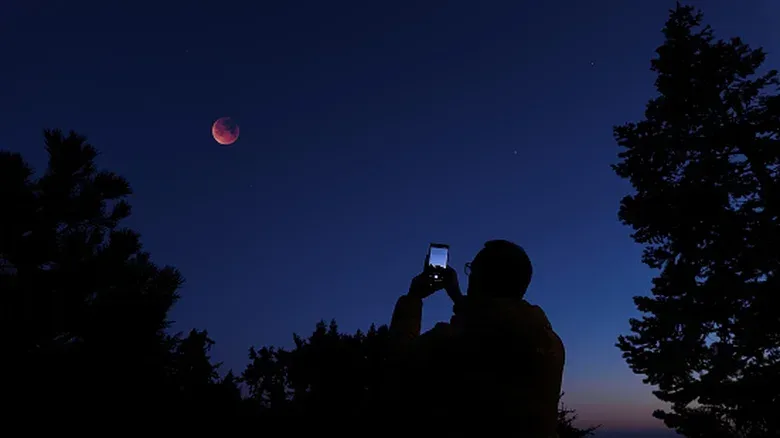
A blurry iPhone photo can feel especially unfair when the moment is already gone: a convention cosplay, a shelf display, a handheld screen, or the split second after a hard-fought boss win. The good news is that blur is not one single failure with one magic toggle. A smudge, wandering autofocus, weak light, subject movement, hand movement and image noise can all produce results that look similarly soft at a glance.
The practical fix is to identify which kind of softness is affecting the image before changing everything at once. Start with the physical basics, then give the Camera app a clear focus target, then account for the limits imposed by darkness and movement. That order is quicker than hunting through settings after every disappointing frame.
Start with the lens, not a setting
Check the camera lens before assuming the iPhone itself is misbehaving. Fingerprints, skin oils and dust can reduce contrast across the whole image. That can resemble missed focus because fine detail looks hazy rather than crisp.
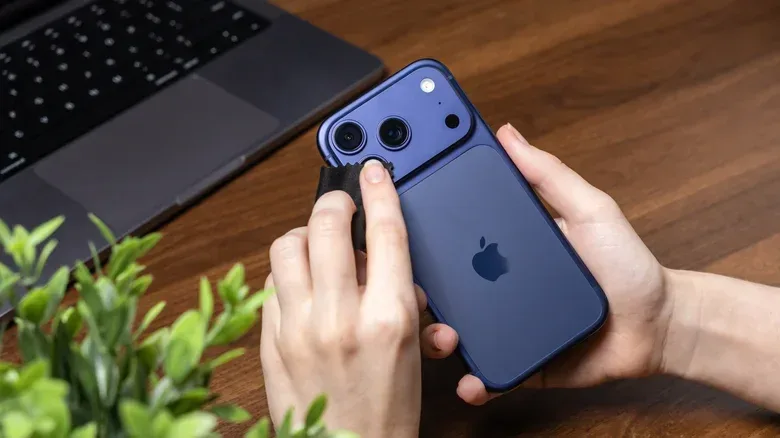
Take the case off so its edge does not get in the way, then wipe the lens gently with a microfiber cloth. A shirt hem or tissue can be tempting in a hurry, but a microfiber cloth is the recommended first tool here. If a mark remains, put only a very small amount of distilled water on the cloth, rather than directly onto the lens, and wipe carefully.
Do a quick test after cleaning: photograph a stationary, well-lit object with visible detail. If that image is crisp, the issue may have been residue. If it is still soft, move on to focus and lighting rather than repeatedly polishing the lens.
Separate missed focus from motion blur
These problems call for different solutions. Focus determines what distance appears sharp. If the camera chooses a point behind or in front of the subject, the subject can look soft even when nobody moved. Motion blur happens when movement occurs while the image is being captured. That movement may be the person or object in frame, or it may be the phone in the photographer’s hand.
In everyday use, automatic focus is convenient but it can change its mind as the composition changes. A busy scene gives it plenty to consider: a face in front of lights, a collectible behind reflective packaging, or a monitor with objects nearby can all complicate the choice. The solution is to tell the camera what matters.
Lock the focus point for a steadier result
In the Camera app, tap the area that needs to be sharp, then press and hold that area until AE/AF LOCK appears. AE/AF means auto exposure and auto focus. Locking them prevents the camera from continually readjusting while you frame the shot.
Related coverage includes How to Make Blurry iPhone Photos Sharper.
This is especially useful when a subject is not moving but the background is visually busy. It is also a sensible habit for detail shots, where the important feature occupies only a small part of the frame. Once focus is locked, keep the phone as still as possible and take the photo. If the subject or distance changes, release the lock and set it again.
Focus lock does not freeze a fast-moving subject or correct a dirty lens. Its job is narrower and valuable: it stops the camera from hunting for a different focal target at the last moment.
Low light creates several quality problems at once
Dim rooms are a frequent reason that photos look blurry, grainy or blocky. The camera has less light available, which makes reliable focusing harder. It may also need a slower shutter speed to gather enough light. The shutter speed is how long the camera records light for a frame; the longer that interval, the more time there is for a hand tremor or moving subject to become visible as blur.
Low light can also lead to more visible noise: the speckled or rough-looking texture that appears when an image is struggling for light. Noise is not precisely the same thing as blur, but it can erase fine detail and make the completed image appear less clear. Video may additionally look blocky after compression, another way an already difficult, dark scene can lose detail.
Practical implication: where possible, improve the light before expecting a settings change to solve everything. A brighter environment makes focusing easier and reduces the pressure to use a slow exposure. If more light is not an option, make stability the priority and avoid treating a dark, fast-moving shot as if it has the same margin for error as a daylight photo.
Use Night Mode deliberately
On iPhone 11 models and newer, Night Mode is identified by the moon icon in the Camera interface. It automatically activates in low light and is designed to brighten a scene while capturing more detail. It is one of the first features worth checking when the environment is genuinely dark.
Night Mode is helpful precisely because low light is difficult, but it does not repeal the physics of movement. A longer capture gives the phone more light to work with, while also making stable handling more important. Hold the iPhone firmly, avoid shifting your stance while the picture is being taken, and understand that a moving subject can still blur.
For photos of stationary objects, Night Mode and physical stability are a useful combination. For action, the limitation is more fundamental: movement during capture can remain visible even when the scene becomes brighter. The best response is to seek more light, change the moment being captured, or accept that the conditions are working against a perfectly crisp result.
Check video resolution and frame-rate options
For video, open Settings > Camera and review the available resolution and frame-rate options. The iPhone offers different combinations, and a setting above 720p will generally give a crisper image. Resolution describes the amount of image detail recorded, while frame rate describes how many individual frames are captured over time.
Resolution is not a universal cure for blur. A higher-detail recording cannot restore detail that was missed because focus was wrong or the phone moved. Still, recording with an appropriate resolution means a clip is not unnecessarily constrained before it is shared, edited or compressed elsewhere.
This distinction matters for people who record gaming-adjacent footage on a phone: a convention floor clip, a controller demonstration, or a short reaction after an event. Image quality starts with focus, light and stability; resolution is the final part of that chain, not a substitute for it. If the clip is worth keeping, it is also worth thinking about storage once it leaves the phone; older drives can remain useful in a sensible setup, as covered in this guide to using old hard drives for game storage.
When manual camera controls are useful
The standard Camera app does not provide direct control over every exposure variable. A third-party app such as Camera+ can provide more granular adjustments, including shutter speed and ISO.
ISO is a sensitivity setting. Raising it can help when light is limited, but higher ISO can also increase visible noise and reduce image quality. Slowing the shutter can gather more light, but it increases the risk of motion blur. These are trade-offs, not hidden quality upgrades. Manual controls are most useful when the photographer understands the specific compromise they are making.
For example, a still subject on a stable phone may tolerate a slower shutter better than a moving person does. Conversely, pushing ISO can avoid some motion blur by avoiding a very slow shutter, but the shot may show more noise. Neither approach can guarantee a clean result in every dark scene; they simply let the user decide which flaw is less damaging for that particular image.
A tripod is the straightforward stability upgrade
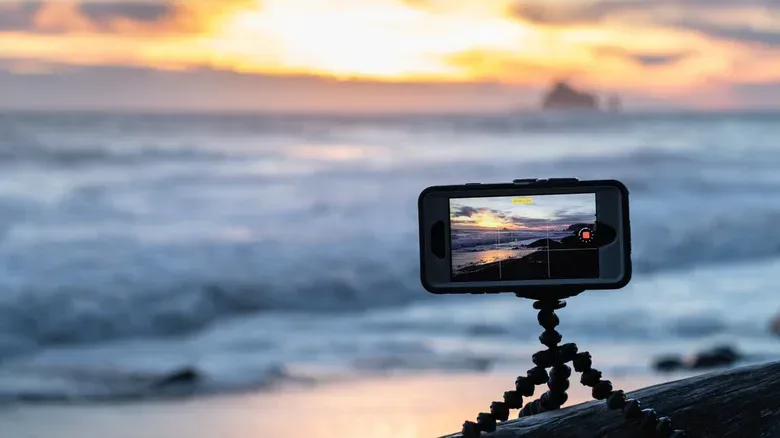
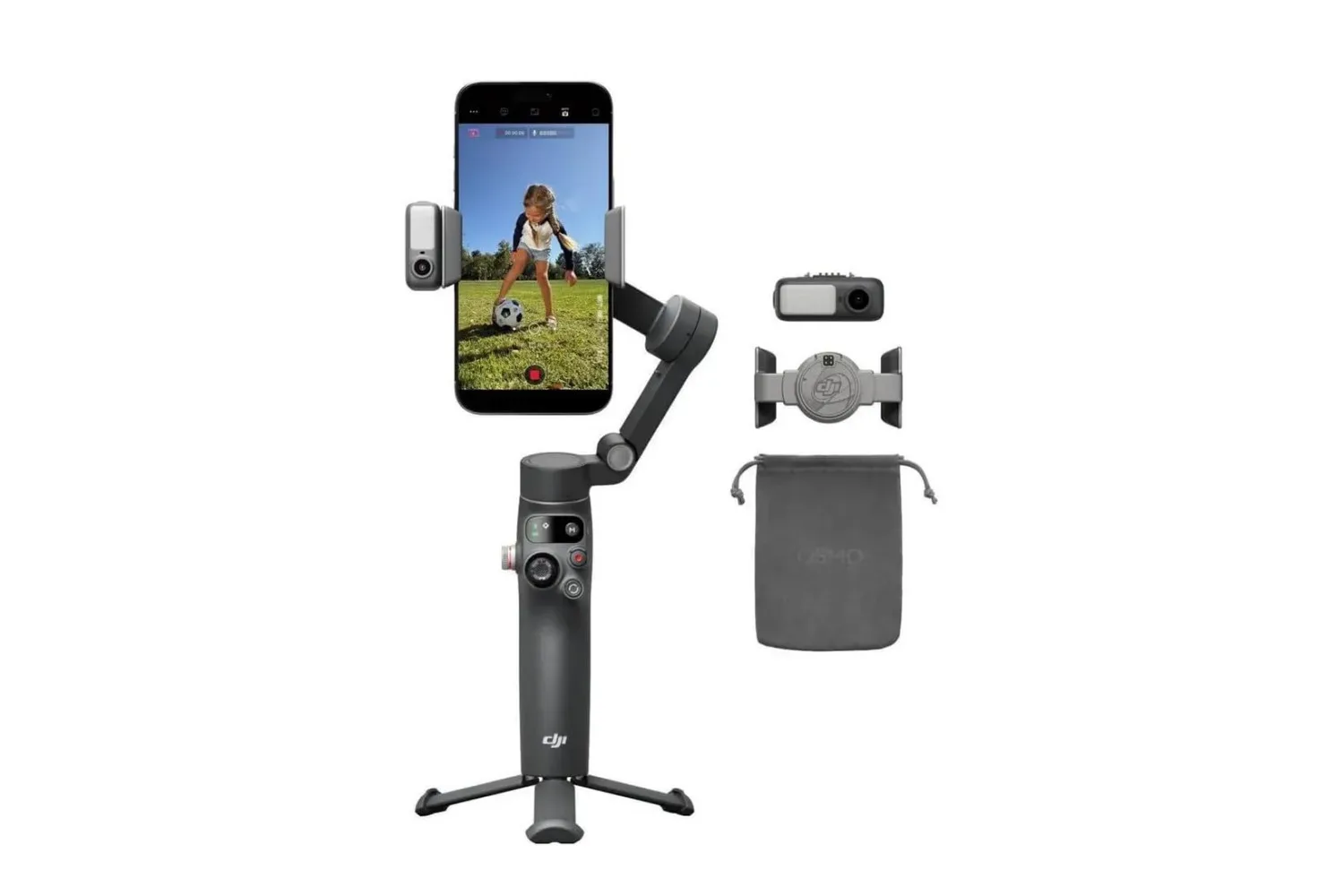
If blur appears chiefly in dim conditions, a tripod is the most direct accessory to consider. It keeps the iPhone still during a longer exposure, reducing the camera shake that turns tiny hand movements into visible softness. It is particularly suited to stationary subjects and low-light images where the camera has to spend longer collecting light.
It will not stop a person, pet or object from moving through the frame, so it is not an all-purpose answer. But for a shelf, room, display, scenic view or any deliberately composed static shot, stability removes one major variable.
A quick troubleshooting sequence
- Clean the lens with a microfiber cloth; use only a light amount of distilled water on the cloth for stubborn marks.
- Test in good light with a stationary, detailed subject to separate lens or focus issues from low-light limitations.
- Set and lock focus by pressing and holding the intended subject until AE/AF LOCK appears.
- Assess the light; recognize that darkness can cause focusing trouble, slow shutter speeds and noise at the same time.
- Use Night Mode on supported iPhone 11-and-newer models when shooting in low light, while holding the phone steady.
- Review video options in Settings > Camera, keeping resolution above 720p for generally crisper video.
- Stabilize the phone, ideally with a tripod for long exposures or static low-light scenes.
- Consider a manual-control app only when you need to manage shutter-speed and ISO trade-offs yourself.
The key is to avoid chasing a single setting for every blurry result. A clean lens improves the optical path. AE/AF LOCK addresses an uncertain focus target. Night Mode addresses a dark scene. A tripod addresses hand movement. Once the reason for the blur is clear, the fix becomes much less mysterious.