VSync is one of PC gaming’s most familiar graphics toggles, yet its job is easy to misunderstand. It does not simply make a game “look better,” nor is it a universal way to raise performance. Vertical synchronization, shortened to VSync, is primarily a timing tool: it tries to make the frames produced by the graphics processor arrive in step with the monitor’s refresh cycle.
That timing can remove screen tearing, the distracting effect in which different horizontal portions of the display show parts of separate frames. But it also puts a limit on how frames are delivered. Depending on the game, the PC’s performance and the monitor, the result can be clean motion—or a trade involving stutter and a little extra delay between a button press and the action appearing on-screen.
The sensible setting is therefore not always “on” or “off.” It depends on whether tearing is visible, whether the system can hold a stable frame rate, and whether responsiveness matters more than a perfectly joined image.
Frame rate and refresh rate are different measurements
Two numbers drive this decision:
- Frames per second (FPS) describes how many completed images the GPU renders in one second.
- Refresh rate, measured in hertz (Hz), describes how many times per second a display can update its image.
A game running at 100 FPS is producing 100 frames each second. A 60Hz monitor has 60 refresh opportunities each second. Those values do not automatically line up. The GPU may finish a new frame while the monitor is partway through showing the previous one. When the display switches to that new frame mid-refresh, the upper and lower parts of the picture can come from different moments in the game.
That is screen tearing. It can look like a horizontal seam or split where scenery, a camera pan or a fast-moving character no longer lines up. It is especially noticeable when the camera is moving quickly across high-contrast scenery, although some players barely see it or are not bothered by it.
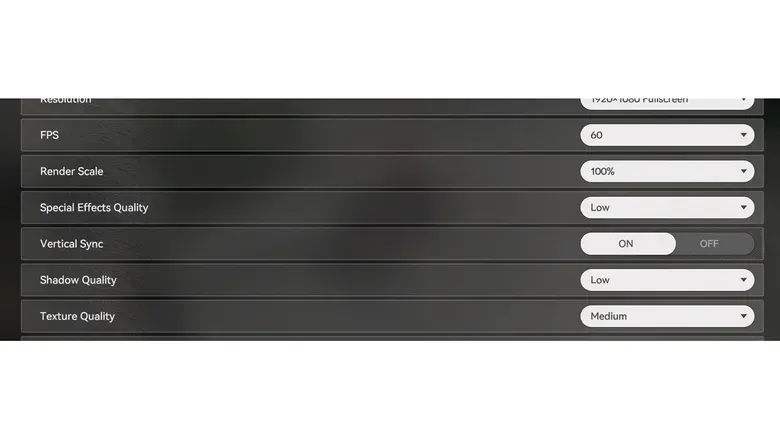
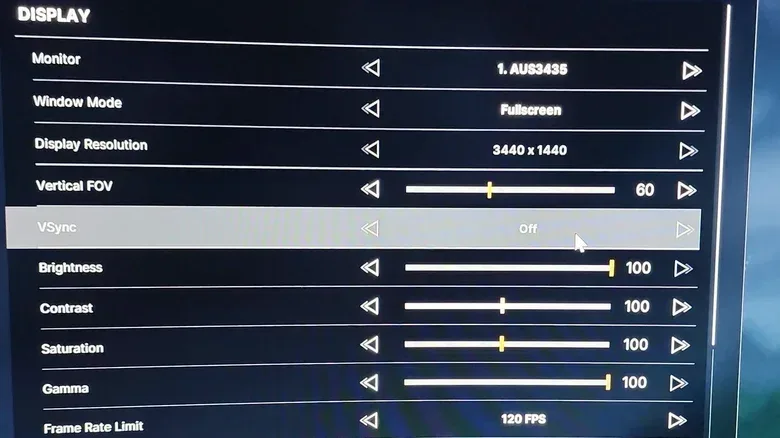
VSync changes the arrangement by asking the GPU to wait for the display’s next refresh window before presenting the next frame. On a 60Hz screen, standard VSync generally holds delivery around 60 FPS. On a 144Hz display, it generally aims around 144 FPS. Rendering additional frames beyond what the screen can present immediately is no longer the goal; synchronization is.
That cap can also reduce how hard the GPU works. If it no longer races to render frames the monitor cannot yet show, power use and heat may fall. That is a potential side benefit, not the main reason to enable VSync, but it can be welcome on a system that is otherwise pushing hardware harder than necessary.
Related coverage includes What VSync Does to Frame Rate, Tearing and Input Lag.
How VSync eliminates tearing
Without synchronization, the GPU and the monitor work on separate schedules. The GPU renders whenever it finishes a frame. The monitor refreshes at its set cadence. Neither necessarily waits for the other.
With standard VSync enabled, the game’s frame output is paced around the display’s fixed refresh rhythm. The intended outcome is simple: each refresh presents one whole frame instead of combining sections of two. In a favorable scenario, movement looks consistent and stable, with no visible horizontal divide.
It is useful to distinguish that from raw performance. VSync can make motion appear smoother because it removes an artifact, but it does not make a GPU render faster. In fact, it may prevent the game from reporting or delivering FPS above the monitor’s refresh rate. A player with a 60Hz monitor and a PC capable of 100 FPS may see the output settle around 60 FPS with VSync on. That is the setting behaving as designed rather than a new performance problem.
The major compromise: what happens below the refresh target
Standard VSync is most comfortable when a PC can reliably maintain a frame rate at or above the monitor’s refresh rate. Trouble can begin when the GPU cannot keep pace.
Consider a 60Hz display. If a game is unable to sustain the timing necessary for 60 FPS, VSync may lead the experience to feel closer to 30 FPS than 60 FPS. The exact behavior varies by setup, but the practical point is important: a small performance dip need not feel small once fixed synchronization is involved. Frame pacing can become uneven, and the stutter may be more objectionable than the tearing the setting was meant to cure.
Stutter is not the same thing as tearing. Tearing is an image-alignment issue: two frames are visible at the same time. Stutter is a motion-timing issue: frames do not appear at evenly spaced intervals, so movement can look jerky or inconsistent. Both can make a game look less smooth, but they call for different fixes.
This is why a VSync switch should not be treated as a permanent, one-size-fits-all setting. A game that stays comfortably at the monitor’s refresh rate may look excellent with it. A more demanding game that repeatedly falls below that line may play worse with the same option enabled.
Why VSync can feel less responsive
Input lag is the other well-known VSync compromise. With synchronized delivery, completed frames may wait for their assigned display window. That creates the possibility of a slight delay between an input and the corresponding result becoming visible on the screen.
In a measured adventure, strategy game or slower single-player experience, that difference may be difficult to notice. The cleaner presentation may be worth it. In a competitive shooter, where aiming and rapid reactions are central, even a modest feeling of extra weight can be unwelcome. Players in that situation often prioritize immediate response over the possibility of tearing.
It is worth keeping the language precise: VSync can add input lag; it does not guarantee that every player will perceive the same amount or care about it in every genre. Hardware, frame consistency and the game’s own implementation all matter. The practical test is whether the image problem is visible and whether the game still feels right after the option changes.
Variable refresh rate is often the better first stop
Modern displays may support a different approach: variable refresh rate technology. Rather than forcing the GPU to meet a fixed display schedule, a compatible monitor can dynamically adjust its refresh behavior to the frames the GPU is producing.
AMD calls its technology FreeSync; Nvidia’s is G-Sync. The broad purpose is the same: bring the monitor and GPU into closer step while avoiding the fixed-rate constraint that makes conventional VSync vulnerable when frame rate changes. With the appropriate hardware and configuration, this can reduce tearing without producing the same stutter or input-lag trade-off associated with ordinary VSync.
The key qualifier is compatibility. The monitor must support the relevant adaptive-sync capability. G-Sync also requires a compatible Nvidia GPU. FreeSync originates with AMD but can work with Nvidia GPUs, giving some Nvidia users another compatible route if their display supports it.
For a PC that has the right monitor and GPU, enabling adaptive sync in the graphics card control panel is a logical first experiment. It does not turn every performance fluctuation into perfect motion, but it addresses the underlying mismatch between changing game FPS and a fixed refresh cadence more flexibly than classic VSync.
That distinction also matters when diagnosing broader PC gaming problems. Sync settings address frame delivery and display timing; they are not a cure for every kind of online-game delay or inconsistent connection. For the separate networking side of the experience, see our look at what gaming routers can, and cannot, do for traffic management.
Suggested settings for G-Sync and FreeSync setups
Configuration guidance differs between the two major adaptive-sync approaches.
G-Sync
A useful rule of thumb for G-Sync is to enable VSync through the Nvidia app as well, then set an FPS cap roughly three frames below the monitor’s maximum refresh rate. On a 144Hz monitor, for example, that guidance means targeting about 141 FPS. The cap helps keep the game just under the display’s ceiling while G-Sync handles variable timing.
This is not a claim that every game will respond identically. It is a practical baseline that recognizes adaptive sync and a frame cap as parts of the same display-timing plan.
FreeSync
For FreeSync, begin with ordinary VSync turned off. If tearing persists, enabling VSync is a reasonable follow-up test. That order matters because standard VSync can reintroduce the fixed scheduling behavior that FreeSync is meant to improve upon.
In either case, change one relevant option at a time and observe the specific problem you are trying to solve. Is the horizontal tear gone? Has uneven motion appeared? Does aiming or camera control feel less direct? A short, focused comparison is more useful than changing every graphics setting simultaneously.
When standard VSync still makes sense
VSync remains a useful backstop when adaptive sync is unavailable, unsupported by a particular game, or simply not part of the current display setup. It is most appealing if all three of these conditions are true:
- Screen tearing is visible and distracting.
- The PC can maintain performance at or above the monitor’s refresh rate.
- The game is not so response-sensitive that a possible input-lag increase outweighs the visual improvement.
If those conditions fit, enable VSync in the game’s own settings first. An in-game option is the clearest place to test how that title handles synchronization. If the game does not offer it, or its own setting is not satisfactory, it can be forced through the GPU control panel.
There is generally no need to activate standard VSync in both the game and the graphics card control panel. Doubling up does not create extra smoothness. It only makes it harder to understand which setting is determining the result.
A practical decision checklist
- If there is no visible tearing, leave standard VSync off. Avoid adding a trade-off for an artifact that is not affecting the experience.
- If tearing is visible, check for FreeSync or G-Sync support. Adaptive sync is often the better starting point because it follows changing frame output.
- With G-Sync, consider VSync on and cap FPS about three below maximum refresh.
- With FreeSync, start with standard VSync off. Turn it on only as a further test if tearing remains.
- Without adaptive sync, try in-game VSync. Keep it if the tear disappears and responsiveness and frame consistency remain acceptable.
- If performance drops sharply or stutter becomes obvious, reassess. Standard VSync is less suited to a game that cannot hold near the screen’s refresh target.
In short, VSync is neither obsolete nor mandatory. It is a precise answer to a precise problem: frames arriving out of step with a fixed-refresh display. When that mismatch causes visible tearing and the PC has enough performance headroom, it can make a game look far more coherent. When frame rate fluctuates or instant response is the priority, adaptive sync—or simply leaving VSync disabled—may be the more comfortable choice.