A gaming-monitor spec sheet can look like it was designed by somebody trying to sell a jet engine to a person who asked for a desk lamp. There are enormous refresh-rate numbers, resolution labels, HDR claims, panel acronyms and connectivity standards competing for attention. The useful question is much simpler: what can your PC or console actually deliver, and what kind of games do you actually spend time playing?
The best monitor is not automatically the biggest, fastest or most expensive option. A display that makes sense for a competitive PC player chasing extremely high frame rates may be wasteful for a system that rarely exceeds 90 frames per second. A huge ultrawide can be compelling for atmospheric solo games yet awkward when a competitive game places essential interface information at the edges. And a gorgeous OLED may be a poor fit for a bright room or a workstation dominated by static documents.
Start with the hardware and habits you have now, then select the panel specifications that make a material difference. That order prevents an expensive but mismatched screen from becoming a very fancy way to display the same performance limitations.
Start with the frames your hardware produces
Refresh rate, measured in hertz (Hz), is how many times a monitor can update its image in one second. A 144Hz monitor can refresh up to 144 times per second; a 240Hz model can do so up to 240 times. It matters because smoother motion can make fast camera movement and action easier to follow.
But the graphics hardware has to provide frames for that refresh headroom to be useful. Frame rate, measured in frames per second (fps), is the rate at which the GPU renders game images. The two figures are related but not interchangeable. Buying a 240Hz display does not turn a 70 fps game into a 240 fps game. It merely gives the monitor the capacity to show that many updates if the system can produce them.
That makes real in-game performance the first measurement to take. Turn on an fps counter in the Steam, NVIDIA or Xbox overlay while playing several titles that reflect your usual library. A benchmarking program such as 3DMark can help too, and some games, including Cyberpunk 2077, include their own benchmark tests. The current monitor does not need to support the prospective refresh rate for the counter to reveal what the GPU is rendering.
Record results across more than one game rather than basing a purchase on a single unusually light or demanding title. If your preferred games do not routinely run past roughly 90 fps and a graphics-card upgrade is not imminent, a 240Hz monitor is unlikely to be the most efficient place to put more money. The sensible choice could instead be a better panel type, a resolution that suits work and media use, or a larger screen.
At the opposite end, a system built around hardware such as a GeForce RTX 5080 or RTX 5090 has a stronger case for pairing 4K resolution with a high refresh rate. Those components can target much more demanding performance settings. That does not make such a display universally necessary; it simply means the capability mismatch is less likely.
Choose the trade-off your games demand
Resolution and refresh rate pull against one another. Higher resolution means more pixels for the GPU to render, which can reduce frame rate. The right compromise depends on whether a player prioritizes competitive clarity and speed or visual detail and immersion.
For esports and lightweight competitive games such as Valorant, it can make sense to favor 1080p and pursue a higher refresh rate. Fast action is the priority, and lowering the pixel workload can help a system sustain more frames. For visually rich, single-player games such as Control: Resonant, a player may reasonably accept fewer frames in return for more image detail at 1440p or 4K, or seek a middle ground.
For many PC setups represented by RTX 5070, 5060, 4060 or 3060 graphics cards, 1080p or 1440p at 144Hz to 240Hz is a practical range to evaluate. It is a range, not a promise: settings, game engines and the rest of a PC all affect results. The point is to compare the monitor’s ceiling with measured performance, rather than treating a four-digit Hz rating as an automatic upgrade.
Monitor choice also affects what happens away from games. A higher-resolution 1440p or 4K screen can be valuable for photo and video editing or for watching video. It may be worth that trade even if every game does not run at the panel’s maximum refresh rate.
If you are browsing for PC games that may become part of that performance test, this look at How Empires Work on Steam is a reminder that game genres can place very different demands on a display and system. A monitor purchase should be built around the games that dominate your own playtime, not a generic idea of “gaming.”
Size, pixel density and aspect ratio shape daily comfort
A screen’s physical size should be considered alongside its resolution. Two monitors can have the same resolution but look different at close range because of pixel density, usually expressed as pixels per inch (PPI). A smaller display packing the same pixel count has higher PPI, meaning finer visible detail.
There is no universal ideal size. Competitive players often prefer monitors around 24 inches because keeping the entire screen in view requires less eye movement. Players looking for cinematic impact in solo games may prefer 27 inches or more. Larger screens can also make multitasking more comfortable, although they work best with sufficient viewing distance rather than pressed close to a desk chair.
Aspect ratio changes the shape of the workspace. Standard 16:9 widescreen remains the default for gaming. Ultrawide screens can extend the picture into peripheral vision and can offer a broader workspace, but they are not automatically better for every genre. In games where a HUD carries crucial maps, ability information or score data, a wider screen can put important elements farther from the central action. Decide whether the extra width improves the games you play or adds eye travel at exactly the wrong moment.
Console owners should not buy unused speed
The monitor calculation is more constrained on current consoles. PlayStation 5 Pro and Xbox Series X do not exceed 120Hz. Therefore, console-first buyers do not need to pay extra solely for refresh rates far beyond 120Hz. A display with very high speed may still have other appealing characteristics, but its headline refresh number will not be fully used by those consoles.
That can make size, resolution, image quality and the appropriate ports more meaningful spending priorities. It also makes it especially important to understand variable refresh rate support, because compatible VRR standards differ between the Xbox and PlayStation ecosystems.
OLED delivers exceptional contrast, with real compromises
Once resolution and refresh range are narrowed down, panel technology becomes the major decision. OLED and Fast IPS are especially relevant choices for gaming, but their strengths serve different rooms and routines.
OLED is self-emissive: each pixel produces its own light. Unlike an LCD, it does not need a backlight behind the image. A pixel meant to be black can turn off, rather than appearing as dark grey, which produces technically infinite contrast. OLED also offers accurate color and near-instant response times, making it particularly attractive for people who value HDR performance. HDR, or high dynamic range, refers here to the ability to present stronger contrast between dark and bright parts of an image.
Those advantages come with care requirements. OLED faces the risk of burn-in: a static element left on screen for a long period can leave a permanent ghost image. Newer OLED displays mitigate uneven wear using pixel shifting, which moves the image by a very small amount, and pixel-cleaning cycles. These measures help, but they do not make the concern irrelevant. Someone who habitually leaves a desktop, game HUD or application window on screen for hours must be willing to change that routine.
OLED displays are also dimmer than LCDs, which can make them less suitable in well-lit spaces. Some models use matte coatings to help with the room-light issue, but OLED tends to look its best in a dim or dark environment. Text fringing and motion flicker remain considerations as well. Recent OLED generations have improved these areas, yet a person who uses the monitor extensively for documents and spreadsheets should assess those trade-offs before paying the premium.
Cost is another practical limitation. Even entry-level OLED gaming monitors begin around $400 in late 2026. If OLED’s strengths match the setup, looking for a sale is a sensible part of the buying process rather than an afterthought.
Why Fast IPS remains a strong all-purpose pick
LCD panels may lack OLED’s black levels, but they are often more versatile. Among LCD options, Fast IPS is a particularly sensible gaming choice. IPS panels are known for strong color, wide viewing angles and consistent performance. Regular IPS can show noticeable motion blur, while Fast IPS reduces that issue.
Fast IPS is consequently well suited to people who game in a bright room, use the same screen for productivity, or want to limit spending. It is not a consolation prize. It is a practical answer when a monitor needs to handle games, spreadsheets, documents and everyday PC work without asking the owner to manage an OLED’s care routine or accept its brightness limitations.
The buying question is not whether OLED looks more dramatic in ideal conditions. It is whether that advantage outweighs the environment, budget and workload trade-offs in a particular setup. For an evening gaming screen in a darker room, OLED can be compelling. For an all-day desk display in a bright office, Fast IPS may be the better fit.
Do not overlook VRR and the cable behind it
Variable refresh rate, or VRR, is one of the least glamorous specifications and one of the most useful. Screen tearing occurs when the GPU produces frames at a different rate than the monitor displays them, leaving portions of two frames visible at once. VRR synchronizes the monitor’s refresh behavior with the output of the GPU to address that problem.
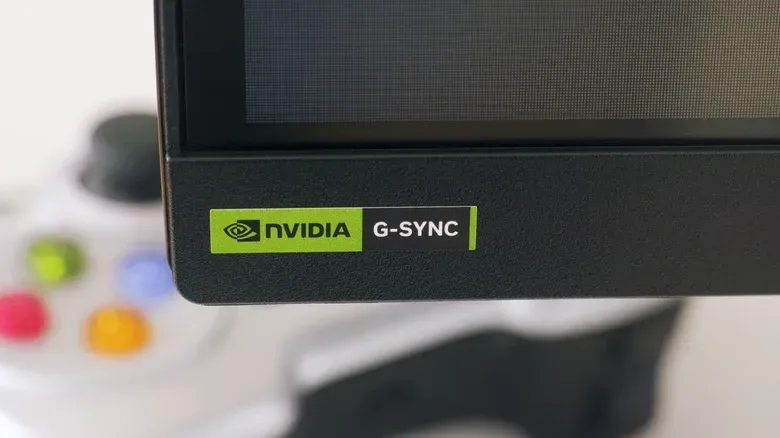
NVIDIA G-Sync, AMD FreeSync and Adaptive Sync are VRR technologies. For a PC monitor, support for G-Sync or FreeSync should be near the top of the checklist. These capabilities are industry-standard enough that a buyer should not generally need to spend much more to get them.
There is an important naming distinction with G-Sync. Some monitors include a dedicated hardware module, which can add cost. Others are certified as G-Sync Compatible, meaning they work with G-Sync without that module. Many FreeSync monitors are also G-Sync Compatible, so certification details matter more than assuming the label alone defines every compatibility outcome.
Console support differs. Xbox Series X and Series S support FreeSync because they use AMD hardware. PlayStation 5 and PlayStation 5 Pro support HDMI 2.1 VRR, not G-Sync. Since consoles do not use NVIDIA GPUs, console players can disregard G-Sync as a purchase priority.
Finally, VRR needs an appropriate connection. DisplayPort 1.2a or newer is the baseline to seek. Some HDMI 1.4 and 2.0 connections support VRR, while HDMI 2.1 onward provides the most robust HDMI support. Do not assume a compatible monitor label alone guarantees the desired result: check the port on the monitor, the output on the PC or console, and the cable that connects them.
A short shopping order that avoids spec-sheet traps
- Measure real fps in the games you play, using an overlay or benchmark.
- Set the resolution and refresh target from those results: high refresh for competitive priorities, higher resolution for visual detail and wider non-gaming use.
- Pick size and aspect ratio based on desk distance, field of view, multitasking needs and HUD placement.
- Choose panel technology: OLED for contrast, HDR appeal and dark-room gaming if its care requirements work for you; Fast IPS for bright rooms, productivity and stronger value.
- Verify VRR, ports and cables for the exact PC or console being connected.
That sequence puts performance and practical use ahead of marketing extremes. It is entirely possible to buy a lower-spec monitor that feels like a larger improvement because it matches the hardware, room and games in front of it.