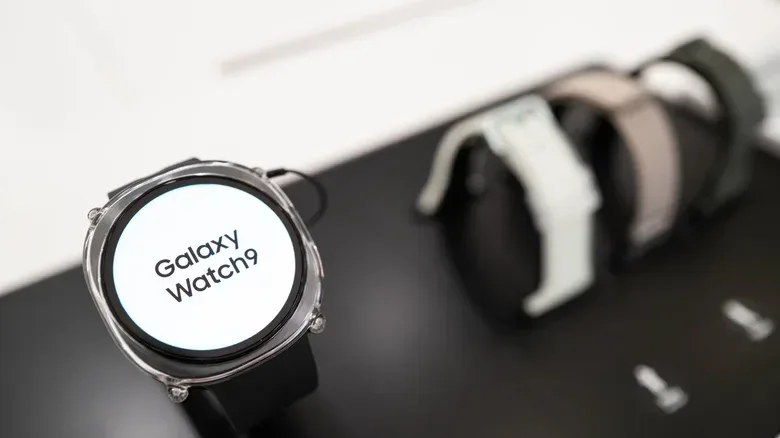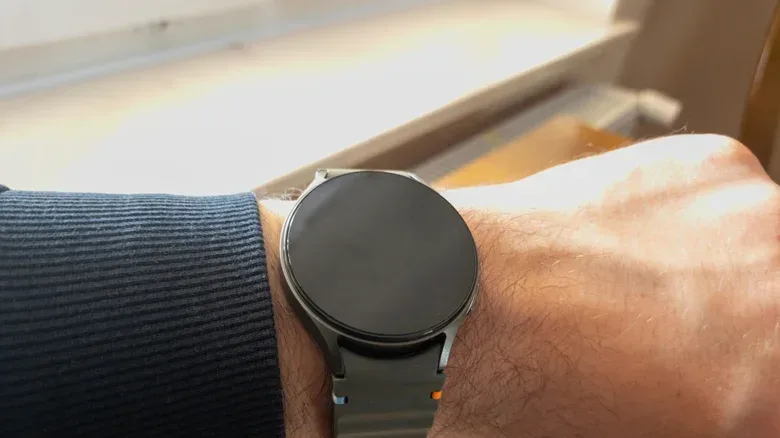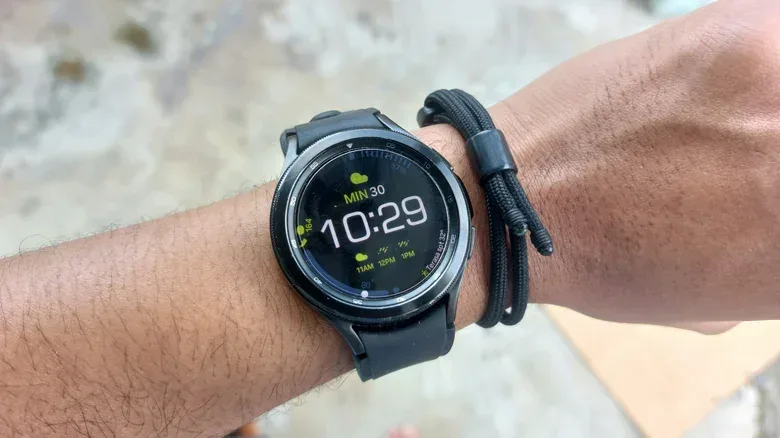
A tiny orange dot on the far left of a Samsung Galaxy Watch face has one job: it tells the wearer that unread notifications remain. It is not a fault warning, a damaged-pixel symptom, or an indication that the watch itself needs attention. It is a compact notification indicator designed for a screen where every pixel has to earn its place.
The mark remains visible while there are outstanding notifications to read. Once those notifications have been viewed, it disappears. That makes the dot less like the notification itself and more like a quiet reminder that there is a notification tray worth checking.
For anyone coming to Galaxy Watch from another wearable platform, this can initially feel ambiguous. A dot contains very little information by design: it tells you something is waiting, rather than turning the watch face into a list of alerts. The practical next step is simply to open the notifications and clear or read what is pending.
Orange means unread notifications
On Galaxy Watches, the orange dot signals unread notifications. The watch keeps the indicator on the face until there are no unread alerts left.
That distinction matters. The dot does not specify which application sent an alert, how many alerts are waiting, or whether the notification is important. Its role is deliberately broad. It says that the watch has information you have not yet reviewed.
This approach keeps a watch face clean. Smartwatches are expected to show the time at a glance, but they also serve as a compact extension of a phone for alerts, calls, audio and connectivity. A single persistent marker provides a status cue without forcing every incoming message or app update onto the main face.
If the dot is red instead
A red dot has a more urgent meaning: it indicates an urgent message that should be checked promptly. Orange is the ordinary unread-notification cue; red raises the priority.
It is sensible not to treat either color as a diagnosis of a hardware issue. The color is communicating notification status. Check the outstanding notifications first, especially when the dot is red, before assuming that a setting has changed or that the watch has developed a problem.
How to remove the orange indicator
There are two different ways to make the orange dot go away, depending on what you actually want.
To remove it for now: read the outstanding notifications. Once no unread notifications remain, the indicator should disappear from the face.
To stop the indicator appearing on the watch face: turn off the setting responsible for it. On the watch, follow this path:
- Open Settings.
- Choose Notifications.
- Open Advanced Settings.
- Turn off New notification indicator on watch face.
The same preference can be changed from a linked Samsung phone through the Wearable app:
- Open the Wearable app.
- Select Watch Settings.
- Choose Notifications.
- Open Advanced notification settings.
- Turn off New notification indicator on watch face.
Disabling this option is a presentation choice, not a requirement. It removes the face-level reminder, while notifications themselves are a separate part of the watch experience. For people who prefer a minimal watch face, that may be welcome. For people who frequently miss alerts, keeping it on offers a simple, persistent prompt.
A quick guide to other Galaxy Watch symbols
The orange dot is only one member of a small visual vocabulary. Galaxy Watch status symbols can appear at the top or bottom of the display, with the position helping distinguish their purpose from the notification marker at the left of the face.
Phone icon with a slash: Bluetooth is disconnected
A phone symbol with a line through it means the watch has lost its Bluetooth connection to the phone. Bluetooth is the short-range wireless connection commonly used to link a watch and handset. When that icon appears, it is telling you about the relationship between the two devices, not about unread alerts.
The useful first interpretation is straightforward: the watch is no longer connected to the paired phone over Bluetooth. That makes this icon particularly relevant if expected phone-linked behavior is not occurring.
A rectangle with a cloud: the connection is using Wi-Fi or mobile data
A rectangle containing a cloud indicates that the watch is connected to the phone through mobile data or Wi-Fi rather than Bluetooth. In other words, the watch still has a route to the phone, but it is not using the usual direct Bluetooth link.
This is a useful example of why icon recognition beats guesswork. A crossed-out phone icon and a cloud-related symbol both concern connectivity, yet they describe different situations: one says Bluetooth contact has been lost, while the other identifies an alternate connection method.
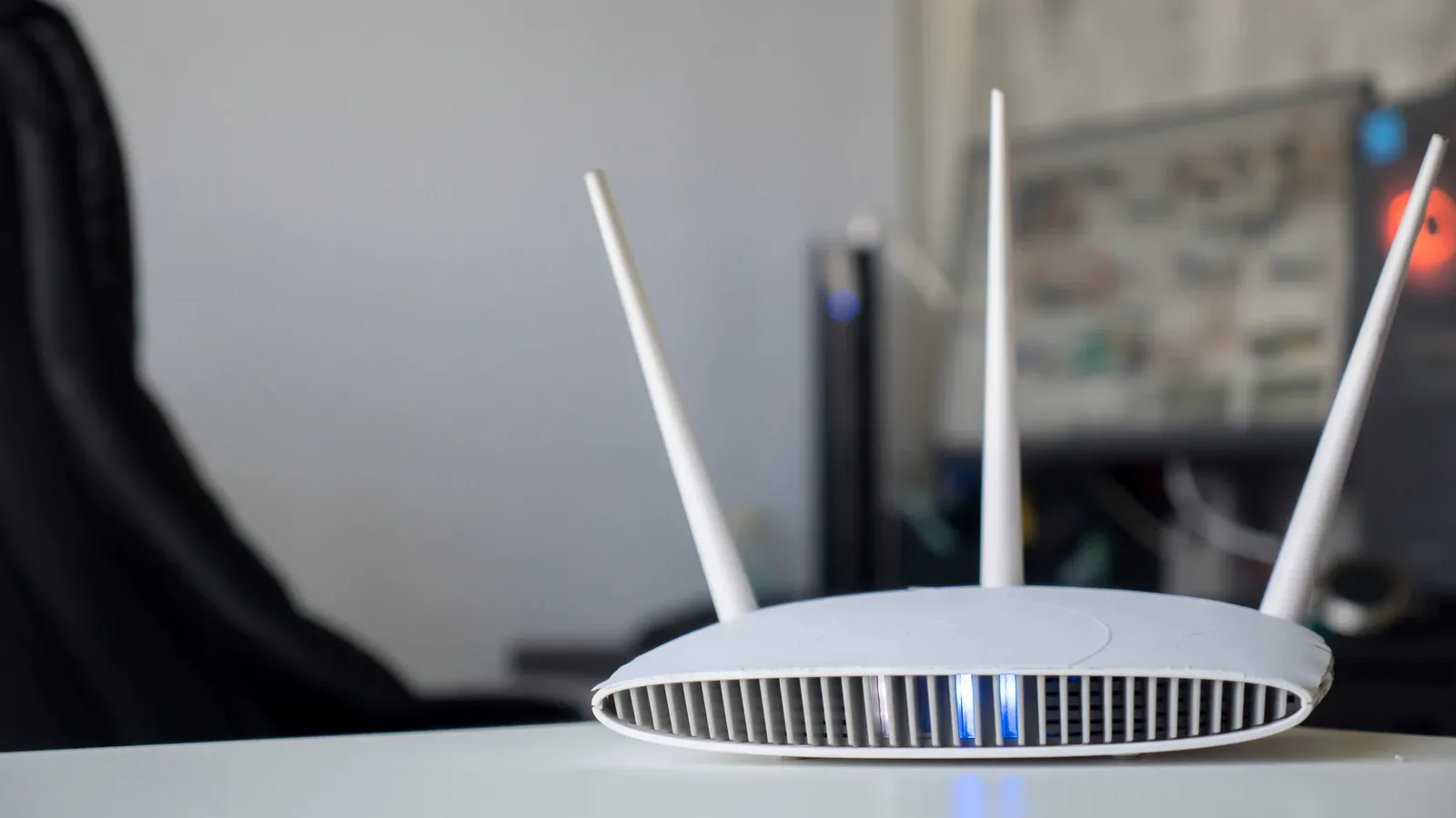
Small networking indicators can be easy to overlook until they matter. The same basic principle applies to the indicator lights on a home network device: a compact symbol or LED is most helpful when you know whether it is reporting connection status, activity, or a problem. Our guide to Netgear router lights and the LEDs that matter during a disrupted game night explores that broader idea on the home-network side.
Padlock: the watch is locked
A padlock means the Galaxy Watch is locked. Access requires the watch password or PIN.
In this context, a PIN is a personal identification number: a short numeric code used to unlock the device. The key point is that this icon describes the watch’s current access state. It does not mean the device is frozen, disconnected, or waiting for a notification to be read.
Blue music note: audio activity and controls
A blue music-note icon at the bottom of the screen indicates that an app is playing music, and it can also reflect paused audio. Tapping the icon gives access to controls for that audio.
This is an activity indicator rather than a notification marker. It communicates that audio is involved somewhere in the connected experience and gives the wearer a shortcut to do something about it. That is especially useful on a small display: the symbol both reports a state and leads directly to a relevant control surface.
Green phone icon: a call is in progress
A green phone icon can appear at the bottom of the display when either the watch or a connected phone is being used for a call. Like the blue music note, it is tied to an active task rather than an unread alert.
The difference between this and the orange dot is important in everyday use. The orange dot asks you to review something that happened earlier. The green phone icon reports something currently happening. One is a reminder; the other is live status.
Why the icons are intentionally so minimal
Smartwatch screens are small, so status indicators have to communicate quickly without crowding out the time and the selected watch face. The Galaxy Watch system uses colors, familiar shapes and screen positions to compress several kinds of information into small signals:
- Orange dot: unread notifications are waiting.
- Red dot: an urgent message needs attention.
- Phone with a slash: Bluetooth connection to the phone has been lost.
- Rectangle with a cloud: the watch is using Wi-Fi or mobile data to connect to the phone instead of Bluetooth.
- Padlock: the watch is locked and requires a password or PIN.
- Blue music note: music activity is present, with controls available by tapping.
- Green phone: a call is active on the watch or connected phone.
The most efficient way to interpret an unfamiliar marker is to start with its color, shape and placement. An orange or red dot at the left is about notifications. Symbols at the top are associated with connection or lock status. Icons at the bottom, such as the music note and phone, point to active audio or calls.
So, for the orange dot specifically, there is no mystery to solve and no repair step to take. Read the notifications if you want the dot to clear, or disable New notification indicator on watch face if you do not want that reminder displayed. The rest of the icons follow the same compact logic: they are status signals intended to provide useful context before you dive into menus.