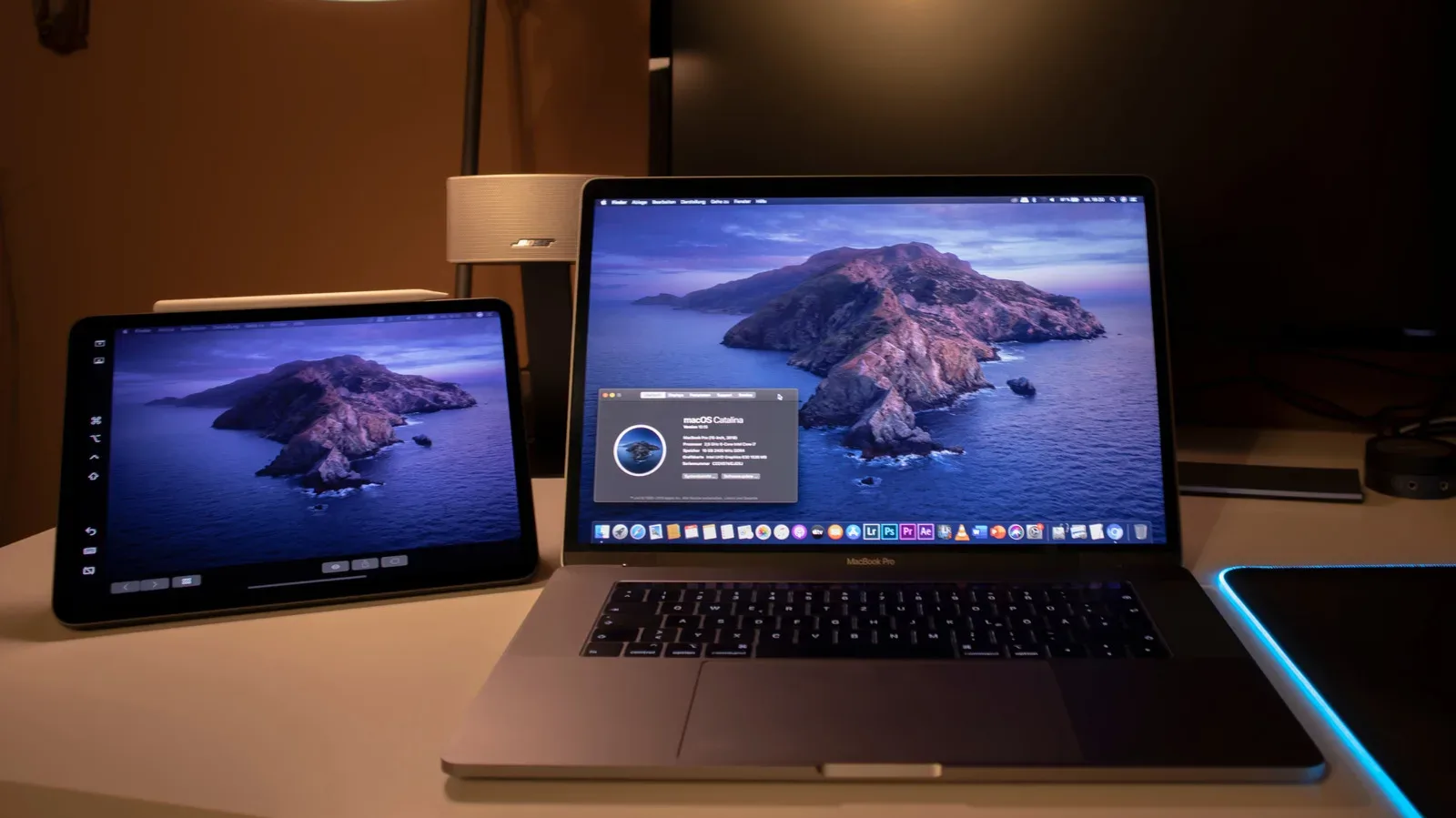
A second display can make a compact desk, travel setup or laptop work session feel considerably less cramped. The iPad is not primarily sold as an external monitor, yet it can fill that job through Apple’s built-in Sidecar feature or third-party options that also work with Windows PCs. The right route depends less on the size of the iPad and more on the computer in front of it, the accounts involved and whether a wired or wireless connection suits the setup.
For Mac owners using the same iCloud account on both devices, Sidecar is the straightforward starting point. Windows users cannot use Sidecar, but Duet Display and Luna Display provide alternatives. The latter two also give Mac users options when their Mac and iPad are not signed in to the same Apple ID.
The practical attraction is simple: an iPad already in a bag can become a place for a document, chat window, reference material, creative tools or a game-related dashboard rather than remaining a separate device competing for desk space. It can also accept touch and Apple Pencil input in the supported Mac-display setups described below, which changes its role from merely “another screen” to a possible drawing or navigation surface.
Sidecar is the built-in Mac-to-iPad display option
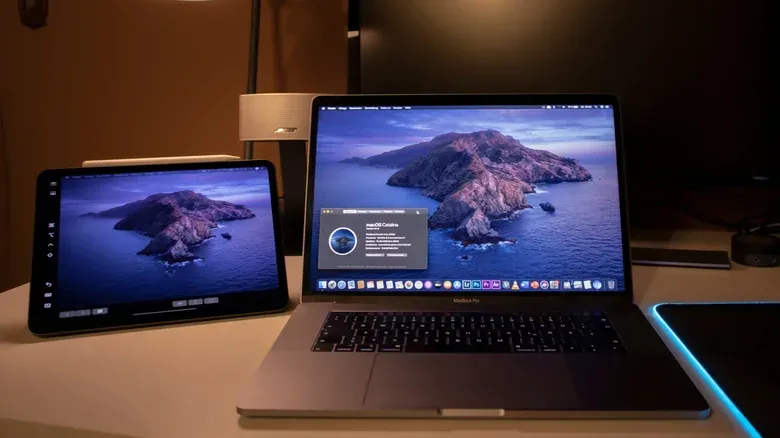
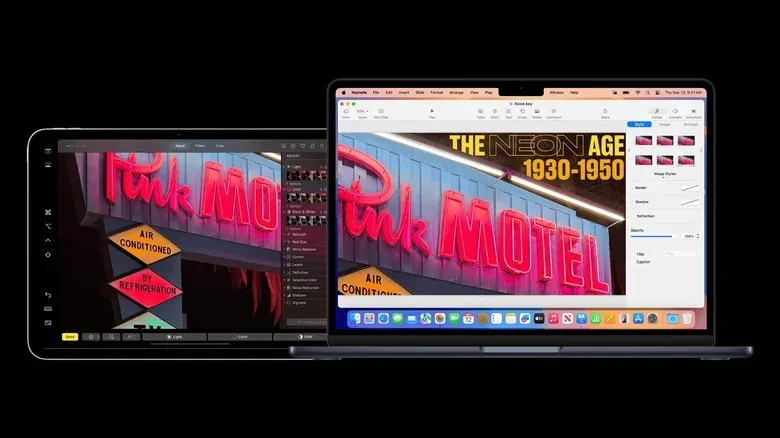
Sidecar turns a compatible iPad into a secondary display for a Mac. A secondary display is an extension of the desktop: instead of duplicating the same image on both screens, it gives the Mac more usable workspace. Windows can sit on one display while other windows sit on the other.
The key condition is that the Mac and iPad must be signed in to the same iCloud account. Different accounts prevent Sidecar from working, so it is worth checking the iPad’s settings before troubleshooting cables, Wi-Fi or display menus.
When that account requirement is met, the setup process is short:
- Open Control Center in the Mac menu bar. Its icon resembles two toggle switches.
- Select Screen Mirroring, represented by two overlapping rectangles.
- Choose the iPad from the available devices.
The iPad should then operate as a second Mac display. Its position can be adjusted in System Settings under Displays. This placement matters because it tells the Mac where to move the pointer when it travels off an edge of the primary screen. Put the iPad physically to the left of the Mac, for example, and arranging it to the left in the display settings makes the cursor movement match the desk.
Sidecar is free and avoids installing an additional display app. That makes it the cleanest fit for someone whose hardware and account setup already meet its requirements. The iPad can also be used at its full resolution, rather than being treated as a crude low-detail mirror.
Touch and Apple Pencil are meaningful additions
Sidecar, Duet Display and Luna Display allow macOS control through the iPad touchscreen. Apple Pencil can be used for navigation and drawing, effectively giving the Mac access to an iPad-based graphics-tablet-style surface. Meanwhile, the Mac’s ordinary mouse and keyboard remain active.
That flexibility does not mean every task should be shifted to touch. A mouse and keyboard still provide the familiar desktop workflow, while Pencil is most relevant to drawing or other precise input. The useful point is that the iPad does not have to behave like a passive panel once it becomes a Mac display.
Universal Control is related, but it is not a second monitor
It is easy to confuse Universal Control with Sidecar because both involve a Mac and iPad sitting together. Their jobs are different.
Sidecar makes the iPad a display belonging to the Mac. Universal Control keeps the Mac and iPad as separate devices but lets one device’s input controls operate the other. A Mac cursor can move onto the iPad’s screen, input can be sent in the other direction, and content can be dragged and dropped between the two devices.
This distinction is important for choosing a setup. Use Sidecar when the goal is more Mac desktop space. Use Universal Control when the goal is to work across two independent systems while avoiding the hassle of switching between separate keyboards or mice.
Universal Control also requires the devices to use the same iCloud account, and two-factor authentication must be enabled. It is supported by many Mac and iPad models released in the past several years, though the exact device eligibility should be confirmed for any particular hardware.
If it does not activate automatically, it can be enabled manually from the Mac. Open Control Center, go to Screen Mirroring, then open Display Settings. Select the + control and choose the iPad from the Link Keyboard and Mouse list.
For a gaming-adjacent desk, this can be useful without implying that the iPad is rendering a PC game. It is a way to keep a second device available under one pointer and keyboard: perhaps for notes, a browser, messaging or other companion tasks. The central limitation remains the same: Universal Control does not convert the iPad into a Mac video display.
Windows users need a third-party route
Sidecar does not extend to Windows PCs, so an iPad-and-Windows pairing requires additional software or hardware. Two options are Duet Display and Luna Display. Both also work with Macs, but they take different approaches to connectivity and payment.
Duet Display: software on both devices
Duet Display is available for Windows and Mac and requires installation on both the computer and the iPad. Once the app is open on each device, it can be used to establish the display connection.
It offers more controls than Sidecar, and it is a useful option when a Mac and iPad are not on the same Apple ID. The trade-off is cost: Sidecar is included for eligible Apple-device setups, while Duet Display requires a paid license. Installing software at both ends is another small layer of setup that Sidecar users can skip.
This makes Duet a practical answer for cross-platform households, workstations that use Windows, or Apple-device setups that cannot satisfy Sidecar’s shared-account rule. It is not simply “Sidecar for Windows”; it is a separate paid product with its own installation requirement and control set.
Luna Display: a dongle-driven alternative
Luna Display works with Mac and Windows computers but relies on a companion dongle connected to the computer. A dongle is a small hardware accessory that plugs into a device; here, it handles the wireless transmission intended to make the connection more reliable.
The price structure differs from a recurring subscription model. Luna Display costs $79 for the dongle, with no subscription required. That upfront purchase may be more appealing to people who prefer a one-time hardware cost over ongoing charges, while others may decide the separate accessory is not worthwhile for occasional use.
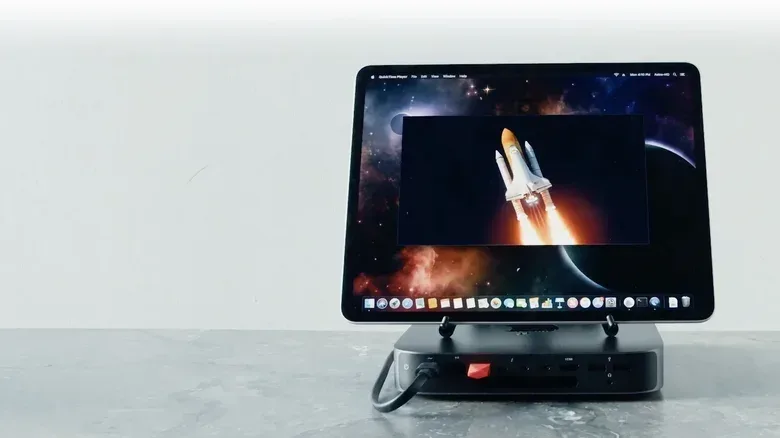
Luna’s standout use case is its headless mode. “Headless” means operating a computer without a monitor attached. With its dongle connected to a Mac mini, Luna Display can let the iPad act as the working screen without a conventional monitor connected. That is a particularly distinct capability for a small desktop Mac that otherwise needs a display to be used normally.
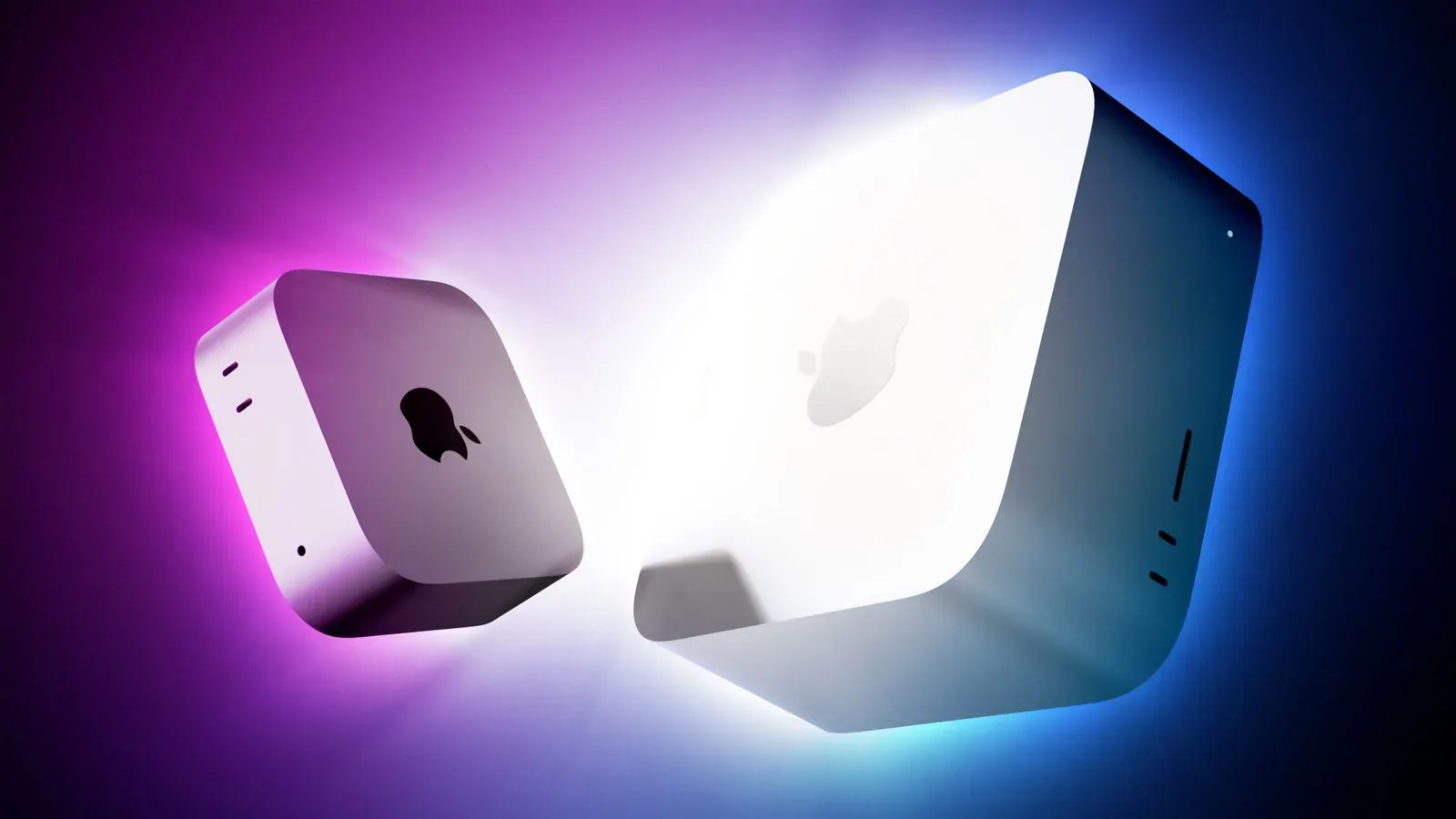
Anyone considering a Mac mini setup can also keep an eye on broader Mac desktop hardware changes; recent Mac mini and Mac Studio coverage outlines the current M-series update context.
Connection quality and physical setup still matter
Wireless convenience is a large part of the appeal of an iPad-as-monitor arrangement, especially while travelling or working away from a permanent desk. But glitches can occur. A wired connection can help reduce those issues, making it a sensible option when stability matters more than an entirely cable-free setup.
It is also worth separating display technology from ergonomics. Even a correctly configured second screen is less useful if it is leaning at an awkward angle or taking up the one patch of desk space needed for a keyboard. A suitable iPad stand can improve the experience by keeping the screen visible and placed in a predictable relation to the Mac or PC.
There is no one-size-fits-all winner. Sidecar is the no-cost, native choice for a Mac and iPad sharing one iCloud account. Universal Control is the companion option for controlling two distinct devices rather than expanding the Mac desktop. Duet Display is the software-based choice for Windows support or Mac-and-iPad setups that cannot use the same Apple ID. Luna Display brings a $79 dongle, wireless transmission handled by dedicated hardware and a headless-mode option for a Mac mini.
In each case, the iPad can do more than sit beside a computer as an isolated tablet. With the correct method selected, it can become additional workspace, a touch-aware macOS control surface, or a screen for a monitor-free desktop configuration.