Spotify can sound markedly different without changing a single pair of headphones or speaker. The important caveat is that no one setting is a universal upgrade. The right choice depends on the connection carrying the music, the hardware turning it into sound, the noise around you and, on mobile, how much data you are prepared to use.
That makes “Lossless” less of a magic button and more of a capability to use deliberately. A quiet room, wired headphones or capable wired speakers and an attentive listening session are circumstances where the highest setting can make sense. Bluetooth earbuds on a loud walk are a different situation altogether. In that case, selecting a lower quality can be the rational choice, not a compromise born of ignorance.
The most useful approach is to start with what Spotify is actually sending, then check the route it takes to reach your ears. Only after that should listeners fine-tune equalization, volume behavior and offline downloads. This guide breaks down those choices, explains the terminology, and separates the settings that affect the stream itself from those that change how it is presented.
Start with Spotify’s Media Quality controls
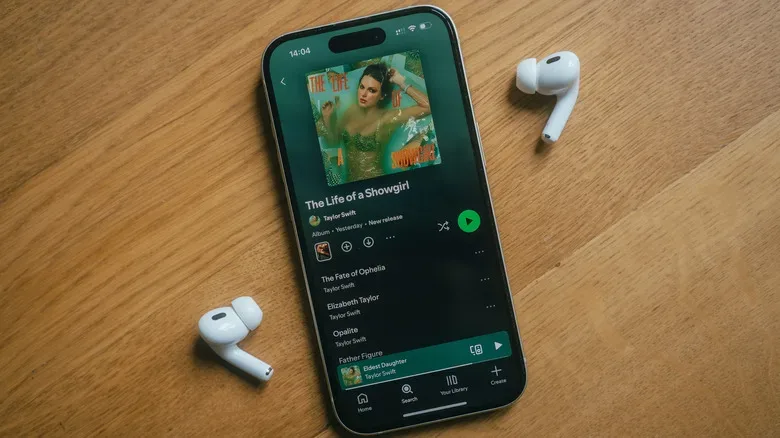
The core setting is Media Quality. On iPhone and Android, open Spotify, tap the profile picture in the upper-left corner, choose Settings and privacy, then select Media Quality. The mobile app permits separate selections for Wi-Fi and cellular listening.
On desktop, use the three-dot button in the upper-left, select Edit, then Preferences, and scroll to Audio quality. Desktop has one selector rather than separate Wi-Fi and cellular choices. Spotify’s web player does not offer a quality control, so the desktop app is the appropriate option for listeners who want direct control over this part of playback.
Every Spotify listener can select Low, Normal or High. Premium subscribers additionally have Very high and Lossless. Spotify displays a bitrate and an approximate hourly data figure beside these options. Bitrate is, in simple terms, the amount of audio data sent over time. It is a useful practical indicator when weighing fidelity against mobile-data use and download size.
There is also an Automatic option, which changes quality in response to connection strength. That can be helpful when reliability is more important than consistency. But it is not the setting to use if the goal is to keep playback at a chosen maximum. Disable the separate Auto-adjust control if you do not want Spotify revising quality while you listen.
A sensible mobile setup is often split by connection
The independent Wi-Fi and cellular controls are valuable because the conditions are different. Wi-Fi at home may support High, Very high or Lossless without concern for mobile data. Cellular listening is more dependent on a data plan, signal conditions and where the music will be heard. There is no inherent reason to make both selections identical.
- Quiet home listening with appropriate wired or Wi-Fi equipment: choose the highest setting your setup can meaningfully use.
- General cellular listening on Bluetooth earbuds: High may be a more proportionate option than Lossless, since Bluetooth cannot transmit a true lossless signal.
- Unreliable connections: Automatic prioritizes adapting to the network, while a fixed setting prioritizes consistency.
- Constrained data plans: use the displayed estimated hourly data consumption to make an informed trade-off rather than assuming a higher setting is free.
This is less glamorous than flicking every switch to maximum, but it is the setting process most likely to improve daily listening. The highest-quality stream cannot overcome a transmission limitation, low-fidelity hardware or substantial background noise.
Download quality is a separate decision
Streaming quality and Download quality are separate settings. The download area provides the same range of options for offline music. If songs were downloaded before changing the selection, use Download to download them again at the newly chosen quality.
For people with limited mobile data but sufficient phone storage, downloading at High or Very high quality can be a practical balance. The music is prepared in advance, avoiding cellular use while playback happens. It can also suit listening through CarPlay: downloaded Liked Songs can be shuffled at the selected offline quality. That does not remove the real-world limits of a vehicle’s speakers and road noise, but it does prevent cellular-data concerns from dictating the stream during a drive.
It is worth treating downloads as their own listening profile. A library intended for home listening can justify a different download setting from a library intended largely for commuting. Re-downloading everything after altering quality matters; changing the menu selection alone does not retroactively improve files already stored on the device.
What “lossless” means—and the Bluetooth catch
Lossless audio uses compression that does not discard audio information, delivering CD-quality sound. That description concerns the stream Spotify provides. It does not guarantee that the entire path from the service to the listener remains lossless.
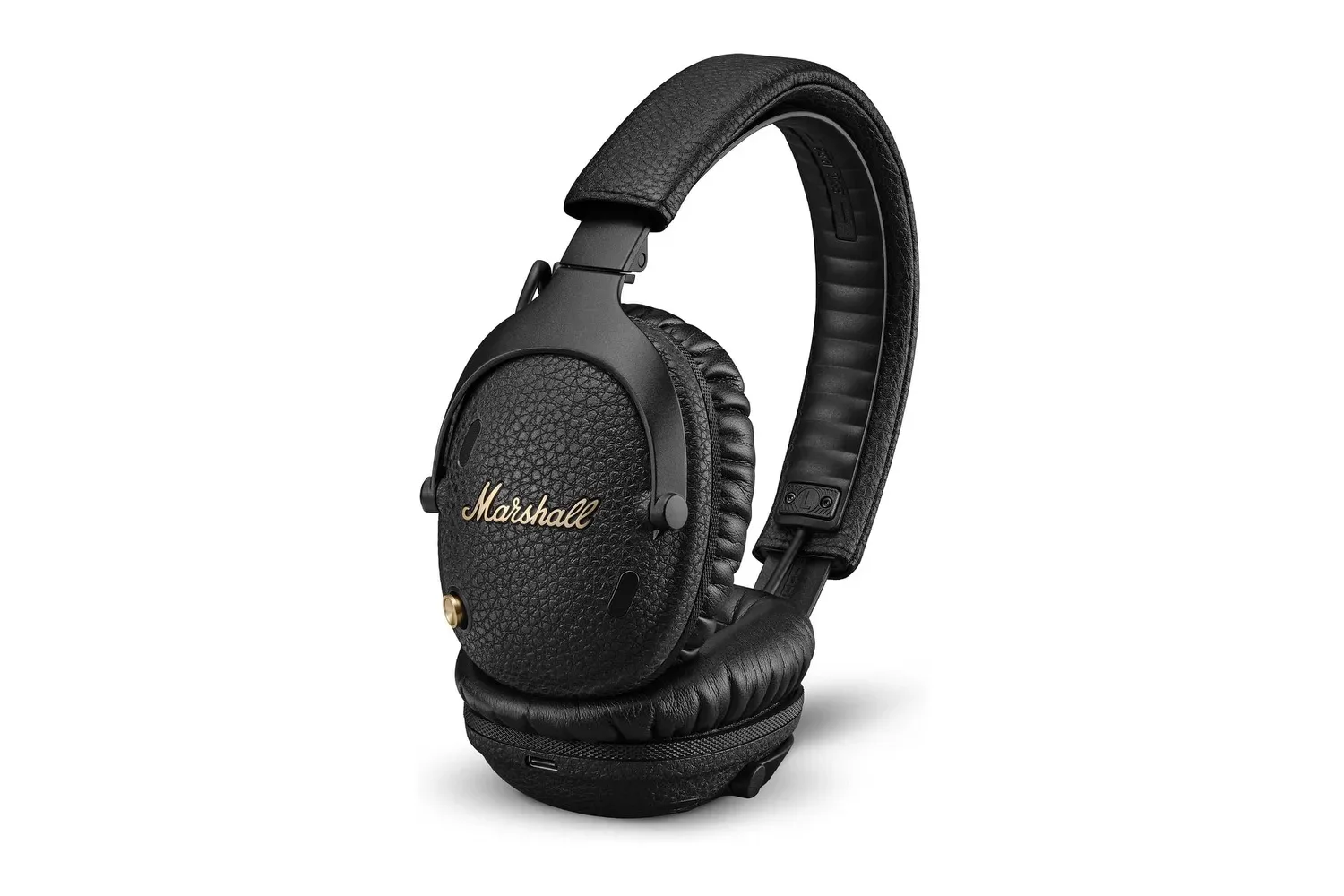
The critical limitation is Bluetooth: it cannot carry a true lossless signal. Therefore, setting Spotify to Lossless while using Bluetooth earbuds or a Bluetooth speaker does not produce true lossless playback at the other end. The music still has to cross a link that cannot preserve that signal in full.
For phone listening, wired headphones are required to experience lossless music as lossless. USB-C earbuds can carry a lossless signal. A DAC, short for digital-to-analog converter, is the component that converts digital music data into the analog signal used for sound. A more capable DAC can improve the experience. Wired speakers attached to a computer also support lossless playback.
Spotify Connect adds another route worth understanding. A Wi-Fi-enabled speaker that works through Spotify Connect should support lossless playback, because Wi-Fi does not have Bluetooth’s bandwidth constraint. On devices where a local quality selector is absent, start playback on that device and use the phone as the controller. From the Now Playing screen, tap the selected device name at lower left, then tap it again at the top of the Connect list. The resulting view shows the active quality and includes Change quality settings.
TVs, consoles and eARC require device-specific expectations
Lossless availability on smart-TV apps can depend on the model. One cited arrangement—an LG C1 television and a PS5 using eARC to a soundbar—can play 16-bit Spotify lossless audio but not full 24-bit quality. eARC is a connection that can pass audio from a television to a compatible soundbar. In most situations, the audible difference between the two cited levels is likely negligible.
The broader lesson is that a signal chain has multiple links: Spotify’s selected stream, the app on the playback device, the connection between components, and the headphones or speakers. The lowest-capability link can determine what reaches the listener. Selecting Lossless is most meaningful only when that chain and the listening conditions support it.
Hardware and surroundings decide whether a difference is audible
Transmission support is only half the question. Even with a lossless-capable route, headphones or in-ear monitors need sufficient fidelity for a listener to distinguish a high-quality lossy stream from a lossless one. An inexpensive pair of earbuds may not reveal a useful difference.
Noise has the same practical effect. CarPlay and Android Auto can transmit lossless audio, but standard car speakers and road noise can obscure the potential benefit. Likewise, phone speakers may technically play lossless audio, yet are not an environment in which the distinction is likely to be appreciated.
This is not an argument that one person’s preferred setting is wrong. Hearing varies, and some people cannot distinguish high-quality lossy playback from lossless playback. An ABX high-fidelity test can help assess this. An ABX test is a comparison exercise designed to see whether someone can reliably tell an unknown sample apart from two alternatives. Its value is personal calibration: it can help a listener decide whether the additional data and storage of a higher setting are doing something they can actually hear.
That kind of evidence-led choice is more useful than treating technical labels as status markers. The same principle—matching a specification to an actual use case—also applies beyond audio hardware, as with this home-charging reality check. More capacity is worthwhile when the rest of the setup and everyday needs can use it.
Use EQ carefully rather than stacking corrections
Spotify includes an equalizer under Settings > Playback > Equalizer. An EQ changes the balance of frequency ranges. It can be used through presets or manual adjustment, and can alter the character of playback substantially.
However, an equalizer does not increase the underlying quality of the stream. It changes the tonal balance after the fact. This distinction matters: streaming quality governs the audio data delivered; EQ changes the presentation of that audio. An EQ can make a setup more enjoyable, but it cannot turn an unsuitable Bluetooth link into true lossless playback.
Be especially careful about multiple layers of adjustment. A phone may have its own EQ, Spotify has an EQ, and headphones or speakers may add another. Applying several settings at once makes it difficult to know what is causing an undesirable result. Start with one EQ layer, make a modest change, and listen before adding anything else. If the sound becomes excessive or unnatural, revert that layer before trying another.
Normalization, mono audio, transitions and data saver
In the same Playback area, Volume normalization aims to establish a baseline volume across music, reducing the need to constantly turn tracks up and down. It should not affect audio quality unless the Loud option is selected. Some listeners nevertheless prefer normalization off, so it is reasonable to compare both settings with familiar tracks rather than assume one setting will suit everyone.
Mono audio should remain disabled unless it is needed for accessibility. Mono combines audio presentation rather than preserving the normal stereo experience, making it a functional setting rather than a fidelity upgrade.
Track transitions deserve a quick review as well. Crossfade can make listening feel continuous, but a long crossfade period cuts off the ends of songs. That is not a reduction in bitrate or an audio-codec issue; it is an intentional playback choice that may be at odds with listeners who want to hear complete endings.
Finally, check Data-saving and offline. Data Saver reduces streaming quality when the listener is not on Wi-Fi. Turn it off when quality is the priority and the mobile-data plan permits it. Leave it on when conserving data matters more. There is no need for one permanent answer: the best settings are the ones that acknowledge the connection, equipment and environment of the moment.
A quick Spotify quality checklist
- Open Media Quality and select separate Wi-Fi and cellular levels where appropriate.
- Disable Auto-adjust when a fixed quality is the goal.
- Set Download quality independently, then re-download existing music if the setting changed.
- Do not expect true lossless playback over Bluetooth.
- For Lossless, use a suitable wired setup or a compatible Wi-Fi Spotify Connect device.
- Use only one EQ layer at a time when tuning the sound.
- Test Volume normalization on and off; avoid Loud if preserving audio quality is the priority.
- Disable Mono audio unless it serves an accessibility need, and review Crossfade if song endings matter.
- Turn off Data Saver when higher streaming quality is worth the extra mobile-data use.
Spotify’s best setting is ultimately conditional. High-end equipment in a quiet space can justify Lossless. Bluetooth and a noisy street often do not. A listener who matches the stream to the route, the hardware and the place they are listening will get more value from the service than someone who simply selects the highest label everywhere.