An iPhone can be the music player, video screen, call device and pocket-sized soundtrack machine for a long day, but “turn it up” is not the same as making it sound better. The useful improvements are spread between an app’s own streaming controls, iOS settings, headphone-specific accessibility features and the plain physical condition of the speaker grille.
The first rule is practical: software cannot transform weak hardware into premium audio gear. A low-cost speaker still has its limits, and the built-in iPhone speakers are not substitutes for a quality pair of wired headphones. But settings do determine how much data a streaming app sends, how aggressively tracks are levelled, which frequency ranges are emphasized and whether a listener can actually benefit from a lossless file. Matching those choices to the way you listen matters more than simply switching every option to its highest setting.
Start with the quality setting in the app you actually use
Music streaming services commonly let users select different quality levels for mobile data, Wi-Fi and downloaded tracks. Separating those choices is useful because each listening situation has a different compromise. Wi-Fi is generally the place to use a higher setting if you want it, while a moderate setting on cellular data can avoid needlessly consuming data. Downloads deserve the same thought: higher-quality files take more device storage.
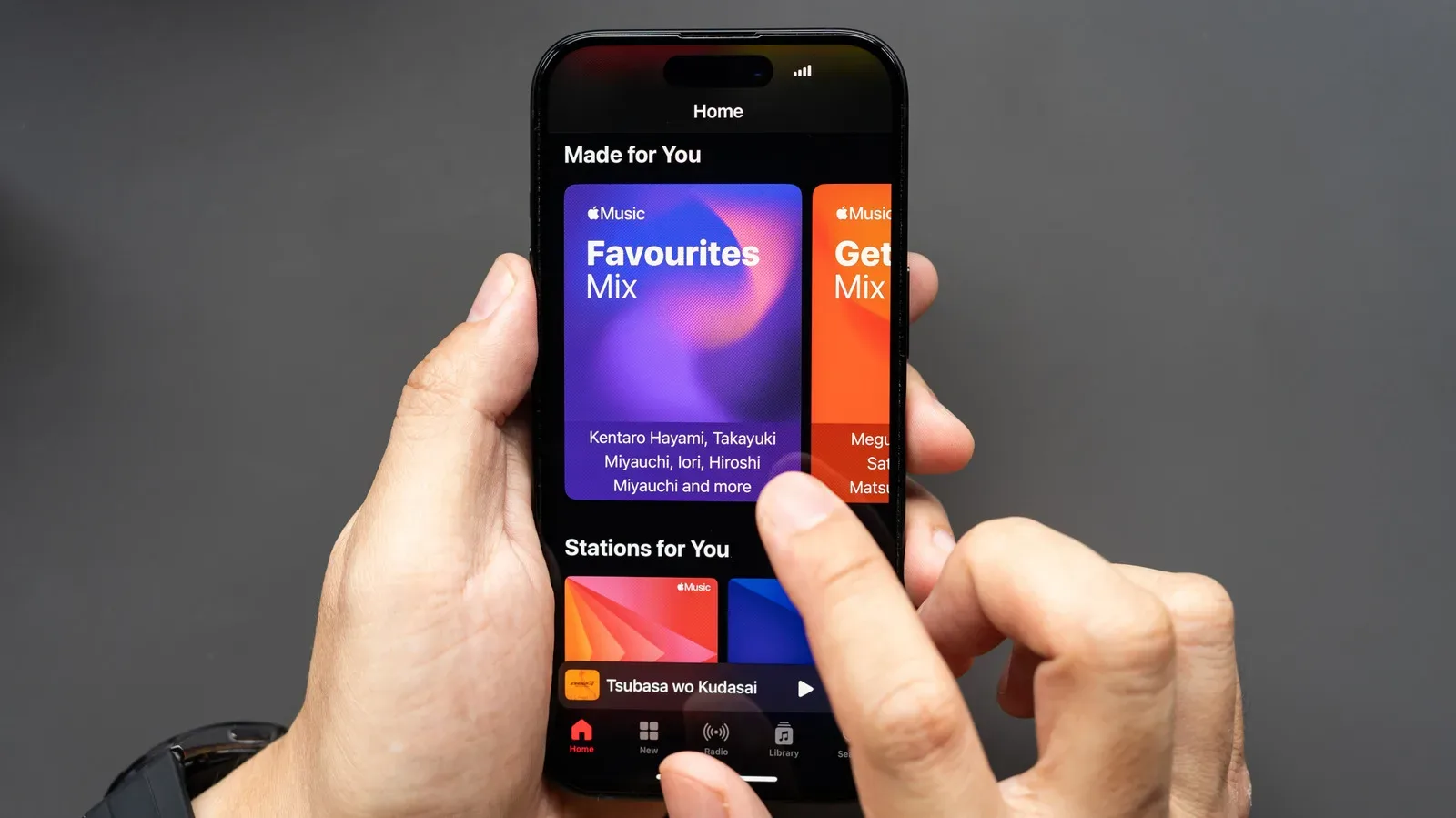
In Apple Music, open Settings > Apps > Music > Audio Quality. The menus allow separate choices for mobile data, Wi-Fi and downloads. High Quality is a sensible everyday choice when the goal is a balance between sound quality and the data or space used. It is not a defeat to pick it rather than lossless; with many ordinary listening setups, it is the more proportionate setting.
Spotify puts the comparable controls under the profile picture: go to Settings and privacy > Media quality. Free listeners can choose Low, Normal or High. Premium subscribers have access to Very high and Lossless as well. Very high over Wi-Fi is a strong general-purpose option for subscribers who want better streaming quality without automatically committing every track and every download to a larger lossless file.
This is also the point to distinguish a change in delivery quality from a change in tonal preference. Delivery quality concerns how much audio information the service sends. Tonal preference concerns whether the sound has more bass, more perceived vocal presence or less sharpness in the high end. The former is governed by the streaming-quality menu; the latter is where EQ enters the picture.
Use EQ as a personal adjustment, not a universal upgrade
EQ, short for equalization, changes the level of selected frequency ranges. Raising or lowering those ranges can alter the character of a track: it can make a particular pair of headphones feel fuller, reduce an unpleasant emphasis, or bring detail forward in a way that suits one listener. It is not an objective “better” button. An EQ choice that works for one album, one speaker or one person’s hearing may be less appealing elsewhere.
Apple Music’s EQ options are in Settings > Apps > Music > EQ. Apple provides a list of presets rather than a custom frequency editor, so the most useful approach is simply to pick a relevant preset and listen rather than assume a genre label guarantees a correct setting. If the result is less natural, switch back. The value is in finding a presentation that suits your ears and equipment, not in keeping an effect switched on.
Spotify offers finer control. Navigate through the profile icon to Settings and privacy > Playback > Equalizer. After enabling it, users can select a preset or move the frequency points manually. Manual adjustment gives more room to tailor a sound, but it also makes restraint valuable. Small changes are easier to judge and reverse than dramatic boosts across several bands.
Volume handling is a separate choice that can affect how people perceive a track. Apple Music’s Sound Check normalizes volume across tracks. Its appeal is straightforward: fewer sudden leaps in loudness and less reaching for the volume controls when a playlist moves between recordings. Listeners differ on whether they like its effect, including whether they feel it changes audio quality, so it is worth comparing playback with Sound Check on and off rather than treating either preference as mandatory.
Spotify’s Playback screen also includes Volume normalization. If you use that feature, avoid the Loud setting when audio quality is the priority. Normalization can be useful for consistency, especially with mixed playlists, but the loudest available presentation is not automatically the cleanest one.
Lossless is about preserving audio data, not magic headphone settings
Lossless audio is the setting most likely to sound like a guaranteed upgrade, which makes understanding its limits important. A lossless file preserves the original audio data rather than discarding information through lossy compression. It is intended to provide crisp playback equivalent to CD quality. Apple Music and Spotify Premium offer lossless options, and each service lets users choose them separately for Wi-Fi, mobile data and downloads.
The trade-off is concrete: lossless uses substantially more data and storage than lossy settings. That makes it a deliberate choice, not an automatic recommendation for every connection and library download. Someone streaming routinely on mobile data or keeping a large offline collection may decide that High Quality or Very high is the better overall balance.
Equipment is the other decisive limitation. Bluetooth does not support lossless audio, so even excellent AirPods or Bluetooth speakers do not provide ordinary Bluetooth lossless playback. The AirPods 4, AirPods Pro 3, USB-C AirPods Pro 2 and Powerbeats Pro 2 are exceptions in a narrow scenario: they can support wireless lossless when paired with Apple Vision Pro. That does not change the broader point for typical iPhone listening through Bluetooth headphones or speakers.
To make the most of lossless on an iPhone, high-quality wired headphones are the meaningful starting point, with a suitable DAC where needed. DAC means digital-to-analog converter: it is the component that turns a digital audio file into the analog signal used for listening. A capable DAC is part of carrying the detail and texture available in a lossless stream to appropriate wired equipment. The FiiO KA11 is one budget-oriented example intended to provide what many listeners need without suggesting that every setup requires extravagant hardware.
Apple Music also includes Hi-Res Lossless, a studio-quality tier that consumes still more data. The practical implication is simple: it makes the most sense only when the rest of the setup is good enough to justify it. Without premium equipment, there may be little reason to make larger downloads and streams the default. In this area, a realistic assessment of the headphones, connection and listening habits is more useful than chasing the most imposing label in a settings screen.
iPhone accessibility controls can solve problems EQ cannot
The iPhone’s Accessibility settings contain audio tools that are useful even when the goal is straightforwardly better everyday listening. Find them at Settings > Accessibility > Audio & Visual. These controls are especially helpful because not every audio problem is a streaming-quality problem. A channel imbalance, ambient sound during a call or difficulty hearing quieter details calls for a different remedy.
Phone Noise Cancellation, available on iPhone 12 and earlier, removes traces of ambient noise. Its value is clearest in conversations where surrounding sound competes with the caller. It is not an all-purpose music enhancement, but calls are a major share of many phones’ audio use, and reducing distraction can improve clarity more than any music EQ preset.
The Balance slider is a direct solution if sound is uneven between the right and left channels. That control lets users shift the output rather than compensate by constantly repositioning headphones. It is worth checking before assuming a song, app or headphones are at fault.
For supported Apple headphones, Headphone Accommodations provides further adjustments. Frequency controls boost selected frequency content in a way that resembles EQ, while Soft sounds amplifies quieter sound. The latter can help subtle environmental details and call audio come through more clearly. These are personal settings by design, so the best method is to make changes while wearing the headphones and compare the result at a normal listening level.
That personalization is useful for game sessions as well as music and video. If a player is following a major launch disruption such as the reported Diablo 4 Season 15 delay, clear headphone settings can make voice chat, streams and game-related video easier to follow once there is actually something to hear. The settings do not improve a game’s mix, of course; they control how the iPhone and connected headphones present the audio they receive.
Do not overlook the speaker grille
When sound is coming directly from the phone rather than headphones, there are fewer software levers that can overcome the physical limits of the built-in speaker. Fine-tuning app quality and iOS settings can still be worthwhile, but keeping the speaker grille unclogged is basic maintenance with an immediate purpose: obstruction can get in the way of the speaker doing the job it is already capable of doing.
A specialized cleaning putty or an air blower can help with speaker-grille cleaning when needed. This is a modest fix rather than a promise of spectacular transformation, but it addresses a physical issue that no lossless toggle or EQ preset can correct.
Choose settings by listening situation
- Everyday wireless listening: Choose High Quality in Apple Music or Very high over Wi-Fi in Spotify Premium, then test EQ presets conservatively.
- Cellular streaming and limited storage: Set a quality level that fits your data plan and download space; lossless carries a clear data and storage cost.
- Wired, higher-end headphone setup: Lossless becomes more relevant, particularly with an appropriate DAC and headphones capable of revealing the benefit.
- Calls and uneven headphone output: Check Audio & Visual controls, including Phone Noise Cancellation on supported older iPhones and the Balance slider.
- Quieter details are hard to hear: Explore Headphone Accommodations with supported Apple headphones, adjusting Frequencies or Soft sounds while listening.
- Phone speaker sounds muffled: Inspect and carefully clean the speaker grille instead of expecting an app setting to resolve a physical blockage.
The strongest iPhone audio setup is usually not one setting set permanently to maximum. It is a combination: an appropriate stream-quality level, EQ and normalization choices that suit the listener, realistic expectations about Bluetooth lossless limitations, and accessibility tools selected for an actual hearing or call-clarity need. That approach preserves battery, data and storage choices for the moments they matter while giving the audio path the best chance to sound clean.
Shop the products
Check current price, model and availability at the retailer.