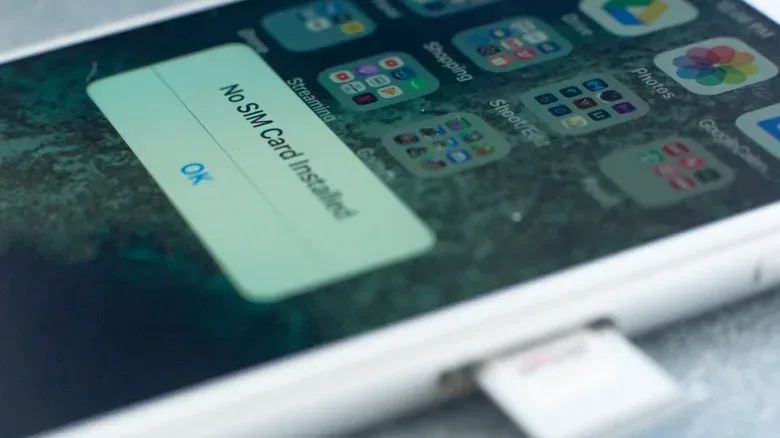
There is a particular kind of modern inconvenience reserved for the moment a phone is fully charged, switched on and otherwise behaving perfectly—except for the part where it refuses to be a phone. The screen says No Service, calls and texts will not go through, and the SIM card is very much installed. It is the electronic equivalent of finding your controller connected, your console awake and every button suddenly committed to an industrial action.
The useful starting point is that “No Service” does not identify one single fault. It describes the result: the phone is not connecting to its mobile provider’s network. The reason can be physical, account-related, local to the network, tied to coverage, or caused by a setting. That distinction matters, because immediately ejecting a perfectly healthy SIM card will not repair an area with no usable signal, and resetting settings will not settle an inactive mobile account.
A little methodical troubleshooting is more valuable than button-mashing. Think of the phone’s service as a chain: the account needs to be active, the provider’s network needs to be working, the phone needs to be somewhere it can reach that network, and the SIM or eSIM needs to be recognized and configured correctly. Start with the checks that are quickest and least disruptive, then move on only if the problem remains.
What the SIM card actually does
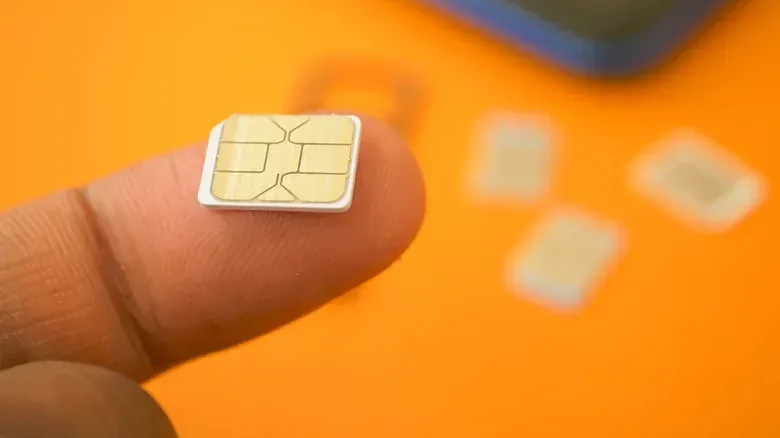
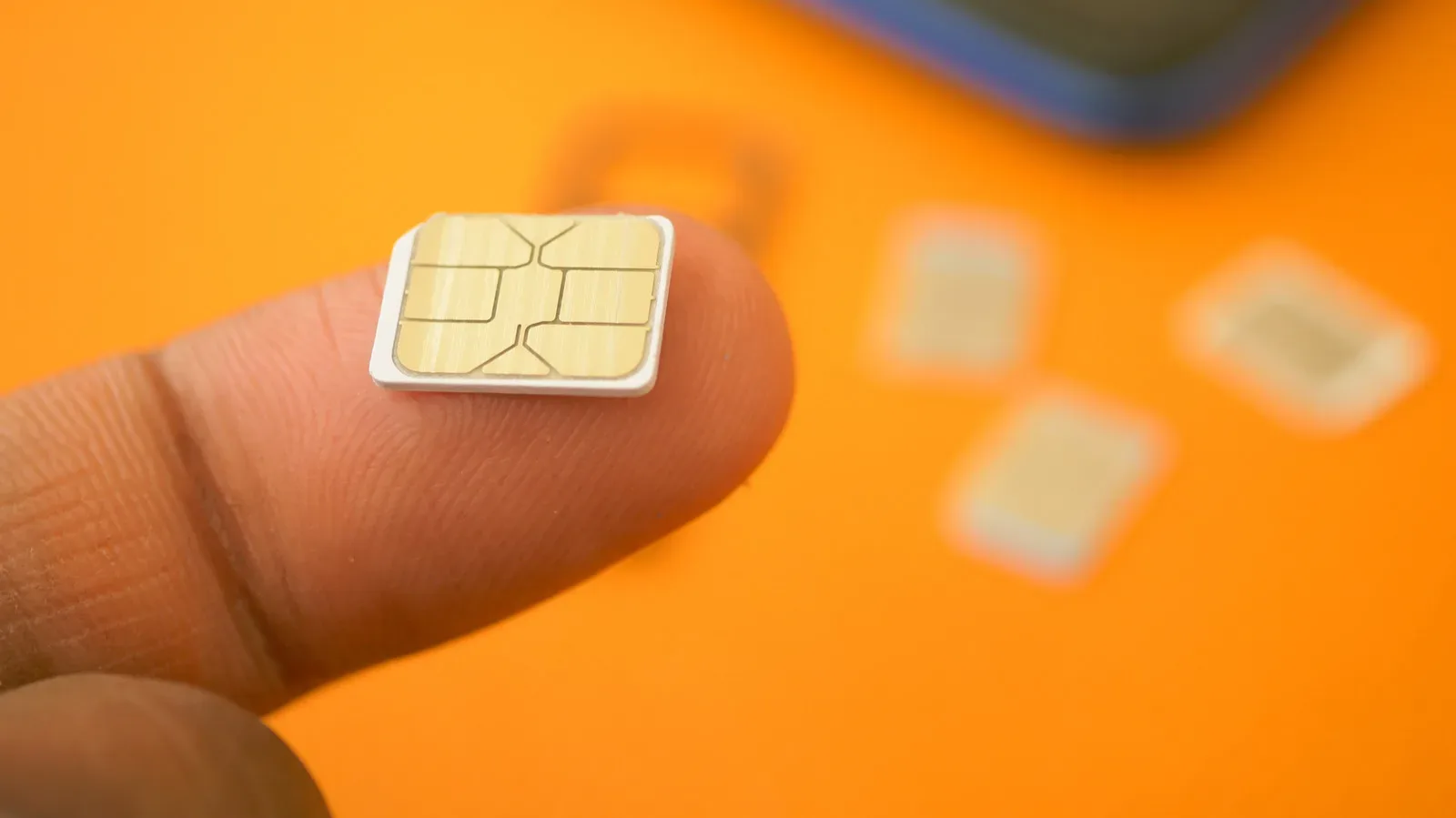
SIM means Subscriber Identity Module. A physical SIM is the small card that authorizes the connection between a phone and its mobile provider. That authorization is what supports normal carrier functions such as calls and text messages. Put plainly, it is a key part of the phone’s link to the carrier—not a magic signal booster and not a guarantee that the surrounding area has coverage.
That last point explains why a SIM can be installed while the phone still reports no service. The card may be seated correctly, yet the carrier may have an outage. The account may be suspended. Or the phone may simply be in a location where service is limited or unavailable. A SIM-related error and a no-service message can overlap, but they are not automatically the same problem.
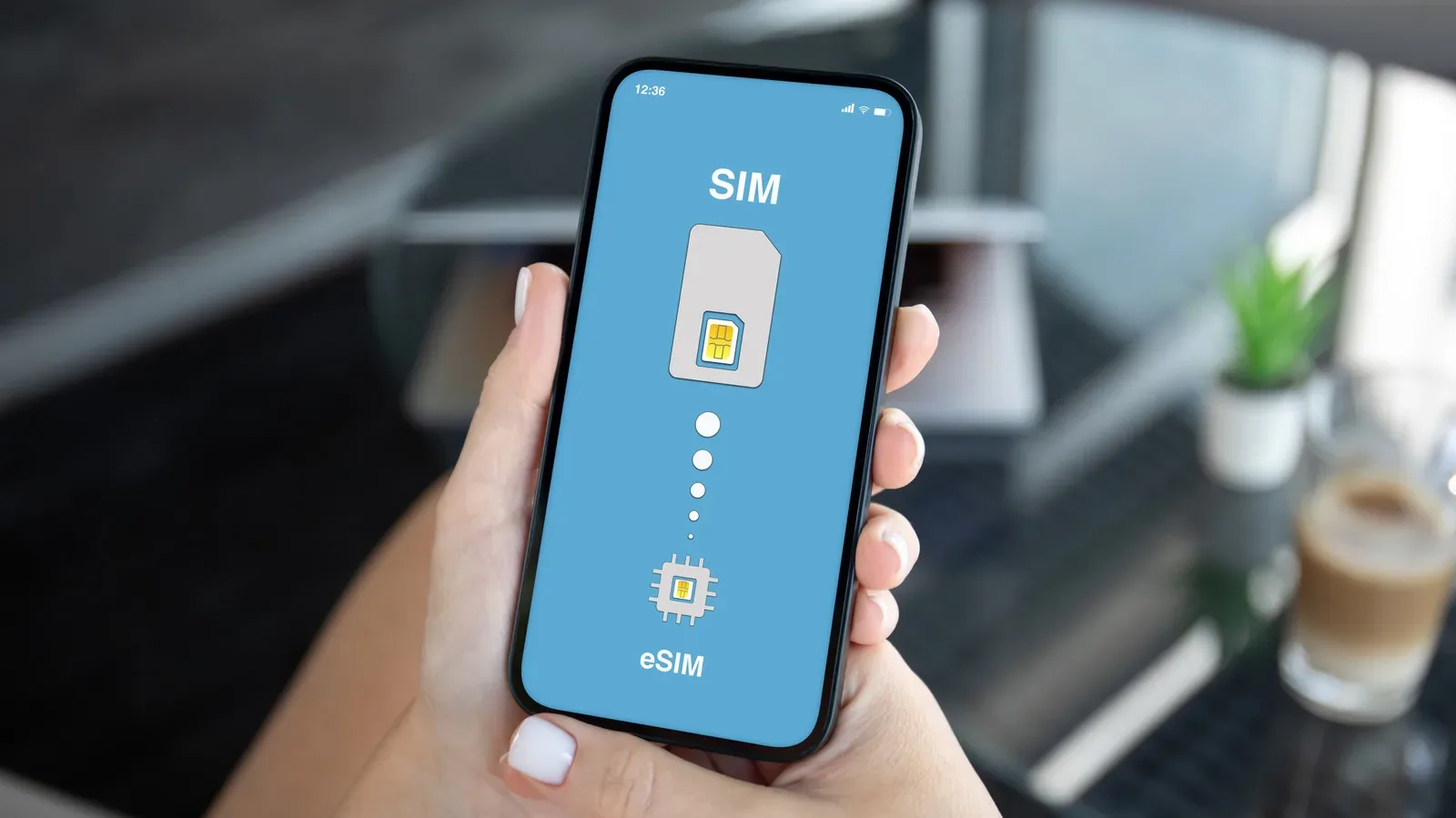
Some phones use an eSIM instead of, or alongside, a physical card. An eSIM is a digital version of the subscriber module. Since there is no tray to open, troubleshooting moves from the phone’s exterior into its cellular settings. That does not make the issue mysterious; it simply changes where the relevant controls live.
First, separate a local coverage issue from a phone issue
Before changing anything in Settings, move to another nearby location and see whether service returns. A phone can lose its carrier connection because an area has limited coverage or because something is blocking the route to a cell tower. If service returns after moving, that is a strong practical clue that the SIM itself may not be the culprit.
This step is deliberately unglamorous. It has no tiny tray, no menu maze and no satisfying “reset complete” animation. It is still worth doing first because it avoids treating the phone when the actual obstacle is the environment around it.
Related coverage includes Why Your Phone Says No Service Even With a SIM Card.
Next, try to establish whether the carrier is having a problem. If another device using a different carrier can make a call or access the internet, while yours cannot, the issue may be specific to your provider. Better still, ask someone nearby who uses the same service whether their phone is working. If their connection is also down, that points away from a fault unique to your handset or SIM.
A quick order of operations
- Move to a different nearby spot and check whether service appears.
- Ask a nearby person on the same carrier whether their service is working.
- Check that the mobile account is active and not suspended.
- Toggle airplane mode off and back on.
- If a physical SIM is used, reseat it.
- For eSIM travel problems, review the relevant cellular settings and data roaming.
- Use a network reset only after understanding that saved Wi-Fi and other connections will need attention afterward.
The order is not a rigid law. A phone dropped moments before it began showing a SIM error gives a physical SIM seating issue more weight. A failure that begins while travelling internationally makes the eSIM and roaming path more relevant. The point is to follow the clues rather than make every possible change at once.
Check whether the account can connect at all
An inactive mobile account can look surprisingly similar to a phone malfunction. A missed payment or another reason for service suspension can stop the SIM from connecting to the carrier’s network. It is easy to overlook because the device still powers on and may otherwise operate normally. The phone has not necessarily become a decorative pocket computer; its carrier service may just no longer be active.
If the account is managed online, review it for missed payments or a suspension notice. This is one of the simplest checks, and it can prevent a great deal of unnecessary tinkering. It is also an example of why “SIM installed” is only one small part of the diagnosis. The card’s presence does not override the status of the service attached to it.
Refresh the connection before resetting anything
A no-service or SIM error can arise at the software level rather than from damage or a bad card. One common low-impact step is toggling airplane mode on and off. On many phones, this can be reached by swiping down from the top of the screen and tapping the airplane icon.
Airplane mode temporarily turns off the phone’s wireless connections. Turning it off again prompts the handset to try reconnecting. It is not a promise of a fix, but it is a sensible early move because it does not involve removing hardware or erasing personal files.
If the issue remains, a network reset is another option. This resets network-related settings without affecting personal files. There is an important trade-off, though: saved Wi-Fi access and some other connections will need to be set up again afterward. That is why it belongs after the simpler checks, not as the opening move made in a burst of “I have pressed everything and now fear the menu.”
On an iPhone, the network reset option is found in the Transfer or Reset section of Settings. On Android, it is found under Reset Options in Settings. Menu wording can be the part of troubleshooting that makes a person feel like they are navigating a side quest, but the essential consequence is clear: personal files stay put, while network connections must be rejoined.
For more general hardware planning around gaming devices, see our look at why a mini PC requires more planning than a standard tower. The practical theme carries over: identify which subsystem has failed before replacing or resetting everything around it.
Physical SIM: reseat the card carefully
If the phone uses a physical SIM and the error suggests the card is not being recognized, a poorly seated card is a plausible cause. This can happen after a phone has been dropped or when the SIM was not seated properly during service. The practical remedy is simple: remove the card and put it back in correctly.
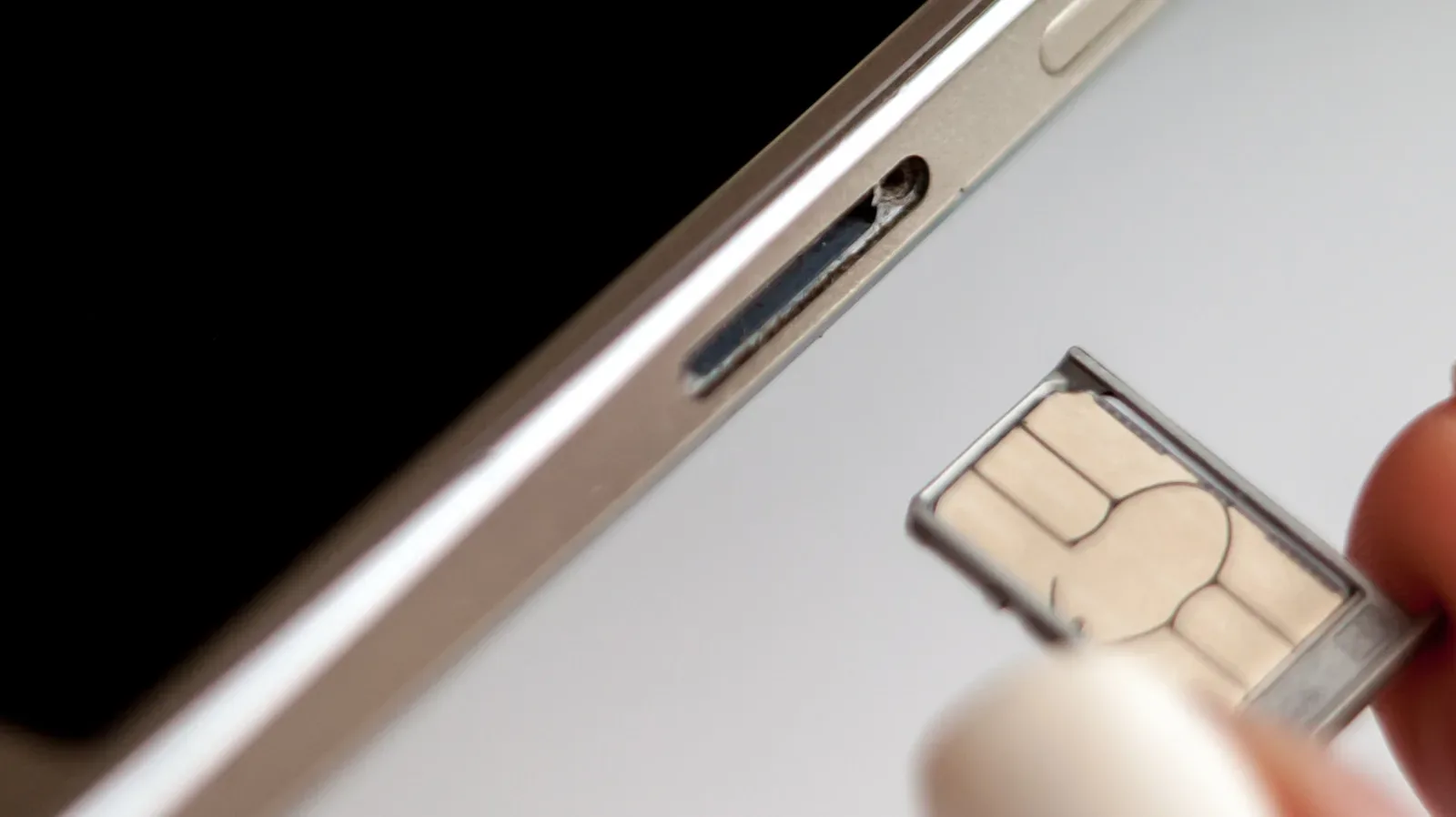
Use the SIM ejector tool that came with the phone to open the tray. If it is unavailable, a paper clip or safety pin can serve the same purpose. Once the card is out, place it back in the tray correctly and reinsert it. This is a focused response to a possible physical connection problem—not a universal ritual required every time a coverage gap appears.
It is worth keeping the diagnosis honest after doing this. If reseating the card changes nothing, return to the broader possibilities: coverage, a carrier issue, account status or settings. The phone may still be working exactly as designed while being unable to make the network connection it needs.
eSIM and international travel: check roaming settings
Travel can make eSIM problems more noticeable. An eSIM replaces the physical card with digital carrier information, so there is no tray to check. Instead, review the cellular configuration on the phone.
On iPhone, eSIM controls are located in Cellular or Mobile Data within Settings. Android places the relevant controls in SIM Manager. When an eSIM is involved and service problems appear during international travel, turning on data roaming may resolve the connection problem.
Data roaming is a setting that allows the phone to use mobile data while away from its usual network area. In this specific troubleshooting path, it is relevant because an eSIM may need that permission while travelling. It is not a corrective step for every no-service situation, particularly one occurring at home with a physical SIM and an otherwise active account.
When the message is really a clue, not a verdict
The most useful way to read No Service is as a prompt to narrow down the failed link. Does the issue follow a move into a poorly covered area? Is a wider carrier problem affecting other people? Has the account been suspended? Did a drop or recent service leave a physical card poorly seated? Is an eSIM encountering a roaming issue abroad? Or does a software refresh restore the connection?
Each answer rules out some possibilities without demanding a dramatic fix. That is especially valuable when the phone itself remains powered on and functional in other ways. A lack of carrier service is disruptive, but it does not automatically mean the handset is broken or the SIM is dead.
Practical rule: Begin with location, carrier status and account status. Then refresh software settings. Only then move to SIM removal or a network reset if the evidence points that way.
That approach saves time, preserves settings until they are genuinely needed, and replaces panic with a short diagnostic route. In other words, it turns the No Service screen from a tiny pocket apocalypse into a solvable connection problem.