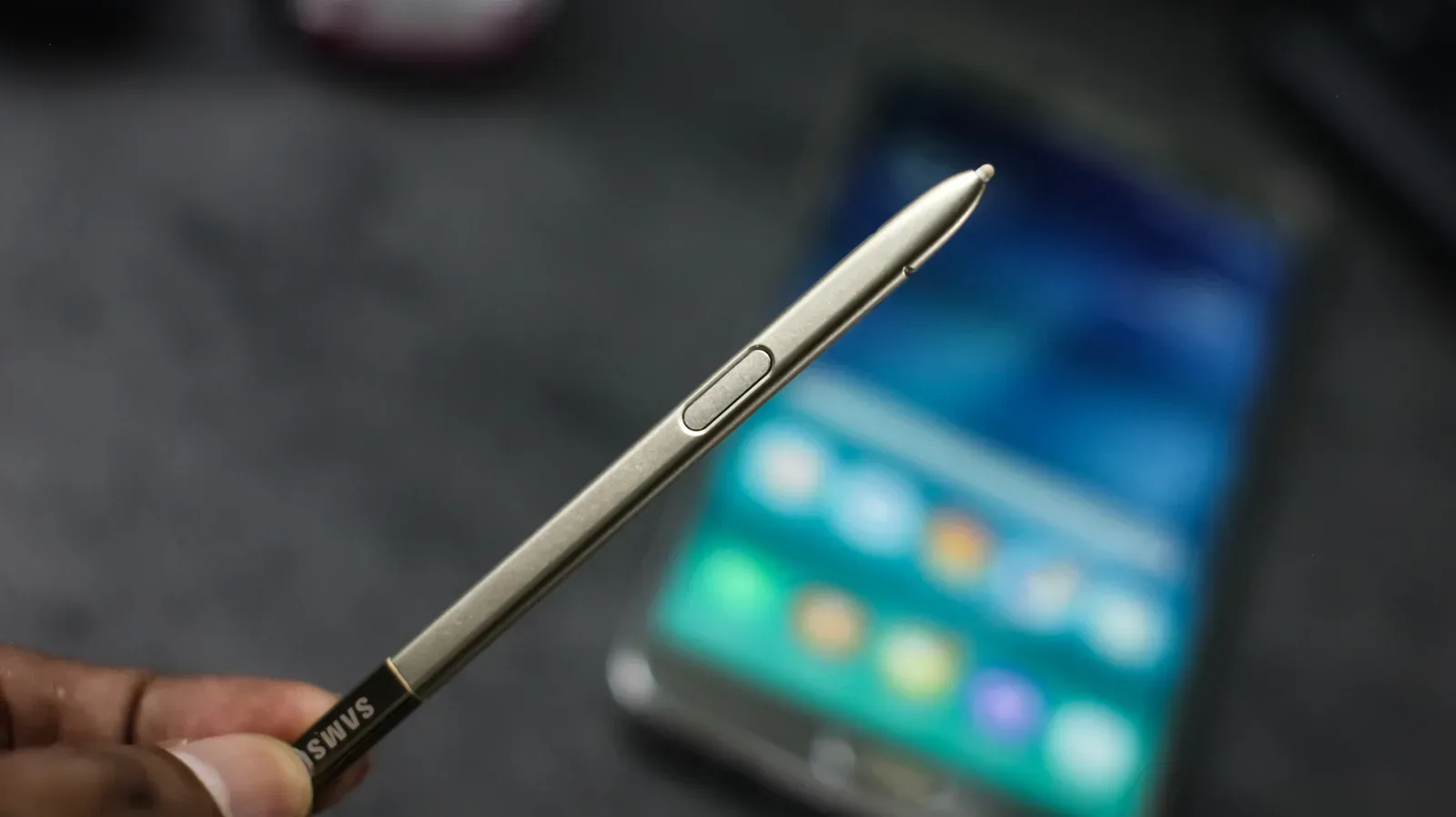
A Galaxy phone warning that its S Pen was left behind sounds like the beginning of a clean, gadget-assisted recovery story. In practice, it may be only the beginning of the search. Samsung’s warning on models such as the Galaxy S26 Ultra can tell an owner that the stylus was not returned to its slot after the screen was turned off for a period of time. It does not identify where in a meeting room, bag, desk drawer, or sofa the pen ended up.
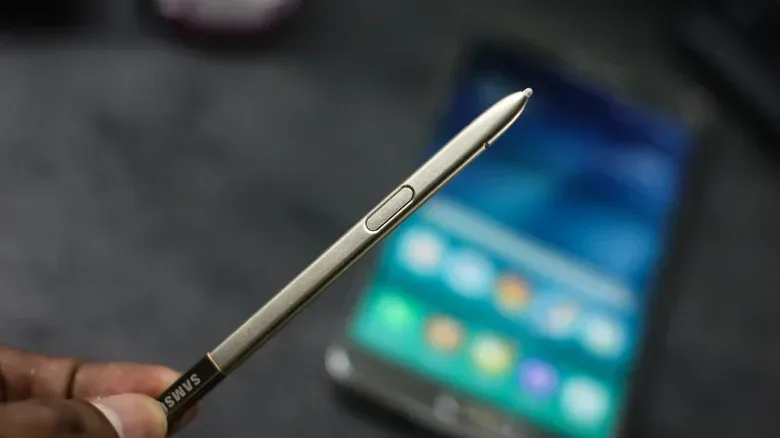
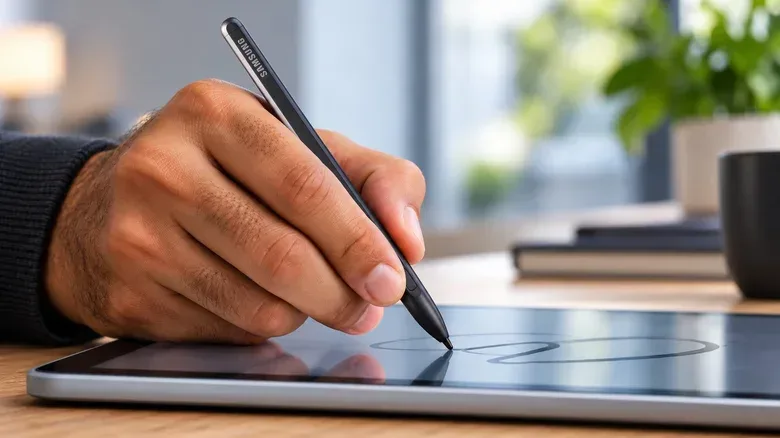
That distinction matters because Samsung has used the S Pen name across several very different products. Some are battery-free styluses. Some have Bluetooth functions. Some live inside a phone. Others are made for tablets or foldables. Only one model is officially supported by SmartThings Find: the separate, rechargeable S Pen Pro.
For anyone hoping to track a missing S Pen, the practical answer is therefore narrow. An S Pen Pro can appear in SmartThings Find once it has been paired and the required finding settings have been enabled. The built-in pens supplied with Galaxy Ultra phones, even Bluetooth-equipped versions from some earlier generations, do not receive that SmartThings Find support. A reminder that the pen is missing and a location service that can help recover it are two different tools.
The one S Pen with SmartThings Find support
The S Pen Pro was introduced alongside the Galaxy S21 Ultra in January 2021 and later released alongside the Galaxy Z Fold 3 and Z Flip 3 in August of that year. Of those foldables, only the Z Fold 3 supports the stylus. It is a larger accessory than the pen integrated into an Ultra phone, sold separately for $100, and it includes a USB-C charging port beneath its cap, a Connection button for pairing, and a switch for compatible Galaxy devices.
Samsung lists compatibility with the Galaxy Note 10 and Note 20 lines, the Galaxy S21 Ultra through Galaxy S26 Ultra, and the Galaxy Z Fold 4 through Z Fold 6. That compatibility is about using the stylus with those devices; critically, the S Pen Pro is also the only S Pen officially supported for location finding through SmartThings Find.
There is an obvious trade-off. The S Pen Pro will not fit in the Galaxy S26 Ultra’s built-in pen bay. It is more capable as a trackable accessory, but it is also a separate item to carry. Owners who value the always-with-the-phone convenience of the integrated S Pen should not assume that a tracking feature comes along with that slot.
Bluetooth is not the same thing as finding
The confusing part is that Bluetooth alone does not settle the question. Samsung added Bluetooth to the Galaxy Note 9’s S Pen in 2018, allowing remote camera activation and control of some applications. Similar remote-control capabilities continued on later Note devices and on the Galaxy S22, S23, and S24 Ultra families. Yet those built-in styluses cannot be found through SmartThings Find.
It helps to separate two technical ideas that are easy to merge in everyday use:
Related coverage includes Only One Samsung S Pen Works With SmartThings Find.
- Bluetooth remote features let an accessory communicate with a paired device for functions such as camera control or app commands.
- SmartThings Find support means the accessory is supported by Samsung’s finding system and can be surfaced in its device list and map workflow.
- Left-behind warnings are notifications designed to tell the owner a pen was not put back. They are alerts, not live room-by-room location results.
In other words, an S Pen can have Bluetooth without being a findable SmartThings device. It can also trigger a helpful warning without being locatable on a map. The S Pen branding does not communicate those differences especially clearly, so checking the exact model is more reliable than assuming that “Bluetooth S Pen” means “trackable S Pen.”
Samsung removed Bluetooth from the S25 Ultra’s S Pen, and the S26 Ultra follows that approach. The variations extend to tablets as well. Certain Galaxy Tab S Pens support Bluetooth-based Air Actions, while the pen supplied with the Tab S9 FE does not. The S Pen Fold Edition and S Pen Creator Edition also lack Bluetooth and do not support SmartThings Find.
What SmartThings Find is doing when an S Pen Pro goes missing
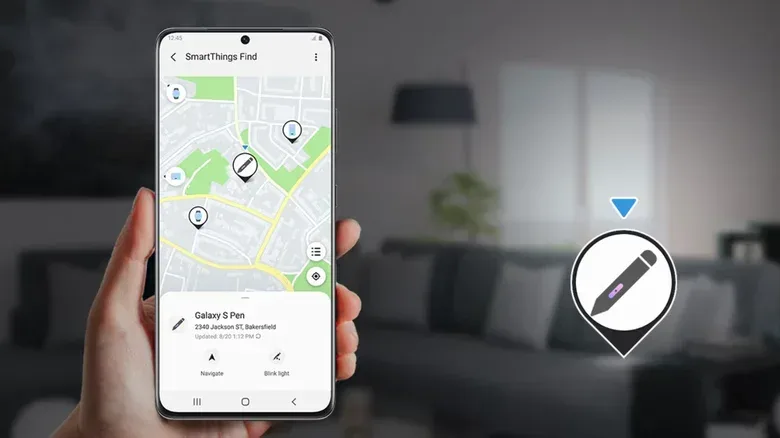
SmartThings Find relies on participating Galaxy phones and tablets that have offline finding enabled. A device in that network can detect a powered-on S Pen Pro via Bluetooth and anonymously relay location information to Samsung, without requiring that device to pair with the pen. The owner can then see the reported location in the finding interface.
That description also explains the boundaries of the tool. The map can show the pen’s last reported location, which is not necessarily a real-time guarantee of its current position. Participation depends on nearby Galaxy devices having offline finding turned on. The setting may be enabled by default when a person signs in to or creates a Samsung account, but people can turn it off. A lost S Pen Pro is therefore not aided by every Galaxy device automatically.
Samsung also offers an Encrypt offline location option, which is relevant for users who want additional protection around the location information involved in the offline finding process. The broader point is simple: SmartThings Find is a network-assisted recovery feature, not a magical signal that can identify a stylus’s exact spot inside every building.
That is still substantially more useful than a basic missing-pen notice. If the pen’s last reported location is a café, workplace, or home address, it can narrow the search from “somewhere I was today” to a place worth revisiting. Once nearby, the S Pen Pro’s light can be made to blink, adding a visual cue for a close-range search.
Set up the S Pen Pro before it disappears
Finding features need preparation. Waiting until after a pen has vanished is too late to enable the options that let it participate in the network. The setup process starts with the S Pen Pro itself:
- Charge the S Pen Pro.
- Select the mode appropriate for the Galaxy device being used.
- Hold the Connection button for three seconds.
- Tap Connect when prompted and make sure the device is signed in to a Samsung account.
Then configure the phone or tablet in SmartThings:
- Open SmartThings.
- Go to Life > Find.
- Open the three-dot menu, then select Settings > Allow devices to be found.
- Enable Offline finding.
The separate Samsung Find app can also show the S Pen Pro in its Devices tab. Either route is useful, but the essential point is that the pen must have been connected and offline finding must already be active. A quick settings check now is much less frustrating than trying to reconstruct a stylus’s route later.
How to search for a lost S Pen Pro
When a configured S Pen Pro is missing, open SmartThings and return to Life > Find. Select the S Pen Pro card; if it is not immediately visible, swipe between device cards or open the device menu. Tap Refresh to request an updated map position.
From there, More > Navigate provides directions. The pen detail panel also offers Navigate after swiping upward. If the search has reached the likely area, use Blink light to flash the S Pen Pro’s indicator. That does not replace a careful physical search, but it can make a small black accessory easier to spot in close quarters.
The most practical recovery routine is to treat the displayed position as a lead, not proof. Go to the last reported place, retrace where the pen was used or carried, and then use the blinking indicator while checking bags, work surfaces, seating, and other likely locations. SmartThings Find offers a way to reduce the search area; it cannot promise that the pen has not moved since it was last detected.
What owners of other S Pens can do instead
For S Pens other than the Pro, the useful protective feature is the left-behind alert, where available. On compatible devices, look under Settings > Advanced features > S Pen > More S Pen settings > Warn if S Pen is left behind. The precise availability depends on the device and pen.
On the Galaxy S26 Ultra, that setting can warn that the built-in pen is absent from its slot after the display has been switched off for a while. It will not put a dot on a map. But catching the problem before leaving an office, classroom, or transport stop can avoid a much larger search. For an integrated pen, that early warning is the central loss-prevention feature described here.
If recovery fails, verify device compatibility before ordering a replacement. Samsung currently lists a replacement Galaxy S26 Ultra S Pen at $55 in the United States. That price is separate from the $100 S Pen Pro, and the two products serve different needs: the former replaces the pen designed for the Ultra’s internal slot, while the latter is the larger accessory with SmartThings Find support.
There is a familiar lesson for anyone managing portable gaming gear and accessories: names alone rarely explain interoperability. The same is true when comparing hardware more broadly, as seen in the practical cost of building a PC beyond Xbox Series S hardware. With Samsung styluses, the decisive question is not whether a pen says S Pen or whether it includes Bluetooth. It is whether it is specifically the S Pen Pro, paired in advance and configured for offline finding.