A one-sided AirPods failure has a special talent for showing up at the least convenient moment: right as a party chat starts, when you are settling into a soundtrack, or halfway through the video that was supposed to explain the next objective. The good news is that one silent earbud does not automatically mean the pair is finished.
The most likely explanation is comparatively mundane: the quiet AirPod may not have charged correctly. A small amount of debris in the case can interfere with the point where an earbud meets its charging contact, leaving one side with too little power even when the other is ready to go. Before treating this as an audio or Bluetooth disaster, work through the physical basics first.
This guide separates a completely silent AirPod from an audio-balance issue, where both earbuds function but one is quieter. Those are different problems, and the useful fixes are different too.
Start with the charging case, not the iPhone
Put both AirPods in their case and make sure the case itself has power. Then inspect and carefully clean the charging areas. Pay particular attention to the bottom of each AirPod slot, where the earbuds make contact to charge. Grime in that area can prevent a single bud from receiving power properly.
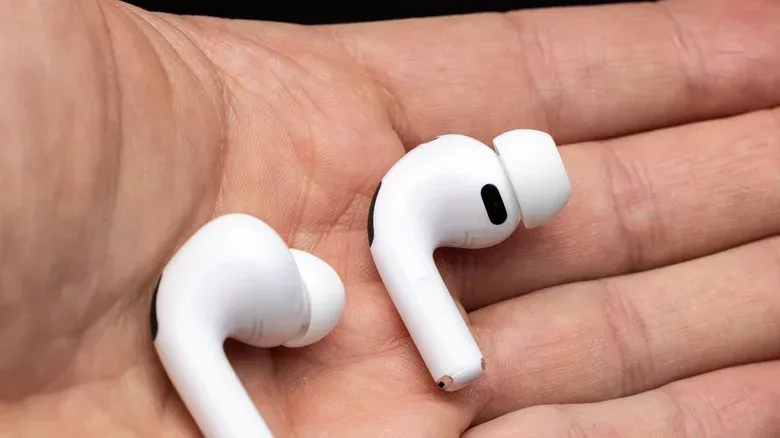
Also look over the quiet earbud itself. Check its speaker mesh for debris and use a soft cloth to wipe it as needed. This is a separate inspection from cleaning the case: one concerns whether the bud is charging, while the other concerns whether its speaker can deliver sound.
Once the case and earbuds have been cleaned, leave both AirPods charging for 30 seconds. Open the case close to an iPhone to bring up the battery-status display. It should show the charge levels for the case and the individual earbuds, providing a quick clue about whether the silent side has actually been getting power.
For anyone who checks this regularly, the iPhone Batteries widget offers a faster way to monitor AirPods charge levels from the Home Screen. It is not a repair in itself, but it can make a recurring unequal-charge issue easier to spot.
Test one side at a time
After that initial 30-second charge, test the AirPod that had stopped producing sound while leaving the working one inside the closed case. This removes a little ambiguity: you are checking the affected earbud directly instead of trying to judge both at once.
If it starts working, return both earbuds to the case for another 30 seconds, then test again. A successful result after charging points toward a power or contact problem rather than a persistent connection fault. If it remains silent despite showing a charge, move to the reset process.
Resetting AirPods: identify the case controls first
A reset restores AirPods settings to their defaults and forces a fresh setup with the iPhone. It is a reasonable next move when charging and cleaning have not restored sound. The important detail is that the physical reset interaction differs by model generation.
Before proceeding, go to Settings > Bluetooth on the iPhone. If the AirPods appear in the device list, tap the i button beside them and select Forget This Device. The rest of the process depends on the AirPods and case you own.
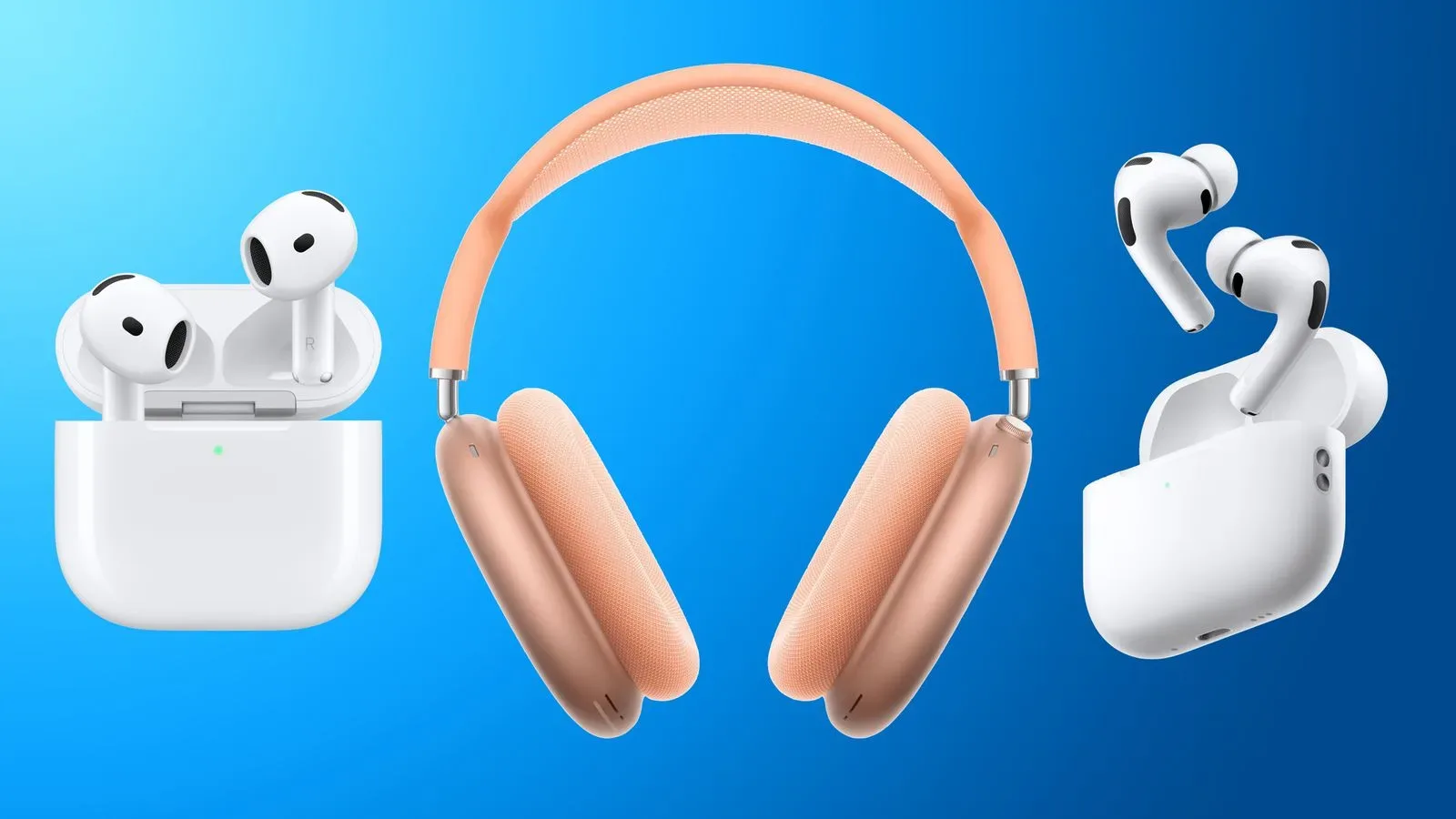
AirPods 3, AirPods Pro 2, and older equivalent models
- Place the AirPods in their case and close the lid.
- Wait 30 seconds.
- On the iPhone, forget the AirPods under Bluetooth settings if they appear there.
- If they do not appear, open the case lid.
- Hold the circular setup button on the rear of the case for 15 seconds.
- Wait for the front status light to flash amber and then white.
- Follow the setup directions that appear on the device screen.
The amber-to-white light sequence matters because it signals that the reset and pairing sequence is ready. Do not assume every light change means the same thing; wait for that stated progression before continuing with onscreen setup.
AirPods 5, all AirPods 4 models, and AirPods Pro 3
These models use a similar reset outcome but a different input method. Rather than holding a rear setup button, use the front of the case while its status light is active:
- Double-tap the front of the case while the status light is on.
- When the light flashes white, double-tap the front again.
- When the white flashing becomes faster, double-tap the front a third time.
- Wait for the amber-to-white light pattern, then follow the instructions shown on the device.
In practical terms, the reset is not one universal button ritual. Using the older hold-the-button method on a newer case will not match the supplied procedure. Confirming the model before starting avoids turning a simple re-pairing task into a session of random taps and increasingly theatrical sighing.
Silent earbud or uneven audio? Check the difference
A completely silent AirPod and lopsided stereo sound can feel similar in the middle of a game, especially if dialogue, music, or a teammate’s voice is mixed heavily to one side. But they require different diagnosis.
If the allegedly failed AirPod produces some sound, the iPhone’s accessibility audio setting may be favoring the left or right channel. A balance slider controls how audio is distributed between the two ears. It does not repair hardware; it simply determines whether one channel is made louder than the other.
On iPhone, open Settings > Accessibility > Audio & Visual. Find the Balance slider and make sure it sits in the middle. A centered slider sends neither side special treatment. If it was moved toward one ear, returning it to the middle can resolve a perceived one-sided failure immediately.
This distinction is useful beyond AirPods. If sound is consistently biased in every app or game, device-level balance is worth checking. If it happens only with a particular audio source, that source may be the relevant variable instead.
Rule out the phone and the audio source
After cleaning, charging, and resetting, give the AirPods and their case a proper charge if you have not done so already. Then restart the iPhone. Restarting is not a magic cure, but it is a direct way to clear a temporary device-side issue before assuming the earbud is at fault.
Next, try another audio source. The goal is simple: establish whether the missing sound follows the AirPod or is tied to what is playing. A different track, video, or app can help separate an earbud problem from a problem confined to the original source.
For gameplay, that distinction saves time. Do not immediately alter game audio menus, team-chat settings, or console-level options when the problem occurs across ordinary phone audio as well. Conversely, if the AirPods play other material normally, there is reason to inspect the original game or app’s sound configuration rather than repeatedly resetting the earbuds.
A sensible order of operations
The fastest troubleshooting path is the one that starts with the simple, likely causes and only escalates when they fail. This order keeps each test meaningful:
- Charge the case and clean its interior contact areas.
- Clean the affected AirPod’s speaker mesh with a soft cloth.
- Charge both earbuds for 30 seconds and check their individual battery status near the iPhone.
- Test the previously quiet bud by itself while the working one stays in the case.
- Check that the iPhone’s Audio & Visual balance control is centered if the problem is reduced volume rather than silence.
- Restart the iPhone and try another audio source.
- Forget and reset the AirPods, using the model-appropriate case interaction.
That progression has a useful logic. Charge status addresses whether the earbud can operate at all. Cleaning addresses blocked contacts and speaker debris. The balance setting checks whether the iPhone is deliberately pushing audio to one side. A restart and alternate source help isolate software or content variables. Finally, a reset rebuilds the connection and settings relationship between the iPhone and AirPods.
AirPods are built around convenient pairing, but convenience can make it tempting to skip diagnosis and tap through settings at random. Taking the checks in sequence gives each one a job. In many cases, the quiet side is simply the side that did not get a reliable charge.
For more iPhone settings housekeeping, see our guide on turning off Apple Intelligence features in iOS 27.