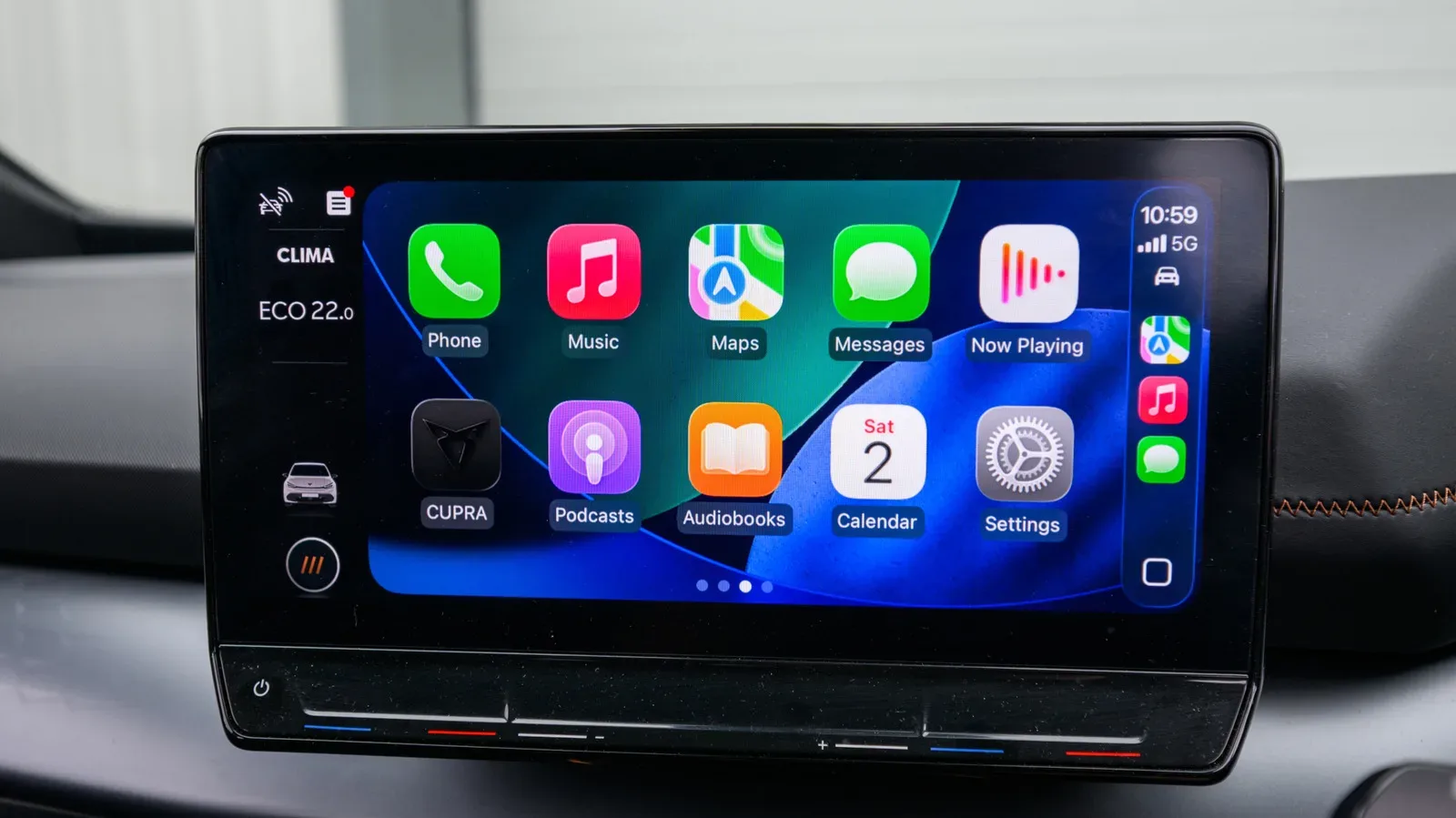
CarPlay’s iOS 27 MiniPlayer is a small interface change with an unusually practical payoff: it removes a recurring navigation detour from music apps. Instead of leaving a playlist, artist page or album list to open Now Playing, control playback, then return to where you were, drivers can use a persistent control in the top-right corner of the screen.
That matters because CarPlay is used in an environment where a tiny reduction in menu hopping can be more valuable than a flashy new feature. The redesigned control replaces the former waveform icon in compatible audio apps with artwork for the active song. On larger CarPlay displays, it also provides play, pause and skip controls directly from that spot. The result is a one-tap answer to the very ordinary problem of a track starting at precisely the wrong moment while you are trying to find something else to play.
What changed in CarPlay audio apps
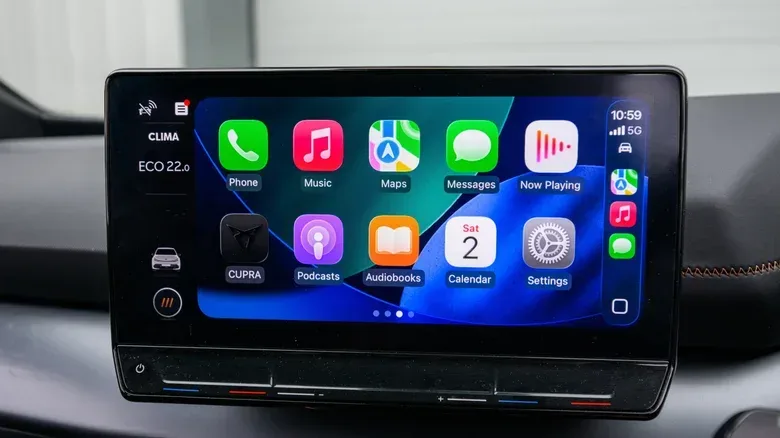
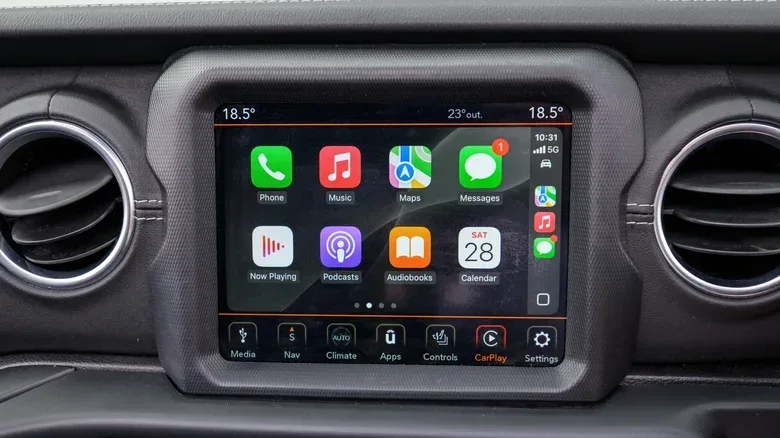
Before iOS 27, the upper-right control in a CarPlay audio app was a waveform icon. Selecting it opened the dedicated Now Playing screen, the page containing the current item and its playback controls. If a listener wanted to skip a song while browsing elsewhere in an app, the task involved entering that screen, choosing Skip, and then navigating back to the original list.
iOS 27 replaces that shortcut with the MiniPlayer. The MiniPlayer is a compact, always-in-the-same-place playback element rather than a separate destination in an app’s navigation flow. It identifies what is playing through album art and can expose the essential controls without forcing the current browsing screen to disappear.
In practice, the difference is easiest to understand with a common scenario. A driver may be several screens into an artist’s catalog, looking through albums or tracks, when an unwanted song begins. The old approach interrupted that exploration and changed the interface twice: once into Now Playing and again back to the catalog. The MiniPlayer lets the listener deal with playback while remaining in the catalog.
That is not the same as replacing Now Playing altogether. iOS 27 also makes the progress bar on the full Now Playing screen larger and draggable. A draggable progress bar means a listener can move to a particular point in a track rather than only using a next-track command. Anyone trying to seek through a song, podcast, or other audio item will still need the full playback view for that finer control.
The display-size caveat is important
The MiniPlayer’s most useful behavior is not guaranteed to look identical in every vehicle. Apple has indicated that larger displays can show play, pause and skip buttons within the compact control, but has not specified the display size needed for those buttons to appear.
On a smaller CarPlay screen, the MiniPlayer may primarily show the active media and function as a shortcut back to Now Playing. That still improves awareness of what is playing and keeps the destination in a predictable location, but it may not deliver the full one-tap playback-control benefit described for larger displays.
Related coverage includes iOS 27 puts CarPlay’s skip button where you need it.
This distinction is worth keeping in mind before treating the MiniPlayer as a uniform hardware upgrade. It is an iOS 27 interface feature, not a promise that every CarPlay dashboard will present the same control density. The practical test is simple: after updating, open a compatible audio app while media is playing and check whether the corner MiniPlayer includes the controls you use most.
Compatibility is refreshingly straightforward—mostly
The good news is that the MiniPlayer does not require a new car, a special CarPlay version from an automaker, or a separate app update in the typical case. Apps that already support CarPlay’s Now Playing screen are set to receive the new MiniPlayer automatically when used with an iPhone that supports iOS 27.
That makes it notably less conditional than other CarPlay changes in iOS 27. Siri AI support depends on having a recent iPhone, while video apps in CarPlay depend on individual automakers implementing support. The MiniPlayer, by contrast, is tied to the phone’s software compatibility and an app’s existing Now Playing support.
There is one exception: app developers can intentionally retain the older navigation-bar treatment. A developer can set a property called allowsMiniPlayer to false. In software terms, a property is a configuration value that controls a particular behavior; here, turning that value off restores the previous Now Playing icon rather than the MiniPlayer. There is no published master list of apps making that choice, so the behavior of a particular music or audio app has to be checked in the car.
For iPhone owners, this is also a useful reminder that CarPlay convenience begins with the phone’s software state. Routine iPhone settings can affect the wider ownership experience too, including battery-management choices such as an iPhone charge limit. The MiniPlayer itself, however, has a narrower requirement: an iPhone capable of running iOS 27 and an audio app that uses CarPlay Now Playing, unless its developer has opted out.
Why a fixed control can reduce interface friction
The strongest case for this change is not that skipping a track was impossible before. It is that the older workflow required people to visually reacquire controls after a screen transition. Each change of page can move the relevant button, replace the content a person was reading, and add a back-navigation step after the action is complete.
With the MiniPlayer, the important controls occupy one corner across compatible audio apps. Consistency is doing much of the work. A listener does not need to remember where an app places its Now Playing shortcut, then switch to a new layout just to pause or skip. The current browsing context remains visible.
Apple’s design direction also sits broadly alongside in-car display guidance from the National Highway Traffic Safety Administration. That guidance recommends individual glances away from the road of no more than two seconds and an overall eyes-off-road time of no more than 12 seconds for a task. Those are recommendations, not binding requirements, and they were written for vehicle systems made by automakers rather than phone software such as CarPlay.
It would therefore be wrong to claim that the MiniPlayer certifies an app or a vehicle as safe, or that a quicker interface removes the need to drive attentively. The more limited—and better supported—point is that eliminating screen changes and keeping controls in a stable position can cut down the visual searching involved in a simple playback action.
What to expect after updating
- Start playback in a CarPlay audio app that supports Now Playing.
- Look in the top-right corner for album art in place of the older waveform icon.
- On a larger display, check whether play, pause and skip buttons appear in the MiniPlayer.
- Use the full Now Playing screen when you need to drag through a track to a specific moment.
- If an app still shows the old icon, it may be using the developer opt-out rather than failing to support iOS 27.
Apple also demonstrated a MiniPlayer in a video-app context, where it can serve as a quick route back to a video left partway through. That demonstration shows the idea is broader than music: the compact element is a way to preserve access to active media without repeatedly abandoning the screen a person is currently using. Video availability in CarPlay remains dependent on automaker implementation, so that example should not be read as confirmation that every vehicle can use video apps.
Ultimately, the MiniPlayer is a quality-of-life change rather than a new entertainment service or a new vehicle capability. But it targets a task people perform constantly—pausing or skipping audio while browsing—and makes it more direct. For compatible CarPlay audio apps, iOS 27 changes the upper-right corner from a gateway to another screen into a place where playback can simply be handled and the search can continue.