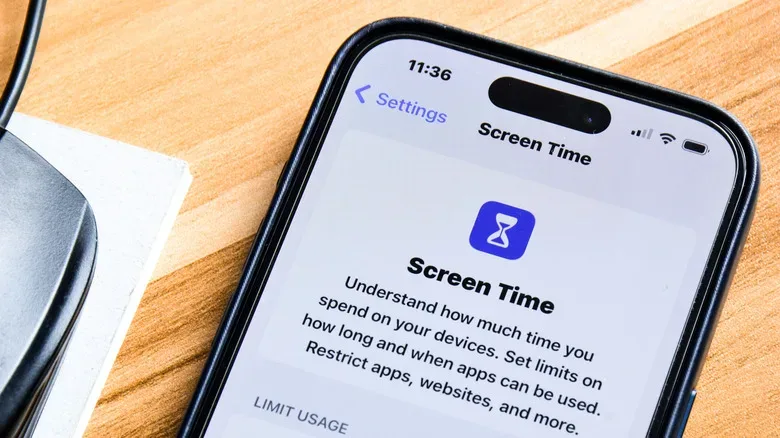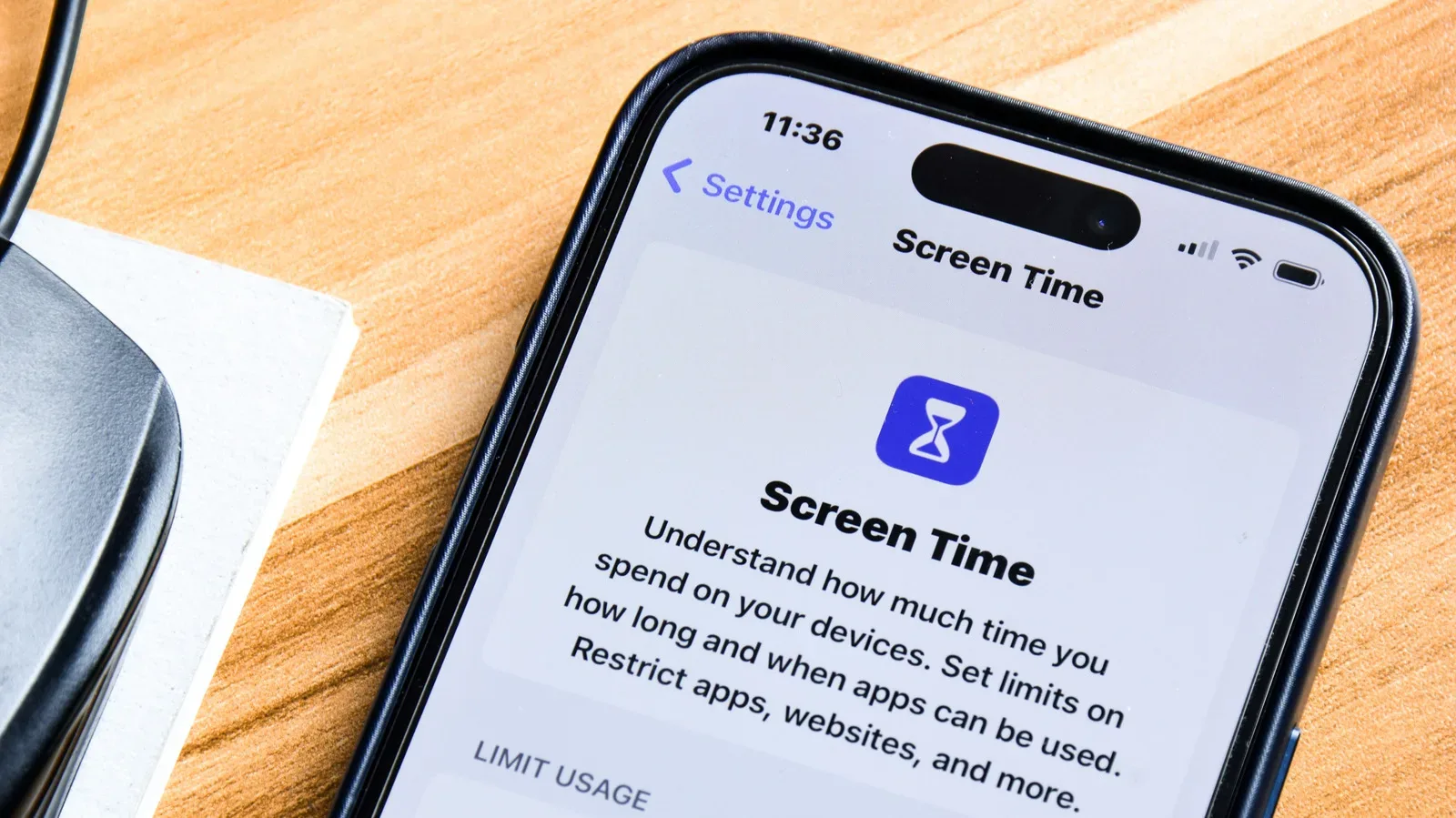
The iPhone is a magnificent little multi-tool: camera, map, music player, message machine, portable game system, and—when the wrong app catches you at the wrong moment—an extremely efficient way to convert five spare minutes into an hour that has vanished into the mist. Screen Time is Apple’s built-in answer to that problem. It does not make distracting apps disappear from the planet, but it can add boundaries between an impulse and the next endless feed, match, video, or comment section.
That distinction matters. A limit is not magic, and Screen Time is not a moral judgment about games, social media, or video apps. It is a practical set of controls for deciding when a device should be useful, when it should be quieter, and which apps deserve a little friction. It can also be used to manage a child’s iPhone or iPad through Apple Family Sharing.
The most effective setup begins with a clear goal. Do you want less time in one particular app? Do you need a nightly no-phone window? Are you trying to keep games from intruding on homework, work, sleep, or family time? The answer determines whether App Limits, Downtime, notification changes, or a combination of all three is the right tool.
Start by checking the evidence, not your memory
On an iPhone or iPad, open Settings > Screen Time. The chart at the top provides a weekly view of device activity. Tap See All App & Website Activity for the more useful details: daily average usage, time by app category, the apps consuming the most minutes, how often the device is picked up, the apps opened first after a pickup, and the apps producing the most notifications.
This is the reconnaissance phase. It is easy to say that a game or social platform is the problem, only to find that a browser, a video app, or notification-driven checking is the actual time sink. Pickup and notification data can be especially revealing. If an app is repeatedly the first one opened after unlocking, or is constantly pulling attention with alerts, a simple daily time cap may be only part of the solution.
People using more than one Apple device should also look for the Devices control in the upper-right area of the activity screen. It can filter the numbers to a single iPhone, iPad, or Mac. The Week and Day views, along with their navigation arrows, make it possible to compare a normal weekday with a weekend rather than treating every day as identical.
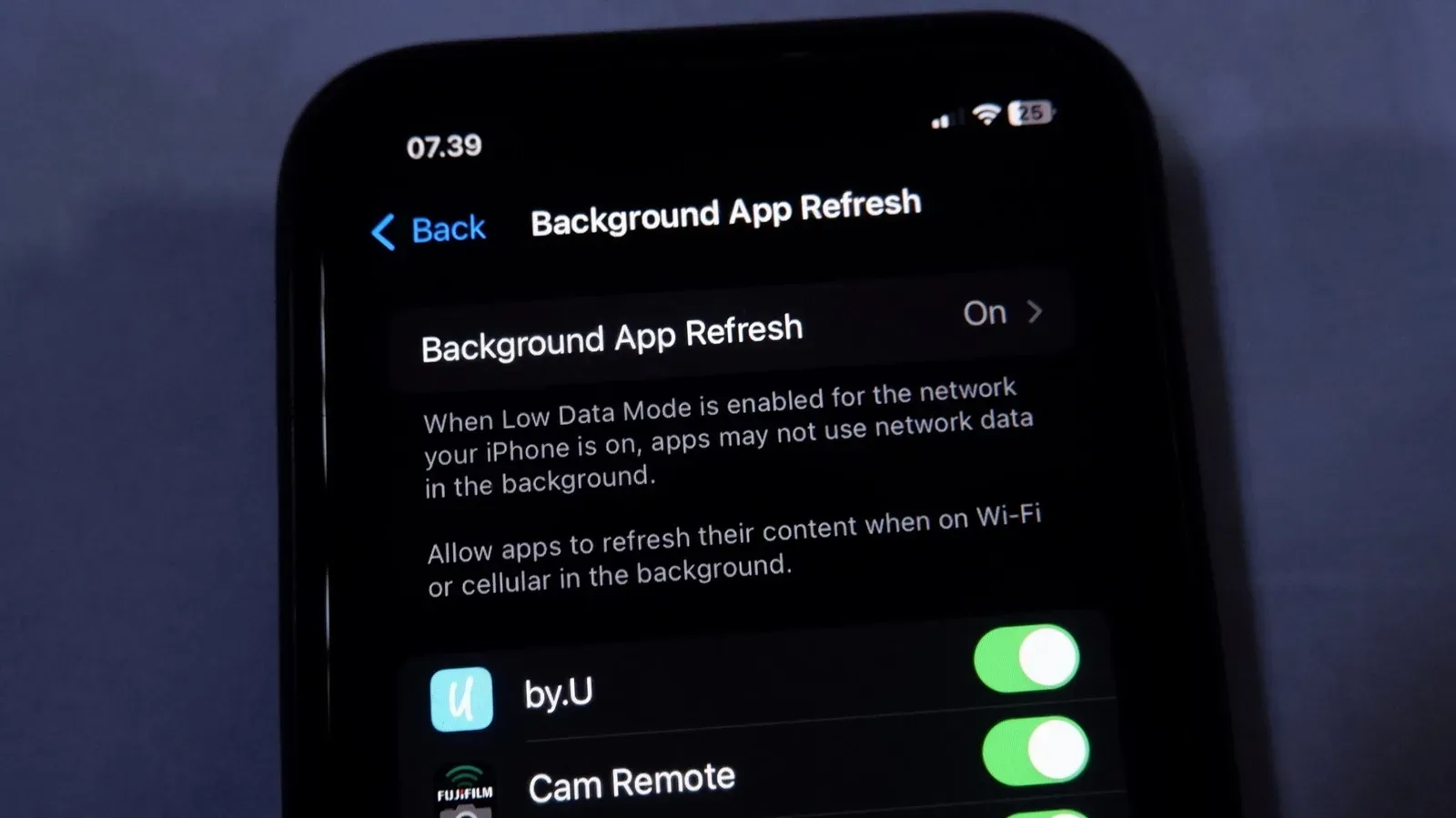
If battery longevity is also part of your device housekeeping, Screen Time is only one piece of the puzzle. Settings that affect what apps do in the background deserve their own check; our guide to Background App Refresh on iPhone explains that separate control.
Choose what stays usable before restrictions begin
Before turning on broad restrictions, visit Always Allowed in the Screen Time menu. This is the safety valve. Select the installed apps that should remain available even during a scheduled break, then use the Contacts option to choose whether communication is open to everyone or limited to selected contacts.
The right list is personal, but it should be conservative. Phone access and essential communication may be important. A navigation app, authentication tool, school app, or medical-related app might be necessary for some people. The point is not to build an escape hatch so large that every favorite distraction fits through it. If the app is precisely what you are trying to stop opening at midnight, it does not belong on the always-available list.
Use Downtime for a genuine off-hours window
Downtime is Screen Time’s bigger switch. When it is active, access is generally limited to the apps placed in Always Allowed and calls from the contacts permitted in the setup. It can be enabled manually when you need an immediate break, or scheduled for recurring periods. The schedule can be configured by day, which is useful when weekday routines and weekends look different.
Screen Time gives a warning five minutes before Downtime starts. That is a useful courtesy, but it can also become the classic “one last thing” trap. Treat that warning as a prompt to finish a task, save progress, plug in the phone if needed, and put it out of reach—not as an invitation to begin a fresh round of whatever usually keeps you awake.
A straightforward example is a nightly Downtime period that starts before bed and ends after the morning routine. Another is a work or study block in which entertainment and social apps are unavailable while practical communication remains possible. The goal is to make the phone less tempting during the hours where habit causes the most trouble.
Use App Limits when the problem is narrower
For targeted controls, choose App Limits, then tap Add Limit. Screen Time groups applications into categories such as Social, Games, and Entertainment. You can apply one cap to an entire category with the selection bubbles, or expand a category and choose individual apps. There is also a Websites option for situations where the distraction is not confined to a downloaded app.
Set a maximum daily duration after making the selection. Customize Days lets you vary that number across the week, so a stricter weekday limit can coexist with a looser weekend allowance. Separate limits can be created for different groups. That matters because an hour spent on a game may be an intentional leisure activity, while an hour of accidental short-form video may be the behavior you want to interrupt.
Screen Time sends a reminder as the limit approaches. Once the allocation has been used, attempting to open the restricted app presents a limit screen. The person holding the phone can choose to ignore the restriction for one minute, 15 minutes, or the rest of the day. That makes Screen Time flexible, but it also explains why a limit should be designed around behavior rather than wishful thinking. If every warning receives an automatic tap on “ignore,” the setting is merely a decorative speed bump.
For an extra layer of separation, hide especially tempting apps from the Home Screen or place them somewhere inconvenient. Screen Time provides the boundary; reducing visual cues makes it easier not to test that boundary every time the phone is unlocked.
Keep limits consistent across Apple devices
Enable Share Across Devices if you use the same Apple Account on an iPhone, iPad, and Mac and want Screen Time limits to follow you. Without it, limits must be configured separately on each device. This is important for anyone whose “less phone time” habit quietly migrates from the iPhone to a tablet or computer after a restriction appears.
Consistency is valuable, but it should still reflect real needs. A device used for work, school, or creative projects may require different allowances than a personal phone. Check the activity data first, then decide whether synchronized restrictions help or create unnecessary obstacles.
Make a personal limit harder to casually override
Screen Time ranges from a friendly reminder to a serious barrier. A reminder may be enough for someone who only needs a moment of awareness. For anyone who routinely overrides limits without thinking, use Lock Screen Time Settings to establish a dedicated Screen Time passcode. The passcode is what stops the controls from being effortlessly edited away in the same distracted moment that prompted the change.
Some people may prefer an additional accountability step: ask a trusted person to create and retain the Screen Time passcode, with a clear understanding of when it will be shared. This is not necessary for every user, and it should only be done with someone trustworthy. But the basic principle is sound: increase the effort required to defeat a limit when the whole purpose of that limit is to outlast a brief impulse.
Apple’s Focus modes can complement Screen Time by silencing nonessential notifications during work, rest, or play. Screen Time controls access and duration; Focus can reduce the prompts that start the cycle. Together, they are more practical than relying on a single setting.
Screen Time also has family-management controls
For families using Apple Family Sharing, a child’s name appears at the bottom of the Screen Time page. Selecting it opens controls for that child’s iPhone or iPad. Parents can establish app limits and Downtime, while several additional tools address communication, content, privacy, and device settings.
Screen Distance can remind a child when the device is being held too close. Communication Limits can restrict communication to contacts, although that limitation applies to Apple’s own Phone, Messages, and FaceTime apps rather than third-party services such as WhatsApp. Communication Safety can identify when explicit imagery is sent or received and offer guidance around that material.
The Content & Privacy Restrictions area can disable features or stop settings from being changed. Examples include blocking Apple Wallet, preventing app installation, or locking permissions such as location access. A child can request approval for certain exceptions, including age-gated App Store downloads or extra time during Downtime. Parents can set these controls on the child’s device even if they do not use an Apple device themselves, then protect the configuration with the Screen Time settings passcode.
Used thoughtfully, Screen Time is not about making a phone useless. It is about reserving the device for the moments when it serves you, instead of letting the loudest app decide what happens next.