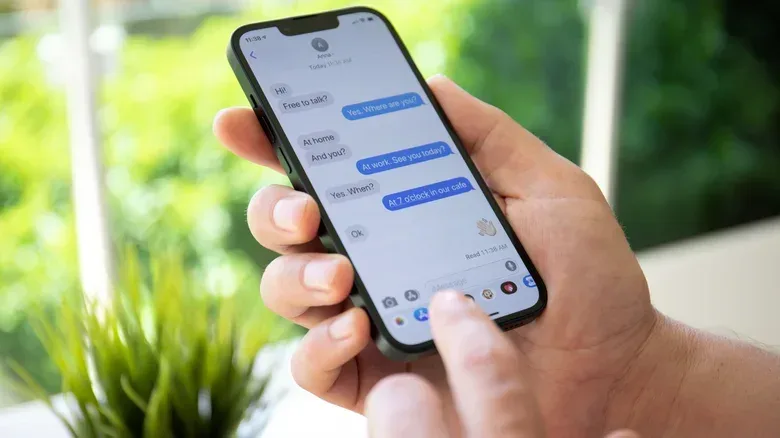

Your iPhone is supposed to be the helpful party member in every conversation: quietly offering the next word, spotting a date for a meetup, and suggesting a reminder before you forget the thing you meant to buy. But an overenthusiastic assistant can turn ordinary messages into a small boss battle of unwanted prompts.
There are two different systems worth separating here. Predictive Text is the word and phrase suggestion strip associated with the iPhone keyboard. Suggested Actions in Messages are prompts that can turn the contents of a message into something else, such as a Calendar entry or a Reminders item. They are related in the broad sense that both try to anticipate what you want next, but they are controlled in different places and can be adjusted independently.
That distinction matters. If you like keyboard word predictions but dislike Messages treating every casual plan as an appointment, you do not need to turn everything off. Likewise, if the keyboard has begun repeatedly offering an odd capitalization or a word you used once in a very specific context, resetting its learned dictionary may be a better move than disabling predictions altogether.
For a separate messaging-quality-of-life task, Joking Joystick also has a guide on filtering spam texts on iPhone and Android. That is a different setting from the suggestions covered here: spam filtering deals with incoming message organization, while these options govern prompts generated while you type or read a conversation.
What iPhone Messages suggestions actually do
Suggested Actions arrived in Messages as part of iOS 27.2. The feature looks for details in a conversation that could correspond to a task in another app. If a chat includes a time and date for meeting someone, Messages may offer to create a Calendar entry. A line about picking up an item later can result in a prompt to add it to Reminders.
The available action groups are:
- Add to Calendar
- Add to Reminders
- Add to Notes
- Show in Maps
- Flights and Packages
In other words, this is not simply a decorative suggestion bar above the keyboard. It is an attempt to recognize potentially actionable information in a message and hand it off to a relevant app or service. That can be genuinely useful when a thread contains real travel, delivery, location, planning, or errand details. It can also be comically wrong when friends are joking, being sarcastic, or talking about a plan that is emphatically not going to happen.
A message reading “remind me why we are friends” is a good illustration of why context matters. The words resemble a request, but the actual intent may be nothing more than a punchline. Suggested Actions can be convenient without being a good fit for every communication style.
Related coverage includes How to turn off iPhone Messages suggestions and predictive text.
Turn off Messages Suggested Actions, or keep only the ones you use
The useful part of the Messages controls is that they are granular. You can disable every category, or leave on only the type of handoff that earns its place in your chats.
- Open Settings.
- Tap Apps, then choose Messages.
- Select Suggested Actions.
- Turn off the categories you do not want.
If the goal is a completely quieter Messages experience, disable all five categories. If you only object to certain interruptions, take the narrower route. For example, someone who uses Calendar as their central planning tool may keep Add to Calendar enabled while turning off Notes, Maps, and the delivery-related category. Someone who already captures every task manually may prefer to remove Reminders suggestions while leaving location prompts intact.
This is the practical advantage of a per-category menu: it lets you judge the feature by the value of each particular prompt, rather than accepting or rejecting the whole concept of message-based assistance. The right setup is not necessarily “all on” or “all off.” It is the one that produces fewer false alarms without hiding the prompts that actually save you a step.
A quick way to choose your setup
- Turn everything off if you do not want Messages offering actions based on chat content, or if the prompts are consistently distracting.
- Keep Calendar only if dates and meeting times are the only information you routinely want to act on immediately.
- Keep Reminders only if informal “pick this up later” conversations are where you most often lose track of tasks.
- Review Maps, Flights and Packages separately if location, travel, and tracking prompts are useful only in specific conversations.
The controls do not require you to change keyboard behavior. A Messages Suggested Actions adjustment is about these cross-app prompts, not whether your iPhone suggests the next word as you compose a message.
Turn off Predictive Text on an iPhone
Predictive Text is the keyboard feature that proposes words or phrases based on what you are typing. It has been on iPhone much longer than the newer Messages actions. In its ideal form, it recognizes your usual wording and helps you type faster. In its less ideal form, it remembers a niche term, an accidental spelling, or one emphatic all-caps message and tries to make that your entire personality.
To disable the keyboard’s predictive suggestions:
- Open Settings.
- Tap General.
- Choose Keyboard.
- Under All Keyboards, switch off Predictive Text.
Disabling Predictive Text also disables Siri’s suggested replies. That is worth knowing before you flip the switch: this change affects more than the next-word suggestions at the top of the keyboard. If those suggested responses are part of your usual messaging rhythm, consider trying a dictionary reset first rather than turning Predictive Text off permanently.
The Keyboard page also contains other writing-related settings that are easy to confuse with predictive text. Options such as Auto-Capitalization, Auto-Correction, and Smart Punctuation are separate controls. If your complaint is specifically that the phone changes a word you deliberately entered, Auto-Correction may be the setting to inspect. If your complaint is that the keyboard keeps offering bizarre possible next words, Predictive Text is the more relevant switch.
Reset a keyboard dictionary when predictions have learned bad habits
Turning Predictive Text off is the cleanest option for people who never want suggestions. But there is a middle path for people who want the feature to work, just not with the strange assumptions it has collected over time.
The iPhone keyboard can learn from how you type. If a prediction has become stuck on an unwanted spelling, unusual capitalization, or an obscure word, resetting the keyboard dictionary clears that learned behavior. It does not amount to disabling the keyboard’s prediction feature; it gives the system a fresh start.
- Open Settings.
- Tap General.
- Select Transfer or Reset iPhone.
- Tap Reset.
- Choose Reset Keyboard Dictionary.
- Enter your device passcode, then confirm the reset.
Expect suggestions to be less tailored for a while afterward. That is the trade-off: the reset removes the odd learned patterns, but it also clears whatever useful typing habits the dictionary had picked up. This makes it best for a keyboard that is persistently behaving badly, rather than for one isolated incorrect prediction that is merely annoying.
Which setting should you change?
Use this short decision tree before venturing through Settings menus:
- If Messages offers to make a calendar event, reminder, note, map lookup, or delivery-related action, change Suggested Actions in the Messages settings.
- If the keyboard displays unwanted possible words or phrases while you type, turn off Predictive Text under General and Keyboard.
- If you want predictions but the learned suggestions are absurd, use Reset Keyboard Dictionary.
- If the phone changes text rather than merely suggesting it, check the separate Auto-Correction setting.
That separation is the key to avoiding an overcorrection. You can silence action prompts without giving up the keyboard suggestions you find helpful. You can clear learned keyboard oddities without removing predictions entirely. And you can investigate automatic corrections without blaming a feature that merely presents options.
Apple’s newer Messages suggestions are designed to save taps by turning details from chats into something actionable. Whether that feels useful or intrusive depends heavily on the way you communicate. The settings offer enough control to make Messages less like an overeager quest log and more like a messaging app that waits for you to decide what happens next.