Good game audio is rarely just about buying a better speaker. It is also about getting the system onto the right network, putting each device in the right room grouping, and spending a few minutes with the settings that decide whether dialogue, effects and bass work together rather than compete. For Sonos owners, the app is the control center for all of that.
The encouraging news is that the Sonos app experience is in a better place than it was following its troubled 2024 update. Setting up a new unit should now be a relatively direct process whether the hardware is an older Sonos One, an Era 300, or a Dolby Atmos-capable home-theater speaker. The fundamentals are the same: use the Sonos app on a phone or tablet, put the app and speaker on the same network, then follow the in-app prompts.
This guide separates routine setup from the fixes worth trying when the app refuses to see a speaker. It also explains the audio options that matter most for living-room games, movies and streaming.
Before you start: the two details that prevent most setup trouble
Install the official Sonos S2 app on an iOS or Android device, then create a Sonos account if this is a first-time system. Have the Wi-Fi password ready before beginning. More importantly, confirm that the mobile device running the app and the speaker being added will use the same Wi-Fi network.
That last point is more important than it sounds. A guest Wi-Fi network can prevent the phone or tablet and speaker from communicating even when both appear to have internet access. It is an easy mistake in households with several saved networks, mesh routers or guest access turned on for visitors.
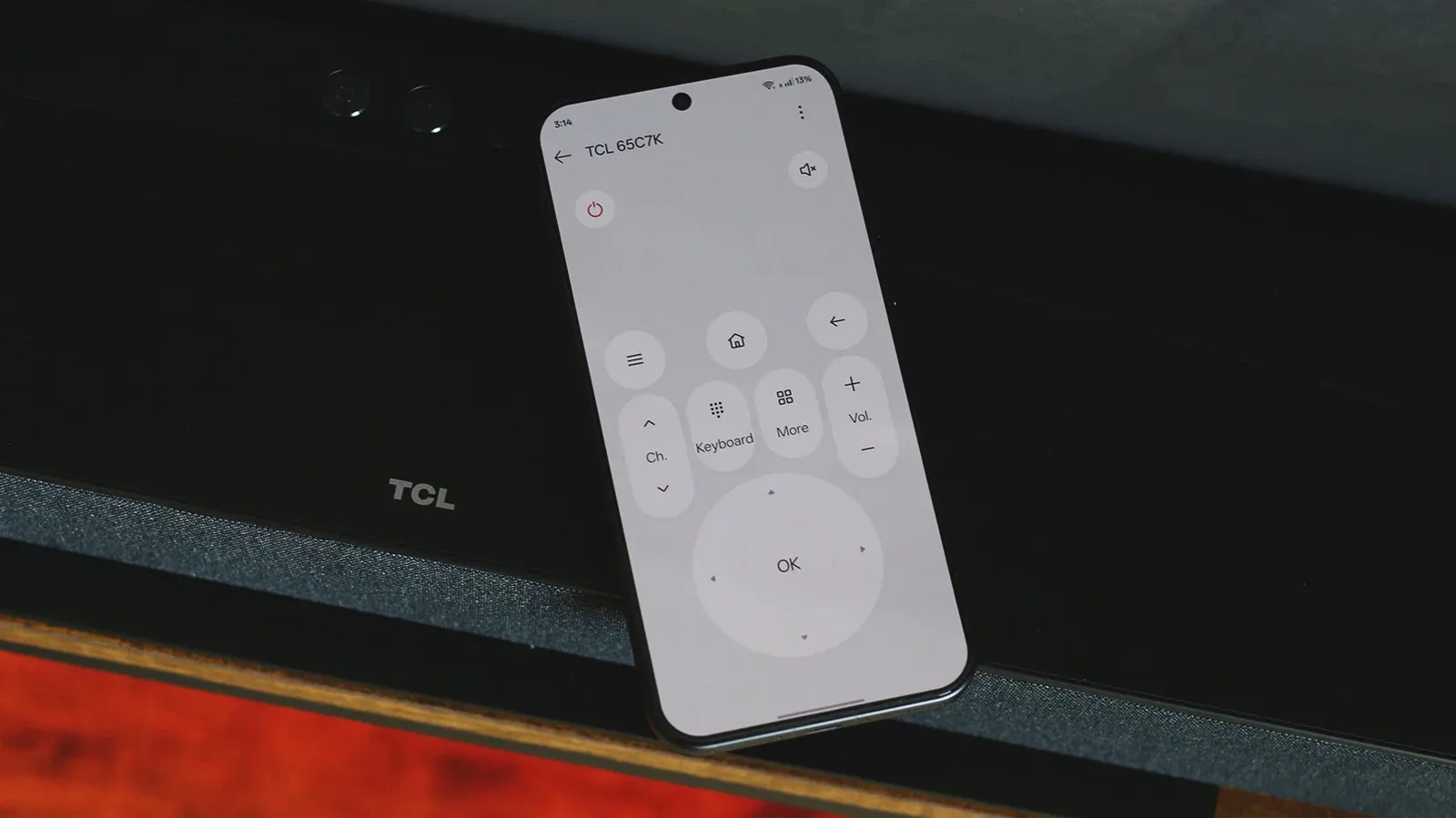
For a living-room setup, the phone can be as valuable a remote-control fallback as the one that came with the TV. If the usual clicker has disappeared between sofa cushions, see how a phone can keep game night and streaming moving without a TV remote.
Setting up the first Sonos speaker
Once the speaker has been connected to power, open the Sonos app and choose Start a new Sonos system. Select Add your speaker. The app should find compatible Sonos hardware and take you through the connection to Wi-Fi.
- Download the Sonos S2 app to a smartphone or tablet.
- Create or sign in to a Sonos account.
- Check that the mobile device is on the intended home Wi-Fi network, not a guest network.
- Connect the speaker to power.
- In the app, choose Start a new Sonos system, followed by Add your speaker.
- Follow the prompts to connect the speaker and enter the Wi-Fi credentials when asked.
- Assign the speaker to a room name, or create a custom label.
Room labels are a small organizational choice that becomes increasingly useful as more devices are added. Sonos provides 22 preset room names, including Bathroom and TV Room, while also allowing custom names. A clear label reduces guesswork later when adjusting volume, choosing where music or game sound should play, or checking which unit needs attention.
Adding more speakers and building a system
After the first speaker is running, the route for another unit is simpler: go to Settings > Add Speaker or Component. Repeat the guided pairing process for each additional device.
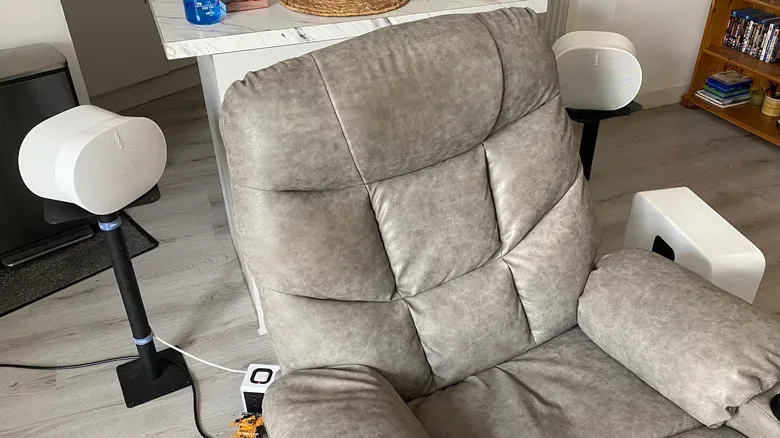
That workflow applies to a straightforward multi-room arrangement as well as the early stages of a bigger home-theater system. However, anyone planning surround sound should note a key compatibility limitation: the surround speakers will likely need to be the same model. In practical terms, a pair of Era 100s is the kind of matched set to plan for; mixing an Era 100 with an Era 300 is not the expectation for a surround pair.
That requirement is useful to consider before purchasing a second speaker. Surround channels carry ambient effects and directional details, so matching models helps keep the left and right rear presentation consistent. It also prevents a system plan from becoming a frustrating trial-and-error exercise after the hardware is already in the room.
Voice control can be added from Settings by scrolling to Add a Voice Assistant, where compatible services include Amazon Alexa. Treat this as optional rather than a requirement for playback: the core setup is about the app, the speaker and the shared network.
When the Sonos app cannot find a speaker
A speaker that is powered on but absent from the app is usually a connectivity problem, not an invitation to immediately erase the device. Work from the least disruptive checks upward. Doing so preserves existing configuration where possible and keeps a factory reset as the genuine last resort.
1. Verify the network, including guest access
First, inspect the Wi-Fi network on the phone or tablet. It should match the one being used for the speaker. Guest networks can block communication between devices, which means an app may fail to discover a speaker despite both being online.
A recently changed router password is another likely cause. If the network credentials changed after the speaker was configured, pairing or reconnection can fail until the system is set up with the current details.
2. Temporarily disable a VPN
A VPN can interfere with communication between the mobile app and a local speaker. If discovery is failing, briefly turn the VPN off, attempt setup again, and restore it afterward if it is not needed for the pairing process. This is a diagnostic step, not a claim that every VPN will cause a problem; it is one variable worth removing when the app cannot find the hardware.
3. Check permissions and updates
On Apple devices, the Sonos app needs permission to find devices on the local network. Without that permission, an iPhone or iPad may be unable to locate the speaker even when the Wi-Fi situation is otherwise correct.
Software updates through the app are also recommended. Keeping the system current is a sensible way to avoid future connection issues, particularly in an ecosystem where the speaker, app and home network all need to communicate reliably.
4. Reboot before resetting
If the app still does not locate the speaker, restart the hardware before considering a factory reset. Unplug the Sonos speaker, wait at least 10 seconds, reconnect it to power, then give it roughly another minute before trying the app again.
This is a reboot, not a reset: it is the lower-risk recovery step and does not carry the stated warning about deleting saved sound configuration.
5. Factory reset only if necessary
When the app continues to show No products found after the earlier checks, a factory reset is the more drastic option. Be aware of the consequence: this process removes saved EQ settings and TruePlay configurations stored on the speaker. Anyone who has already tuned a carefully balanced home-theater setup will want to exhaust the network and reboot checks first.
For speakers with a Bluetooth button, unplug the unit, hold the Bluetooth button while restoring power, and keep holding it while the status light alternates orange and white. The reset is complete when the light flashes green. Older Sonos speakers use the Join button instead, marked with a small sideways-loop symbol. At that point, return to the app and attempt pairing again.
Making Sonos sound better for games and movies
Successful pairing is only the start. The Sonos app contains the adjustments most likely to improve day-to-day listening, from room-specific tuning to bass, treble and home-theater controls. The best approach is conservative: make one modest change, listen for whether it solves the issue you actually have, then adjust further only if needed.
TruePlay: room tuning, explained
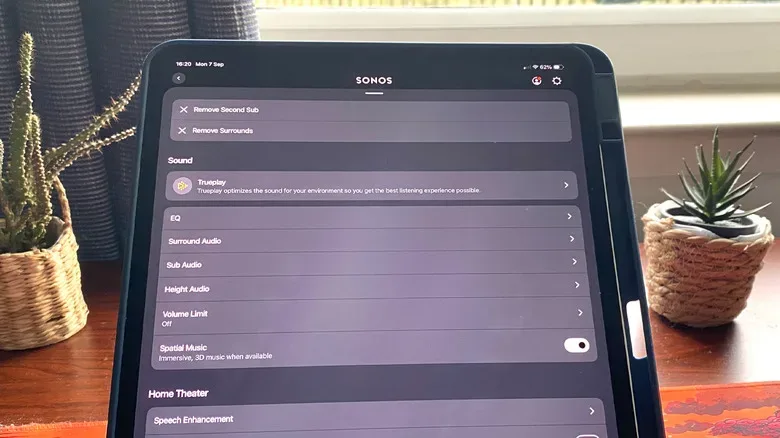
TruePlay is Sonos’ room-analysis feature. The system plays test tones through the speakers while the smartphone’s microphone measures them. As the user moves around the entertainment area, TruePlay evaluates the sound and makes acoustic adjustments based on factors such as furniture placement and how close speakers are to walls.
The purpose is not to create an entirely different speaker. Its more realistic benefit is a more balanced audio profile in a particular room. That matters because the same system can sound different after moving from an open space to a wall-bound TV stand, or after adding furniture that changes how sound behaves in the room.
For a gaming setup, balance can be more useful than sheer output. It can help make a soundtrack, environmental cues and spoken dialogue coexist without treating every moment as an excuse for maximum bass.
EQ: bass and treble without the overcorrection
To reach EQ controls, use Settings > Your System > Speaker > Sound > EQ. EQ, short for equalization, is the adjustment of parts of an audio signal’s tonal balance. Here, the relevant controls include bass and treble, and the sliders run from -15 to +15.
Bass is the low-frequency weight behind explosions, engines and musical impact. Treble is the high-frequency range that can contribute to crispness and detail. Neither needs to be pushed far to make an audible difference. Small changes are the sensible starting point because aggressive boosts can overwhelm other elements rather than improve them.
Subwoofer output is available among the controls for applicable systems. There is a practical neighborly warning here: keeping a Sonos sub at +5 or below is advised. Bass travels easily, and the goal of a home setup is convincing sound in the room, not unplanned participation from the next apartment or house.
Surround, height audio and dialogue controls
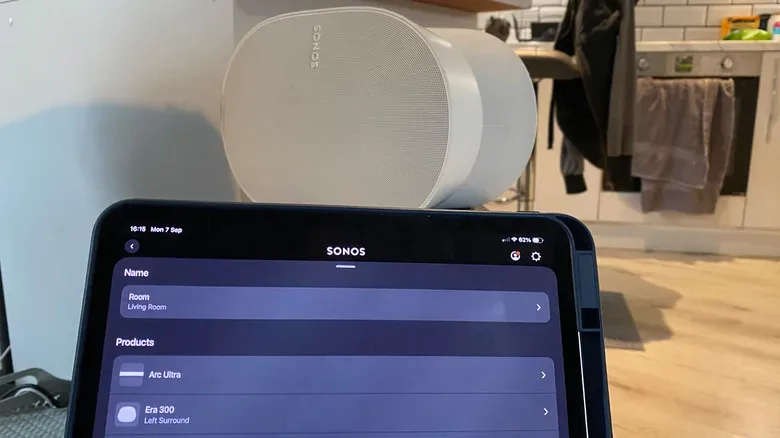
The app also provides adjustments for surround audio and subwoofer output. Owners of a spatial-audio soundbar such as the Sonos Arc Ultra can adjust height audio settings in connection with Dolby Atmos placement and configuration.
Dolby Atmos is an audio format associated here with spatial or height sound. In a compatible soundbar setup, the height controls concern the upper portion of that presentation. Placement still matters, because the room and where the soundbar sits relative to walls affect the result; app settings are tools for refinement, not a substitute for putting the hardware in a sensible location.
Two home-theater options are particularly practical. Night Sound can reduce noise levels when a late session needs to be less disruptive. Speech Enhancement is aimed at helping voices stand out when dialogue is being masked by effects from surround speakers. The latter is useful beyond movies: games with frequent mission briefings, conversations or story scenes can suffer when effects are louder than the words players need to hear.
A sensible order for troubleshooting and tuning
If a Sonos system is misbehaving, avoid changing everything at once. First establish that the app and speaker share a non-guest network. Check router-password changes, VPN status and, on iPhone or iPad, local network permission. Reboot the speaker if needed. Only then consider a factory reset.
Once the connection is stable, use TruePlay for room-aware balancing, then make restrained EQ adjustments. Finally, use Night Sound or Speech Enhancement for the specific situation at hand. That sequence keeps the technical work manageable and avoids wiping a tuned configuration just to solve what may have been a simple network mismatch.