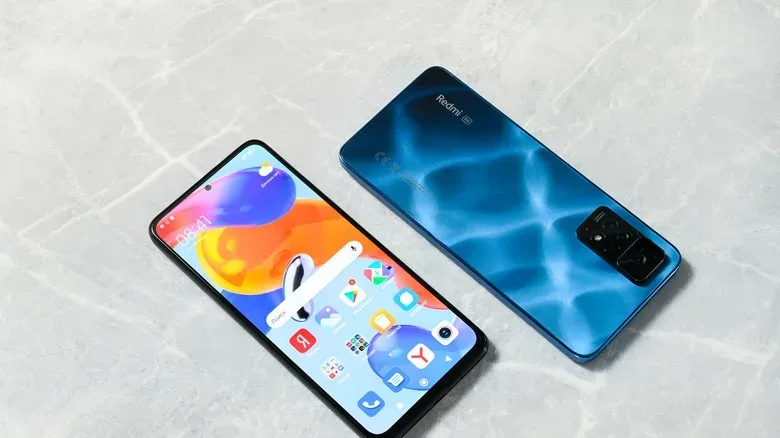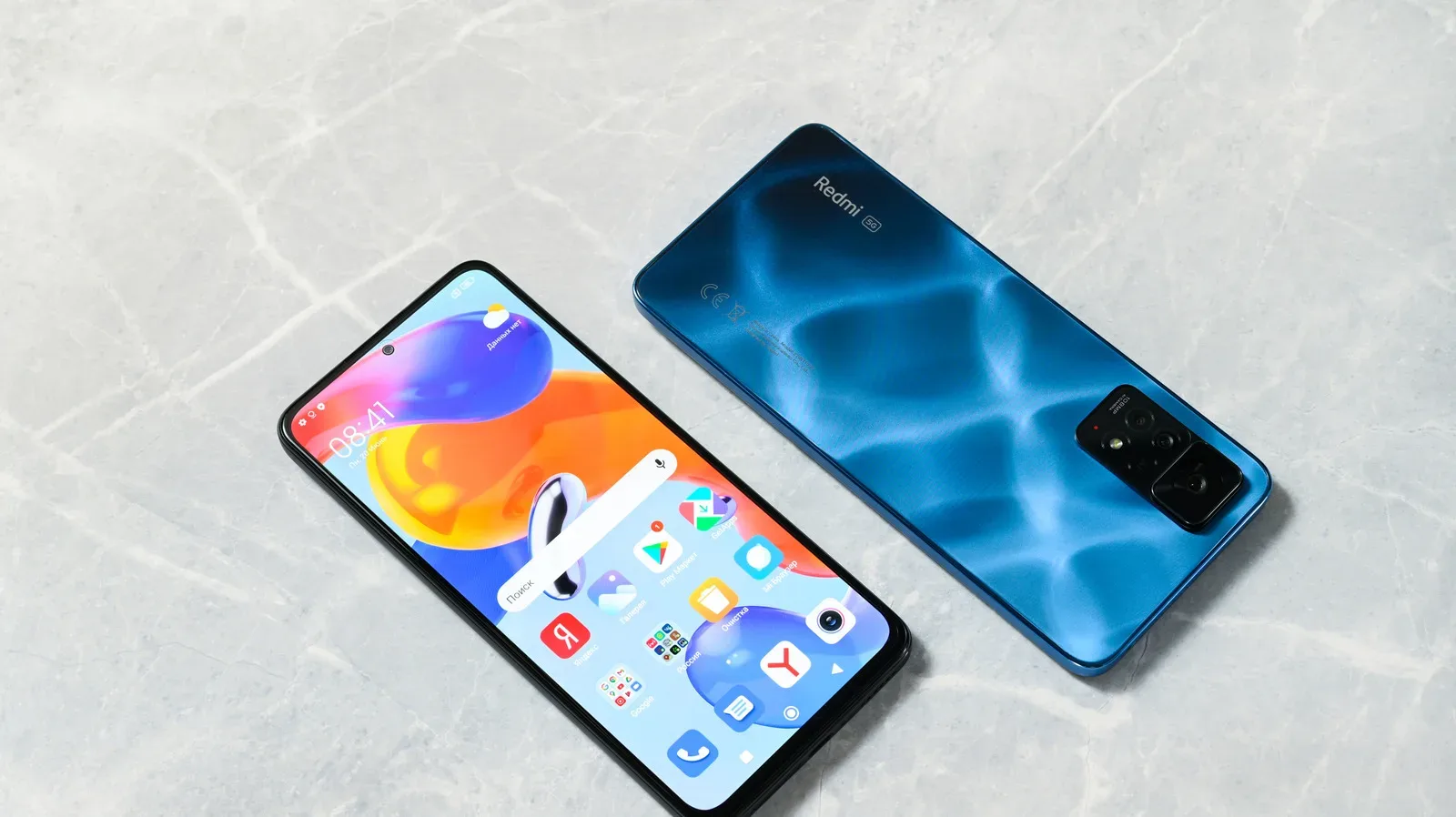
For people who use a phone as a handheld gaming screen, music player, browser and all-purpose gadget, an advertisement inside File Manager or a recommendation panel in Downloads can feel like an unwanted pop-up from a very determined side quest. Xiaomi phones can show commercial content in several parts of their software, including first-party apps and some system-adjacent areas. That approach helps Xiaomi support lower hardware prices, but it also means the cleanup is not one switch, one menu or one guaranteed identical experience across every handset.
The good news is that Xiaomi provides several controls that can substantially reduce the number of ads and personalized recommendations seen in its software. The important caveat is that names and locations differ between MIUI and HyperOS, and individual apps may retain their own recommendation settings even after the broader controls are disabled.
This guide focuses on the settings supplied by Xiaomi and Android rather than third-party tools. Take a few minutes, work through each area, and expect wording to vary slightly with software version.
Why Xiaomi’s ads appear in more than one place
Xiaomi is a major Android phone brand outside the US, where its phones are comparatively uncommon. A defining part of its value proposition is lower-priced hardware, with advertising integrated into the software experience helping offset costs. The result is that ads are not necessarily confined to a single optional app. They may surface in apps for files, downloads, themes, music, browsing and device maintenance.
That distribution explains why simply dismissing one promotional card does not solve the larger problem. The system’s advertising service is one layer, ad personalization is another, and individual Xiaomi apps can have their own settings for ads, recommendations or personalized services.
MSA means MIUI System Ads. It is the authorization most closely associated with Xiaomi’s system advertising. Personalized ads, meanwhile, refers to ad recommendations tailored using information connected to advertising personalization. Turning that option off is a privacy-oriented reduction in personalization; it is not the same thing as guaranteeing that every commercial message disappears.
Start with the broad Xiaomi advertising controls
The most useful first move is to revoke authorization for MSA. On MIUI, open Settings > Passwords & Security > Authorization & revocation, then switch off msa.
HyperOS can present this route under a different label. On a HyperOS phone, including the Xiaomi 17 example, begin with Settings > Fingerprints, face data, and screen lock > Authorization & revocation, then turn off msa.
After that, return to the relevant security section and visit Privacy > Ad Services. Disable Personalized ad recommendations, or Personalize ads where that is the label shown on the device.
- MIUI route: Settings > Passwords & Security > Authorization & revocation > turn off msa.
- HyperOS route: Settings > Fingerprints, face data, and screen lock > Authorization & revocation > turn off msa.
- Then: use the security area’s Privacy section, open Ad Services, and disable personalized ad recommendations or ad personalization.
These two changes address the wider advertising framework, but they should be treated as the beginning of the job, not the finish. Xiaomi’s bundled applications can each expose their own promotional content controls.
Turn off recommendations inside Xiaomi apps
Downloads and Themes
Open the settings within the Downloads app and turn off Show Recommended Content. In the Themes app, use its settings to disable both Personalized recommendations and Show ads.
These options are worth checking separately because recommendations in an app can remain visible even when broader ad personalization has been disabled. The wording matters: “recommended content” and “recommendations” are the labels to look for, rather than assuming every app uses an identical “ads” toggle.
Music and Mi Browser
In Xiaomi’s Music app, go to Settings > Advanced Settings and turn off Show Ads. In Mi Browser, open Settings > Privacy and Security, then disable Personalized services.
It is useful to think of these as app-specific decisions. The Music switch directly concerns ad display. The Browser option is titled “Personalized services,” so it is an adjacent control aimed at reducing personalization rather than a promise that the browser will no longer show every form of promotional material.
Security and Cleaner need two separate checks
The Security app takes a slightly less obvious route. Open the app, select the hexagon-shaped icon in the top-right corner, and turn off Receive recommendations. Then enter Cleaner from within Security and turn off Receive recommendations there as well.
The duplicated step is easy to miss. Security and its Cleaner component may each have a recommendation control, so disabling only the first one may leave another stream of suggestions active. If the aim is a quieter phone interface, check both before moving on.
File Manager differs between MIUI and HyperOS
File Manager is another place where Xiaomi’s software generation changes the route. On older MIUI phones, tap the three-line button at the upper left, then choose Settings > About and turn off Recommendations.
On a newer Xiaomi phone using HyperOS, open File Manager, tap the three-dot button in the upper-right corner, select Settings, then enable Withdrawal of Consent. That is the available route for reducing this material on the newer software described here.
- Older MIUI: File Manager > three lines > Settings > About > Recommendations off.
- HyperOS: File Manager > three dots > Settings > Withdrawal of Consent.
Because menus can differ across releases, it is sensible to follow the labels visible on the handset rather than force a route meant for another Xiaomi software version. A missing toggle does not mean it has been overlooked; it may have been renamed, moved or replaced.
Reduce ad-personalization data through Google settings
There is one further Android-level housekeeping step available if the options appear on the phone. Go to Settings > Google > All Services and choose Reset advertising ID and Delete advertising ID.
An advertising ID is used in ad-personalization systems. Resetting or deleting it can reduce the data connected to that personalization. This does not operate as a universal ad blocker, and it does not replace the Xiaomi-specific switches above. It is better understood as an additional privacy setting alongside them.
For phone gaming, a clean software setup is only one part of avoiding distractions. Connection quality can be a separate issue entirely; this guide to Ethernet or Wi-Fi for gaming explains why the best home setup may involve both rather than treating one as an automatic winner.
Use notification controls carefully
If an app continues delivering promotional prompts, Xiaomi’s app notification controls provide a blunt but effective option. Navigate to Settings > Apps > Manage Apps, select the app, and switch off its notifications.
There is a trade-off: this will block useful notifications from that app as well as advertising. A music app might lose playback-related alerts; a downloads app might stop informing you that a file has completed. In other words, notification blocking is best reserved for apps whose alerts are mostly unwelcome, rather than used as an automatic last step for everything.
A practical order for the cleanup
- Disable msa through Authorization & revocation.
- Disable personalized ad recommendations or ad personalization in Ad Services.
- Review Downloads, Themes, Music and Mi Browser individually.
- Check both Security and Cleaner for their separate recommendation settings.
- Use the File Manager method that matches MIUI or HyperOS.
- Optionally reset and delete the Google advertising ID where those settings are available.
- Only then consider disabling notifications for particular apps, knowing that legitimate alerts will be lost too.
The key expectation is reduction rather than an absolute guarantee of silence. Xiaomi’s menus make it possible to cut back ads and recommendation-driven content substantially, but the controls are distributed across system settings and bundled apps. Once those layers are handled methodically, the phone should feel less like it is trying to sell something every time a utility app is opened.