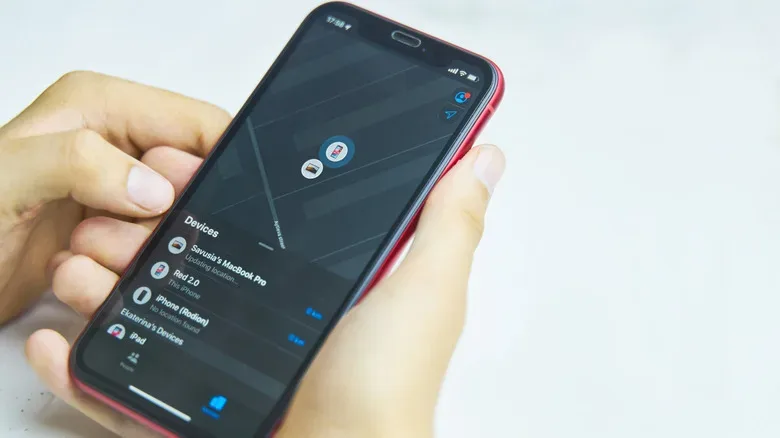
Losing an iPhone is an instant side quest nobody asked to unlock. The usual plan is simple enough: open Find My from another Apple device or the web, check the map, play a sound, and recover the phone from beneath a sofa cushion, a car seat, or the counter where it was abandoned during a particularly distracted snack run.
That plan becomes more complicated if the iPhone has been switched off or its battery has run down. It is not necessarily the end of the trail, however. Compatible iPhones can remain findable for a limited period after power-off, and they can preserve a last known location for longer. The important catch is that this capability relies on settings that need to be enabled before the phone vanishes.
For people who use an iPhone as a gaming companion, travel device, camera, wallet, or all-purpose communications hub, a few minutes of preparation can make a stressful loss far more manageable. Here is what the relevant options do, how the time limits work, and what to do once an iPhone is missing.
Find My and Find My network are not the same switch
The names are close enough to cause confusion, but they describe connected features with distinct jobs.
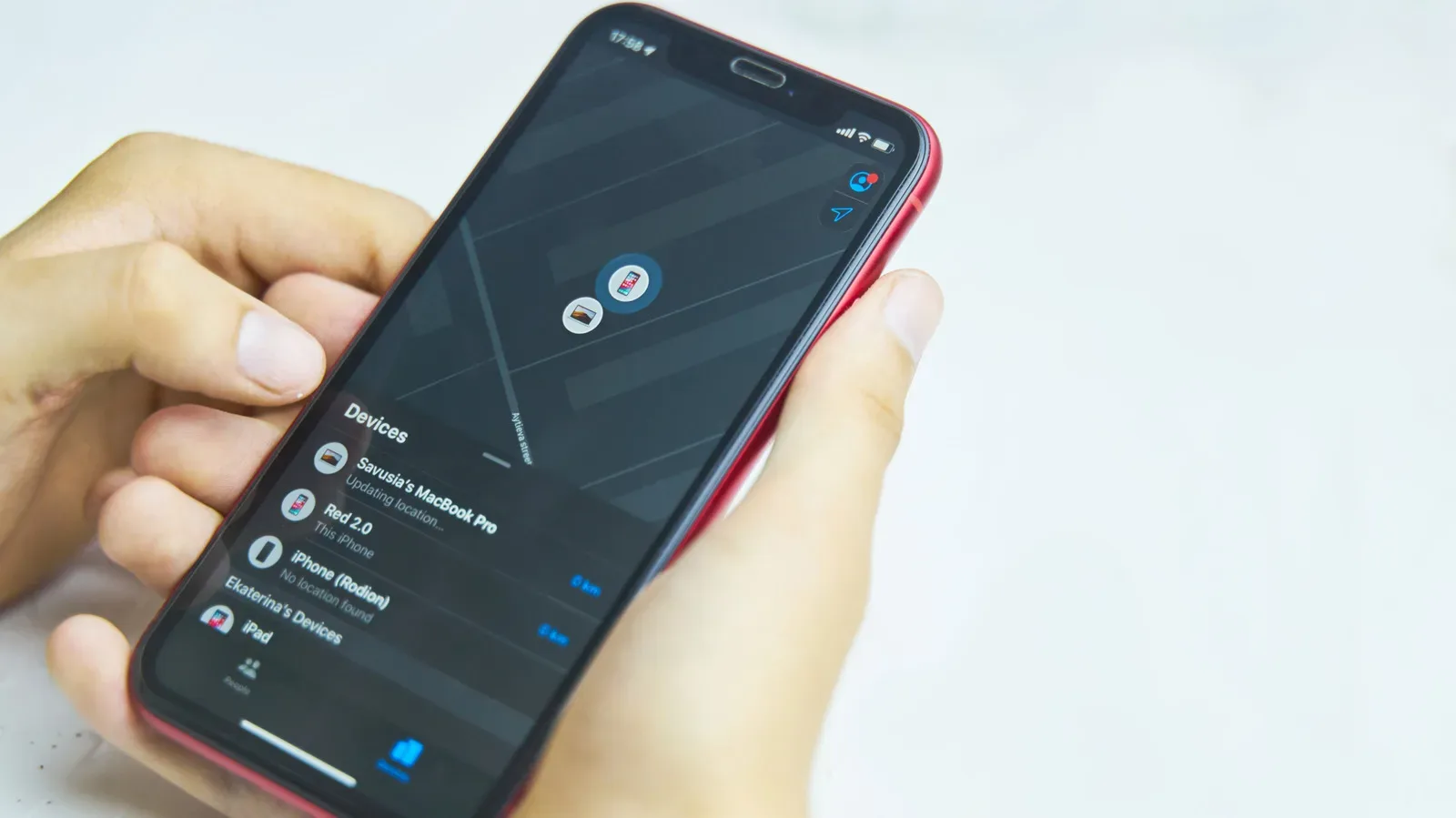
Find My is the Apple app and service used to see the location of devices, activate Lost Mode, and manage other recovery actions. It is the screen a person typically opens when trying to locate an iPhone, iPad, Mac, AirTag, or compatible accessory.
Find My network is the broader crowdsourced Bluetooth network that helps compatible Apple hardware report a device’s approximate location even when that device cannot connect to Wi-Fi or cellular data itself. Nearby Apple devices can detect the low-power Bluetooth signal and securely relay location information into Find My.
That second part matters when an iPhone is offline, in Power Reserve, or turned off. Enabling Find My alone is not the same as enabling the network feature needed for this more resilient kind of recovery.
Check the three key recovery settings now
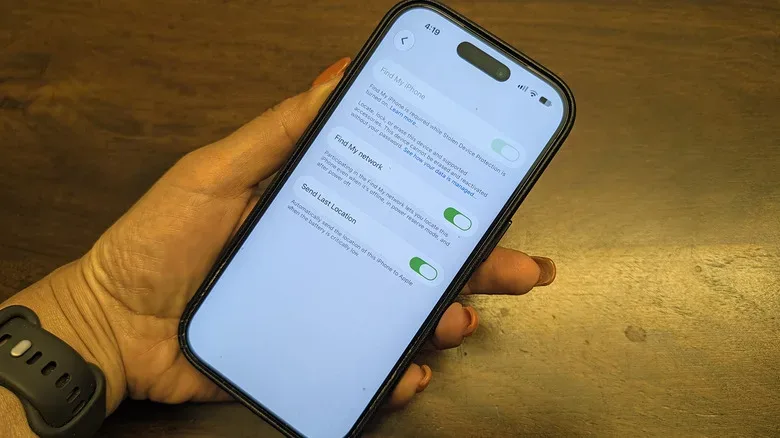
On the iPhone you want to protect, open Settings, tap your name at the top, and go to Find My, then Find My iPhone. Check that these options are switched on:
Related coverage includes How to Find an iPhone After It’s Turned Off or Out of Battery.
- Find My iPhone, the primary device-location feature.
- Find My network, which permits discovery when the phone is offline, in Power Reserve, or shut down.
- Send Last Location, which sends the device location to Apple as the battery becomes critically low.
There are other supporting requirements. Location Services should be enabled under Settings > Privacy & Security > Location Services. Bluetooth should also be active under Settings > Bluetooth. For an iPhone’s last location to be available in this situation, it also needs to have reported a location to Find My during the previous seven days.
It is worth doing this check while everything is calm, charged, and very much not missing. Similar forward planning can give old hardware a useful second act, too; a retired phone can become a DIY security camera rather than gathering dust in a drawer.
How to confirm the iPhone is findable after shutdown
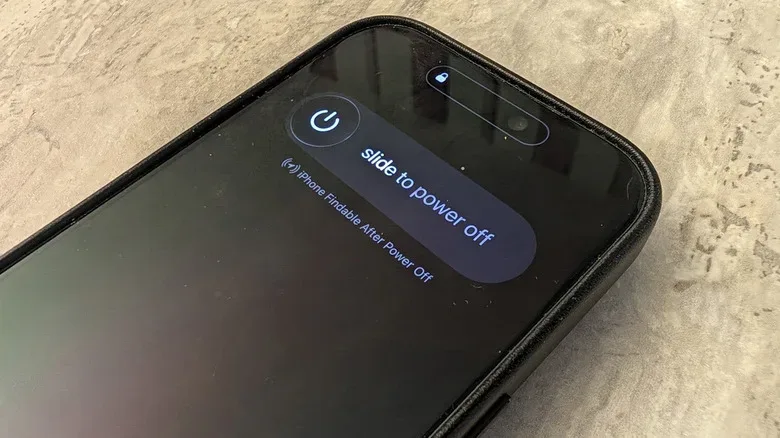
There is a fast way to verify whether the device is configured to remain discoverable after being switched off. Swipe down from the top-right corner to open Control Center, press and hold the power button in its upper-right area, and wait for the shutdown screen. Beneath the power-off slider, a compatible and properly configured phone should display a notice indicating that the iPhone remains findable after power off.
That wording is a valuable pre-flight check. If it does not appear, revisit the Find My settings rather than discovering the problem after the phone has gone missing.
Not every iPhone qualifies for the powered-off tracking behavior. The feature applies to an iPhone 11 or later with an ultra-wideband chip and at least iOS 15. iPhone SE models and the “e” models are excluded from that hardware group. Power Reserve behavior after a fully depleted battery requires compatible devices running iOS 15.2 or later.
What “off” means for tracking, and how long it can last
An iPhone that appears off is not always entirely inert. The practical recovery window changes depending on whether somebody deliberately powered it down while charge remained, or whether the battery reached zero.
If the iPhone was manually switched off
When a compatible iPhone is turned off with battery capacity still available, it may remain locatable for approximately 24 hours after shutdown. The phone is not operating normally during that time, so this should not be treated like a promise that every standard feature will work. Rather, the Find My network can use the remaining power to help make the device discoverable.
That is especially relevant in a theft scenario. Switching a phone off may be among the first things a thief tries, but shutting it down is not automatically the same thing as making it invisible, provided the correct settings were already active.
If the battery reaches zero
A phone at zero percent can still retain a small reserve for specific functions. On compatible iPhones with iOS 15.2 or newer, Power Reserve can last around five hours. This is different from Low Power Mode, which is the battery-saving mode used while the iPhone is still running normally.
In Power Reserve, the phone uses its remaining energy sparingly. Certain Apple Wallet items, including supported car keys and transit cards, can remain usable. The device can also broadcast a low-power Bluetooth signal that nearby Apple devices may detect, much like the principle used by an AirTag. That is the mechanism that can provide a location after the main battery display has already reached zero.
The time ranges are useful expectations, not guarantees of a successful recovery. Discovery depends on compatible hardware, the right software and settings, remaining reserve power, and nearby Apple devices capable of receiving the Bluetooth beacon. A phone lost somewhere with little foot traffic may have fewer opportunities to be detected than one left in a busy station, office, or café.
The seven-day last-location safety net
When the active findable period ends, Find My may still show the iPhone’s most recent known location for up to seven days. That point could be exactly where the device was left behind, or it could be the final place it reported from before somebody moved it.
A last known location is not live tracking, so treat it carefully. It can be a useful starting point for retracing steps, contacting a venue’s lost-property desk, or determining whether the phone might be at home, work, an airport, or another familiar stop. It is not proof that the iPhone is still there.
After more than seven days, Find My can show “No Location Found.” At that stage, recovery options become much more limited. This is why acting promptly matters: the map may offer the clearest lead shortly after a loss, not a week later.
Limit easy lock-screen interference
A person holding an unlocked iPhone can change settings, but there is a useful precaution for the locked state. Go to Settings > Face ID & Passcode, scroll to Allow Access When Locked, and disable Control Center.
This makes it harder for someone who has the phone but not the passcode to quickly open Control Center from the lock screen and enable Airplane Mode. It does not stop them from powering the phone off. Still, a powered-off compatible phone with Find My network enabled can have a temporary recovery path; an iPhone disconnected through Airplane Mode is a less favorable situation.
Siri can remain enabled if preferred. Sensitive commands such as turning on Airplane Mode require the phone to be unlocked, so leaving Siri available does not provide a simple bypass for that control.
What to do as soon as the iPhone is missing
Use Find My on another trusted Apple device or sign in through the web to locate the iPhone. If the device is nearby and still has normal power, playing a sound can help even if it is set to silent. If it is not nearby, check the available location information and move immediately to secure the device.
- Mark the iPhone as lost. Lost Mode can display when the phone is powered on again.
- Add a contact message if appropriate. A clear return method may help in an honest lost-property situation.
- Keep Find My active. Do not remove the missing device from the account in the hope that doing so will help recovery; retaining it preserves the protection tied to the phone.
- Use Stolen Device Protection where available. With this feature enabled, Face ID or Touch ID is required to turn off Lost Mode.
Find My should generally remain enabled for the life of an iPhone. The normal exceptions are legitimate ownership transitions: selling it, trading it in, or giving it away. Outside those situations, leaving it on supports recovery for the phone and helps prevent someone else from repurposing a stolen device. It also keeps the iPhone ready to help locate AirTags and other compatible Find My items.
There is no setting that makes a missing phone magically invulnerable, and no map pin is a reason to take risks while confronting a suspected thief. But enabling Find My network, Send Last Location, Location Services, Bluetooth, and the lock-screen Control Center restriction gives an iPhone a much better chance of leaving a breadcrumb trail when the battery meter—and the owner’s luck—runs out.